A project file by hand
Going further
Optional: not part of the timed workshop. It is one of the lessons of Going further.
Overview
Questions
- How do I turn a table in a folder into a Depictio project?
- How do I check what will happen before anything is sent?
Objectives
- Read a project file of one table.
- Run a dry run, then the ingestion, with a starter dashboard.
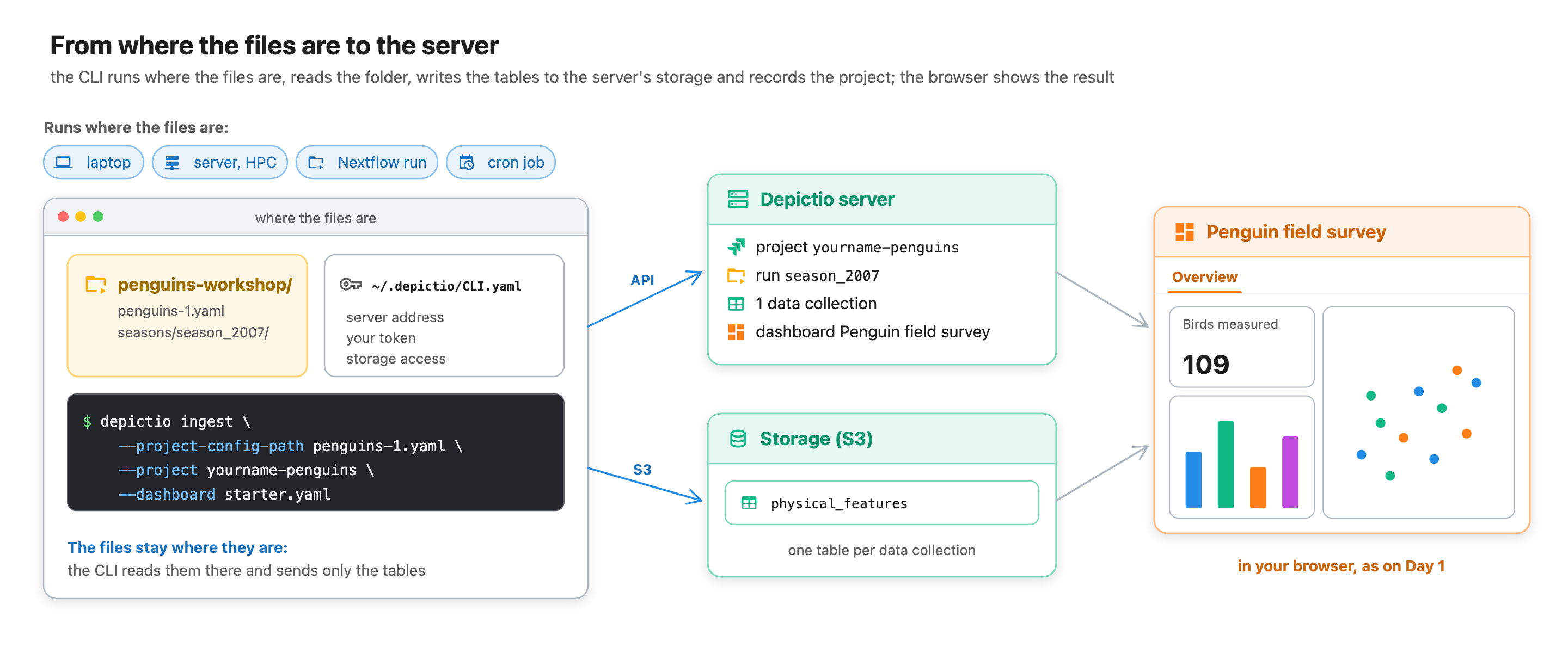
In the optional episode of the browser course on files, you uploaded the penguin tables in the browser. Here the CLI reads them where they are: in a folder on your computer today, on a server or a cluster just as well. A short project file tells it which file makes which table.
Get the files
Download penguins-workshop.zip: your browser saves it in ~/Downloads. Move it to the workshop folder of episode 0, unzip it there, and go into the folder it makes:
mv ~/Downloads/penguins-workshop.zip ~/depictio-workshop/
cd ~/depictio-workshop
unzip penguins-workshop.zip
cd ~/depictio-workshop/penguins-workshop
The three lessons of Going further run in this folder, ~/depictio-workshop/penguins-workshop: the project files name the season folders relative to it.
~/depictio-workshop/penguins-workshop/
├── penguins-1.yaml      this lesson: one table
├── penguins.yaml        A new season: two tables, a link, any season
├── starter.yaml         a starter dashboard
└── seasons/
    ├── season_2007/     demographic_data.csv, physical_features.csv
    └── season_2008/     the same two files, for 2008
Read the project file
Open penguins-1.yaml in a text editor. Each line carries a comment that says what it does:
name: "Penguins field seasons"            # the project; --project gives it your own name [[1]]
workflows:                                # where the tables come from: one source here [[2]]
  - name: "field_survey"                  # its name: dashboards refer to it [[2]]
    engine:                               # required: what produced the files [[2]]
      name: "field-survey"                #   free text; any name but "python" gives the Runs tab [[2]]
    data_location: [[3]]
      structure: "flat"                   # flat: each folder under locations is one run [[3]]
      locations:                          # relative to the folder you run depictio in [[3]]
        - "seasons/season_2007"           #   one folder, so one run: season_2007 [[3]]
    data_collections:                     # the tables, one entry each [[4]]
      - data_collection_tag: "physical_features"  # the table's name in Depictio [[4]]
        config: [[4]]
          type: "Table" [[4]]
          metatype: "Aggregate"           # the rows of every run add up in one table [[4]]
          scan: [[5]]
            mode: "recursive"             # look in the run folder and its subfolders [[5]]
            scan_parameters: [[5]]
              regex_config: [[5]]
                pattern: "physical_features.csv"  # the file that makes the table [[5]]
          dc_specific_properties: [[6]]
            format: "CSV"                 # how to read the file [[6]]
- The project: its name.
--projectgives it your own name on the server. - A workflow: one source of results;
enginesays what produced them. - Where the files are: one folder is one run, read from the folder you run the command in.
- A data collection: the table's name in Depictio;
Aggregateadds up the rows of every run. - Which file: searched in the run folder by its name.
- How to read it: a CSV file.
Two words come back in every lesson:
- A run is one folder of results. With
structure: "flat", each folder listed underlocationsis one run, named after the folder: hereseason_2007. The next lesson addsseason_2008as a second run of the same project. (The other structure,sequencing-runs, is for one folder that holds a subfolder per run.) - A data collection is one table in Depictio, made from the file that
patternfinds in each run.metatype: "Aggregate"stacks the rows of every run in that one table.
engine is required. For a pipeline it names the pipeline; for a field survey any name does, as long as it is not python: the browser keeps that name for the projects it builds itself, and shows them without a Runs tab.
Dry run
Give the project a name of your own: names are unique on the server.
$ depictio ingest --project-config-path penguins-1.yaml \
    --project yourname-penguins --dashboard starter.yaml --dry-run
✓ Project configuration is valid (checked locally; a dry run does not contact the server) [[1]]
• Would create project 'yourname-penguins' on the server [[2]]
│ physical_features │ recursive │ physical_features.csv │ 1     │ [[3]]
• Would import 1 dashboard(s)
✓ Dry run complete (8/8 steps): the configuration is valid, and nothing was changed. [[4]]
The dry run reads the file and the folder where they are:
- A valid file, checked on your machine.
- The project it would create: it is not on the server yet.
- The files each table finds: here 1,
physical_features.csv. Read this count before ingesting. - Nothing sent: all 8 steps checked, nothing changed.
It still needs your CLI.yaml: without one it refuses to run, although it does not contact the server.
Challenge 1.1: a typo
In penguins-1.yaml, change the pattern to physical_feature.csv (no s) and run the dry run again. What changes? Put the s back.
Solution
The table now finds 0 files, and the dry run warns: 1 data collection(s) would match no file: physical_features. Check DATA_DIR and the scan patterns before running for real. It still ends with Dry run complete: read the counts and the warnings, not only the last line.
Ingest
The same command without --dry-run:
$ depictio ingest --project-config-path penguins-1.yaml \
    --project yourname-penguins --dashboard starter.yaml
…
✓ Project created on server
✓ Data collection 'physical_features' processed successfully.
✓ Dashboard created: Penguin field survey
• Project: https://…/projects/…
• Dashboard 'Penguin field survey' created: https://…/dashboard/…
✓ Ingestion completed successfully! (8/8 steps)
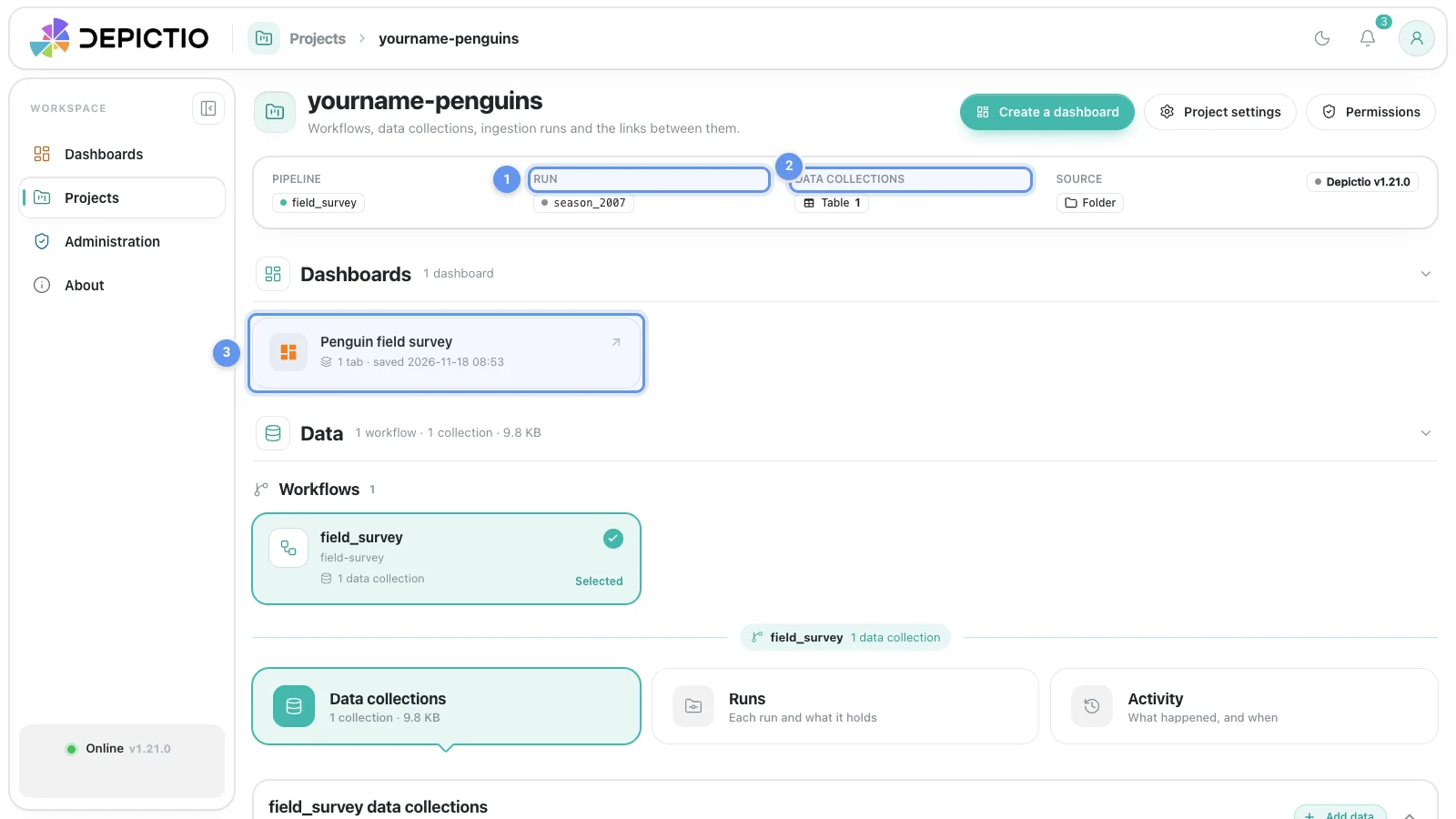
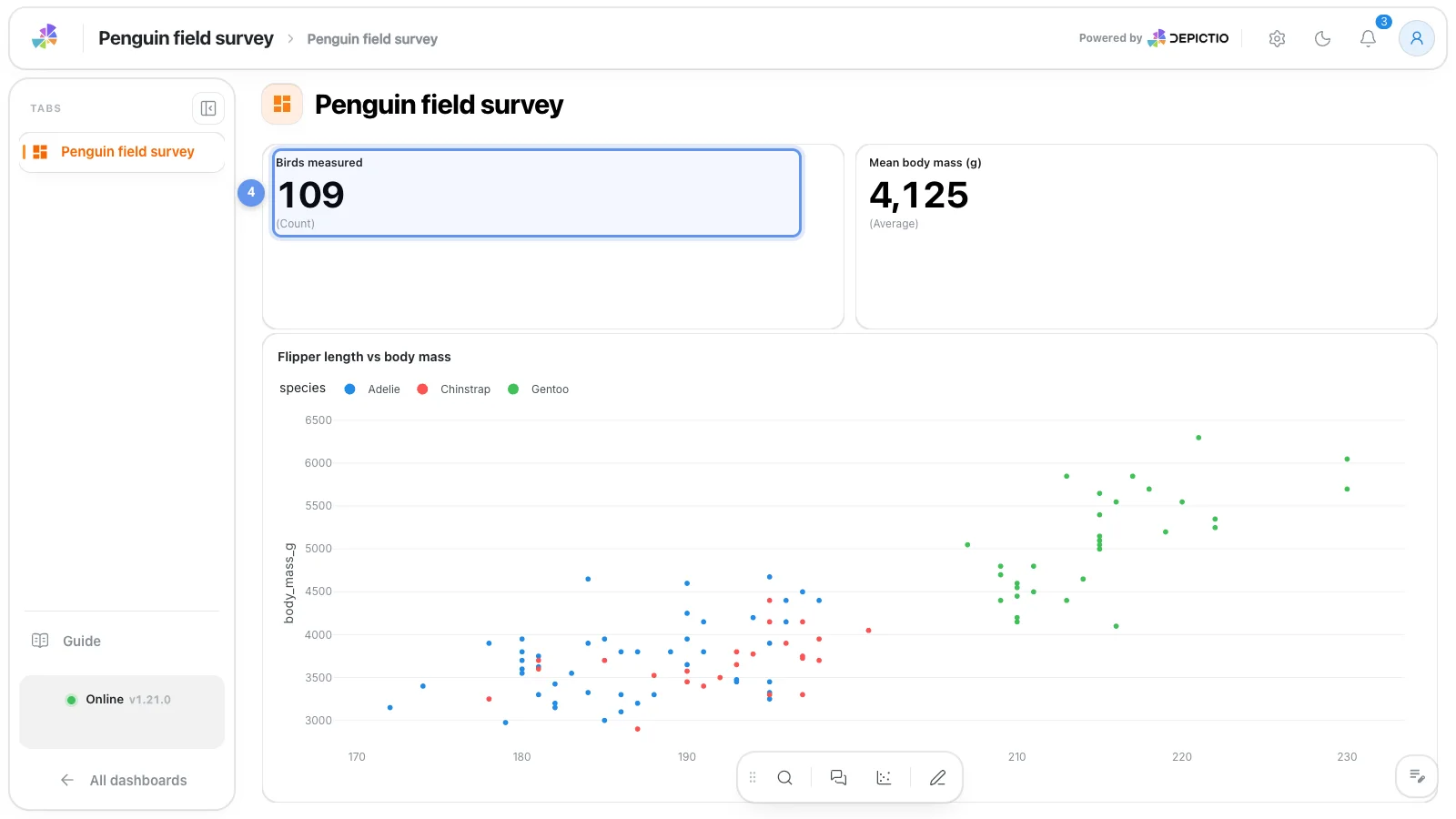
--dashboard adds the dashboard described in starter.yaml: two cards and a scatter. Open the Project link the CLI printed:
Then open the dashboard (3):
Challenge 1.2: ingest it again
Run the same depictio ingest command a second time, without --dry-run. What does the CLI answer? What has changed in your project?
Solution
Nothing changes: the CLI stops before sending anything, with Project 'yourname-penguins' already exists on this server. Ingest again with --update-config to refresh it in place, or with --attach-run to add the data locations this configuration lists as an additional run of that project. A project is created once; the next lesson, A new season, uses these two options.
Key points
- A project file lists the runs (the folders under
locations, relative to where you run the command) and the data collections (one table each, found bypattern). --dry-runreads the file and the folders where they are and counts the files each table finds; it sends nothing. Read the counts before ingesting.depictio ingestcreates the project once:--projectgives it your own name,--dashboardadds a dashboard from a YAML file. Running it again is refused.