Tool Studio (v1.9.0+)
Depictio Tool Studio contributes a tool to the
Tools Catalog from the browser: drop one of the tool's output files,
bind its columns in depictio's own component builder, and the app opens the pull request
against depictio/depictio for you.
It runs entirely in the page, which is what makes it worth using: nothing to install, no server to reach, and your file is parsed locally and only leaves the browser if you choose to open the pull request.
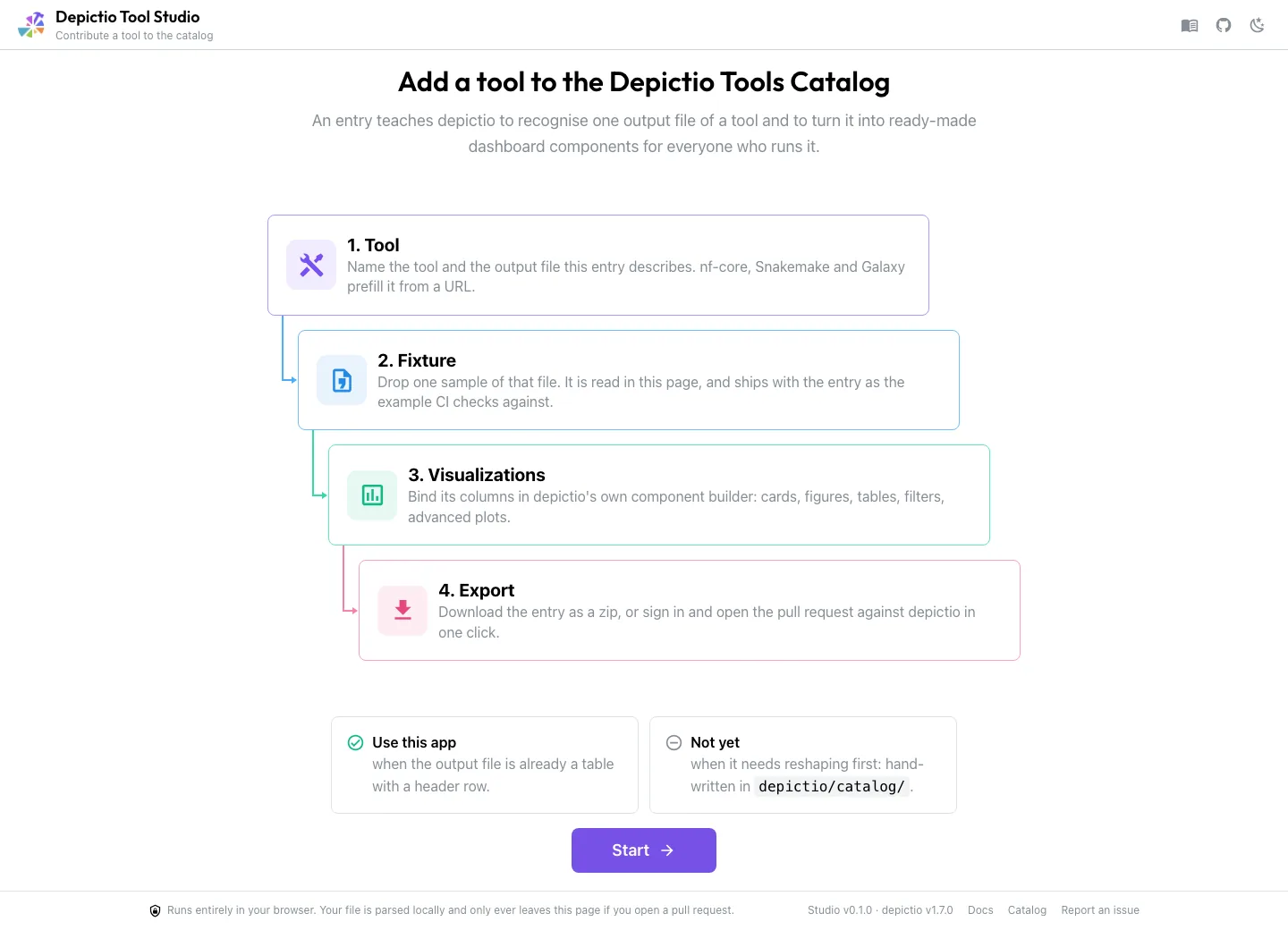
Which route
A catalog entry is three files in a folder: module.yaml (which tool), <output>.yaml
(which file, and what to render from it), and a small fixture that grounds the bindings.
Your output file decides who writes them.
Already a table Tool Studio
A header row and one record per line. The Studio parses it, infers the columns, and everything downstream just works.
Needs reshaping hand-authored
The entry needs a recipe to tidy the file first. Half the committed catalog outputs are in this case, and the Studio cannot write one.
The Studio says which of the two you are in on its start screen, rather than three steps in with a file that will not parse.
1. Tool
Identity on the left, the single output this entry describes on the right.
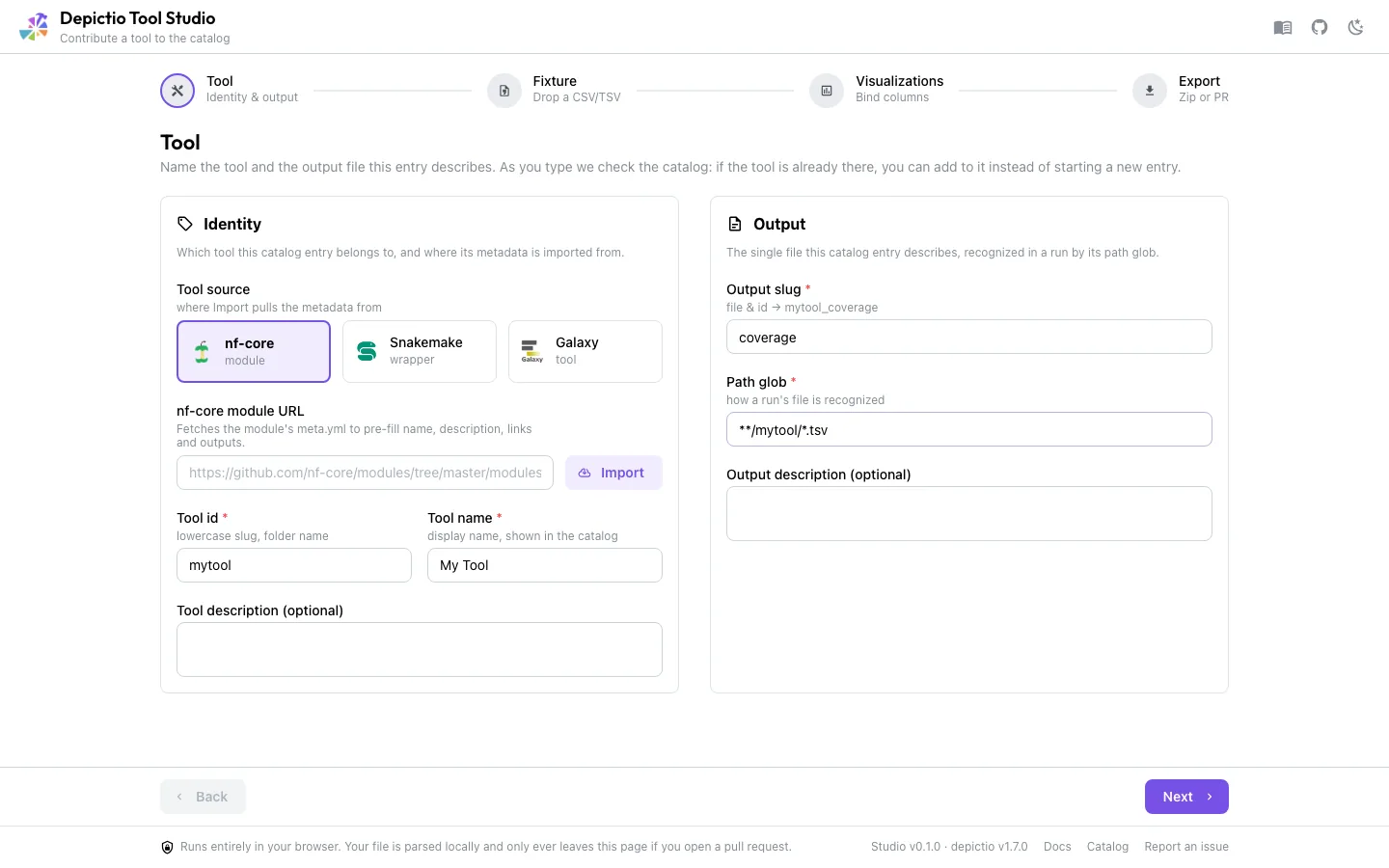
path_glob is the load-bearing field, since it is how depictio recognises the file in a real run.A new tool needs six fields before Next unlocks: the tool id and name, the tool
description and homepage, and the output slug and path glob. The description and the
homepage are what the tool's catalog card shows, and catalog validate rejects a module
without them, so the Studio asks for them up front rather than letting the pull request
fail in CI.
Tool source imports metadata from an nf-core module, a Snakemake wrapper or a Galaxy tool. Paste the URL and press Import.
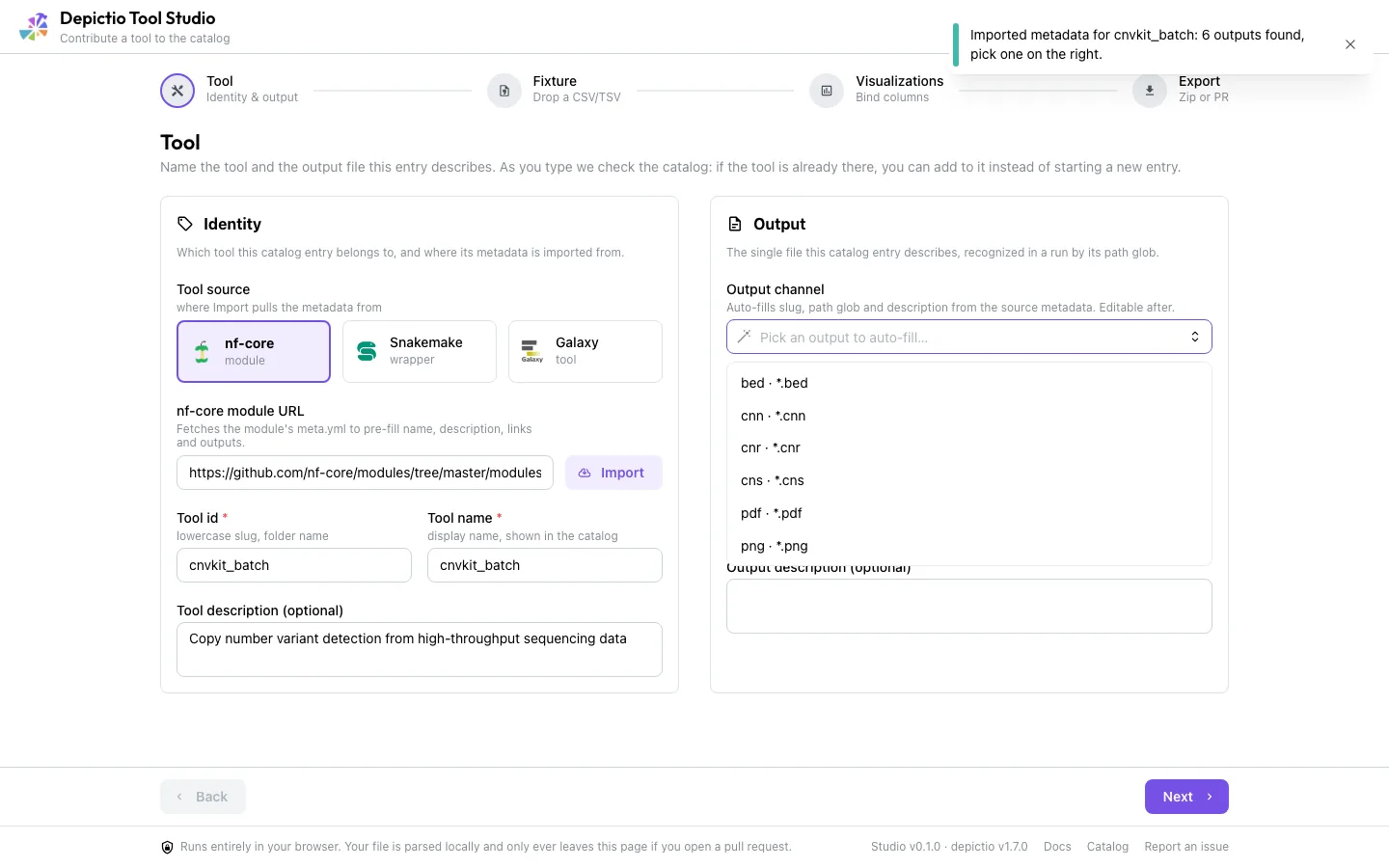
meta.yml straight from raw.githubusercontent.com and offers every output channel it declares.An nf-core import also fills the tool's identity from meta.yml: the description, the
homepage (falling back to tool_dev_url, then documentation, when meta.yml leaves
homepage empty) and the bio.tools link from the biotools: identifier. Choosing an
output fills the Output slug, the Path glob and the output description. Import is
a convenience, not a requirement: typing the fields yourself produces an equally valid
entry.
Two checks run while you type, and either one may change what you do next.
If the tool is already in the catalog
Recognition runs on every keystroke, against a build-time snapshot of the committed catalog, matching on the nf-core module path first, then the id, then the display name.
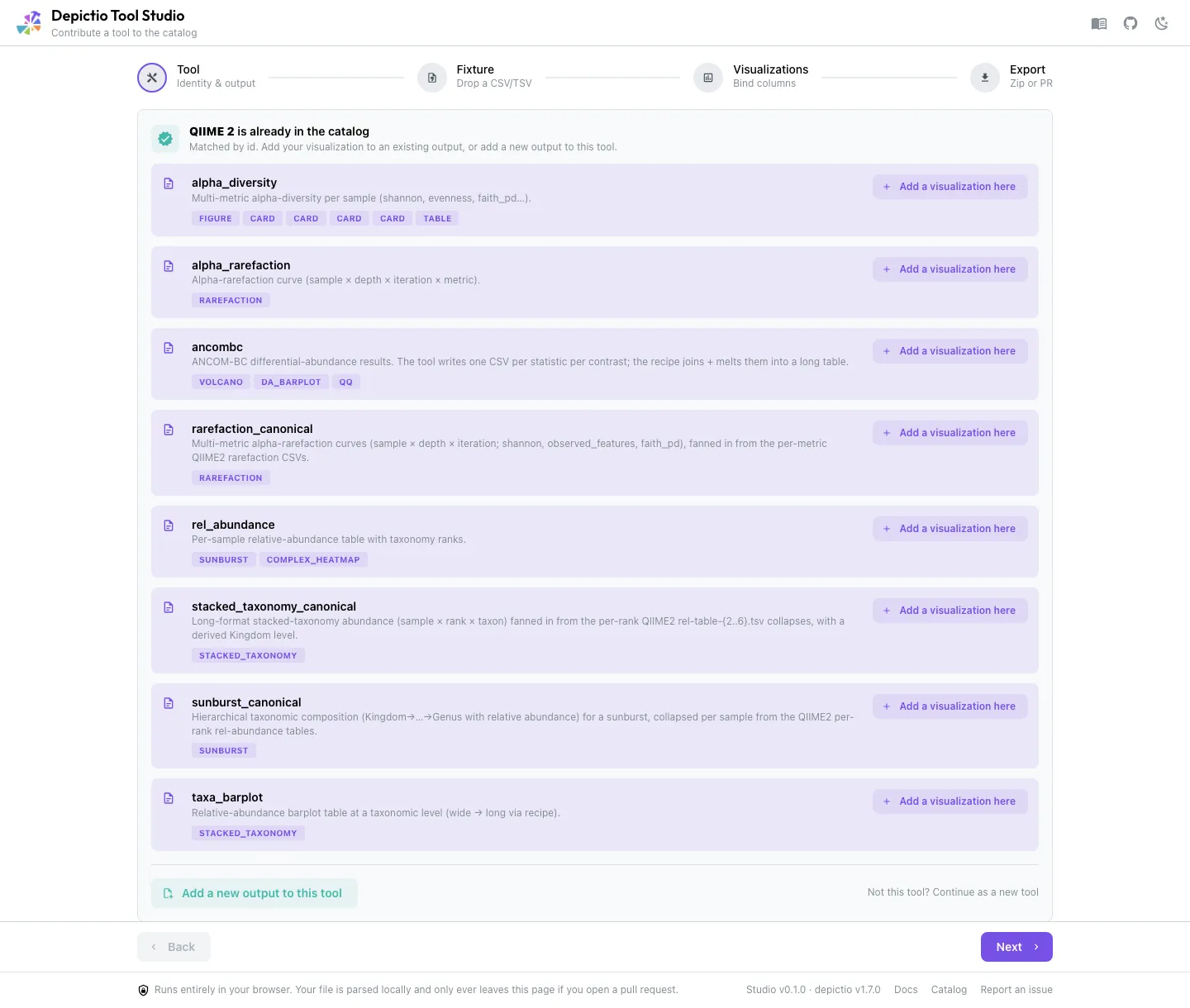
Two routes open when it matches:
- Add a visualization here appends to that output's
renders_as, rebased on the file as it exists onmainright now, so a render merged since the last deploy is not reverted. Export becomes a single-file update. - Add a new output to this tool reuses the identity and writes a fresh
<output>.yaml, leavingmodule.yamluntouched.
Not this tool? Continue as a new tool dismisses the match, and the dismissal sticks across a Back and Next round trip.
If MultiQC already parses it
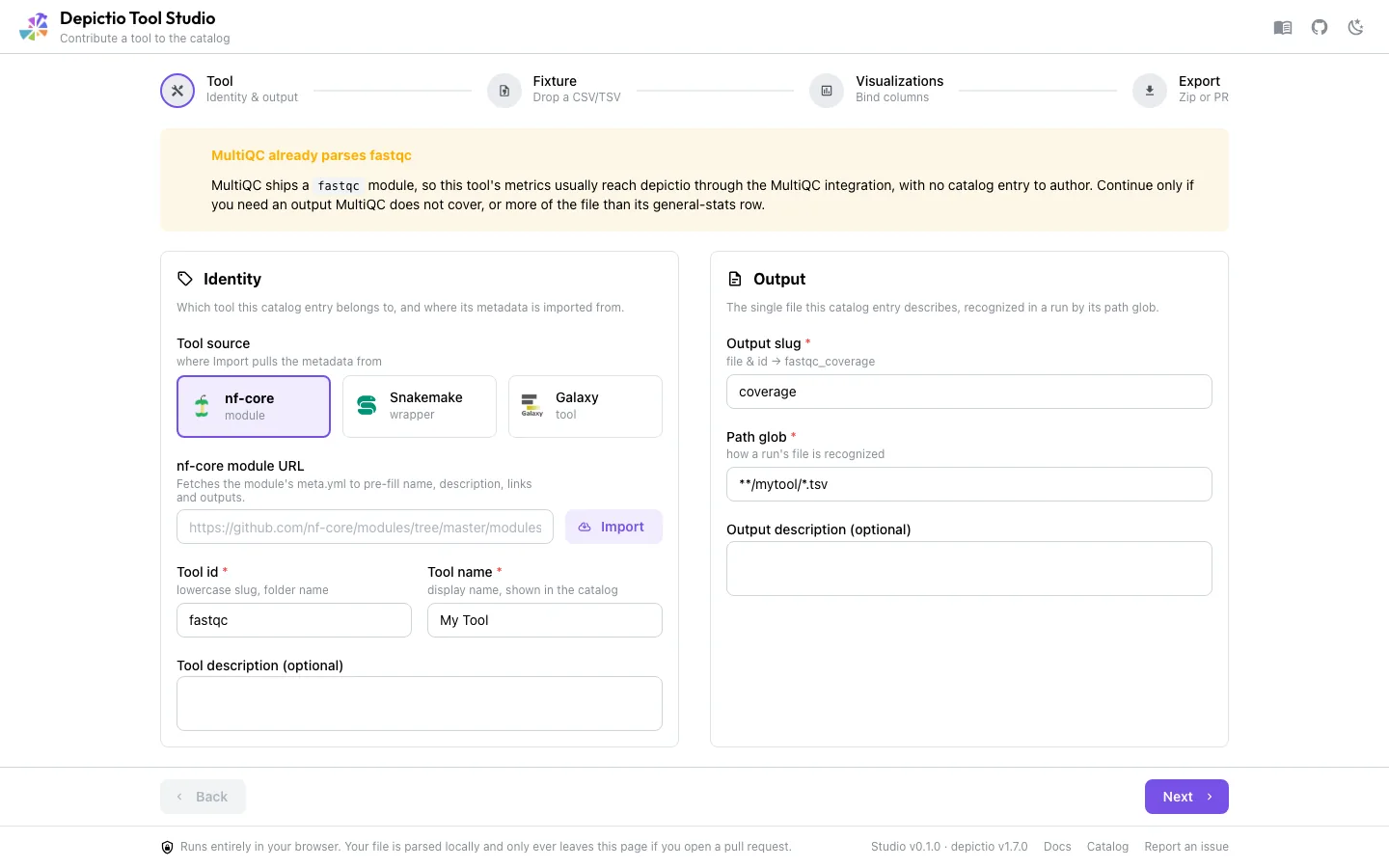
depictio already ingests MultiQC, and the vendored index lists 181 MultiQC modules, so a hand-authored entry for one of them is often work for metrics that would arrive anyway. A bespoke entry is still a legitimate choice, for an output MultiQC skips or for more of the file than its general-stats row.
2. Fixture
Drop one sample of that output file.
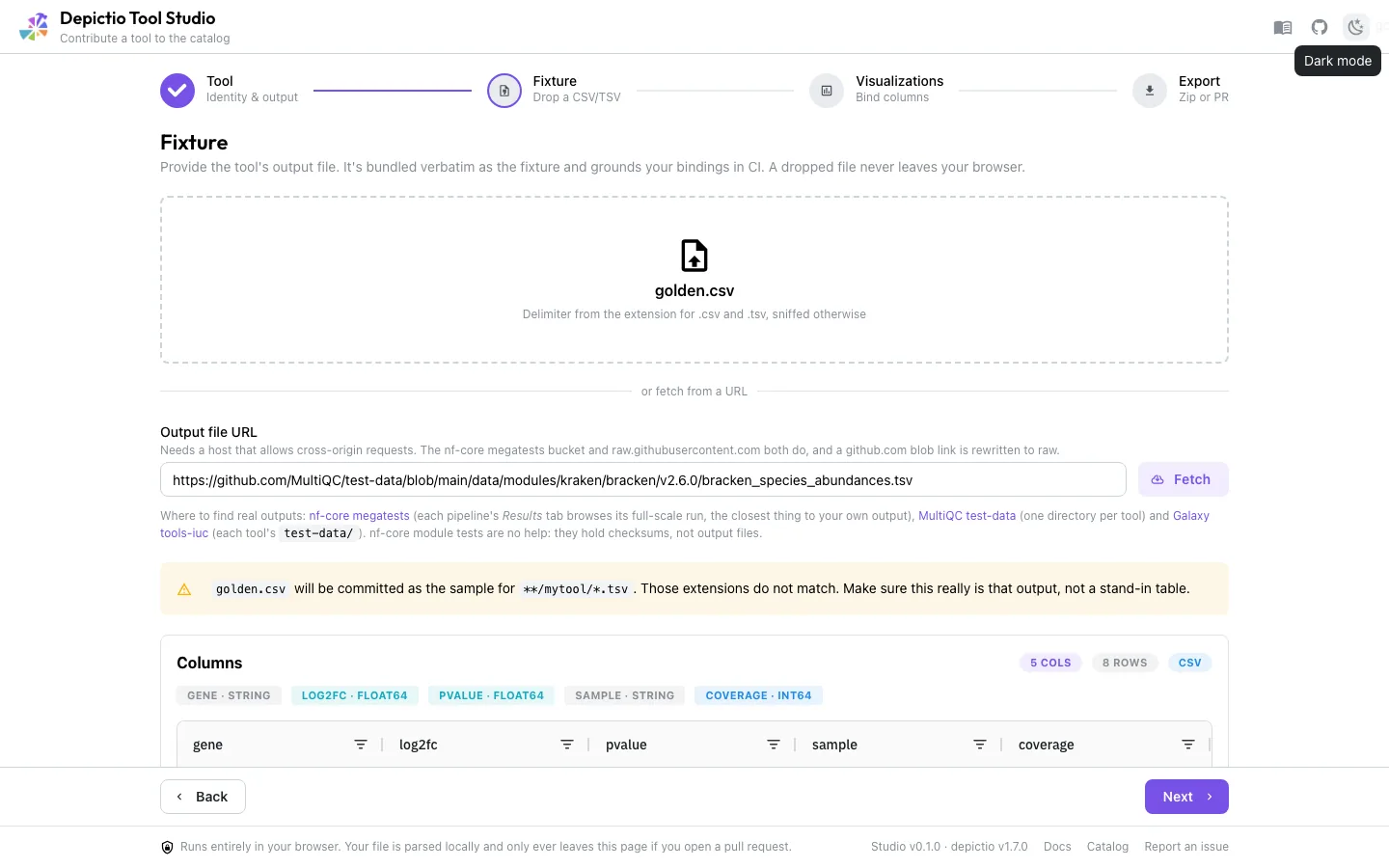
.csv and .tsv, and is sniffed otherwise.The file is parsed in the page, never uploaded. It is committed with the entry, and it is what CI reads to check that every column a render binds actually exists and has a compatible type, so it has to be a real sample rather than a stand-in table. Fixtures are capped at 5 MB, with a nudge above 1 MB.
Fetching it from a URL
If you want to describe an output you do not have on disk, paste a link instead. A
github.com blob link is rewritten to raw.githubusercontent.com, so a URL copied
straight out of GitHub's file view works.
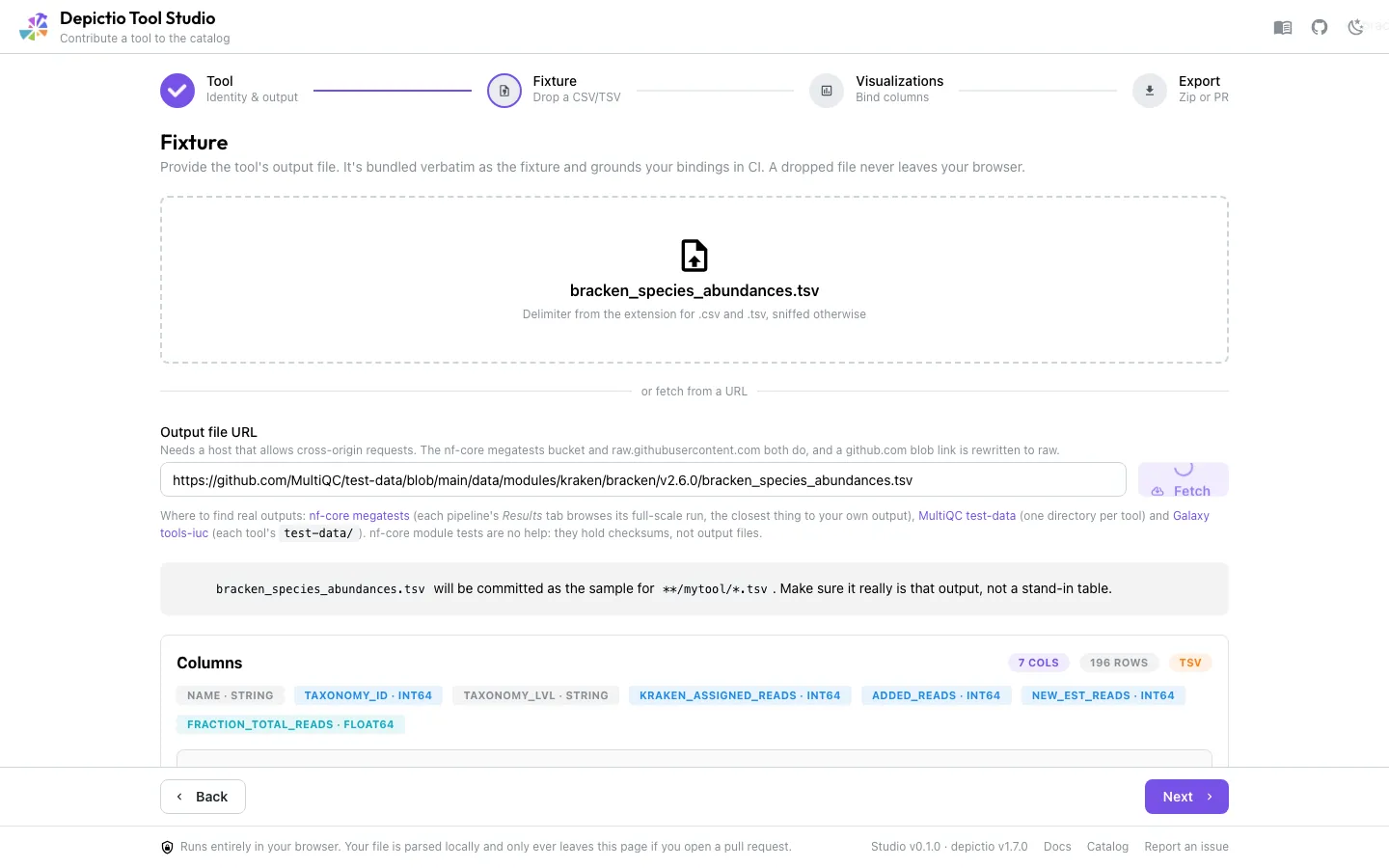
Any host that answers cross-origin requests works, including your own. Three public
corpora are known to, and between them cover most tools: nf-core megatests (each
pipeline's full-scale run, the closest thing to your own output), MultiQC test-data (one
directory per tool), and Galaxy tools-iuc (each tool's test-data/). nf-core's own
module tests are no help, since they hold checksums rather than output files.
3. Visualizations
Add visualization opens depictio's component-type grid.
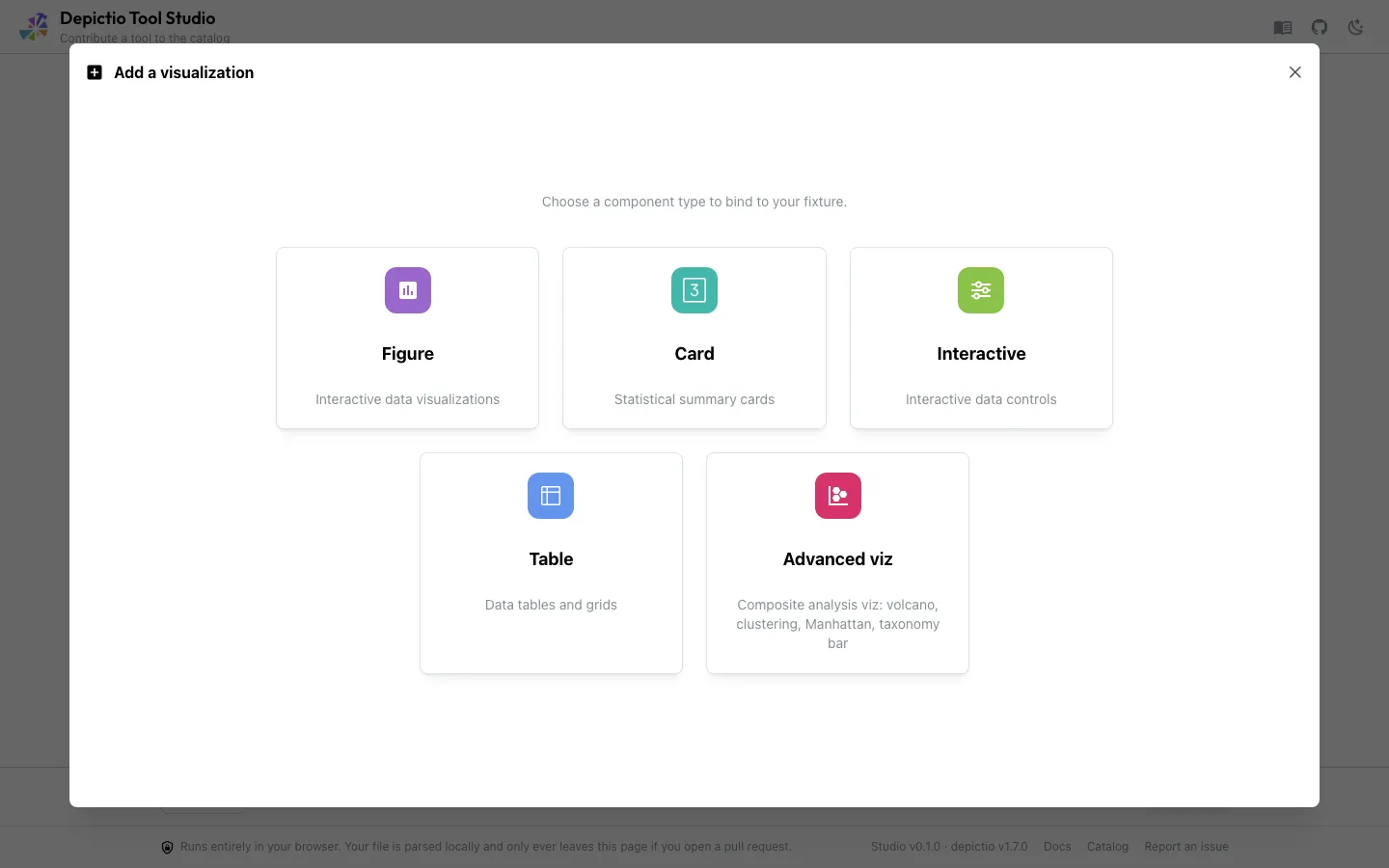
Picking one drops you into depictio's actual builder for that type, seeded from your fixture instead of from the API: same controls, same live preview, same UI Mode / Code Mode toggle. It is the dashboard editor's own interface on a narrower surface, covering the component types and options a catalog entry can express, not every one depictio offers.
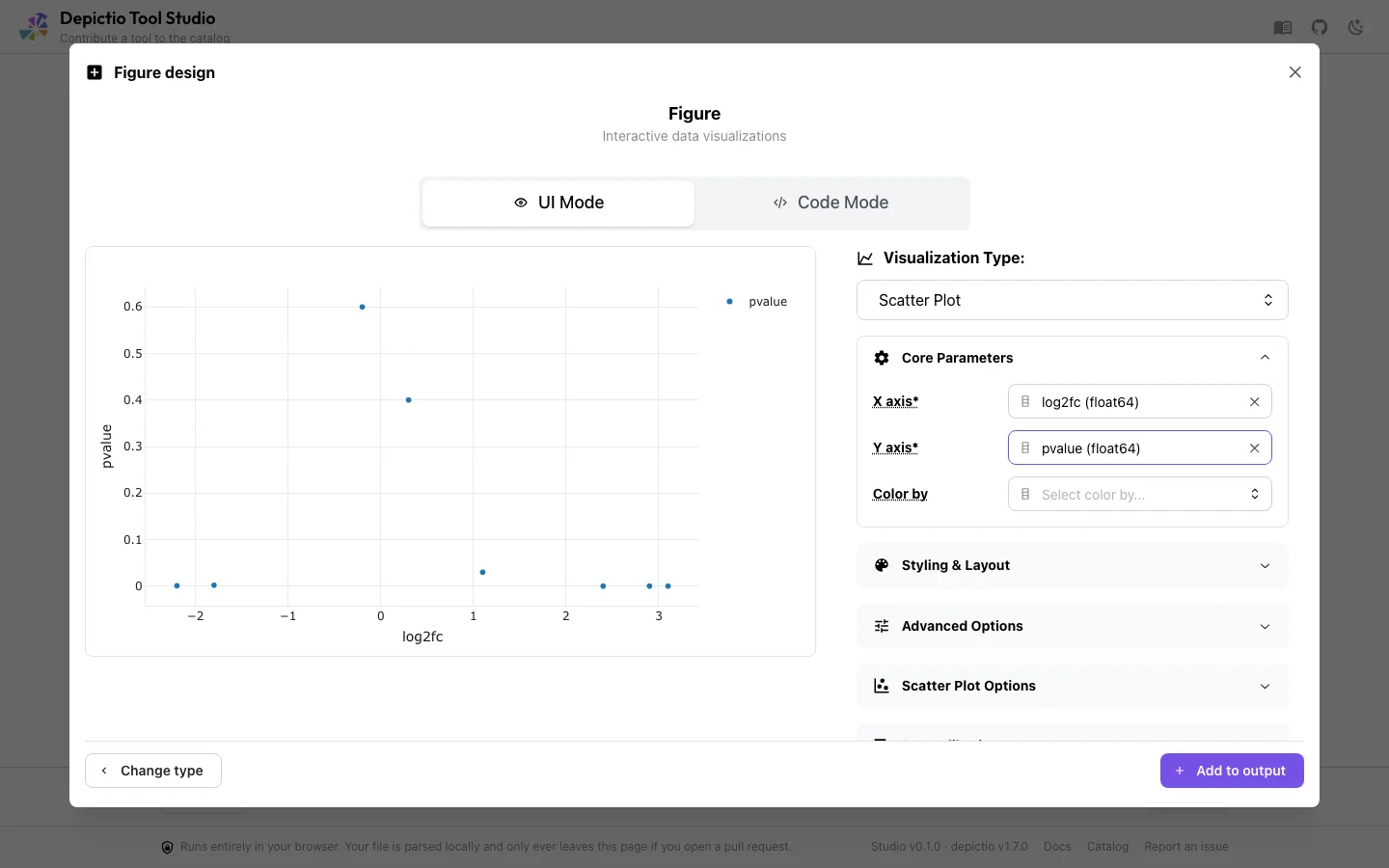
df is a pandas DataFrame. depictio runs the same snippet server-side where df is Polars, so df.to_pandas() is what makes both behave the same.Each render lands as a card that mirrors how it will appear in the Catalog, with two tabs.
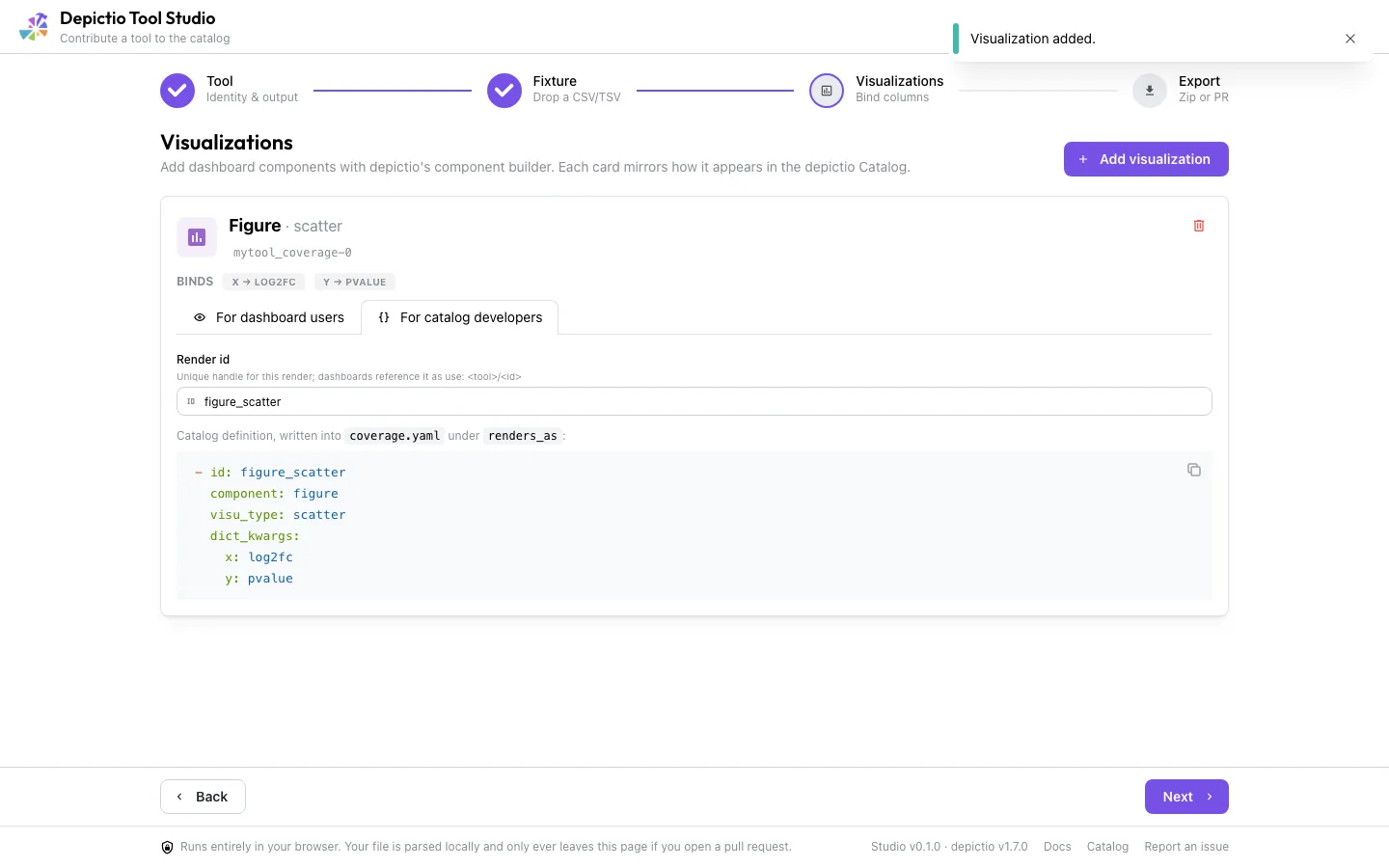
use: snippet; For catalog developers shows the render id and the exact renders_as entry that will be written.4. Export
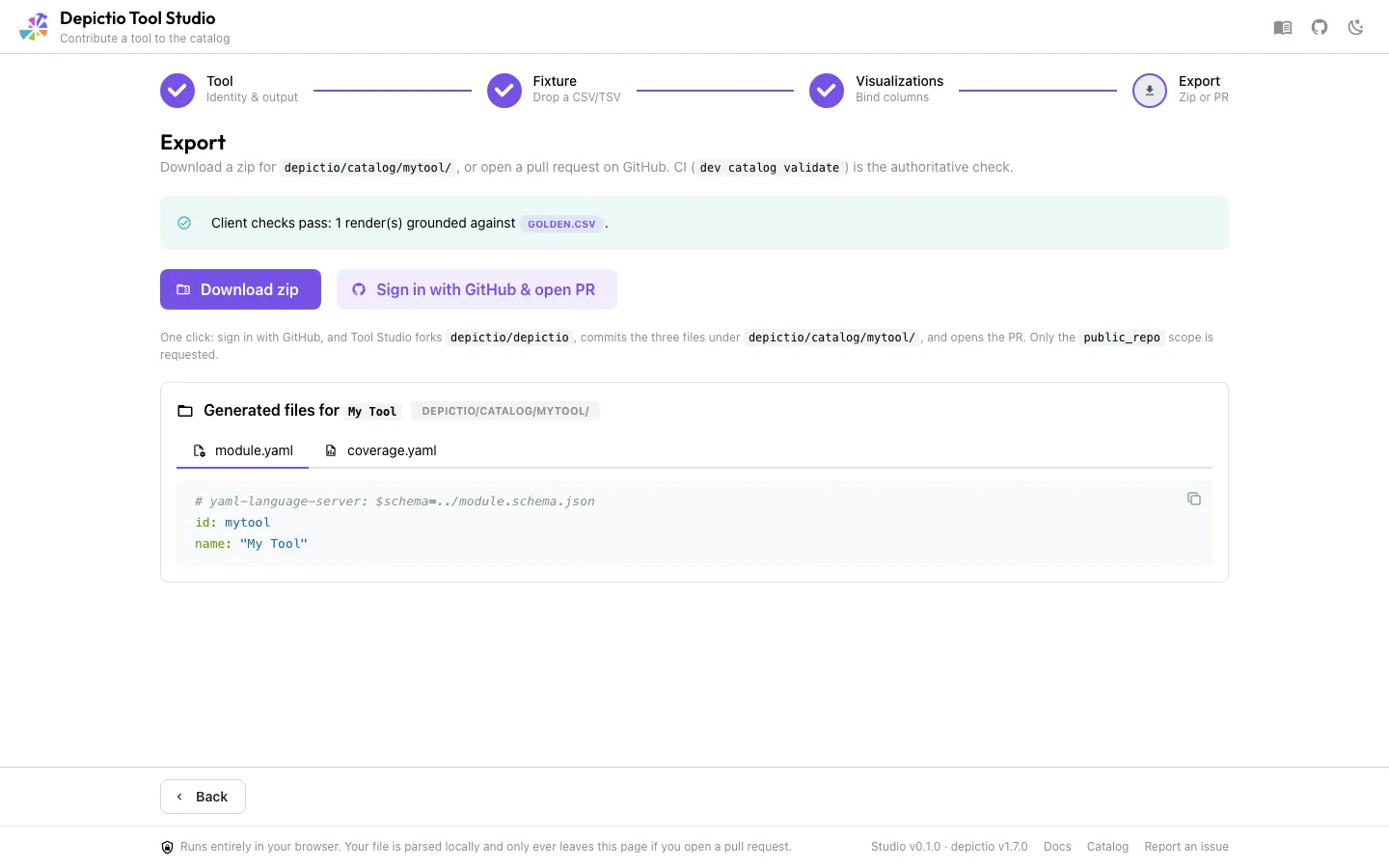
Two ways out:
- Download zip gives you the folder to commit yourself.
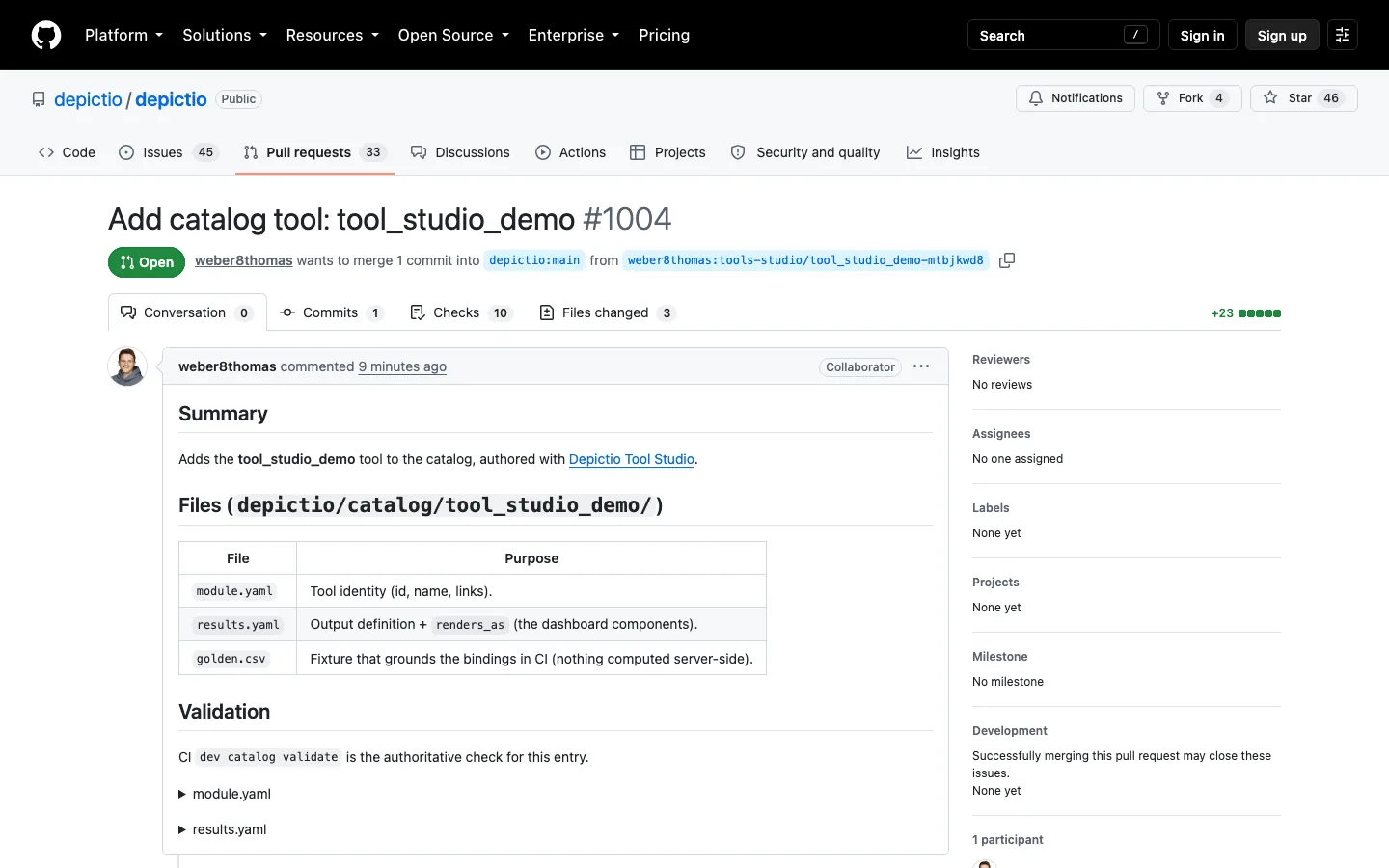
- Sign in with GitHub & open PR forks
depictio/depictio, commits the three files underdepictio/catalog/<tool>/and opens the pull request. Only thepublic_reposcope is requested. Where OAuth is not configured, the button becomes Contribute on GitHub and walks you through the zip plus GitHub's own file uploader.
The client-side checks are feedback, not the gate
depictio dev catalog validate, run by the catalog CI check on your pull
request, is the authoritative one. The Export panel says so too.
What it generates
# module.yaml
# yaml-language-server: $schema=../module.schema.json
id: mytool
name: My Tool
description: One or two sentences on what the tool does.
homepage: https://github.com/example/mytool
nf_core_url: https://github.com/nf-core/modules/tree/master/modules/nf-core/mytool
biotools_url: null  # no bio.tools entry for this tool

# results.yaml
# yaml-language-server: $schema=../output.schema.json
id: mytool_results
find: {path_glob: "**/mytool/*.csv"}
fixture: results.csv
renders_as:
  - { component: figure, visu_type: histogram, dict_kwargs: {x: log2fc, color: sample} }
  - { component: card, column: coverage, aggregation: average }
  - { component: advanced_viz, kind: volcano, roles: {feature_id: gene, effect_size: log2fc, significance: pvalue} }
biotools_url is always written: the link when the import found a biotools: identifier,
an explicit null otherwise, which is what the catalog tests require of every
module.yaml.
Plus the fixture itself, byte-identical to what you dropped. columns: is deliberately
omitted: the fixture is what grounds the bindings, and declaring both is rejected by the
schema.
What it cannot do yet
- Parsing recipes. Half the committed catalog outputs need one, and those entries stay hand-written.
columns:andfind.filenameare not expressible either.- Code-mode figures are grounded by nothing, and Pyodide and depictio's RestrictedPython disagree about what will run.
See also
- Contributing a Tool for the hand-authored path and the full schema
- Tools Catalog to browse what is already covered
- Picking a component from the catalog for what an entry becomes on a dashboard