A dashboard as code
Going further
Optional: not part of the timed workshop. It is one of the lessons of Going further.
Overview
Questions
- Can I write a dashboard as a file, and keep it with my code?
- How do I know a file is correct before it reaches the server?
Objectives
- Export a dashboard to YAML and read how a figure is described.
- Add a figure, validate the file, import it.
A dashboard is also a YAML file: one entry per component, with its type, its data collection and its settings. The file can be reviewed, kept in git and handed to a colleague.
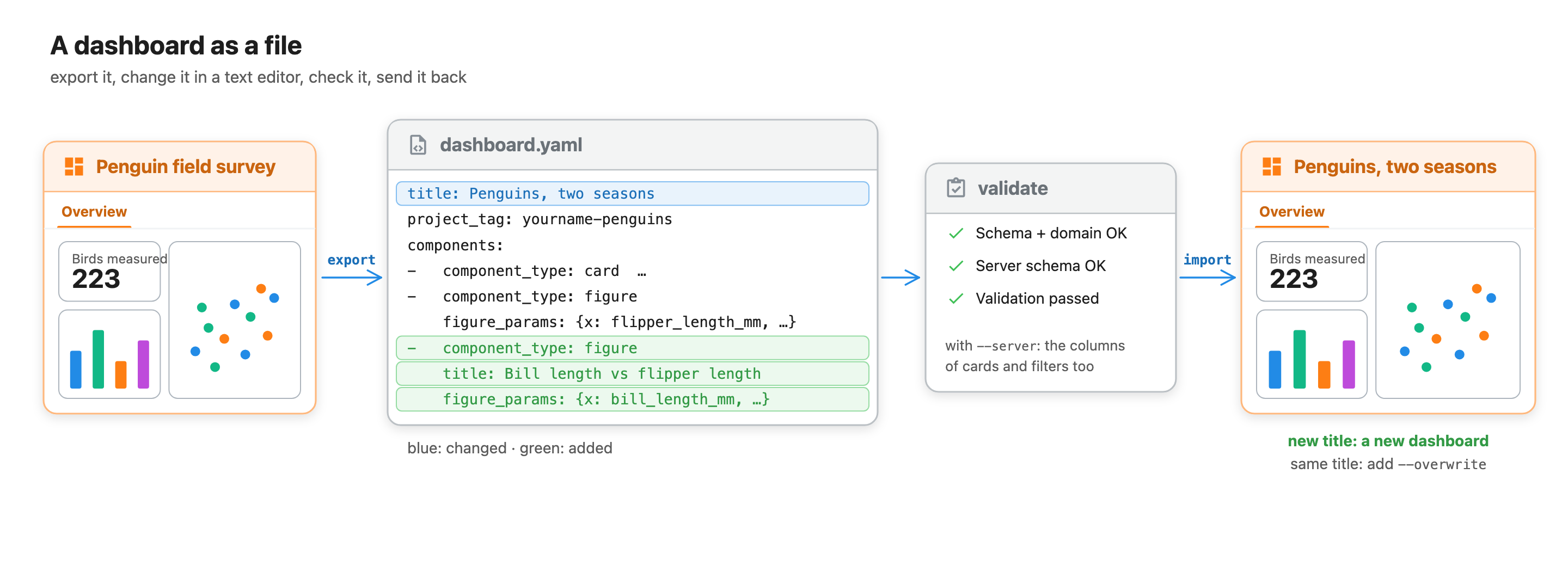
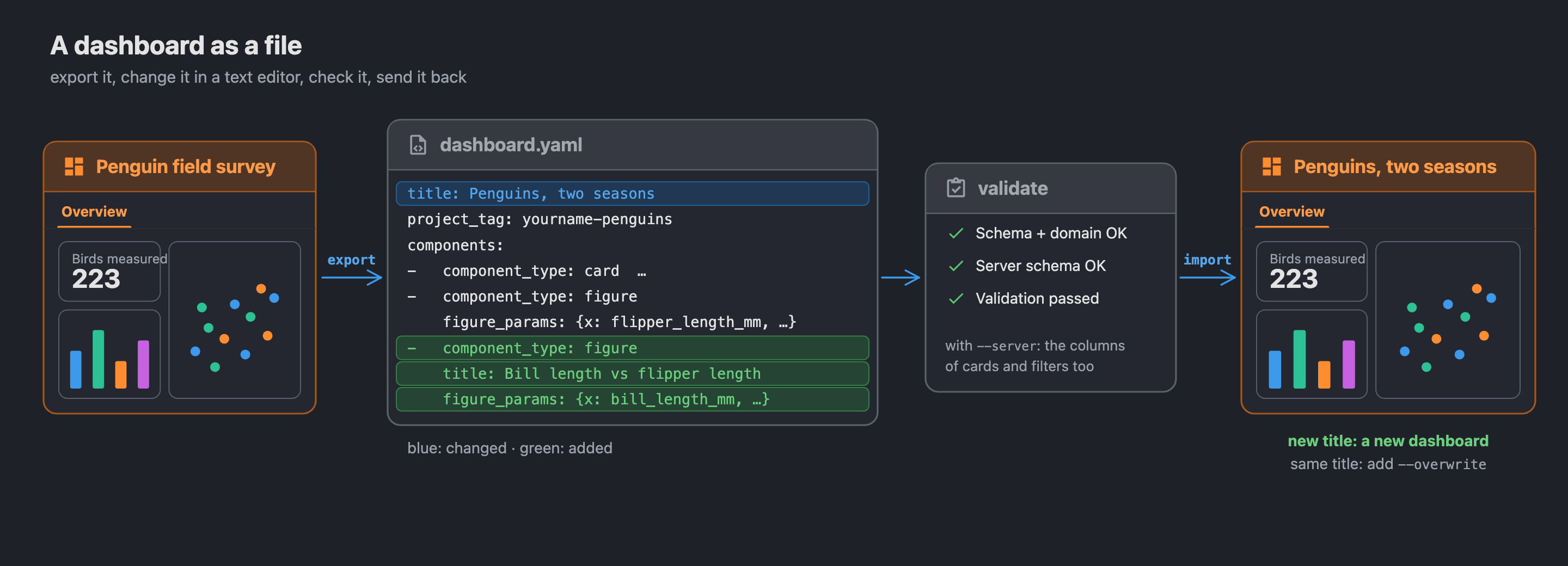
Export
Work in the folder of the two previous lessons, ~/depictio-workshop/penguins-workshop: the exported file lands where you run the command.
- Open the penguins dashboard of the two previous lessons, Penguin field survey. Its ID is the last part of the address:
…/dashboard/<ID>. -
Export it:
Name the output
dashboard.yaml, not the name of your project file: the export overwrites the output file without asking. -
Open
dashboard.yaml. A figure reads:- component_type: figure [[1]] workflow_tag: field_survey [[1]] data_collection_tag: physical_features [[1]] visu_type: scatter [[2]] # --- optional --- figure_params: [[3]] x: flipper_length_mm [[3]] y: body_mass_g [[3]] color: species [[3]] mode: ui selection_enabled: false title_size: sm title_align: left # --- generated on export --- tag: figure-scatter_flipper_length_mm_body_mass_g-2e4cdb [[4]] index: 3acd1b0e-c5e7-4243-b1a8-794c5607ea4c [[4]] layout: [[5]] x: 0 [[5]] y: 2 [[5]] w: 8 [[5]] h: 5 [[5]] title: Flipper length vs body mass
What each part says:
| Part | What it says |
|---|---|
component_type, workflow_tag, data_collection_tag |
What the component is, and the table it reads: the names of your project file |
visu_type |
The kind of figure: scatter, line, bar, box, violin, histogram, ecdf, strip, area, funnel, density_heatmap, density_contour or heatmap |
figure_params |
The figure's settings: the arguments of the Plotly Express function of the same name, such as x, y, color |
tag, index |
Written by the server on export: leave them out of what you add |
layout |
Where the component sits on the dashboard grid (below) |
The grid is 8 columns wide and has as many rows as it needs, each about 100 pixels high. x (0 to 7) is the column of the left edge, y the row of the top edge, w the width in columns, h the height in rows. The scatter above, {x: 0, y: 2, w: 8, h: 5}, takes the full width from row 2 to row 6, under the two cards of row 0; the next free row is 7.
Which settings to use? The quickest way: build the figure in the browser, export the dashboard, and copy its block. The keys of figure_params are passed to Plotly Express as they are; a key the figure does not know is ignored, without an error.
Change it
- Change
title:at the top, for instance to Penguins, two seasons. -
Add a figure at the end of
components:: -
Check the file:
$ depictio dashboard validate dashboard.yaml --server ~/.depictio/CLI.yaml ✓ Schema + domain OK ✓ Server schema OK ✓ Validation passedvalidatereads the file twice, and each ✓ line is one reading:- Schema + domain, in the CLI, before anything is sent: every component has the keys it needs, and each value is one the server accepts (a
visu_typefrom the list above, anaggregationthat exists). - Server schema, against your data on the server: each
column_nameof a card or a filter exists in its data collection, and itsaggregationsuits the column's type.--server ~/.depictio/CLI.yamlmakes a problem here an error; without it, the same problem is only a warning.
Nothing is sent:
validateonly reads. - Schema + domain, in the CLI, before anything is sent: every component has the keys it needs, and each value is one the server accepts (a
Import
import sends the file to the server. It first runs the same two checks as validate, and refuses a file that fails them. The server matches dashboards by title: a title new to your project makes a new dashboard; the title of an existing one is refused, unless you add --overwrite to update it in place.
Your file has a new title, so this import makes a new dashboard:
$ depictio dashboard import dashboard.yaml
✓ Dashboard imported successfully!
  Dashboard ID: …
  Title: Penguins, two seasons
  Project ID: …

View at: https://…/dashboard/…
Open the address the CLI prints: the new figure is under the first two (2).
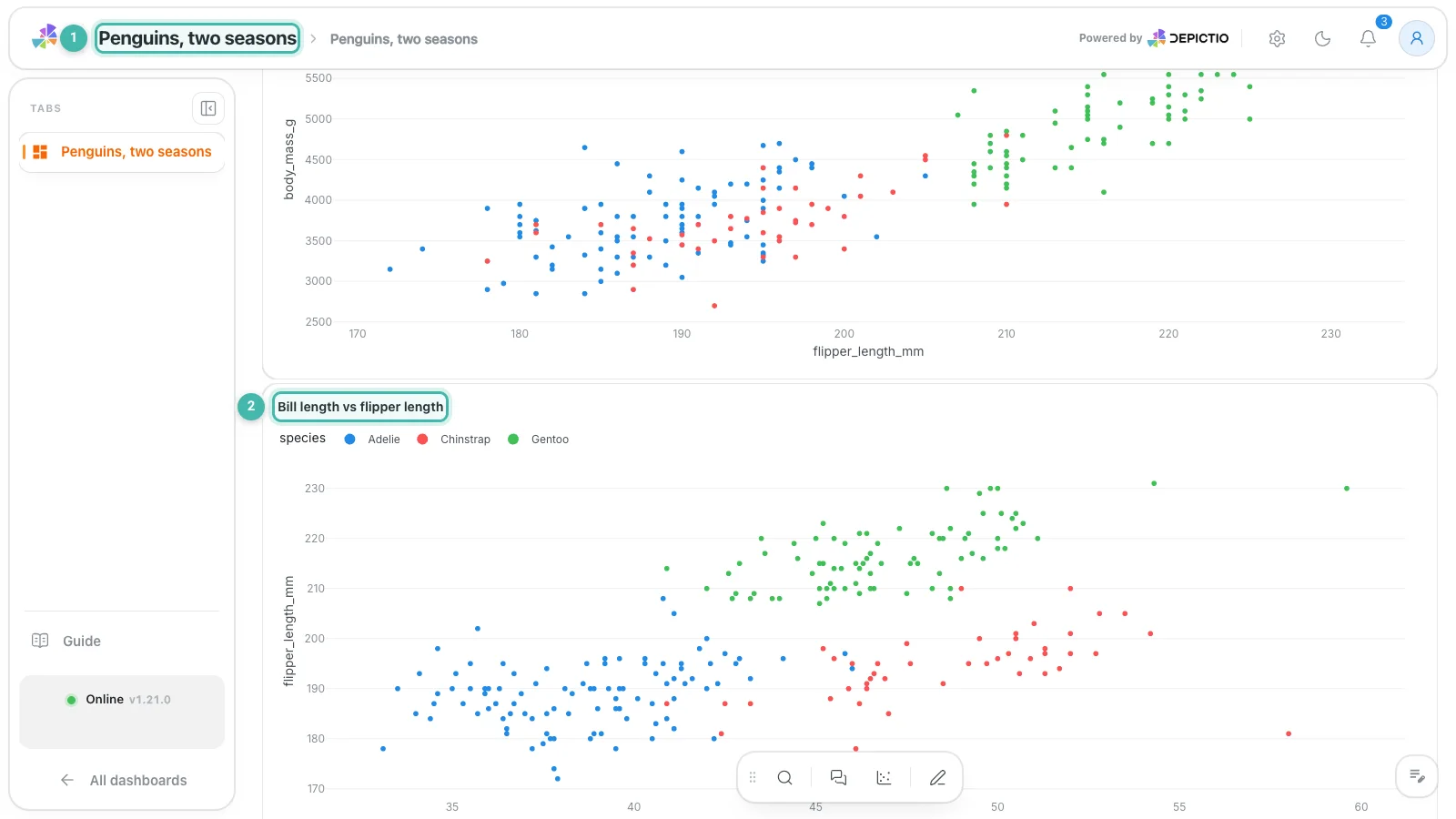
Penguins, two seasons now sits in your project next to Penguin field survey, the dashboard you exported, which has not changed.
Challenge 3.1: import twice
Change the colour of your new figure to island, then run depictio dashboard import dashboard.yaml again. What happens? How do you update the dashboard?
Solution
The import is refused: Dashboard 'Penguins, two seasons' already exists in this project. Use --overwrite to update it. With depictio dashboard import dashboard.yaml --overwrite it reads Dashboard updated successfully!, and the dashboard keeps its address.
Challenge 3.2: a typo
In a card of dashboard.yaml, change column_name: body_mass_g to column_name: body_mass. Run depictio dashboard validate dashboard.yaml. Is the mistake caught? Then run it with --server ~/.depictio/CLI.yaml.
Solution
Without --server, validate only warns: Column 'body_mass' not found in 'field_survey/physical_features', lists the available columns, and still ends with Validation passed. Naming the server makes the check count: Validation failed (1 error(s)). import refuses the file either way.
What validate does not check: the columns of a figure
The server-schema check reads the column_name of cards and filters, not the columns inside figure_params. A typo there, such as x: flipper_lenght_mm, passes validate and import, and the figure shows up empty. Before importing, compare the columns of your figures with the list validate prints when a card's column is wrong (challenge 3.2), or with the columns of the data collection in the browser.
Key points
dashboard exportwrites a dashboard as YAML;importsends one back.- The server matches dashboards by title: a new title makes a new dashboard,
--overwriteupdates one. validate --server ~/.depictio/CLI.yamlchecks columns against your data before you import.