What's new since your last visit (v1.21.0+)
When you come back to a dashboard, Depictio shows what changed since you last looked: new data, edited components and new comments. On most figures it also marks which points, bars or samples are new.
Before you start
- Depictio v1.21.0 or later.
- The feature is off by default. An administrator turns it on with
DEPICTIO_DASHBOARD_VERSIONS_CHANGES_SINCE_ENABLED=true. DEPICTIO_DASHBOARD_VERSIONS_CHANGES_SINCE_MARK_MODEsets the default mark mode:sticky(the default) orprevious_visit.- On Kubernetes, set both in the chart's
backend.env.depictio local uppasses them through from your shell. - The live toast of the bell also needs
DEPICTIO_EVENTS_ENABLED=true(Realtime events). Without it, the bell still polls.
1. Open the What's new panel
Open a dashboard you have visited before. The What's new key sits in the header, beside settings and theme, with the number of changes on its corner.


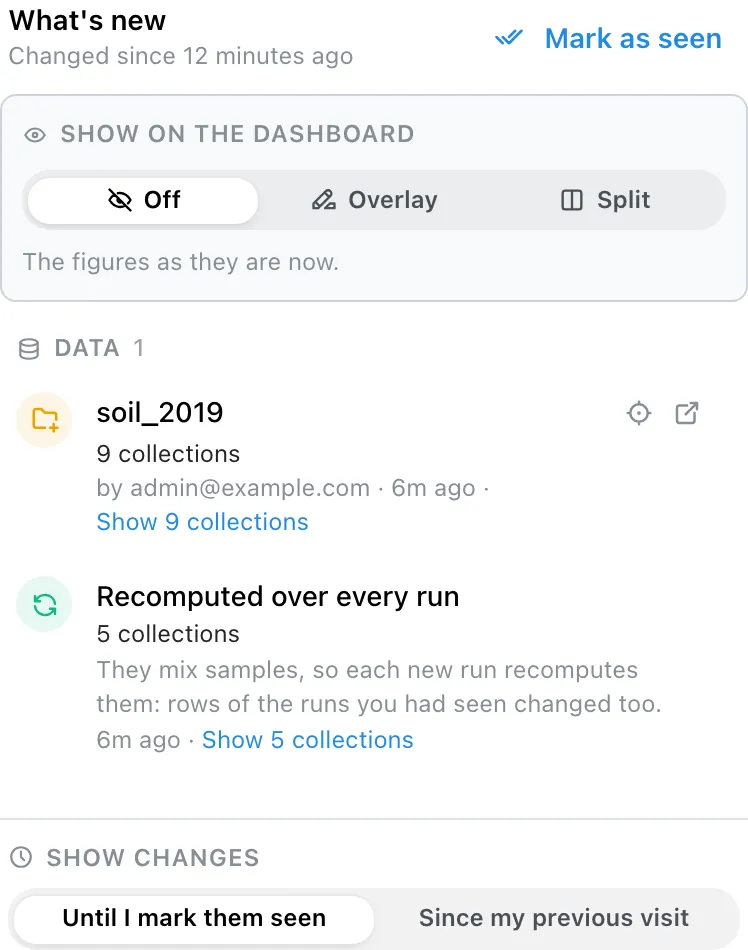
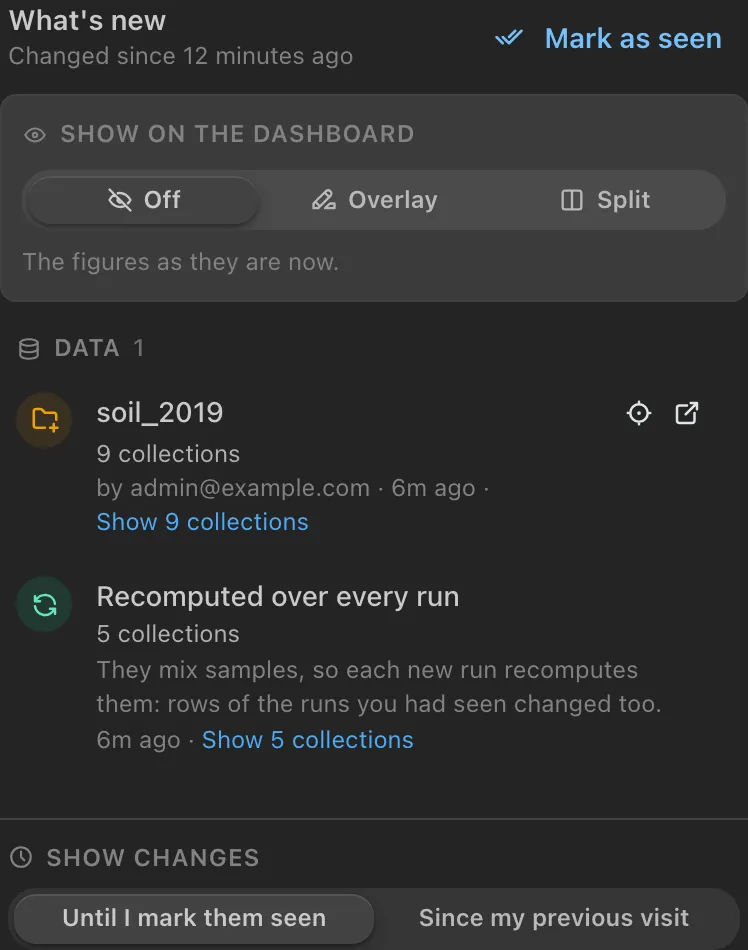
Click it. The panel lists the changes in three sections: Data, Dashboard and Comments. A Dashboard row links to the version that made the change, and a Comment row opens its thread.
2. See the changes on the figures
Under Show on the dashboard, pick Off, Overlay or Split.
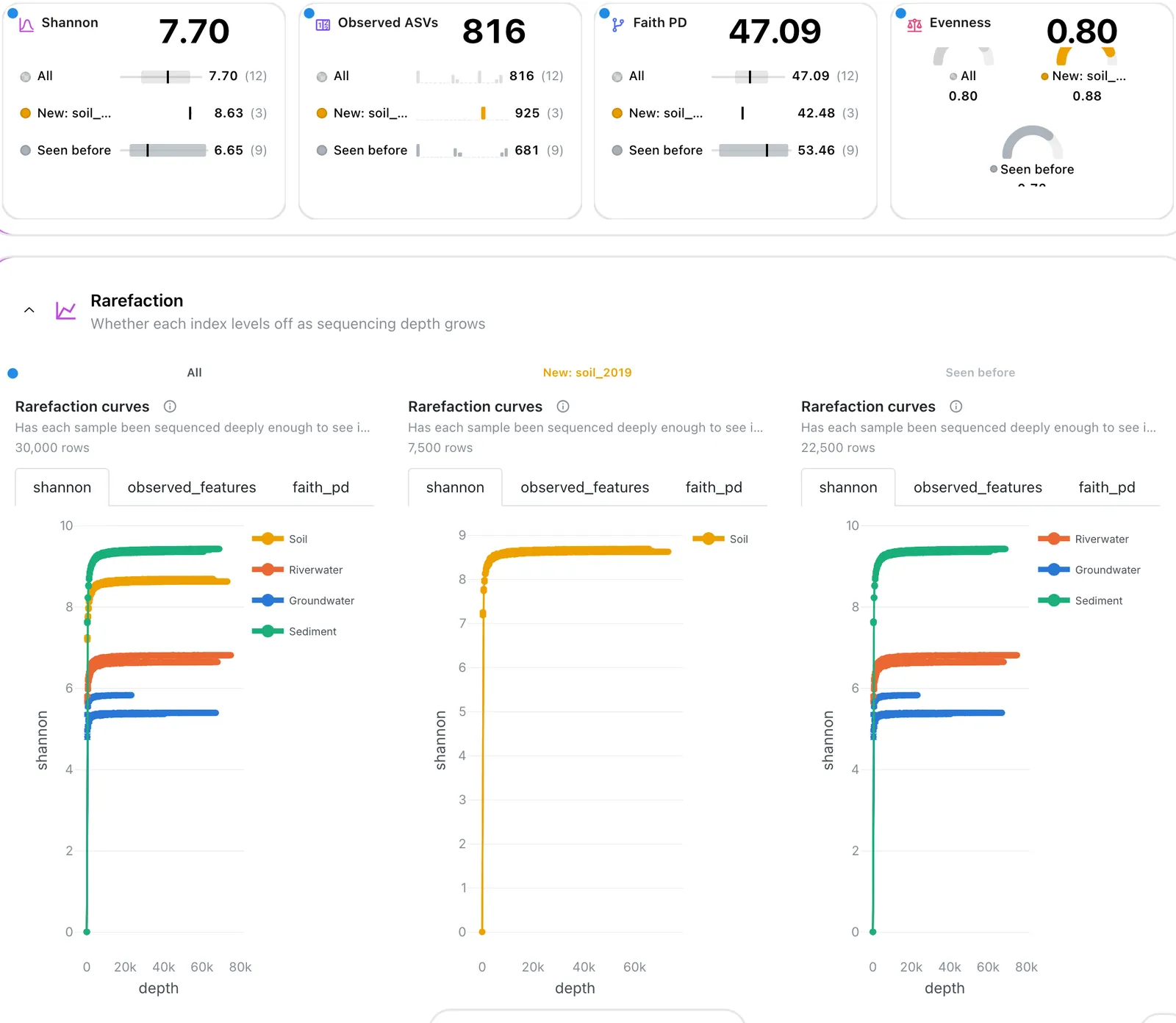
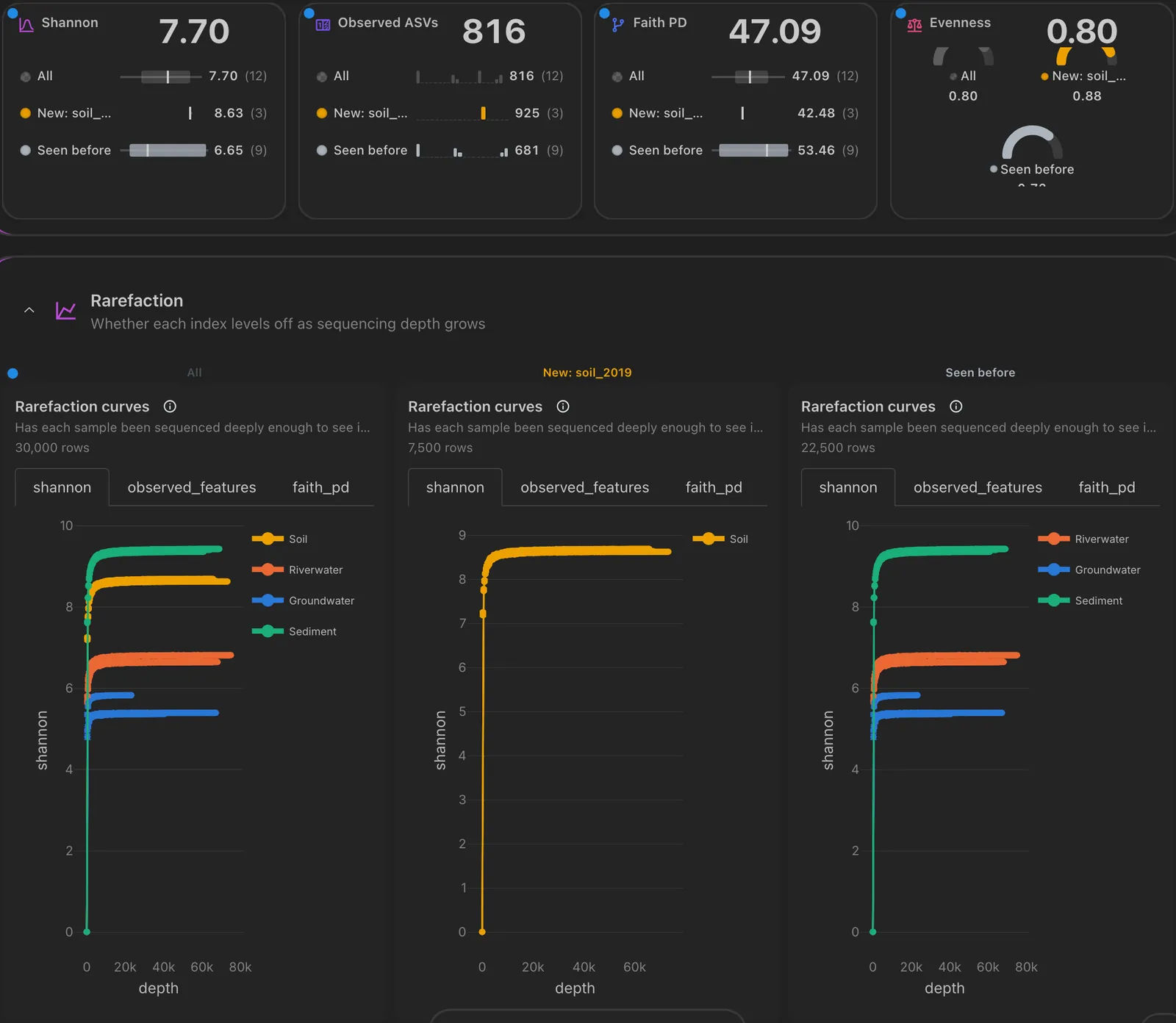
- Overlay marks what is new on every changed figure. New points are ringed, removed points are ghosted, and a bar's previous value is outlined. What was already there fades.
- Split draws each figure twice: what is new beside what you had seen. Cards compare the two sides.
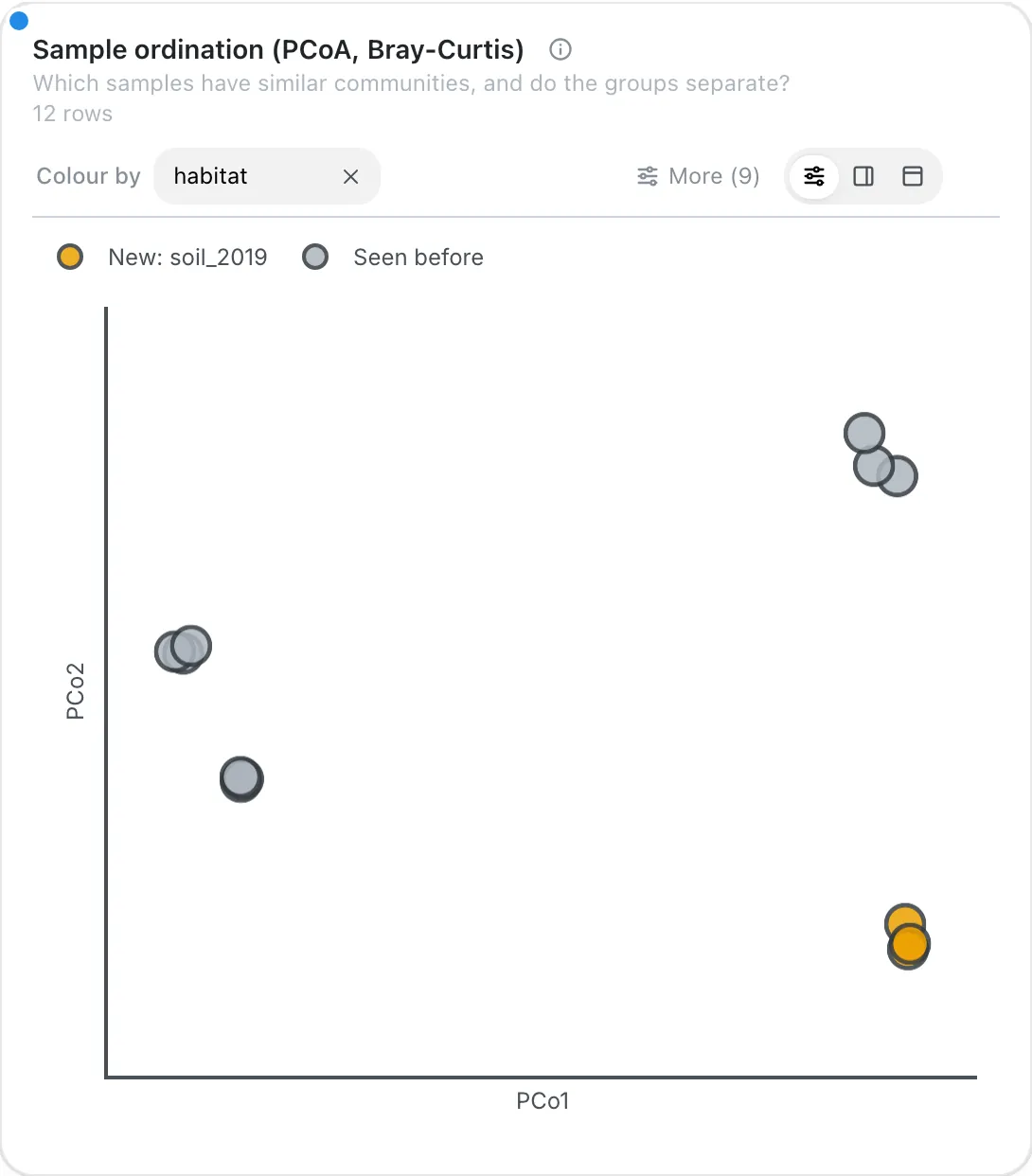
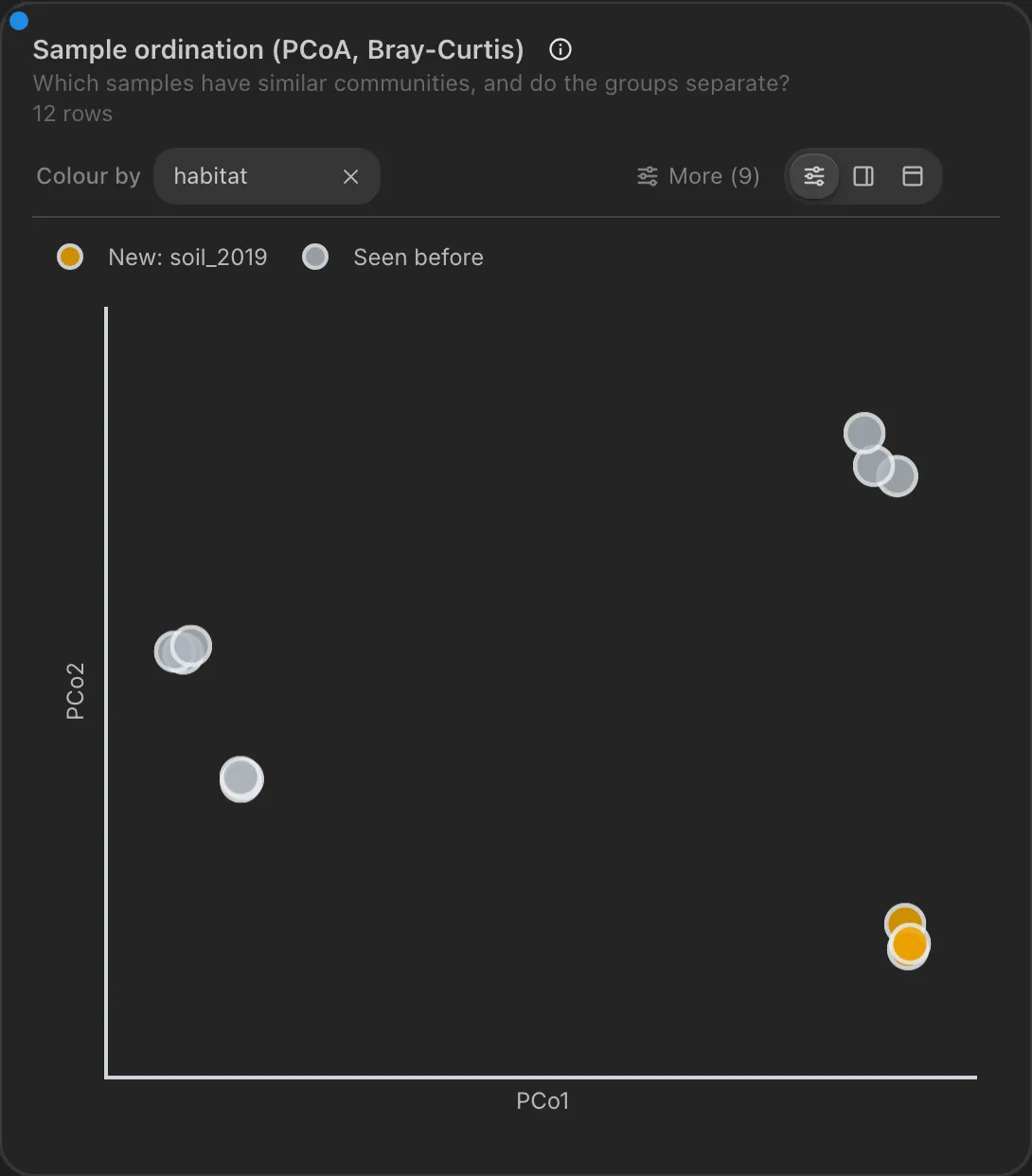
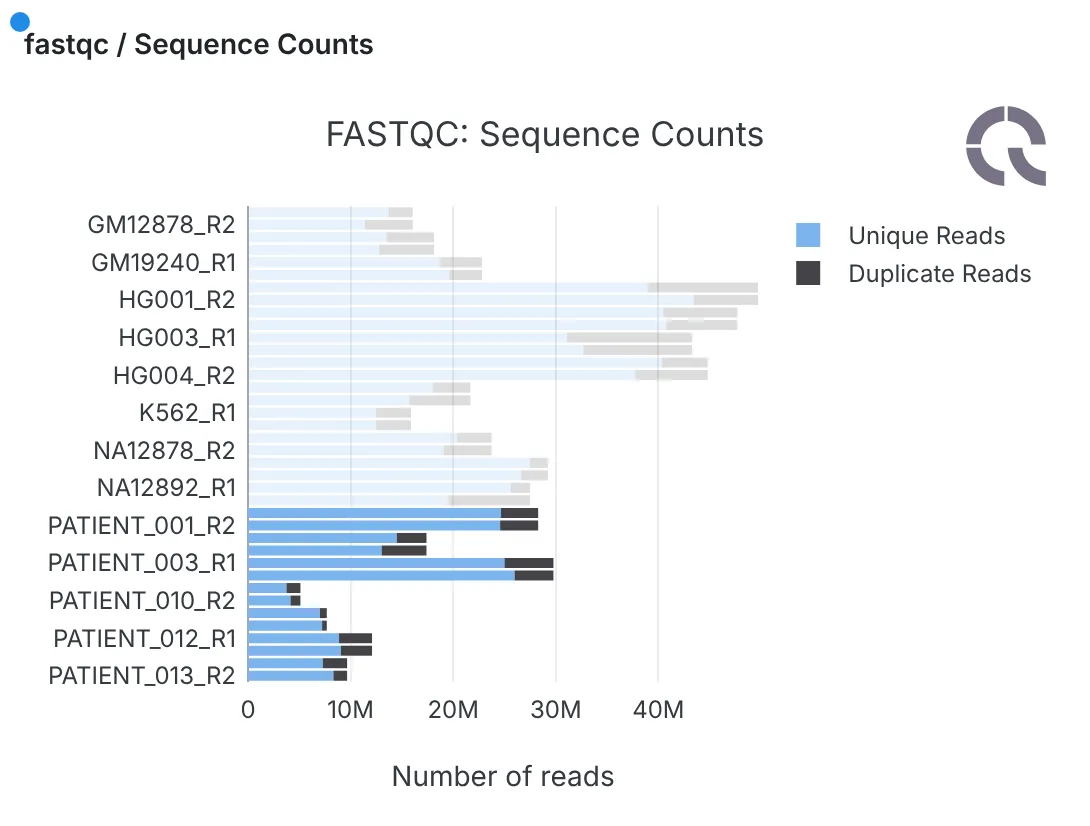
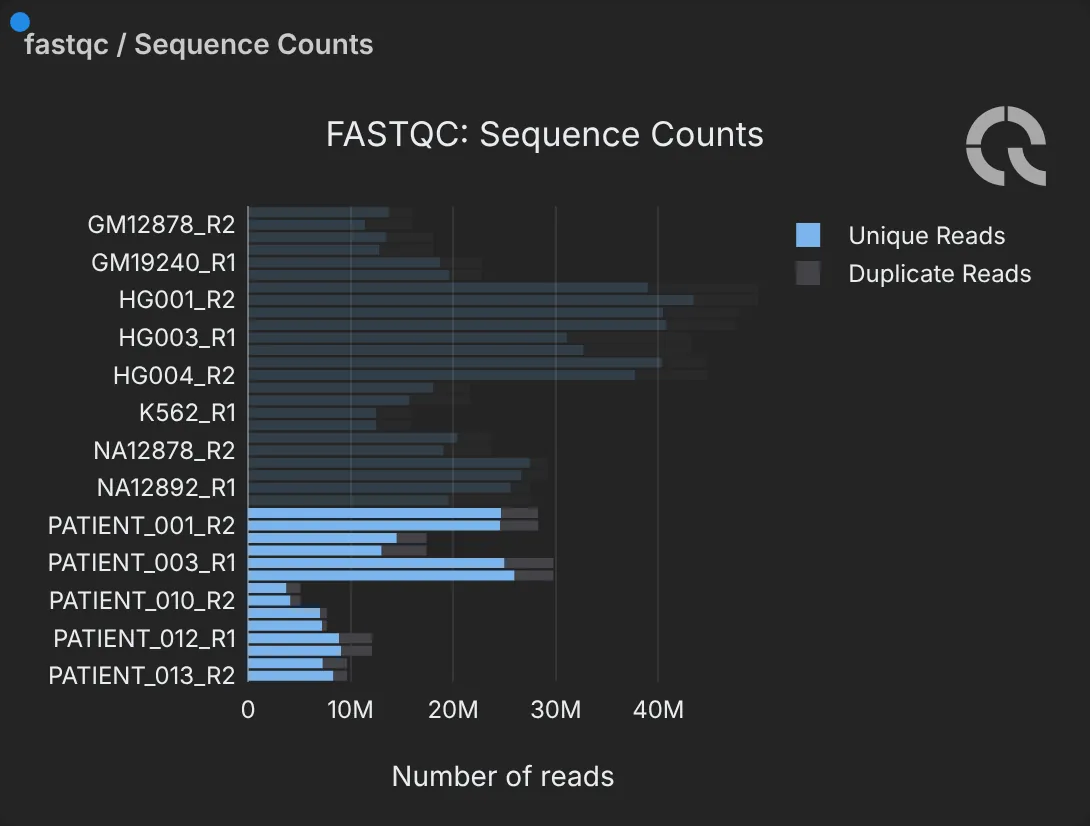
Under Overlay, turn on Hide what you had seen to draw only the new runs or new MultiQC samples.
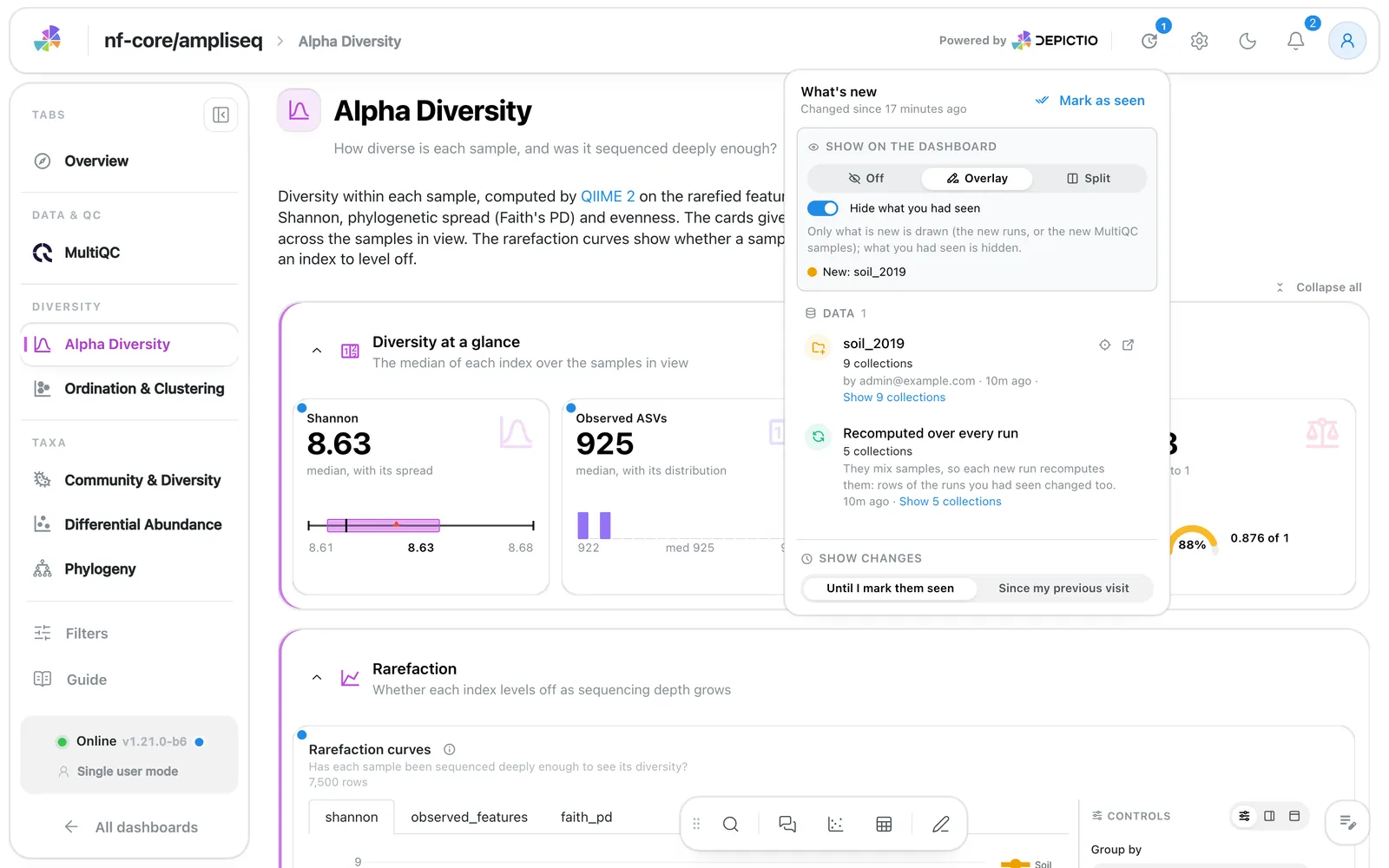
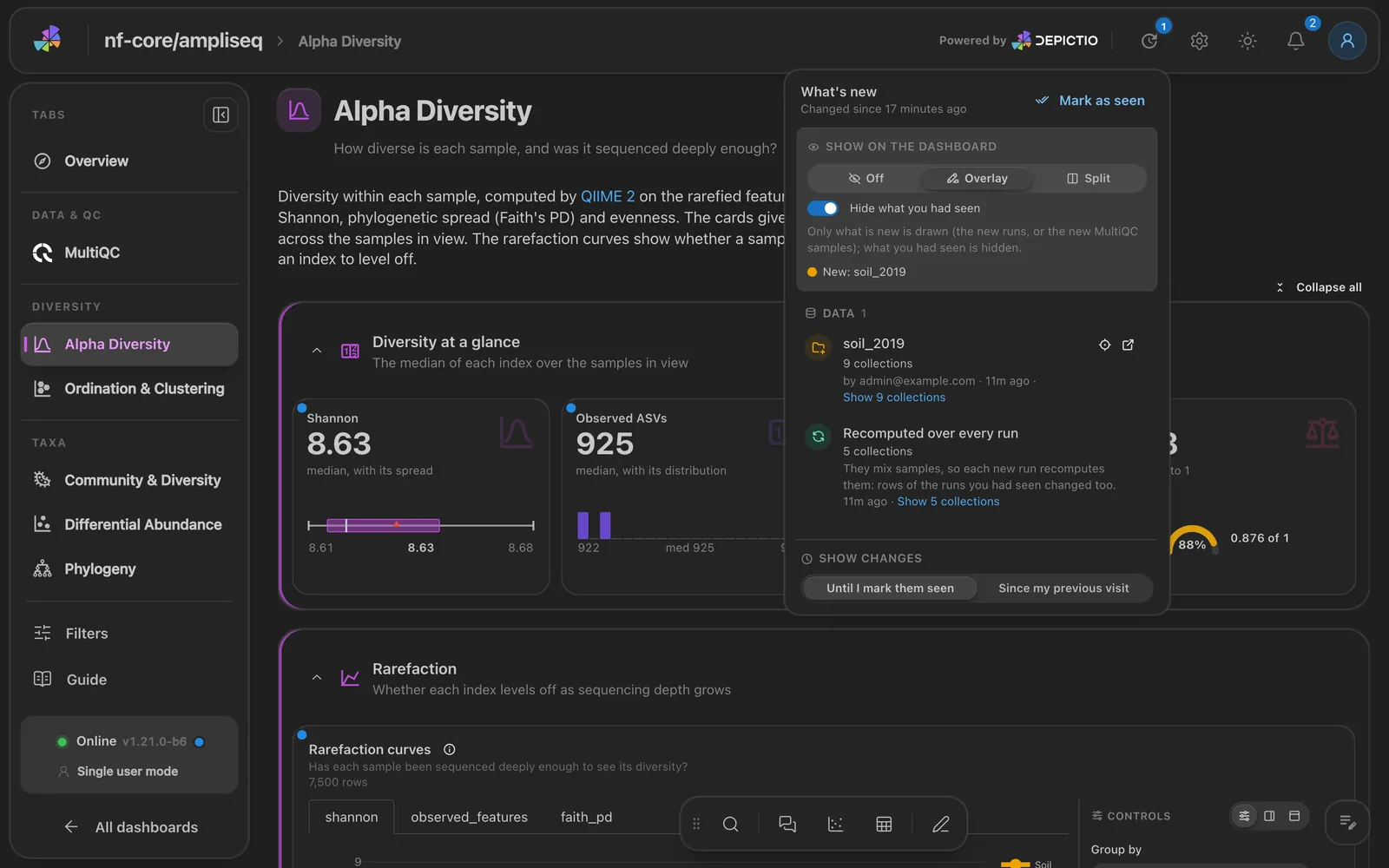
When a table gained runs, its Data row offers View new rows: the new rows on top, the rows you had seen faded below. Open in project opens the same rows in the project's Data table.
3. Compare one tile
A changed tile carries a dot. Its menu holds Mark as seen, Compare with last visit and Before | Now.
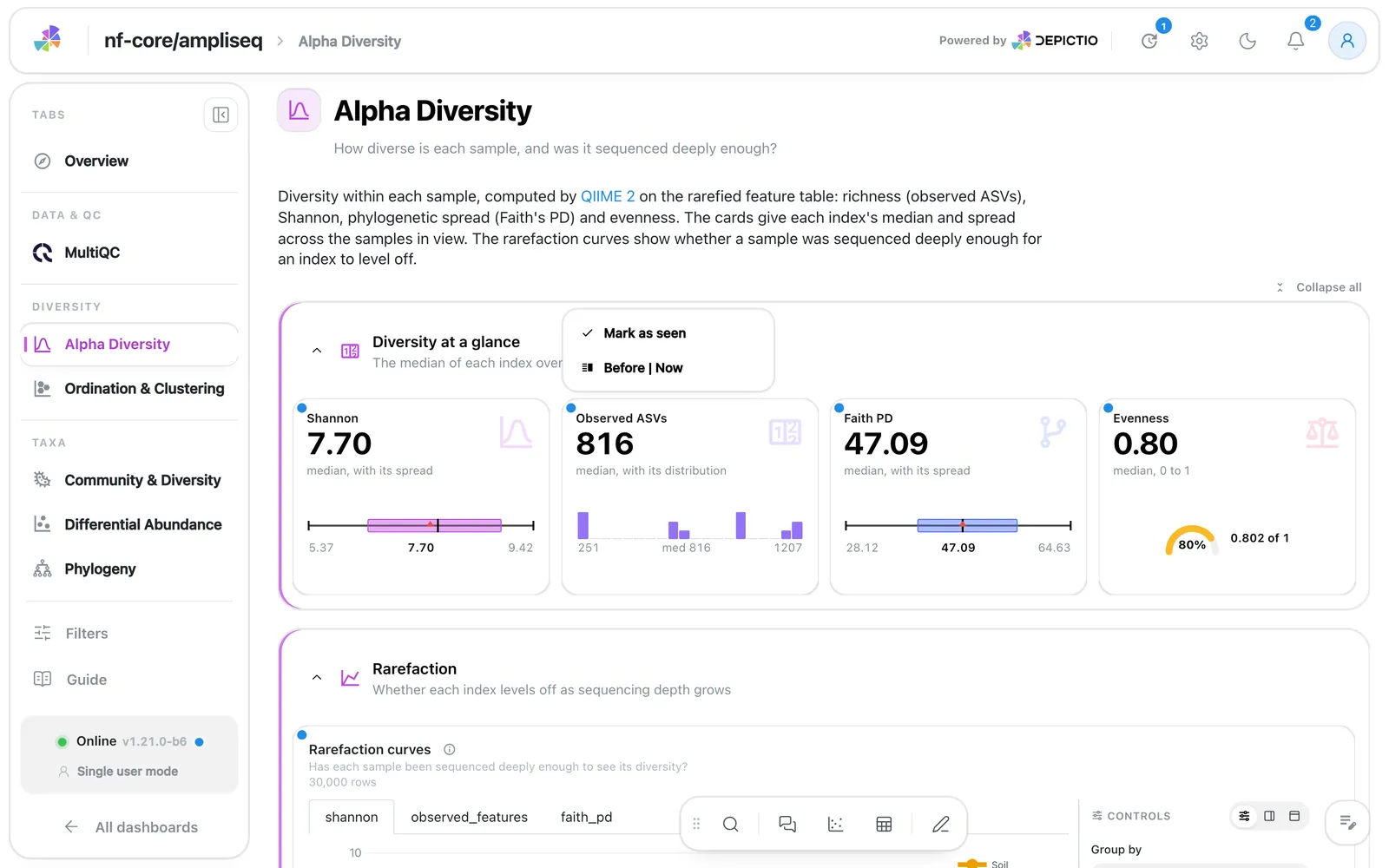
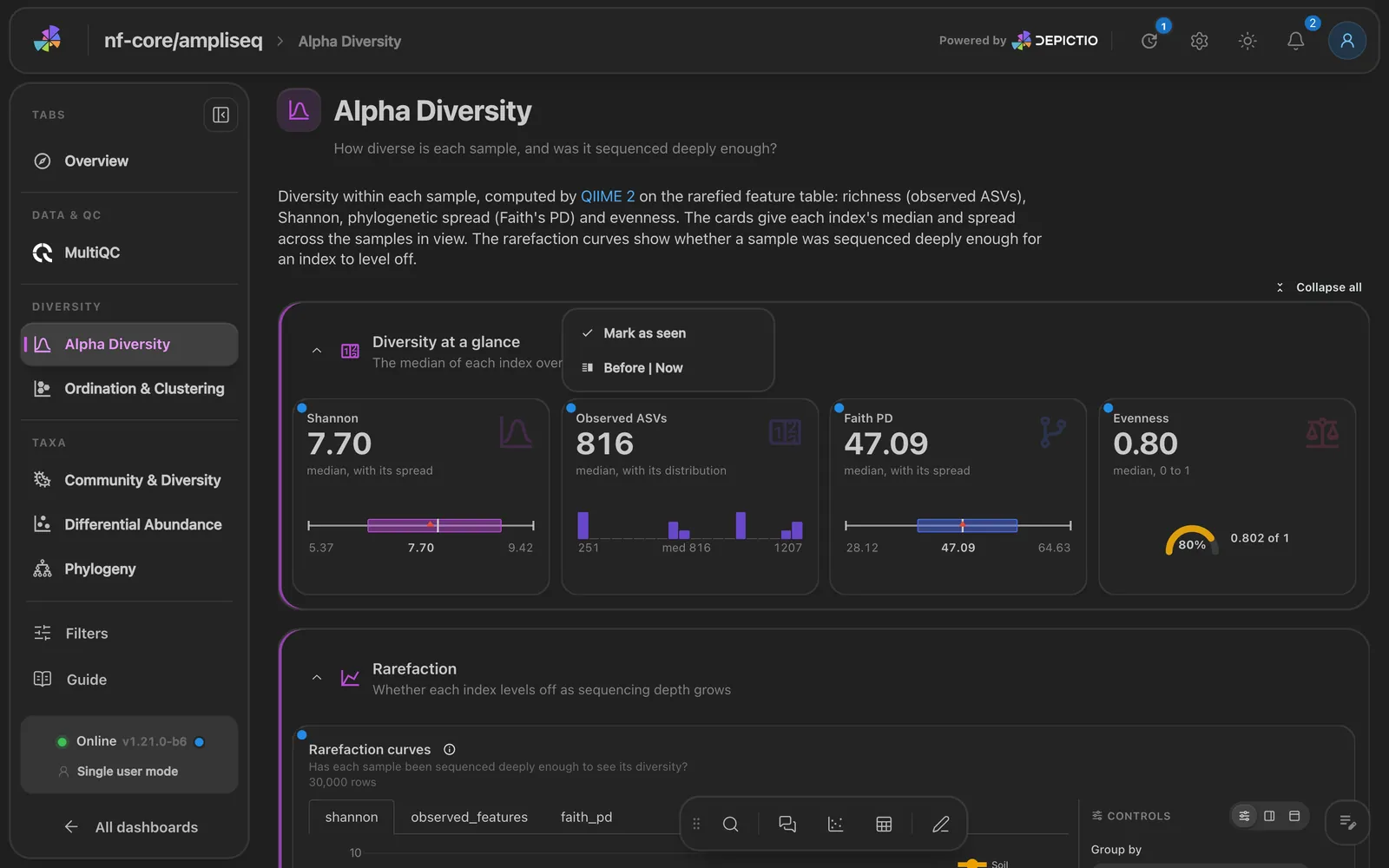
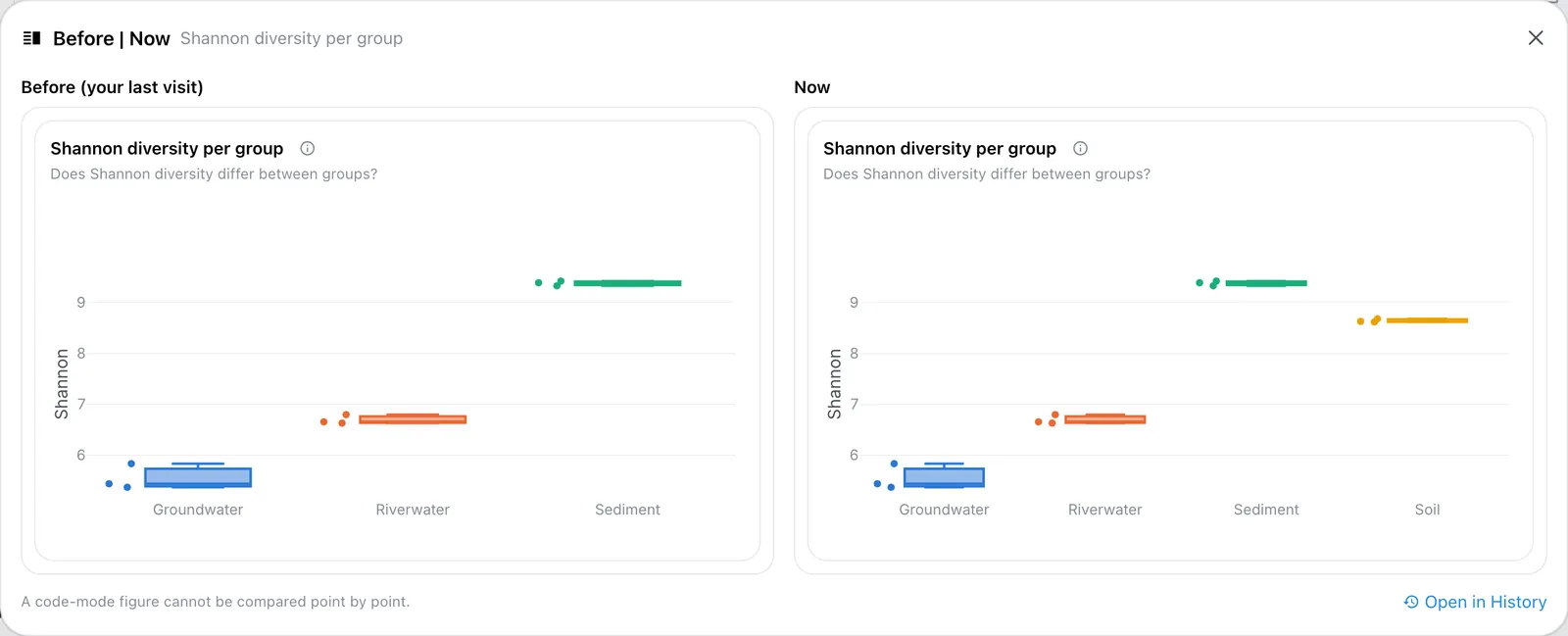
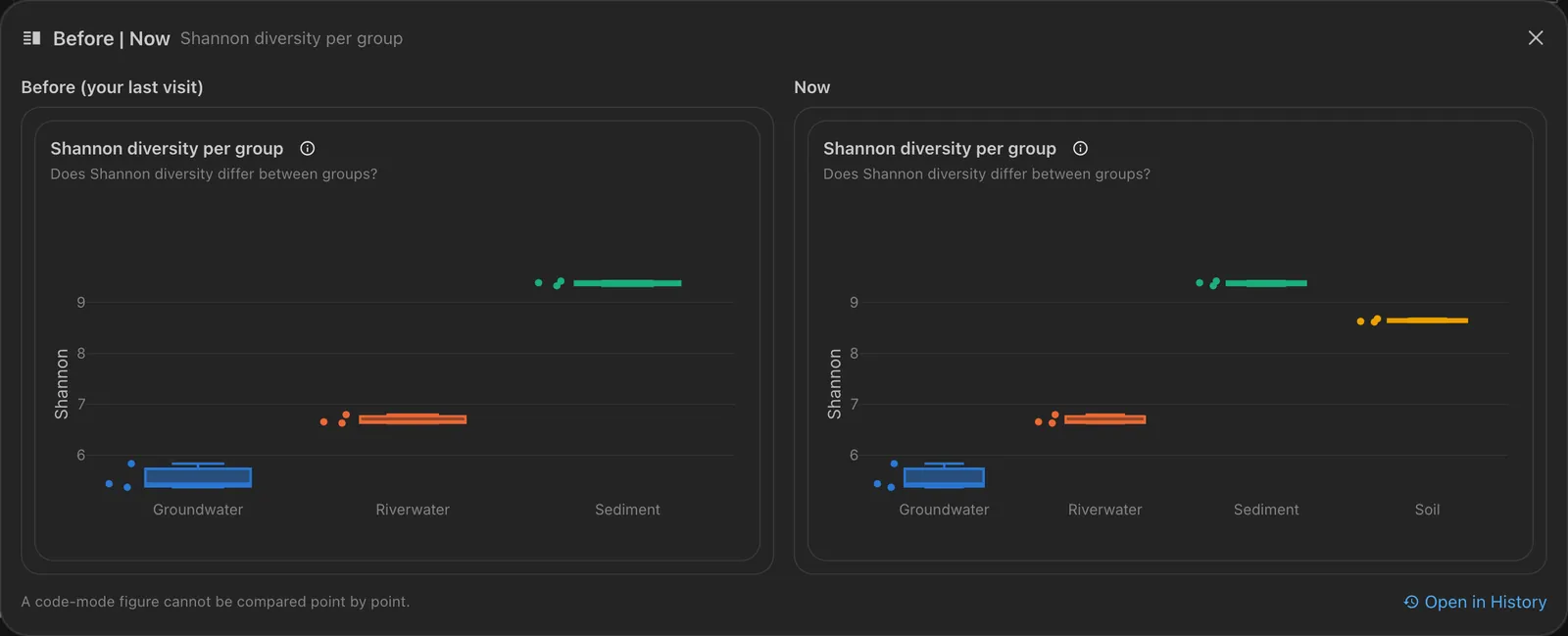
Compare with last visit turns the overlay on for that tile only. Before | Now opens a read-only modal with Before (your last visit) beside Now, both drawn with the same filters.
4. Mark the changes as seen
Click Mark as seen in the panel once you have read everything. The count goes back to zero, and the next changes start from here.
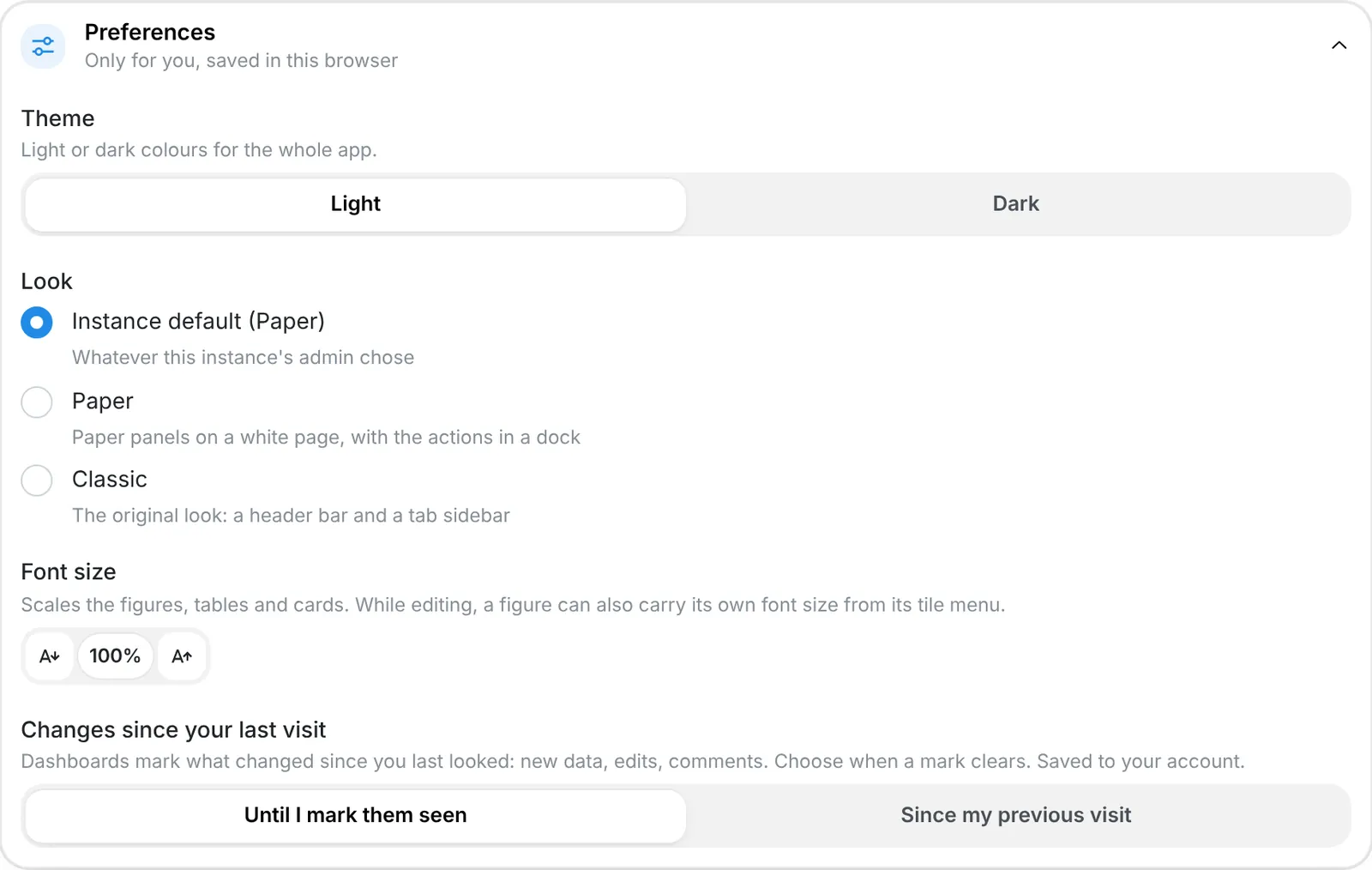
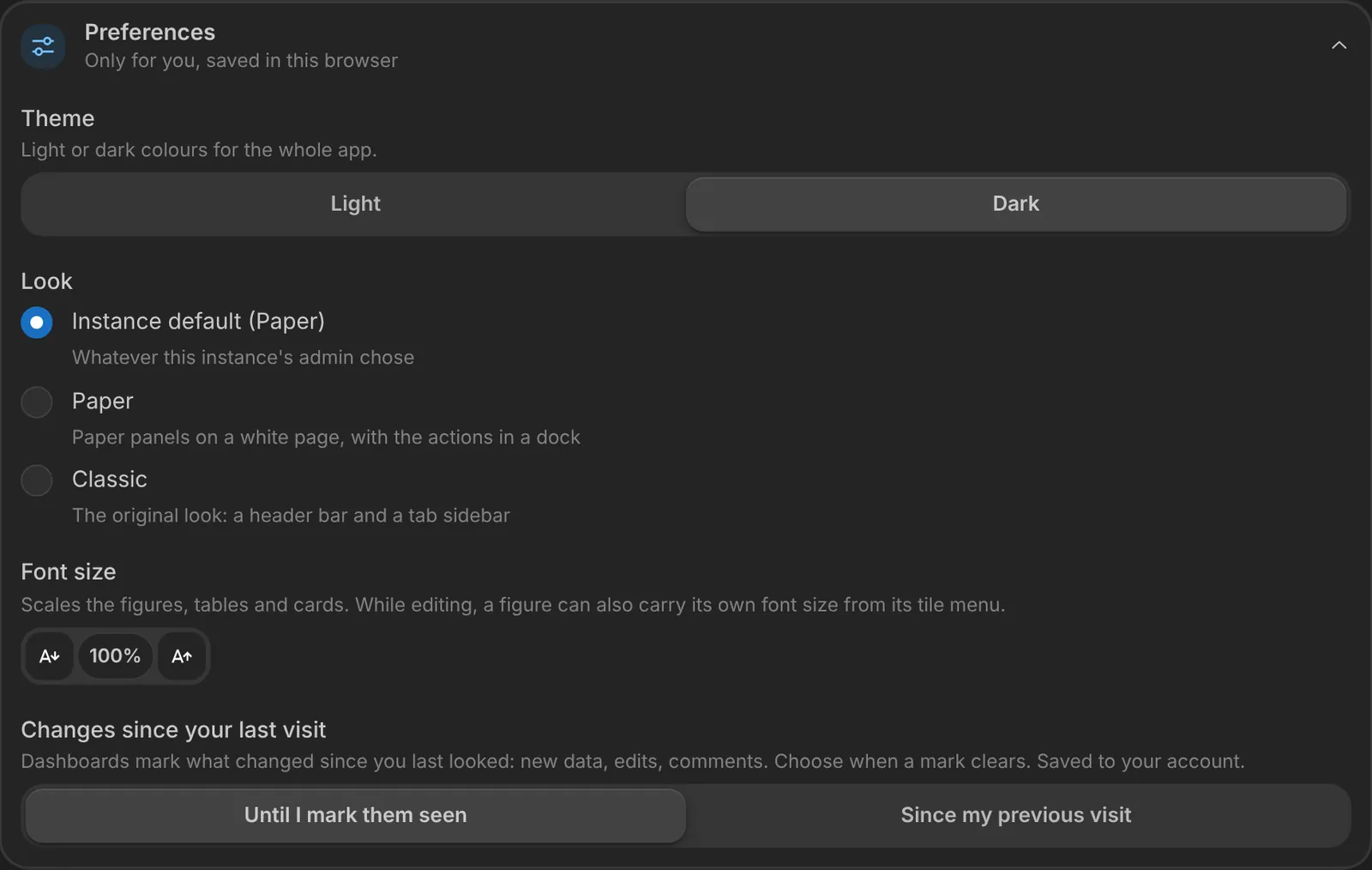
Under Show changes, choose when the baseline moves:
- Until I mark them seen: changes stay listed until you click Mark as seen.
- Since my previous visit: each visit moves the baseline.
The same choice sits in your profile, under Changes since your last visit.
5. Follow changes from the bell
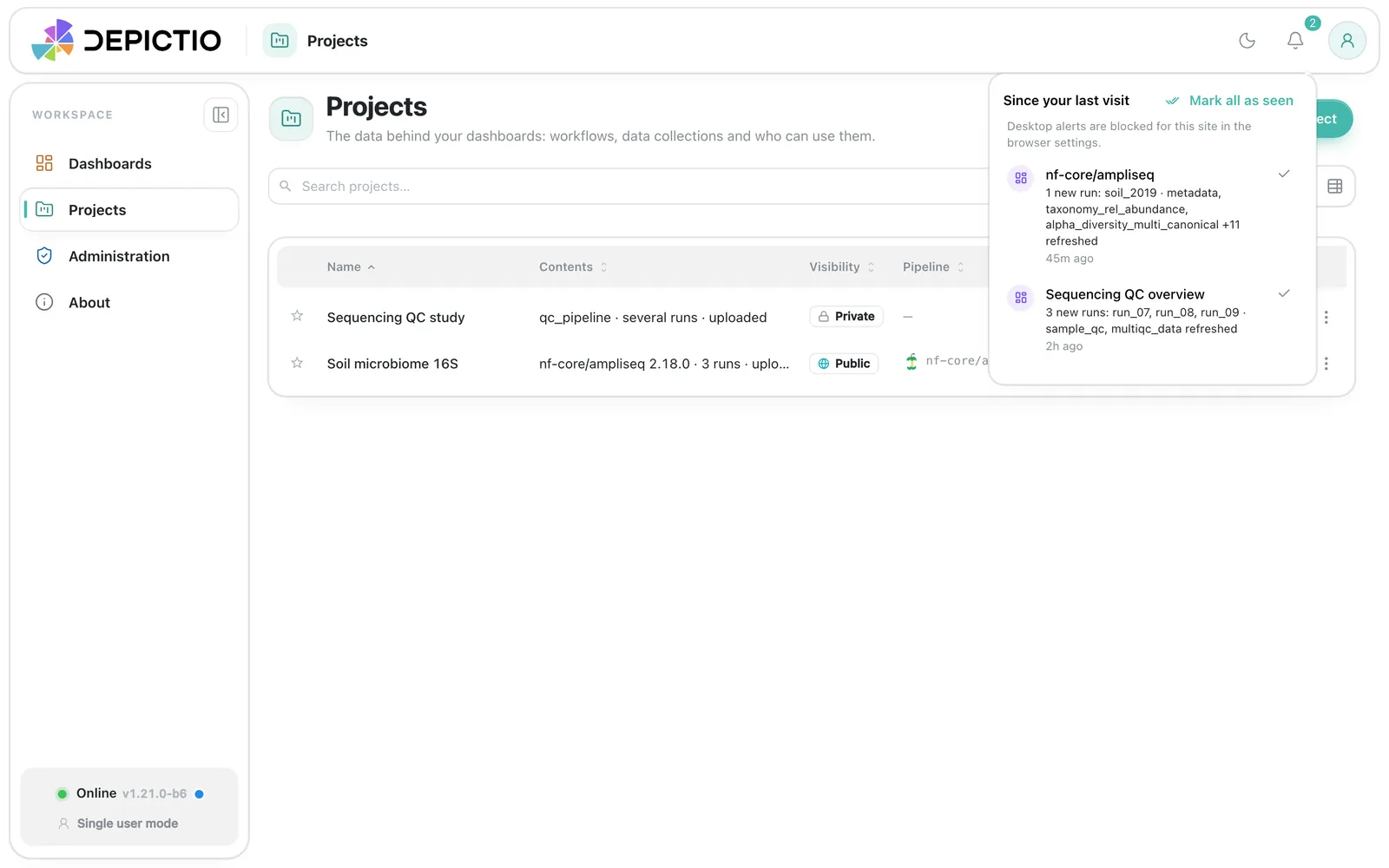
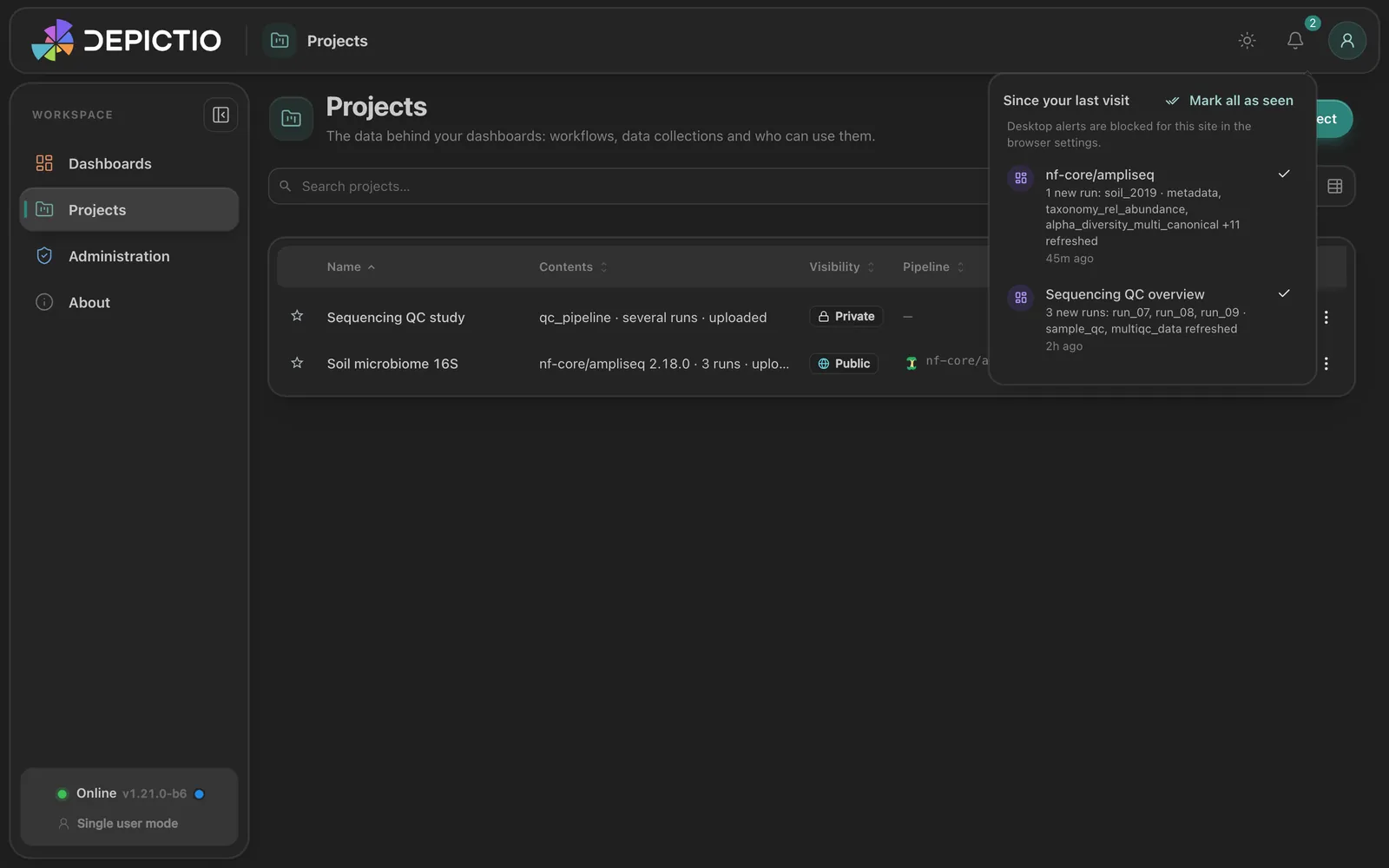
The notifications bell in the sidebar lists the dashboards and projects with changes. It checks every 60 seconds and shows a toast when an ingestion finishes. Each item links to the dashboard, or to the project's Runs tab on that run.
Clear one item with its check mark, or all of them with Mark all as seen.
6. Find your last visit in History
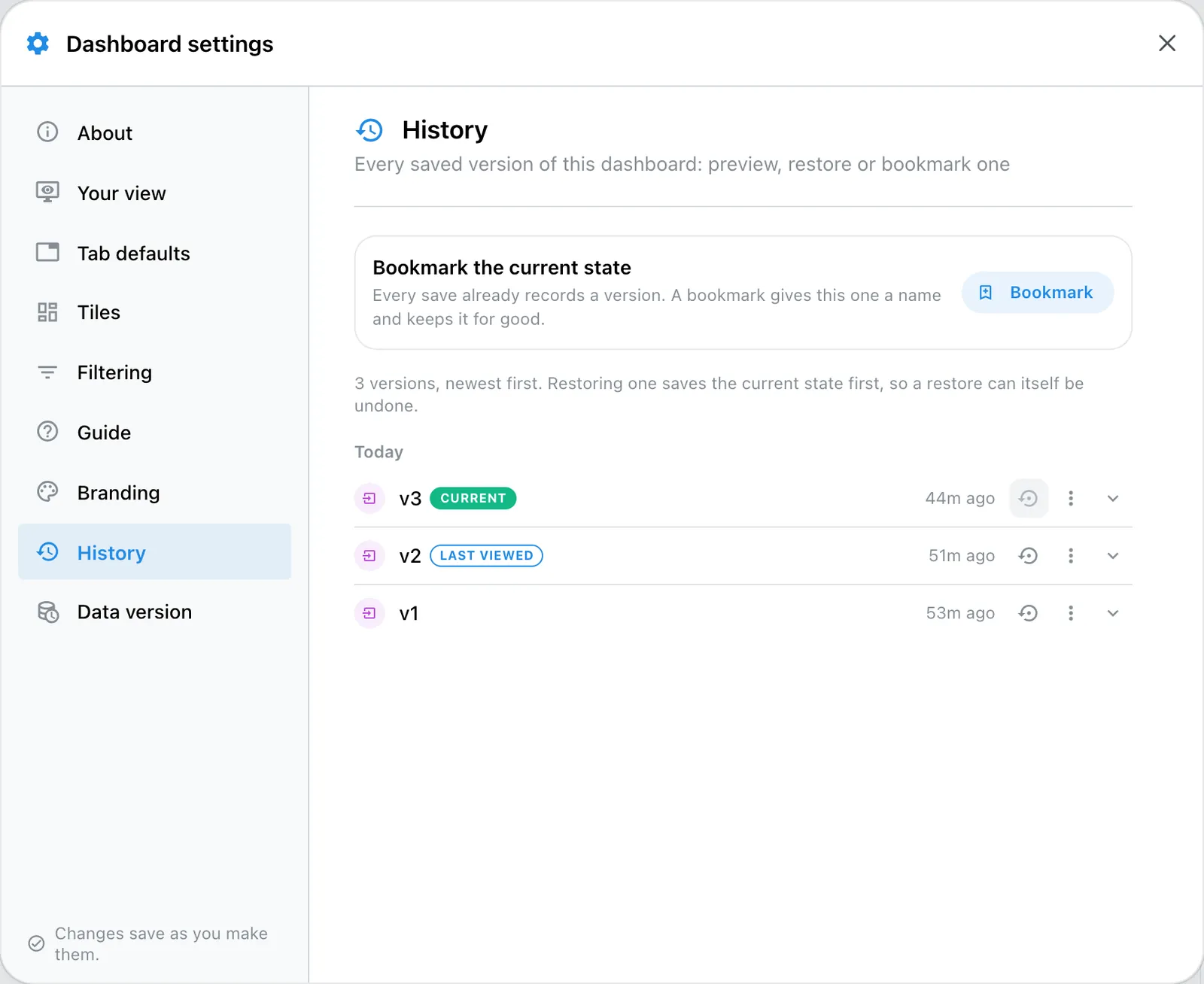
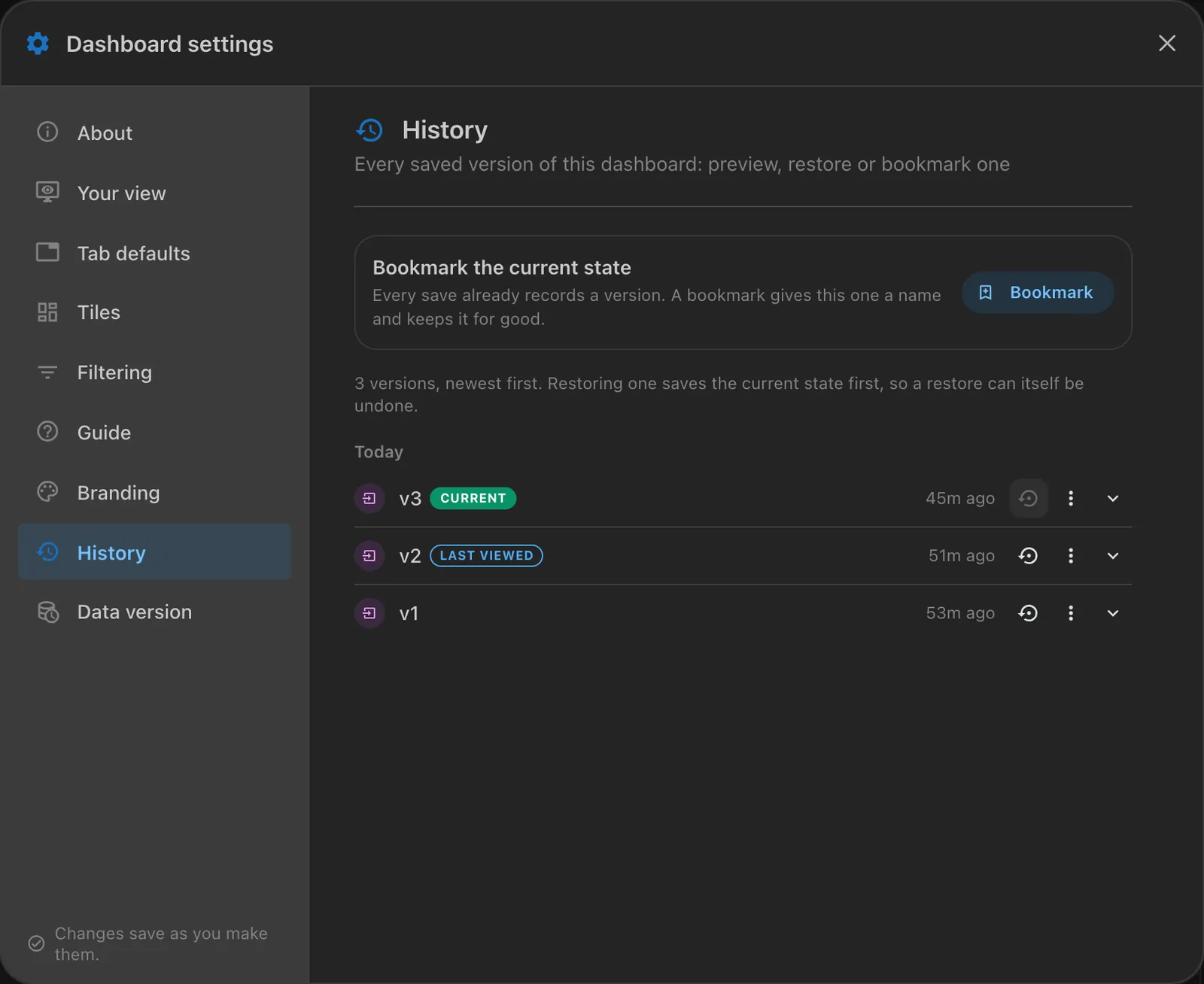
In the editor, the History section tags the version you last viewed Last viewed.
Good to know
- The first visit shows nothing: it sets the baseline.
- A visit is recorded 10 seconds after the page opens.
- Your own edits and comments never count. Ingestions do, even ones you ran.
- Moving or resizing a tile is not a change.
- An ingestion that rewrites identical rows is not a change.
- Anonymous and public readers keep their mark in the browser. The bell is hidden for them.
- Code-mode figures cannot be overlaid. Split draws them once per side.
- Split and Hide what you had seen need something new beside something seen: a new run, or new MultiQC samples. A run ingested again in place shows only in Before | Now.
- A MultiQC report overwritten in place keeps its storage key, so its Before shows today's report.
- A mark lists at most 5000 samples per collection. Past that, new samples are counted but not listed.
- The editor, a
?version=preview and the read-only?before_run=view never move your mark.