Projects in Depictio
Projects are the foundation of data organization in Depictio. They serve as containers for your data and dashboards, providing structure and access control for your analysis.
🎬 Projects Management Overview: Discover how Depictio's project types organize your data workflow
Understanding Project Architecture
Every Depictio project contains:
- Core Project Information - Name, description, and metadata
- Data Organization - Either direct data collections (Basic) or workflow-based structure (Advanced)
- Permission System - Role-based access control with owners, editors, and viewers
- Dashboard Integration - Each dashboard is linked to a project, allowing for interactive data exploration
- Storage Backend - Automatic conversion to Delta Lake format for optimal performance
Project Lifecycle
graph TD
    A[Create Project] --> B{Project Type?}

    B -->|Basic| C1[Create Data Collection]
    C1 --> C2[Upload Data Files]
    C2 --> D[Data Processing]

    B -->|Advanced| D1[Define Project Config]
    D1 --> D2[Configure Workflows]
    D2 --> D2a{For each Workflow}
    D2a --> D3[Define 1 or Multiple<br/>Data Collections]
    D3 --> D2a
    D2a -->|All Workflows<br/>Configured| D4[Run CLI Validation]
    D4 --> D5[File Discovery & Scanning]
    D5 --> D

    D --> E[Create Dashboards :material-view-dashboard:]
    E --> F[Share & Collaborate]

    %% Depictio teal theme styling - compatible with light/dark mode
    classDef default fill:#45B8AC,stroke:#2E7D73,stroke-width:2px,color:#fff
    classDef decision fill:#5FCBC4,stroke:#45B8AC,stroke-width:2px,color:#fff
    classDef highlight fill:#2E7D73,stroke:#45B8AC,stroke-width:2px,color:#fff

    class A,D,E,F highlight
    class B,D2a decision
Basic Projects
Perfect for: Direct data analysis and quick insights
Use when: You have tabular data files ready for analysis and want immediate visualization capabilities.
Basic projects provide an easy onboarding experience - upload your data and start creating interactive dashboards within minutes.
🎬 Basic Project Creation: Watch how to create a basic project from scratch - upload data and start visualizing in minutes
Core Features
- 🚀 Immediate Setup - No configuration files needed
- 📁 Direct File Upload from WebUI - Drag and drop your data files
- 🔄 Flexible Data Formats - CSV, Excel, Parquet, Feather
- ⚡ Fast Processing - Direct conversion to Delta Lake format
- Instant Visualization - Start creating dashboards immediately
Supported File Formats
| Format | Extension | Best Use Case |
|---|---|---|
| CSV | .csv |
Most common, universal compatibility |
| TSV | .tsv |
Tab-separated, good for scientific data |
| Excel | .xlsx, .xls |
Business data, multiple sheets |
| Parquet | .parquet |
Large datasets, optimal performance |
| Feather | .feather |
Fast I/O, preserves data types |
Creating a Basic Project
- Navigate to Projects - Click "Projects" in the main navigation
- Create Project - Click the "Create Project" button
- Choose Basic Type - Select "Basic Project" from the options
- Project Details - Fill in name and description
- Project data management - Navigate to the "Data Collections" tab
- Upload Data - Add your data files to collections by creating a new collection
- Click "Add Data Collection"
- Drag and drop files or use the file picker
- Supported formats: CSV, TSV, Excel, Parquet, Feather
- Start Visualizing - Create dashboards with your data
- Create Configuration File - Write a YAML file defining your project
# Create a basic project configuration file - basic_project.yaml
name: "My Basic Project"
project_type: "basic"
data_collections:
  - data_collection_tag: "my_data"
    config:
      type: "Table"
      metatype: "Metadata"
      scan:
        mode: "single"
        scan_parameters:
          filename: "/path/to/data.csv"
      dc_specific_properties:
        format: "CSV"
        polars_kwargs:
          separator: ","
          has_header: true
- Run CLI Command - Use the Depictio CLI to create the project
Advanced Projects
Perfect for: Bioinformatics workflows and complex data pipelines
Use when: You have automated pipelines generating data with standardized file organization and need to process multiple samples systematically.
Advanced projects are designed for core facility-like setups where standardized workflows generate structured data across multiple samples, timepoints, or experimental conditions.
Core Features
- 🔬 Workflow Integration - Connect to nf-core, Nextflow, Snakemake, Galaxy pipelines
- 📊 Multi-sample Analysis - Handle large number of samples
- 🔍 File Discovery - Regex-based pattern matching for file organization
- 🔗 Cross-DC Links - Interactive filtering across data collections (tables, MultiQC, etc.)
- 📈 Scalable Processing - Delta Lake backend for large-scale data
Project Structure Example
study_directory/
├── depictio_project.yaml    # Configuration file
├── run_001/                 # First sample batch
│   ├── sample_A/
│   │   ├── stats/
│   │   │   └── sample_A_stats.tsv
│   │   └── analysis_results/
│   │       └── sample_A_analysis.tsv
│   └── sample_B/
│       ├── stats/
│       │   └── sample_B_stats.tsv
│       └── analysis_results/
│           └── sample_B_analysis.tsv
└── run_002/                 # Second sample batch
    ├── sample_C/
    │   ├── stats/
    │   │   └── sample_C_stats.tsv
    │   └── analysis_results/
    │       └── sample_C_analysis.tsv
    └── sample_D/
        ├── stats/
        │   └── sample_D_stats.tsv
        └── analysis_results/
            └── sample_D_analysis.tsv
Configuration File Format
Advanced projects require a YAML configuration that describes data organization patterns:
# =============================================================================
# DEPICTIO ADVANCED PROJECT CONFIGURATION
# =============================================================================

# Project identification
name: "RNA-seq Expression Study"
project_type: "advanced"
description: "Multi-sample RNA sequencing analysis"
is_public: false

# Workflow definition
workflows:
  - name: "rnaseq_pipeline"

    # Workflow engine information
    engine:
      name: "nextflow" # or "snakemake", "python"
      version: "24.10.3"

    description: "nf-core RNA-seq analysis pipeline"
    repository_url: "https://github.com/my-org/my-nf-wf-rnaseq"

    # Data organization configuration
    config:
      # Data location settings
      parent_runs_location:
        - "{DATA_LOCATION}/rnaseq-results" # Environment variable
        - "/absolute/path/to/data" # Alternative absolute path

      # Run identification pattern
      runs_regex: ".*" # Matches all directories

      # Data collections definition
      data_collections:
        # Sample statistics collection
        - data_collection_tag: "sample_stats"
          description: "Per-sample quality control statistics"

          config:
            type: "Table"
            metatype: "Aggregate" # Combine multiple files

            # File discovery settings
            scan:
              mode: "recursive"
              scan_parameters:
                regex_config:
                  pattern: "stats/.*_stats.tsv"

            # Processing configuration
            dc_specific_properties:
              format: "TSV"
              polars_kwargs:
                separator: "\t"
                has_header: true

              # Column selection for performance
              keep_columns:
                - "sample_id"
                - "total_reads"
                - "mapped_reads"
                - "quality_score"

              # Human-readable descriptions
              columns_description:
                sample_id: "Unique sample identifier"
                total_reads: "Total sequencing reads"
                mapped_reads: "Successfully aligned reads"
                quality_score: "Overall sample quality metric"

        # Analysis results collection
        - data_collection_tag: "gene_expression"
          description: "Gene expression analysis results"

          config:
            type: "Table"
            metatype: "Aggregate"

            scan:
              mode: "recursive"
              scan_parameters:
                regex_config:
                  pattern: "analysis_results/.*_analysis.tsv"

            dc_specific_properties:
              format: "TSV"
              polars_kwargs:
                separator: "\t"
                has_header: true

              keep_columns:
                - "sample_id"
                - "gene_id"
                - "expression_level"
                - "p_value"

# Cross-DC Links: Interactive filtering between data collections
links:
  - source_dc_id: "sample_stats"      # Filter from this DC
    source_column: "sample_id"         # Filter by this column
    target_dc_id: "gene_expression"    # Update this DC
    target_type: "table"               # Target type: table or multiqc
    link_config:
      resolver: "direct"               # Same value in both DCs
File Discovery Patterns
Advanced projects use five scanning modes. Two walk a local directory tree,
single and recursive. Three fetch data from where it already is, url,
s3_prefix and manifest, and are covered on
Remote data and manifests.
Single File Mode
Perfect for metadata files or summary statistics generated once per project:
Recursive Mode
Uses regex patterns to find files at any directory depth:
Remote Modes (v1.16.0+)
A collection can also point at one file on the web or in a bucket (url), at
every object under an S3 prefix (s3_prefix), or at the entries of a Data
Manifest (manifest). Whoever ingests reads the files from there, the CLI or
the server, so these modes also work from the web UI with no CLI installed, and
the server can refresh them later. On the CLI, --bind TAG=LOCATION picks
the mode from the shape of the location, so a template written for a local tree
can be run against a bucket:
See Remote data and manifests for the modes, the manifest contract, and how to refresh or share such a project.
CLI Workflow
Process advanced projects using the CLI:
The CLI executes this pipeline:
- ✅ Server Check - Verify connection to Depictio backend
- ✅ S3 Storage Check - Validate cloud storage configuration
- ✅ Config Validation - Ensure YAML structure is correct
- ✅ Config Sync - Register project with server
- ✅ File Scan - Discover files matching patterns
- ✅ Data Process - Convert files to Delta Lake format
- ✅ Joins - Run the table joins the project configuration defines
- ✅ Dashboards - Import the dashboards the project lacks, from the template or from
--dashboard
--skip STEP leaves steps out, for instance --skip dashboards. See
Skipping steps.
Managing Data Collections from the viewer (v0.12.0+)
Data Collections can be created and managed directly from the viewer — no YAML edits or CLI runs required. Available for Basic projects today; some flows also work on Advanced projects.
Available from v0.12.0
All flows in this section require Depictio v0.12.0 or later. See the changelog for the full release notes.
MultiQC Data Collections
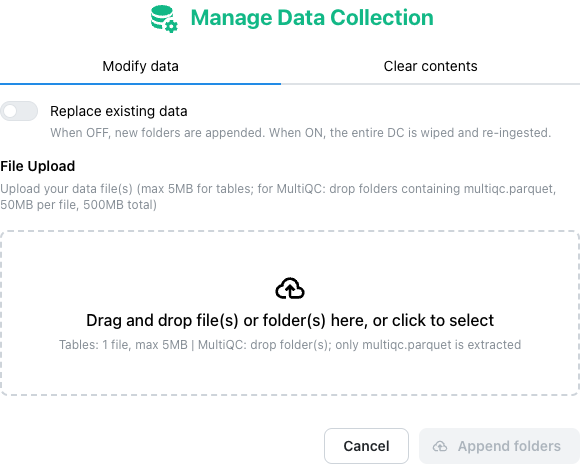
MultiQC DCs support a full lifecycle from the Manage Data Collection modal:
| Action | What it does |
|---|---|
| Create | Upload one or more MultiQC reports (single file or folder) — the DC is materialised with cache prewarmed via Celery |
| Append | Add more runs to an existing DC; the live cache is invalidated and rewarmed |
| Replace | Swap the underlying report set in place |
| Clear | Drop all data from the DC while keeping the definition |
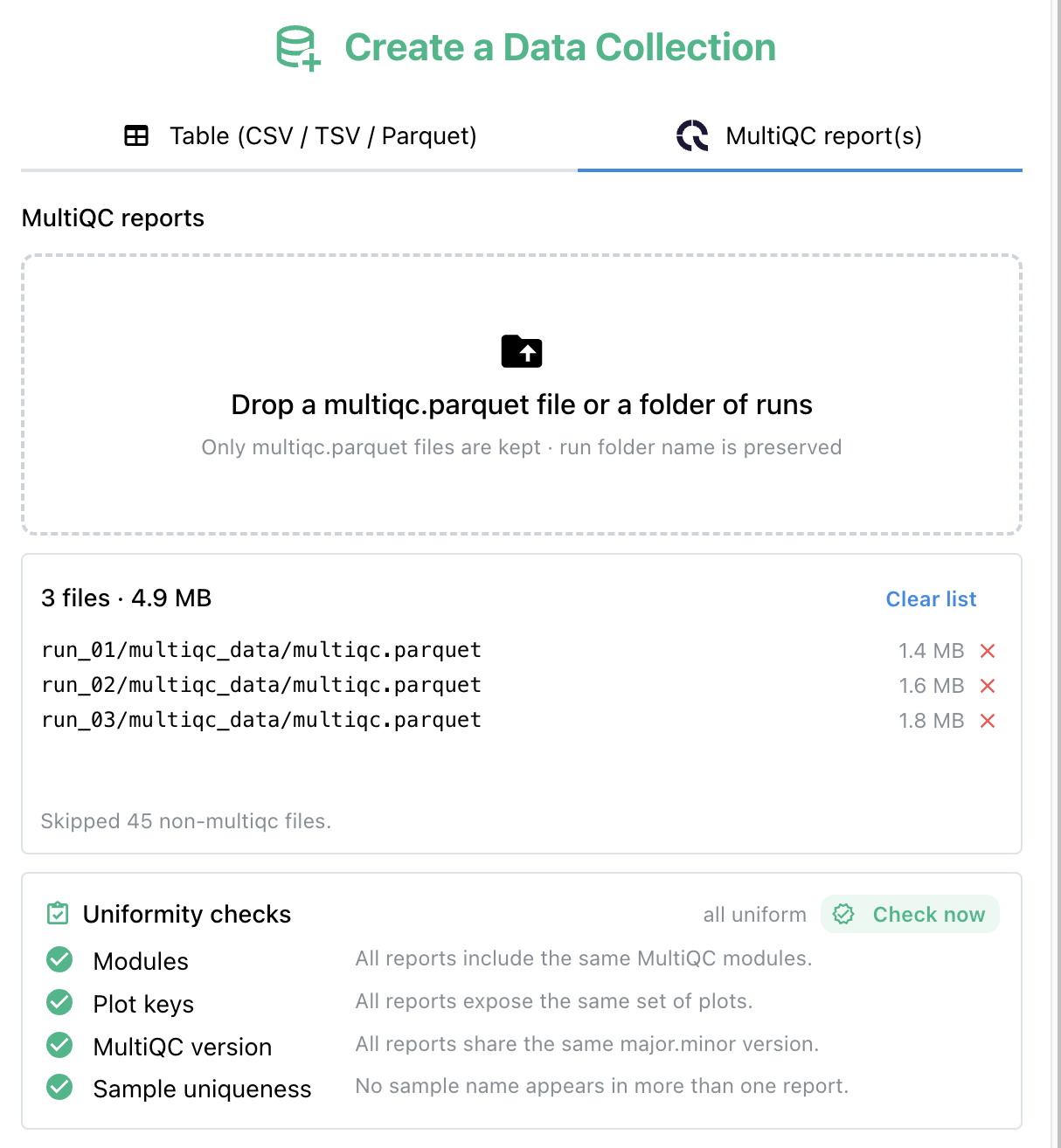
Uniformity validation (React Beta)
Web interface
The uniformity checklist UI and the Check now button are available in the web interface. The validator endpoint can be called from any client.
Before ingest, MultiQC reports are checked for uniformity — the same module set and column schema across runs — so plot rendering stays consistent. The check runs automatically on Create and on every Append, and can be re-run on demand with the Check now button.
Non-uniform reports surface a checklist of differences (missing modules, divergent columns) and block the destructive action until resolved.
Type-specific Data Collection configuration
Web interface
The UI for type-specific DC configuration is available in the web interface. YAML-level configuration is supported everywhere.
Some visualization types need extra metadata declared at the Data Collection level (e.g. which columns hold coordinates, which hold sample IDs, log-fold-change, p-values, …). Declaring this on the DC means every figure built on top inherits the config — no need to re-specify it per component.
This pattern is being rolled out incrementally. The first shipped example is Map; advanced-viz types (volcano, ComplexHeatmap, UpSet, GSEA enrichment, rarefaction, …) will follow the same pattern.
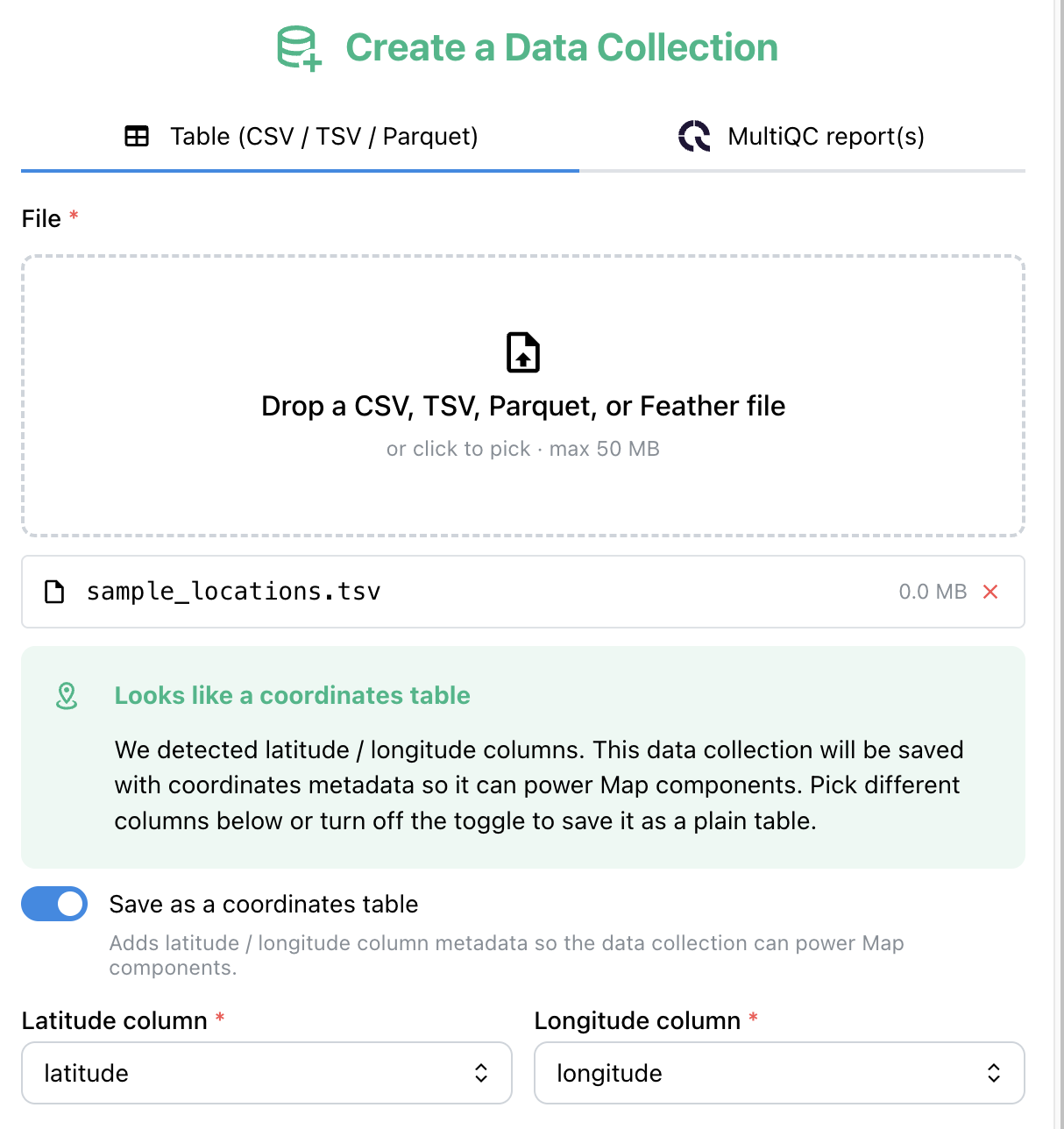
Example: Map-capable Table DCs
Tabular DCs can be marked Map-capable so every Map figure built on them inherits the same coordinates without re-specifying lat_column / lon_column:
- In the React viewer: the Create DC modal has a Coordinates tab. Columns are scanned and lat/lon candidates are detected inline — you confirm or override the pick.
- At upload time:
POST /create_from_uploadacceptslatColumnandlonColumnquery params with column-existence validation. - In YAML: use
DCTableCoordinatesConfigon the DC's config block (see YAML examples).
Per-figure lat_column/lon_column overrides still work when set; if both are unset, the DC-level config is used.
Example: Phylogeny DCs and their metadata table
A phylogeny DC is file-backed: the .nwk / .nex file is read where it was
found, never parsed or converted. What it declares at the DC level is where its
tip annotations come from: a separate Table DC keyed by taxon name, the same
split Microreact uses. Every phylogenetic figure built on the tree inherits that
join.
- data_collection_tag: "bacterial_tree"
  description: "Bacterial phylogeny (21 taxa), Newick format"
  config:
    type: "phylogeny"
    metatype: "Aggregate"
    scan:
      mode: "single"
      scan_parameters:
        filename: "{DATA_ROOT}/trees/bacterial_tree.nwk"
    dc_specific_properties:
      format: "newick"          # or "nexus"
      ladderize: true
      metadata_dc_tag: "bacterial_metadata"
      metadata_taxon_column: "taxon"

- data_collection_tag: "bacterial_metadata"
  description: "Tip metadata (group / habitat / resistance)"
  config:
    type: "Table"
    metatype: "Aggregate"
    scan:
      mode: "single"
      scan_parameters:
        filename: "{DATA_ROOT}/trees/bacterial_metadata.tsv"
    dc_specific_properties:
      format: "TSV"
      polars_kwargs:
        separator: "\t"
Leave the three metadata keys out and the tree still renders, just unannotated.
Use tip_label_strategy: "first_token" when leaf names carry a suffix
(Escherichia_coli_K12 → Escherichia_coli).
A component then points at the tree with tree_wf_id / tree_dc_id and colours
its tips from any column of the metadata DC. See
Phylogenetic for the component
schema and its controls.
Example: Indexed-file DCs
An indexed_file DC is file-backed too, and it is the one to reach for when a genomic
file is too large or too dense to become a table: a per-sample VCF, a BAM, a coverage
bigWig, an annotation GFF3, or any bgzip-compressed, tabix-indexed interval file such as a
BED. Ingestion builds no Delta table. It copies each matched file and its index sidecar to
S3, one object per sample, and a genome track in the browser asks the API for presigned
URLs and range-reads only the part of the file covering the region in view.
- data_collection_tag: "variant_files"
  description: "Annotated VCF per sample with its tabix index"
  optional: true
  config:
    type: "indexed_file"
    metatype: "Metadata"
    scan:
      mode: "recursive"
      scan_parameters:
        regex_config:
          pattern: ".*\\.ann\\.vcf\\.gz$"
    dc_specific_properties:
      format: "vcf"            # vcf, bam, bigwig, bigbed, gff3, fasta or tabix
      assembly: "{GENOME}"     # genome axis of the tracks reading this DC
      sample_regex: "(?P<sample>[^/]+?)\\.ann\\.vcf\\.gz$"
      max_file_size_mb: 64     # files above the cap are skipped with a warning
| Key | Default | Meaning |
|---|---|---|
format |
required | Which lazy reader the track uses. tabix covers any bgzip + tabix interval file that is not a VCF or GFF3. bw, bb and gff are accepted as aliases. |
index_suffix |
per format | Suffix of the index beside each file: .tbi for vcf, gff3 and tabix, .bai for bam, .fai for fasta, none for the self-indexed bigwig and bigbed. Set it only when the pipeline names its indexes differently; an empty string declares a self-indexed file. |
sample_regex |
file name | A regular expression with a named sample group, matched against the file path. Without it, the file name minus its format and compression suffixes is the sample. |
sample_col |
sample |
The name the sample id has in the project's tables, so a file track can sit beside table-backed tracks and answer the dashboard's sample filter. It is not a column of this DC. |
assembly |
none | Genome assembly the files are aligned to. Left out, the component config decides. |
max_file_size_mb |
512 |
Per-file upload cap. |
The scan matches one primary file per sample. A file with no index beside it is skipped
with a warning rather than uploaded unreadable, and a second file resolving to a sample
already taken is skipped too, so which file wins never depends on scan order. Making the DC
optional, as above, keeps a run that was fetched without its index sidecars from failing
the whole ingestion.
Prefer a table DC when the data is small enough to filter and aggregate as rows: cards,
figures and tables read rows, and an indexed_file DC has none. Its consumer is a genome
track reading files directly: a Genome view
tile with source: file.
Storage the browser can read (v1.13.0+)
The bytes of an indexed file never pass through the API: the browser reads them from the object store itself, with the presigned URLs the API hands out (valid 15 minutes). Two things follow for a deployment:
- The URLs are signed for the address the browser uses. The API signs them against
DEPICTIO_S3_PUBLIC_URLwhen it is set, otherwise againstDEPICTIO_S3_EXTERNAL_PROTOCOL,DEPICTIO_S3_EXTERNAL_HOSTandDEPICTIO_S3_EXTERNAL_PORT(the olderDEPICTIO_MINIO_*names still work). A signature covers the host, so a URL signed for an in-cluster name such ashttp://s3:9000fails in the browser. - The store must answer the viewer's origin with CORS and serve range requests. The
bundled SeaweedFS allows every origin by default; narrow it with
-s3.allowedOrigins=https://viewer.example.org, through thes3service'scommandin Docker Compose ors3.extraArgsin the Helm chart. On AWS S3 or another gateway, add a bucket CORS rule allowingGETandHEADfrom the viewer's origin, withRangeamong the allowed headers andContent-Range,Content-Length,Accept-RangesandETagexposed.
Without this, a genome view shows no file tracks. Tracks read from table DCs are unaffected.
Template Projects
Perfect for: nf-core pipelines and standardized bioinformatics workflows
Use when: You have output from a supported pipeline (e.g. nf-core/ampliseq) and want a fully configured project + dashboards in one command — without writing any YAML.
Templates are pre-packaged project configurations that ship with Depictio. Each template bundles a project YAML (with {DATA_ROOT} placeholders), bundled dashboards, and referenced data transformation recipes for a specific pipeline version.
One-command setup
That single command:
- Resolves all
{DATA_ROOT}placeholders, and the template's other variables, throughout the config - Creates the project in MongoDB
- Discovers and processes all data collections (running recipes automatically)
- Imports the bundled dashboard
Without --template, the template is detected from the results directory when it can be, and since v1.16.0 a local directory no bundled template fits gets one composed from the catalog. Running the same command again with --update-config refreshes the project and keeps its dashboards as edited in the viewer; see Refreshing a project.
The results directory can also be an s3:// prefix, a manifest-driven template takes --manifest <url or path> in place of the directory, and any template can be pointed at other locations, collection by collection, with --bind TAG=LOCATION. The web UI creates a project from a run folder too, with From a run folder. See Remote data and manifests.
When to use templates
Use templates when:
- ✅ You ran a supported nf-core pipeline (e.g. ampliseq) and want instant visualization
- ✅ You want a reproducible, versioned project setup you can share with collaborators
- ✅ You prefer not to write project YAML from scratch
Use a manual YAML config when:
- ✅ Your pipeline is not yet covered by a bundled template
- ✅ You need highly customized data collection patterns or scan configurations
- ✅ You want fine-grained control over which files are included
Template workflow diagram
graph TD
    A(["🚀 <b>depictio ingest DIR --template X</b>"])
    A --> B["📦 Resolve template<br/><i>substitute {DATA_ROOT}</i>"]
    B --> C["✅ Validate the project<br/><i>resolved configuration</i>"]
    C --> D["⚙️ Sync · Scan · Process<br/><i>standard pipeline + recipes</i>"]
    D --> E["📊 Import the bundled dashboards it lacks"]
    E --> F(["✨ <b>Project ready</b><br/><i>badge: Template: nf-core/ampliseq/2.16.0</i>"])

    classDef default fill:#E0F2F1,stroke:#45B8AC,stroke-width:2px,color:#2E7D73
    classDef endpoints fill:#45B8AC,stroke:#F68B33,stroke-width:3px,color:#fff
    class A,F endpoints
Template origin badge
Once imported, every dashboard card in the UI shows a badge:
This tells you and your collaborators which template generated the project, enabling template discovery and making provenance visible throughout the UI.
For full template reference — available templates, data validation levels, YAML structure, and all CLI flags — see Templates.
Project Types Comparison
Choose the right project type for your workflow:
| Feature | Basic Projects | Advanced Projects | Template Projects |
|---|---|---|---|
| Setup Complexity | Minimal - Web UI or CLI | CLI only today (WebUI planned), YAML config required | Single CLI command, no YAML needed (WebUI planned) |
| Data Sources | UI File upload or CLI-based processing | CLI-based processing | CLI-based (pipeline output) |
| File Organization | Simple file management | Structured directory patterns | Fixed structure per template |
| Multi-sample Support | Single datasets | Multi samples support | Full support (template-specific) |
| Data Processing | Direct conversion | Aggregation & cross-DC links | Recipes + cross-DC links (pre-configured) |
| Learning Curve | Immediate | Moderate (YAML knowledge) | Minimal (just point at data dir) |
| Scalability | Small-medium datasets | Large-scale studies | Pipeline-scale (template-specific) |
How to Choose the Right Project Type
Choose Basic when:
- ✅ You have a limited number of files ready for analysis
- ✅ One-time analysis or ad-hoc exploration
- ✅ Manual data preparation is acceptable
- ✅ Quick insights are the primary goal
Choose Advanced when:
- ✅ Automated pipelines generate your data
- ✅ Standardized file organization exists
- ✅ You need to aggregate data across samples/runs
- ✅ Regular data updates are expected
Choose a Template when:
- ✅ You ran a supported nf-core pipeline (e.g. ampliseq)
- ✅ You want instant project + dashboards without writing YAML
- ✅ Reproducibility and template provenance tracking matter
Project Permissions
Depictio implements a comprehensive role-based permission system:
Permission Roles
| Role | Capabilities |
|---|---|
| Owner | Full control - edit, delete, manage permissions |
| Editor | Modify project data, create/edit dashboards |
| Viewer | Read-only access to project and dashboards |
Public Projects
Projects can be made public by:
- Setting
is_public: truein configuration - Using the web interface toggle
Public projects are:
- ✅ Visible to all users
- ✅ Read-only for non-members
- ✅ Searchable in project listings
- ❌ Only editable by owners and editors
- ❌ Not editable by viewers or anonymous users
Project deletion
Deleting a project (via the Web UI or DELETE /depictio/api/v1/projects/{id})
cascades to all dependent state:
- Workflows declared in the project
- Data collections (and their MongoDB documents)
- Dashboards owned by the project
- S3 objects under
s3://<bucket>/{project_id}/
There is no soft-delete or trash bin — once the operation completes, the project's data is unrecoverable. Use Project migrate to take a portable backup ZIP before deletion if you need rollback capability.
Self-migration shortcut
Migrating a project to the same instance (source == target) skips the S3 copy step but still produces a complete export ZIP — useful for backing up immediately before a delete.
💾 Data Storage Architecture
Delta Lake Backend
All project data is automatically converted to Delta Lake format which provides following benefits:
- ACID Transactions - Reliable data consistency
- Time Travel - Version history and rollback capabilities
- Schema Evolution - Handle changing data structures
- Optimized Queries - Fast dashboard performance
- Compression - Efficient storage utilization
Future Depictio versions will support aforementioned features progressively, enhancing user experience and data management capabilities.
Storage Hierarchy
Project Storage Structure:
├── metadata/           # Project configuration and metadata
├── data_collections/   # Raw data collections
│   ├── collection_1/
│   │   ├── delta_table/  # Optimized Delta Lake format
│   │   └── metadata.json # Collection-specific metadata
│   └── collection_2/
├── dashboards/        # Dashboard configurations
└── permissions/       # Access control data
Performance Optimizations
- Lazy Loading - Load data only when needed
- Column Pruning - Select only required columns
- Predicate Pushdown - Filter data at storage level
- Caching - Cache frequently accessed data
- Partitioning - Optimize queries by partition keys
🔧 Advanced Configuration Options
Environment Variables
Use environment variables for flexible deployments:
# Configuration with environment variables
parent_runs_location:
  - "{DATA_LOCATION}/study1" # Resolved at runtime
  - "{BACKUP_LOCATION}/study1" # Alternative location
Polars Integration
Advanced data processing with Polars DataFrames:
dc_specific_properties:
  format: "CSV"
  polars_kwargs:
    separator: ","
    has_header: true
    skip_rows: 1
    column_types:
      sample_id: "String"
      expression: "Float64"
      p_value: "Float64"
    null_values: ["NA", "NULL", ""]
Cross-DC Links
Interactive filtering between data collections at runtime:
links:
  - source_dc_id: "metadata"           # Filter from this DC
    source_column: "sample_id"          # Filter by this column
    target_dc_id: "multiqc_report"      # Update this DC
    target_type: "multiqc"              # Target type: table or multiqc
    link_config:
      resolver: "sample_mapping"        # Maps canonical IDs to MultiQC variants
See Cross-DC Filtering for details.
Custom Workflows
Support for various workflow engines:
engine:
  name: "nextflow" # or "snakemake", "python", "cwl", "galaxy"
  version: "24.10.3" # Version for reproducibility

catalog:
  name: "nf-core" # Workflow catalog
  url: "https://nf-co.re/rnaseq"
🚀 Best Practices
Project Organization
- Naming Convention - Use descriptive, consistent names
- Documentation - Include comprehensive descriptions
- Version Control - Track configuration changes
- Testing - Validate configurations before deployment
Data Management
- File Organization - Maintain consistent directory structures
- Metadata - Include comprehensive column descriptions
- Validation - Use schema validation for data quality
- Backup - Implement regular backup strategies
Performance Optimization
- Column Selection - Use
keep_columnsto reduce memory usage - File Formats - Prefer Parquet over CSV for large datasets
- Partitioning - Organize data by frequently queried columns
- Indexing - Create appropriate indexes for query patterns
Collaboration
- Permission Management - Set appropriate access levels
- Documentation - Maintain clear project documentation
- Communication - Use descriptive commit messages for changes
- Standardization - Establish team conventions
🔍 Troubleshooting
Common Issues
Problem: YAML validation fails
Solutions:
Problem: Files not found during scanning
Solutions: - Verify file paths and permissions - Test regex patterns with sample files - Check environment variable resolution - Use dry-run mode for testing
Problem: Access denied to project resources
Solutions: - Verify user roles and permissions - Check project visibility settings - Confirm authentication status - Contact project owners for access
Problem: Slow dashboard loading
Solutions: - Use column selection to reduce data size - Use links for runtime filtering instead of pre-computed joins - Consider data partitioning - Review query patterns
Debugging Commands
# Verbose execution with detailed logging (-v for INFO, -vv for DEBUG)
depictio -vv ingest --project-config-path ./config.yaml

# Dry run to preview operations
depictio ingest --project-config-path ./config.yaml --dry-run

# Step-by-step execution for debugging
depictio config check
depictio config check --project-config-path ./config.yaml
depictio data scan --project-config-path ./config.yaml
📚 Additional Resources
- CLI Reference - Complete CLI documentation
- YAML Examples - Comprehensive configuration examples
- Configuration Reference - Complete YAML reference
- Dashboard Creation - Building interactive dashboards
- API Documentation - Programmatic project management
Projects form the foundation of data organization in Depictio. Choose the right project type for your workflow to unlock the full power of interactive data exploration and collaboration.