Compare runs (v1.21.0+)
A project made from a pipeline can hold several runs of it. The Runs tab says what each run produced and what each scan changed, and Compare opens a dashboard with what one run changed marked.
Before you start
- Depictio v1.21.0 or later.
- A project made from a pipeline run, with at least one dashboard.
- Compare and the dot on new runs need the changes feature:
DEPICTIO_DASHBOARD_VERSIONS_CHANGES_SINCE_ENABLED=true. See What's new since your last visit. - Attaching a run needs the owner or editor role.
1. Attach a second run
On the project page, click Add data and pick the folder of another run of the same pipeline. Depictio recognises it as a run, and the button reads Add run.
If the run's MultiQC reports name samples the project already holds, the dialog lists them and holds the run back until you resolve them.
2. Open the Runs tab
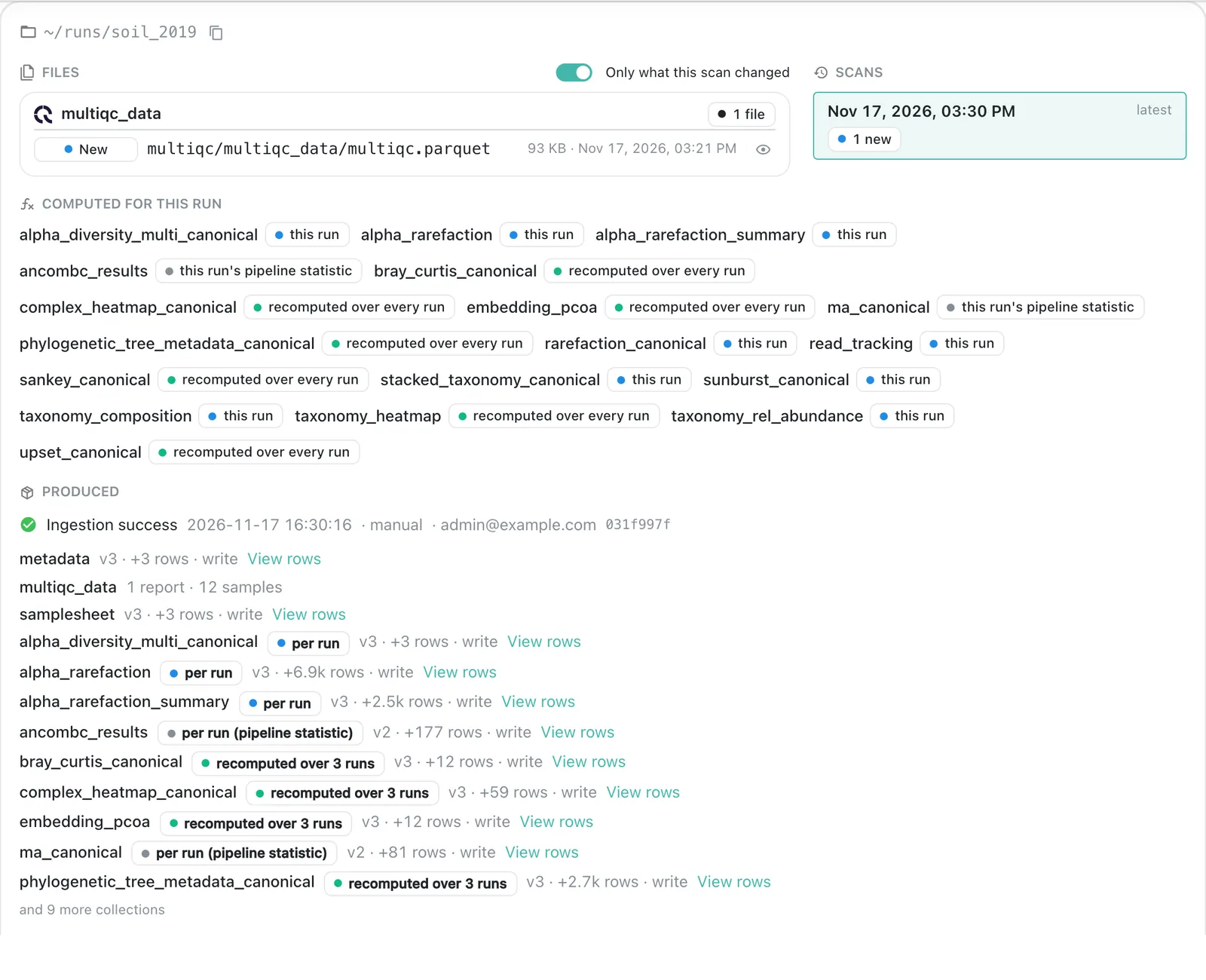
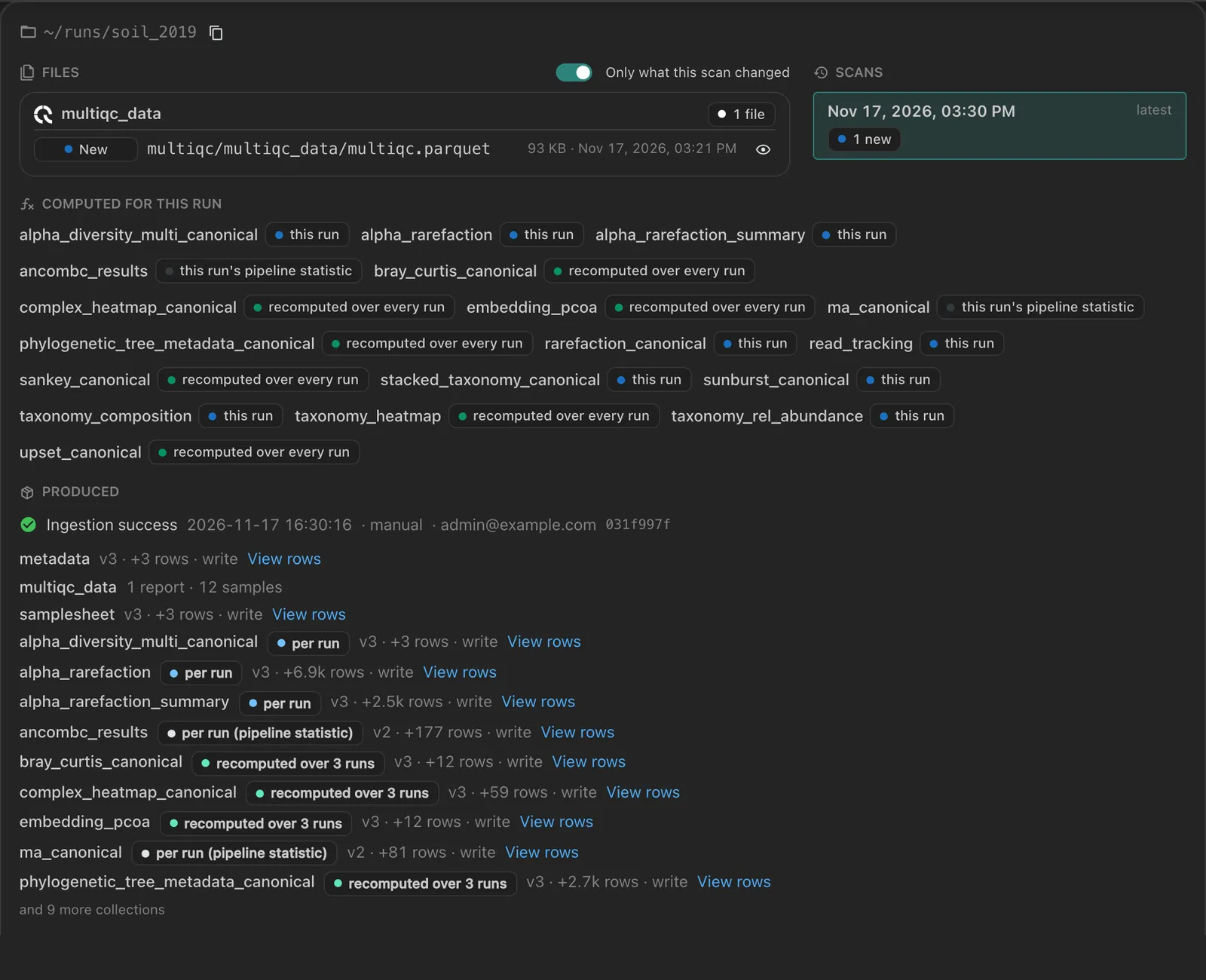
The Runs tab lists one row per run. New runs carry a dot. Unfold a run to see its folder, its files and its scans.


Each run has a Produced block: its ingestions, the Delta commits it wrote and its MultiQC reports. Each Delta commit has View rows, which opens that collection's Data table with the run's rows on top.
3. Read what a scan changed
Pick a scan under Scans. Each file then says what that scan did to it:
- New: this scan brought the file.
- Changed: this scan found the file changed and read it again.
- Failed: this scan could not read the file.
- Unchanged: brought by an earlier scan, not changed since.
A changed file shows its size and date before and after. A MultiQC report also lists the samples and modules it gained or lost. Turn on Only what this scan changed to hide the rest.


4. Compare a dashboard with the run
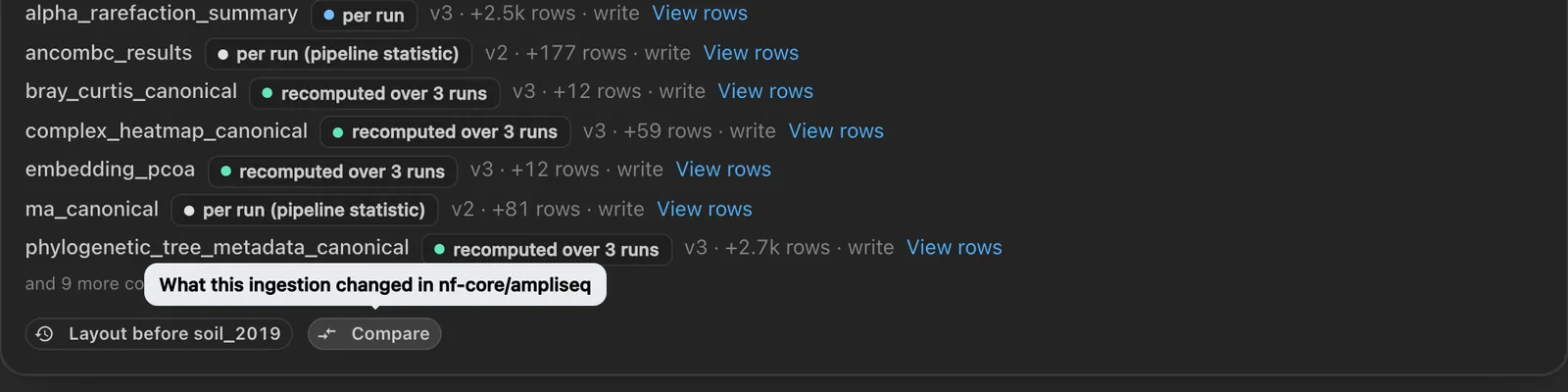
Click Compare on the run. With several dashboards, a menu lists them under What this ingestion changed in.
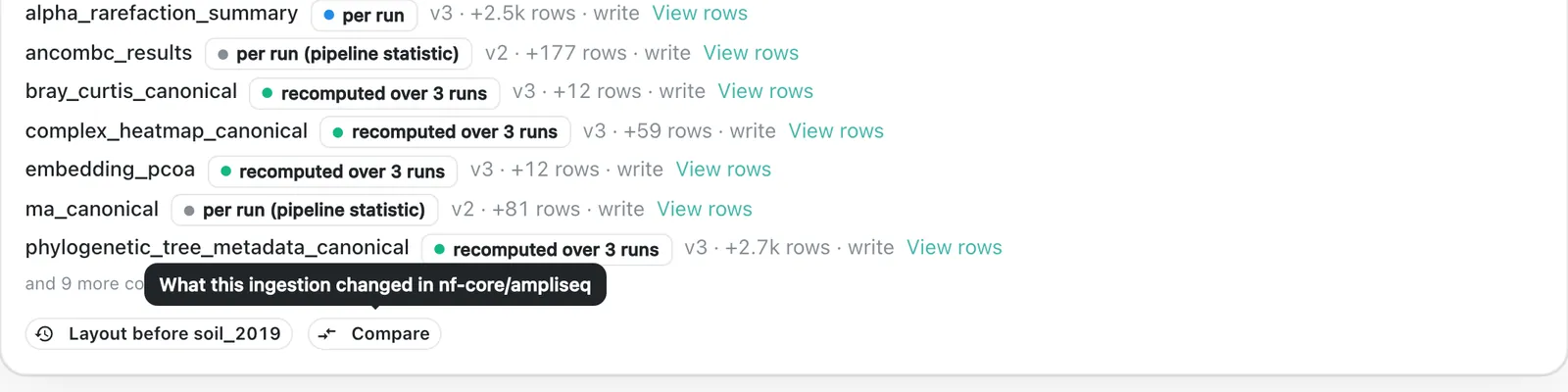
The dashboard opens read-only, at ?before_run=<run id>, with what that run changed marked. The header key reads This ingestion. Each changed tile's Before | Now draws the data just before the run beside the data now.
This view never moves your own "last visit" mark.
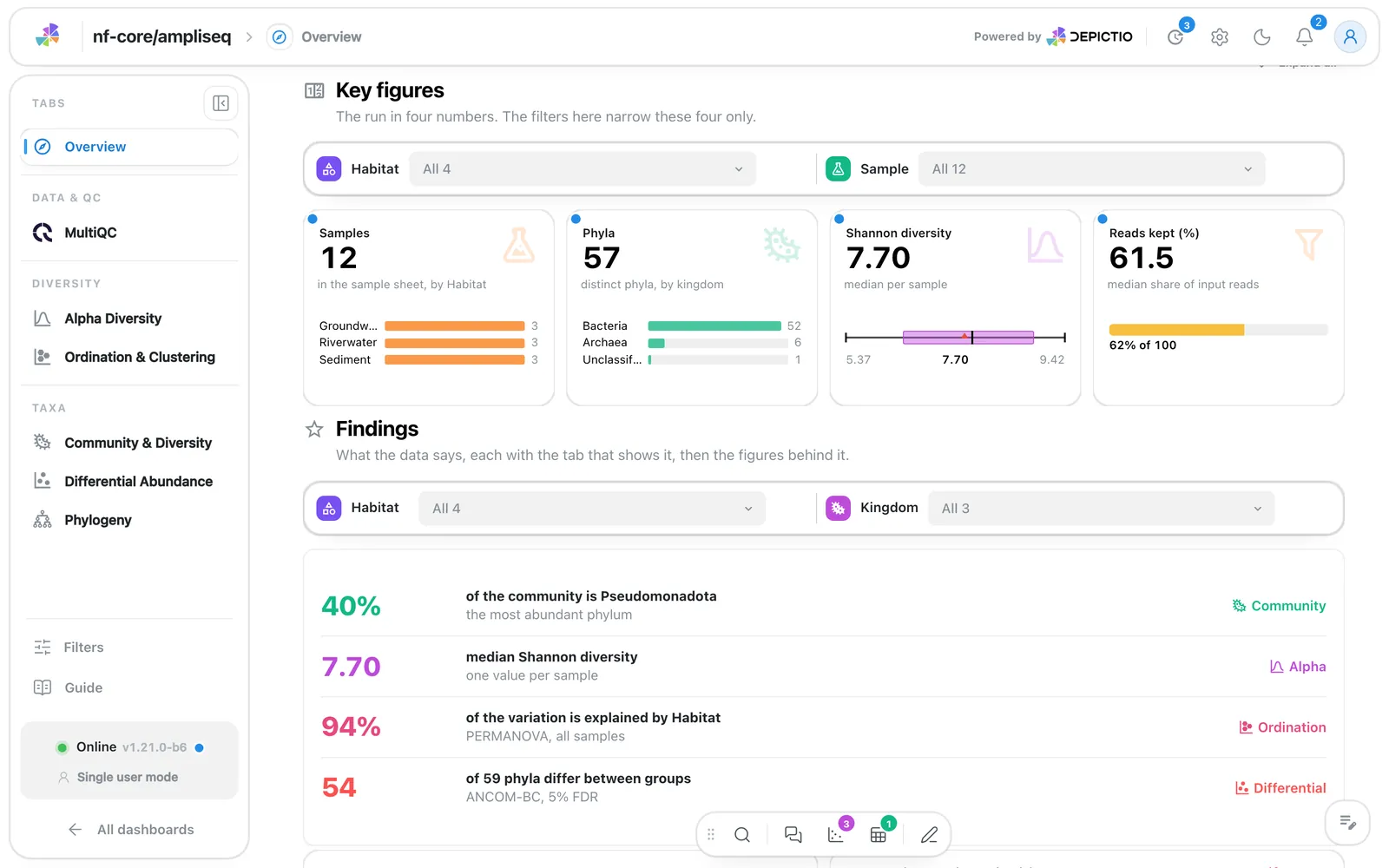
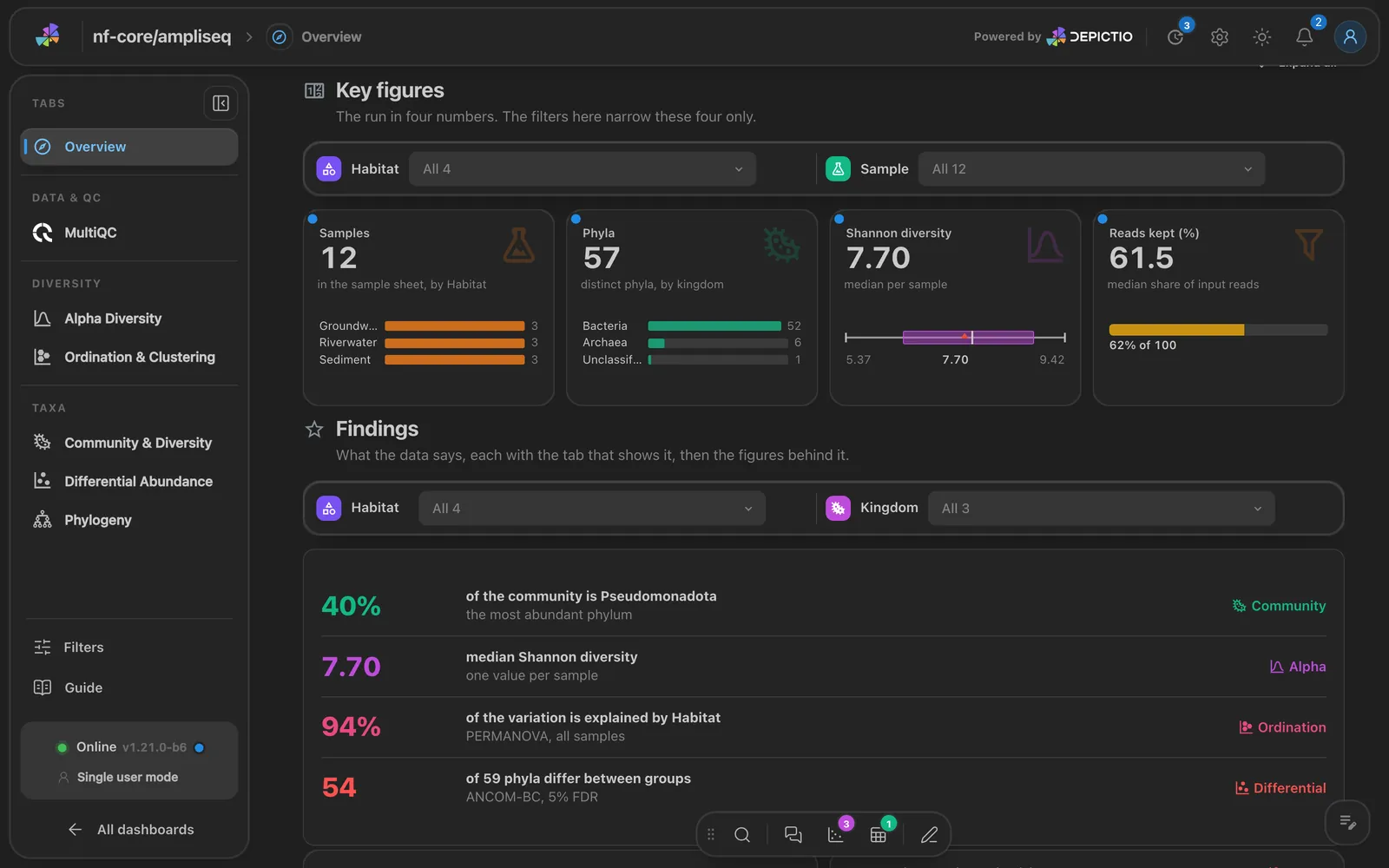
5. See the layout before the run
Layout before <run> opens each dashboard's definition as it last was before the run. It shows the layout and components, not the data: an ingestion records no dashboard version, so the preview's data is whatever that version pinned.
6. Find the new rows in a table
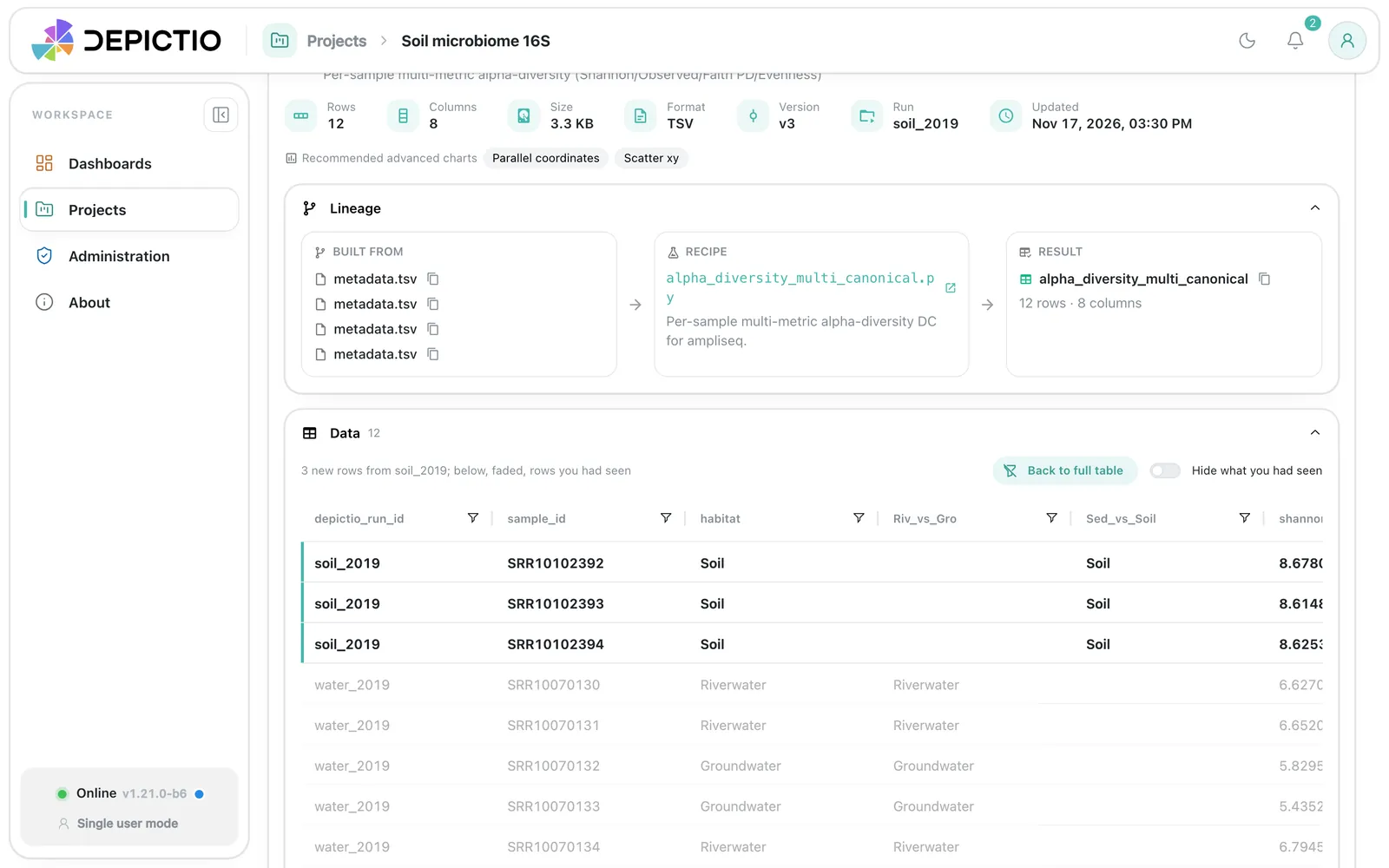
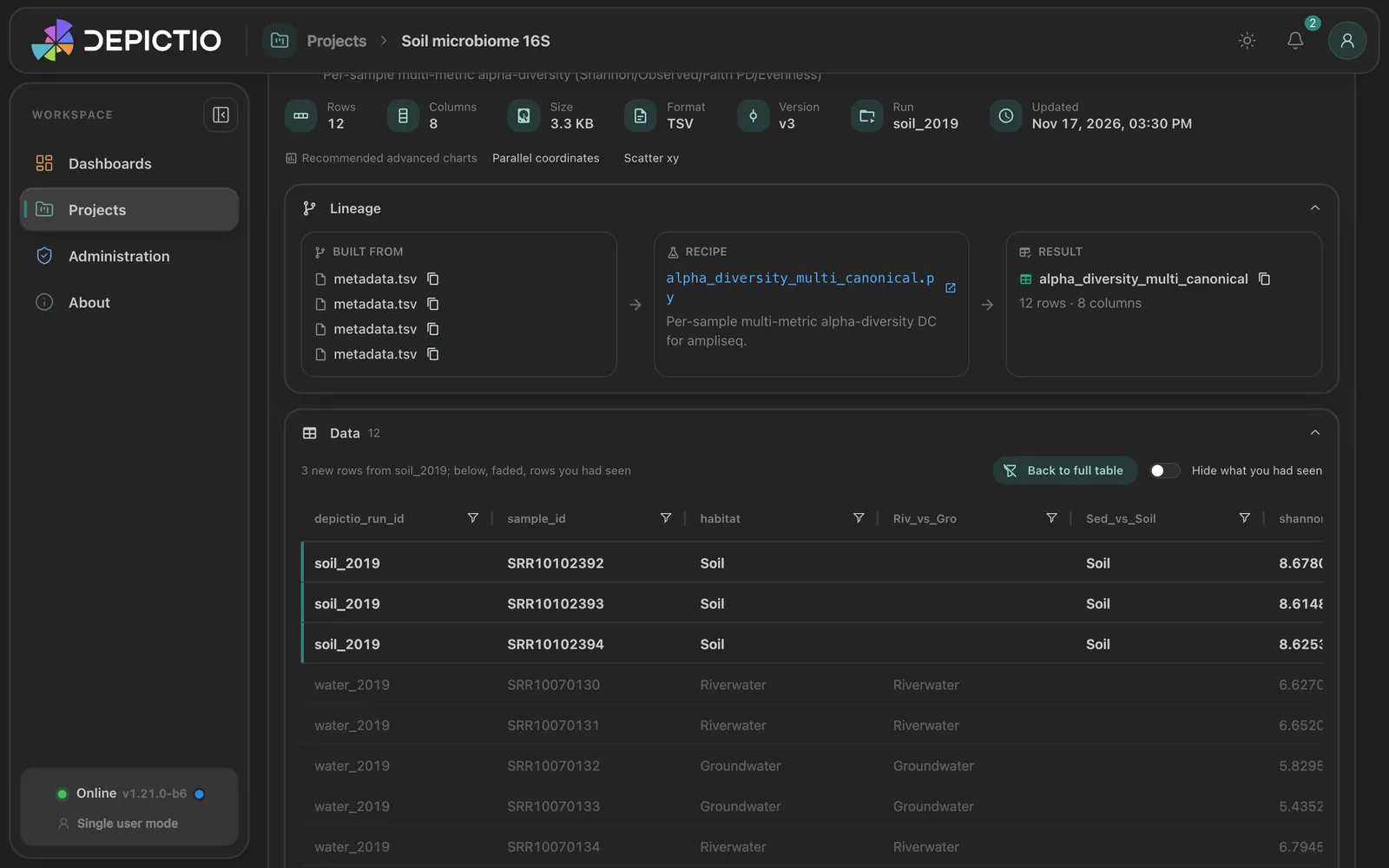
From View rows, or from Open in project in the What's new panel, the collection's Data table opens read-only at ?table=<collection>&new_runs=<runs>. The new rows come first and are marked. The rows you had seen follow, faded.
Click Back to full table to return to the plain table.
Good to know
- Every Delta row carries the run that wrote it, in
depictio_run_id. That is how Depictio tells runs apart. - A run ingested again in place changes rows under the same run tag. Before | Now shows it; Split does not.
- MultiQC rows have no run column: MultiQC figures compare on new samples instead. See MultiQC: compare runs.
- Run times use the server's local clock.
- The Runs tab reads a run's files only once you unfold it.