Backup & Restore
Depictio stores state in two independent places, and they are backed up by two independent mechanisms.
Backups cover the database, not your data
A snapshot covers MongoDB: users, projects, dashboards, data collection definitions, file records, the locations of your Delta tables, instance settings and branding assets. Nothing Depictio writes to object storage is included: not the Delta tables, not the files ingested or exported alongside them, and none of it is ever restored from the admin panel. Restoring the database restores the pointers; whether they resolve depends on the object store being in a matching state. See Your data: S3 and Delta Lake.
Everything on this page requires an administrator account.
From the admin panel (v1.9.0+)
Administration → Backups drives the whole loop without a shell.
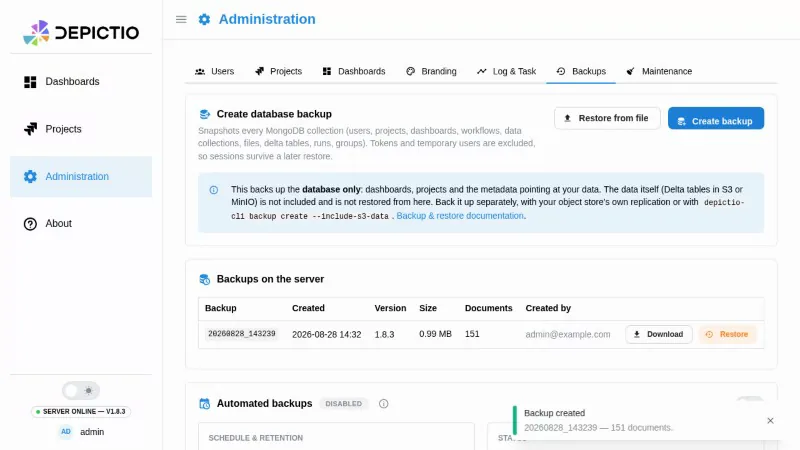
| Action | What it does |
|---|---|
| Create backup | Snapshots the database server-side and adds it to the list |
| Download | Fetches depictio_backup_<id>.json for off-site storage |
| Restore from file | Uploads a backup taken elsewhere, up to 200 MB |
| Restore | Replaces the database contents, behind the gate below |
Each backup is a single JSON document named depictio_backup_<id>.json, written
to DEPICTIO_BACKUP_BACKUP_DIR (backups/ by default) with a .sha256 sidecar
alongside it. The backup id is the creation timestamp, which is what ties a
downloaded file back to a row in the list, and what retention reads a backup's
age from, since a file's mtime does not survive a volume restore or an rsync.
Scheduled backups (v1.9.0+)
The Automated backups card holds the schedule and its retention policy. Scheduling is off by default: a snapshot is the size of the whole database, and a deployment that has not sized its backup volume should not start filling it on upgrade.
Anchored or rolling. With a time of day (HH:MM, UTC), slots sit on a fixed
grid from there: six-hourly anchored at 03:00 runs at 03:00, 09:00, 15:00 and
21:00, and a late run never pushes the next one back. Leave it empty and the
schedule is rolling, due whenever an interval has passed.
No restart needed. A change saved here reaches every worker within 15 minutes, and exactly one worker takes each backup.
Retention (v1.9.0+)
Two modes, both pruned after every backup, scheduled or manual.
| Mode | Policy |
|---|---|
| Keep for a fixed time | Delete anything older than N days. 0 keeps everything forever. |
| Smart retention | Grandfather-father-son: every backup for 30 days, then one per ISO week for 4 weeks, then one per calendar month for 12 months. Nothing to configure. |
Smart retention keeps 30 days of full fidelity rather than the textbook 7, specifically so that it is a strict superset of the default fixed policy, which is also 30 days. Switching a deployment to smart can only ever keep more history than it had, never less.
Retention is the only way a backup is removed
There is no delete action, and nothing else prunes the backup directory.
Restoring
Restore is destructive: each selected collection is emptied and refilled. Three things guard it, and only the first two can be waived.
- The SHA-256 sidecar is verified. A missing sidecar (legacy backups) can
be waived with
allow_unverified; a mismatch is never bypassable. - Every document is validated against the current models before anything is
touched, and the restore is refused if any document in a selected collection
fails, unless
skip_validationis set. A failed insert rolls that collection back to its previous contents. - A typed
RESTOREunlocks the button. The modal shows per-collection counts and states plainly that this cannot be undone.
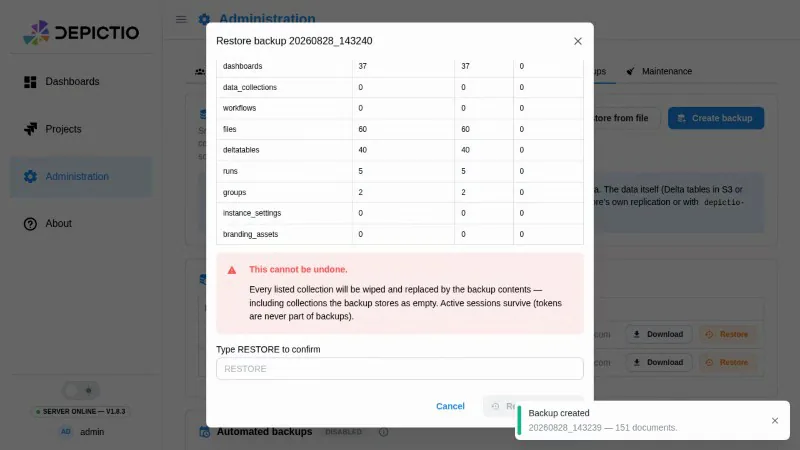
Tokens are never part of a backup, which is why the admin session you are restoring from survives the operation.
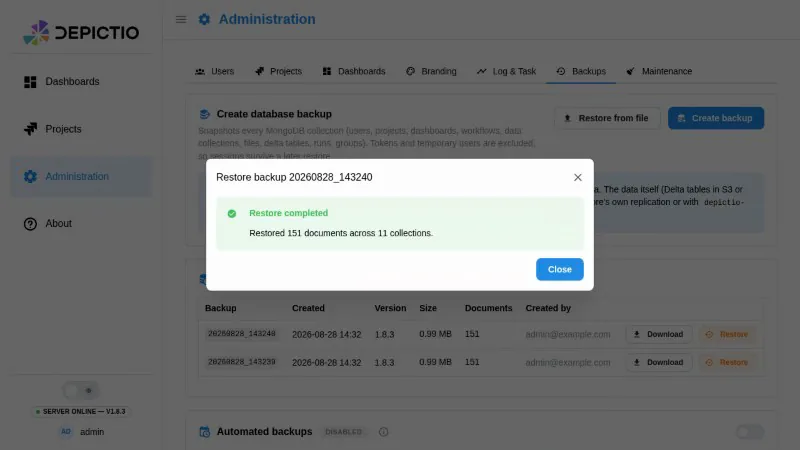
Afterwards the list marks the snapshot this deployment's data was last restored from, so it is always possible to tell which backup the live data came from. The marker is written only when a restore completes without errors, and it lives outside the collections a restore overwrites.
What is covered
Fifteen collections: users, groups, projects, dashboards,
data_collections, workflows, files, deltatables, runs,
instance_settings, branding_assets, comment_threads (the
comments and annotations of every
dashboard), dashboard_versions with dashboard_version_counters (the
version history of every dashboard, and the
counters that number it), and, from v1.16.0, project_storage_configs.
project_storage_configs holds each project's
storage settings: the
endpoint, the access key and the secret, still encrypted with the
secrets_key.bin of the instance that wrote it. Restored on an instance with
another DEPICTIO_AUTH_KEYS_DIR, the settings come back, but every read with
them fails until an owner enters the secret again: restore the keys volume with
the backup. As the encrypted secret and that key together give the secret, keep
backup files as safe as the keys.
A dashboard version records which Delta commit each of its data collections was at, not the data. Reading it back as it was needs that commit's files on S3, so restore the object store with the database (see below).
Deliberately excluded:
| Excluded | Why |
|---|---|
tokens |
Restoring them would be circular, and leaving them out is why an admin session survives a restore |
| Temporary users and their dashboards | Short-lived by construction. Their comment threads and version history go with them |
jbrowse, multiqc, multiqc_prerender |
Derived, regenerated from source data |
task_events, app_logs, telemetry |
Operational, and self-expiring by design |
jobs, cli_agents |
Background job status and watcher heartbeats. Both expire on their own, so a restore would only bring back expired rows |
ingestion_runs |
Audit and lineage data with no TTL. A known gap, not a decision that it should never be backed up. |
A coverage test fails CI when a new collection is added without being classified, so this list cannot silently drift. Backups record the Depictio version that produced them, so a snapshot describes itself.
Restoring across versions
Supported from v1.0.0 onwards
Restoring a backup taken by v1.0.0 or later into a newer Depictio is supported and covered by tests. Backups produced before v1.0.0 are out of scope: the data models changed too much for deserialization to be reliable.
Two checks guard this, so a model change cannot silently break older backups: frozen backup fixtures are validated against the current Pydantic models on every pull request, and a scheduled job restores a backup produced by the previous released image using an image built from current code, comparing document counts.
Your data: S3 and Delta Lake
None of the above touches your data. There are three ways to cover it, in descending order of preference.
1. Your object store's own replication (recommended). Versioning plus replication, whatever your store calls it: AWS S3, MinIO, NetApp StorageGRID or any other S3 implementation. Delta Lake only appends, so object versioning composes well with it. This is the only option that scales to a real dataset, and the only one that survives losing the Depictio deployment.
2. The CLI, with --include-s3-data.
Driven by DEPICTIO_BACKUP_S3_BACKUP_STRATEGY:
| Strategy | Effect |
|---|---|
s3_to_s3 (default) |
Copy tables into a second bucket |
local |
Copy tables to DEPICTIO_BACKUP_S3_LOCAL_BACKUP_DIR on the server, optionally gzipped |
both |
Both of the above |
See Backup and Restore Configuration for the bucket and credential settings. This flag is deliberately not in the admin UI: it needs a second bucket and credentials that are deployment configuration, and it runs synchronously inside the request.
3. Snapshot the volume. For a single-node MinIO deployment, a filesystem or block-device snapshot of the MinIO data volume, taken alongside a database backup, is a coherent pair.
Restoring everything, data included
Depictio restores the database. It has no S3 restore path: the strategies above copy tables out, nothing copies them back. A full recovery is therefore two operations, and the object store goes first, so that no window exists where the database points at tables that are not there yet.
1. Stop the orphan cleanup, or you can lose live data between the two steps. See the warning below.
2. Put the object store back to the state it had when the database snapshot was taken. Whichever route you used to copy it out:
# from a second bucket (s3_to_s3, or your own replication)
aws s3 sync s3://depictio-backup/backup/ s3://depictio-bucket/ --delete
mc mirror --overwrite --remove backup/backup/ depictio/depictio-bucket/

# from a local copy (--include-s3-data with the local strategy)
mc mirror --overwrite --remove /var/backups/depictio/s3/ depictio/depictio-bucket/
With bucket versioning, roll the bucket back to the timestamp of the snapshot instead. With a volume snapshot, restore the volume and restart the object store.
3. Restore the database from Administration → Backups, picking the snapshot that matches the state you just restored the bucket to.
4. Check, then reopen. Open a dashboard that reads a Delta table and confirm it renders, then re-enable the cleanup task and let users back in.
A database-only restore can delete live data from S3
A periodic task deletes bucket prefixes that no live data collection references. After a restore rewinds the database, every Delta table ingested after that snapshot is an orphan by that definition, and the next cleanup pass deletes it permanently. Its safety check only aborts when all prefixes look orphaned, so a partial rewind passes straight through it.
Until that interaction is guarded, treat a database restore on a deployment with live data as an operation that requires the object store to be rewound to match, or the cleanup task to be disabled first.
From the CLI
The same operations, for automation and for the S3 flags the UI does not expose. Full reference: Backup Commands.
# Snapshot the database
depictio backup create

# List what the server holds
depictio backup list

# Check a backup deserializes against the current models
depictio backup validate 20260315_143000

# Preview, then restore
depictio backup restore 20260315_143000 --dry-run
depictio backup restore 20260315_143000
On the local server, whose CLI configuration is an admin's, a backup is created, validated, then restored in a dry run:
| Flag | Applies to | Description |
|---|---|---|
--server |
all | local, or a CLI configuration file; default as for every command, see Which server a command uses |
--include-s3-data |
create |
Also copy the Delta tables (see above) |
--s3-backup-prefix |
create |
Prefix for the S3 backup folder, default backup |
--dry-run |
create, restore |
Validate without writing anything |
--collections |
restore |
Comma-separated list, default all |
--force |
restore |
Skip the confirmation prompt |
Restore replaces existing data
Run --dry-run first on any backup you did not just create yourself.
Configuration
Environment variables supply the defaults. Anything saved from the Backups tab overrides them from then on, so an admin's click is never silently reverted on the next restart.
| Variable | Default | Meaning |
|---|---|---|
DEPICTIO_BACKUP_BACKUP_DIR |
backups |
Where backup files are written |
DEPICTIO_BACKUP_AUTO_BACKUP_ENABLED |
false |
Run scheduled backups |
DEPICTIO_BACKUP_AUTO_BACKUP_INTERVAL_HOURS |
24 |
Hours between scheduled backups |
DEPICTIO_BACKUP_AUTO_BACKUP_TIME_OF_DAY |
unset | HH:MM UTC anchor for the slot grid; unset means a rolling schedule |
DEPICTIO_BACKUP_BACKUP_FILE_RETENTION_DAYS |
30 |
Keep every backup for this long; 0 keeps forever |
DEPICTIO_BACKUP_BACKUP_RETENTION_WEEKLY_WEEKS |
0 |
Weekly tier length; 0 disables it |
DEPICTIO_BACKUP_BACKUP_RETENTION_MONTHLY_MONTHS |
0 |
Monthly tier length; 0 disables it |
With both tiers at 0, retention is a plain age cutoff. The full list, including
the S3 strategy settings, is in the
Environment Reference.
See also
- Backup Commands for the full CLI reference
- Backup and Restore Configuration for the S3 backup bucket
- Project Migration to move a single project between instances instead