Cross-DC Filtering
Filter data in one collection and automatically update related visualizations—no pre-computed joins needed.
Overview
Links connect Data Collections for interactive filtering at runtime. When you filter a metadata table, linked MultiQC plots and other visualizations update automatically.
┌─────────────────┐         ┌─────────────────┐
│  Metadata Table │  link   │  MultiQC Plots  │
│                 │────────▶│                 │
│  [filter here]  │         │  [auto-updates] │
└─────────────────┘         └─────────────────┘
How It Works
- Define a link between source DC (e.g., metadata table) and target DC (e.g., MultiQC)
- Add a filter component to your dashboard
- When users filter the source DC, linked targets automatically show only matching data
Configuration
Add links to your project YAML:
links:
  - source_dc_id: sample_metadata
    source_column: sample_id
    target_dc_id: multiqc_fastqc
    target_type: multiqc
    link_config:
      resolver: sample_mapping
Link Fields
| Field | Required | Description |
|---|---|---|
source_dc_id |
Yes | Data collection containing the filter |
source_column |
Yes | Column to filter on |
target_dc_id |
Yes | Data collection to receive filtered values |
target_type |
Yes | Type of target: table, multiqc or image |
link_config |
Yes | Resolution configuration (see below) |
Tag placeholders resolve at read time (v1.8.3+)
A template ships its links referencing data collections by tag, and the
CLI's sync step rewrites them to real ids. A project ingested with
--skip-sync, or whose sync failed, kept tag:<dc_tag> placeholders that no
link consumer matched, so every cross-DC fan-out resolved zero paths with no
error anywhere. Placeholders are now normalised against the project's own
data collections whenever links are read. Unknown tags are left untouched.
Link Config Options
link_config:
  resolver: sample_mapping    # Resolution strategy
  target_field: sample_name   # Field to match in target (optional)
Resolvers
Resolvers map source values to target identifiers:
| Resolver | Use Case | Example |
|---|---|---|
direct |
Same value in both DCs | sample_id → sample_id |
sample_mapping |
Canonical ID → MultiQC variants | S1 → [S1_R1, S1_R2] |
pattern |
Template substitution | {sample}.bam |
region |
A genomic region, renamed onto the target's coordinate columns | chrom, start → chrom1, start1 |
When to Use Each Resolver
-
direct: Source and target use identical identifiers -
sample_mapping: MultiQC sample names differ from your canonical IDs (most common for MultiQC) -
pattern: Target uses predictable naming convention -
region: A genomic region selected on one collection should narrow another collection that names its chromosome and position columns differently
Region links
A genome region selection
travels the dashboard as two ordinary filters on the emitting collection: the chromosomes
on its chromosome column and a [start, end] range on its position column. A tile bound
to the same collection narrows with no link at all. A tile on another collection
needs to know which of its own columns hold the chromosome and the position, and that is
all a region link says:
links:
  - source_dc_tag: "domains"          # the collection the region is selected on
    source_column: "chrom"            # its chromosome column
    target_dc_tag: "contact_matrix"
    target_type: "table"
    link_config:
      resolver: "region"
      columns: {chrom: "chrom1", pos: "start1"}
    description: "A region selected on the domain track narrows the contact matrix"
Unlike the other resolvers, a region link reads no data and maps no values: a chromosome name and a base-pair coordinate mean the same thing in every collection aligned to the same assembly, so the two filters are re-emitted unchanged under the target's column names. Consequences worth knowing:
link_config.columnsmust name bothchromandpos. A region link missing either is rejected when the project is validated, rather than silently narrowing nothing.- The chromosome and the range travel together. A range with no chromosome would narrow every chromosome of the target at once, so it is never forwarded alone.
source_columnpicks which chromosome column the link follows, for a collection that carries two coordinate bindings. Leave it on the column the region is emitted on.- Region links take one hop. To narrow several collections from one track, declare one link per target from the same source, as above.
Supported Target Types
| Type | Filter Action | Status |
|---|---|---|
table |
Filters rows with WHERE IN |
Available |
multiqc |
Filters plot samples | Available |
map |
Filters map markers | Available |
jbrowse2 |
Shows/hides tracks | Planned |
images |
Filters image gallery | Planned |
Complete Example
name: "RNA-seq QC Analysis"
project_type: "advanced"

# Define links for cross-DC filtering
links:
  # Link metadata to MultiQC plots
  - source_dc_id: sample_metadata
    source_column: sample_id
    target_dc_id: multiqc_general_stats
    target_type: multiqc
    link_config:
      resolver: sample_mapping

  # Link metadata to expression table
  - source_dc_id: sample_metadata
    source_column: sample_id
    target_dc_id: gene_expression
    target_type: table
    link_config:
      resolver: direct
      target_field: sample_id

workflows:
  - name: "rnaseq_pipeline"
    # ... workflow config ...

    data_collections:
      - data_collection_tag: "sample_metadata"
        config:
          type: "table"
          metatype: "metadata"
          # ... scan config ...

      - data_collection_tag: "multiqc_general_stats"
        config:
          type: "MultiQC"

      - data_collection_tag: "gene_expression"
        config:
          type: "table"
          metatype: "aggregate"
          # ... scan config ...
Managing links from the viewer
Links can be defined in YAML (above) or managed interactively from the web viewer. Both paths target the same links: data; UI-managed links are persisted alongside YAML-defined ones.
| Action | Where | Notes |
|---|---|---|
| Create | DC actions menu → Manage Links → Add link | Source + target DC, source column, resolver, optional sample mapping |
| Edit | Link row → Edit | Updates the resolver config in place |
| Delete | Link row → Delete | Cascades automatically when the source or target DC is removed |
| Inspect (v1.7.0+) | Link row → Inspect mapping | Read-only; shows what each source value actually resolves to |
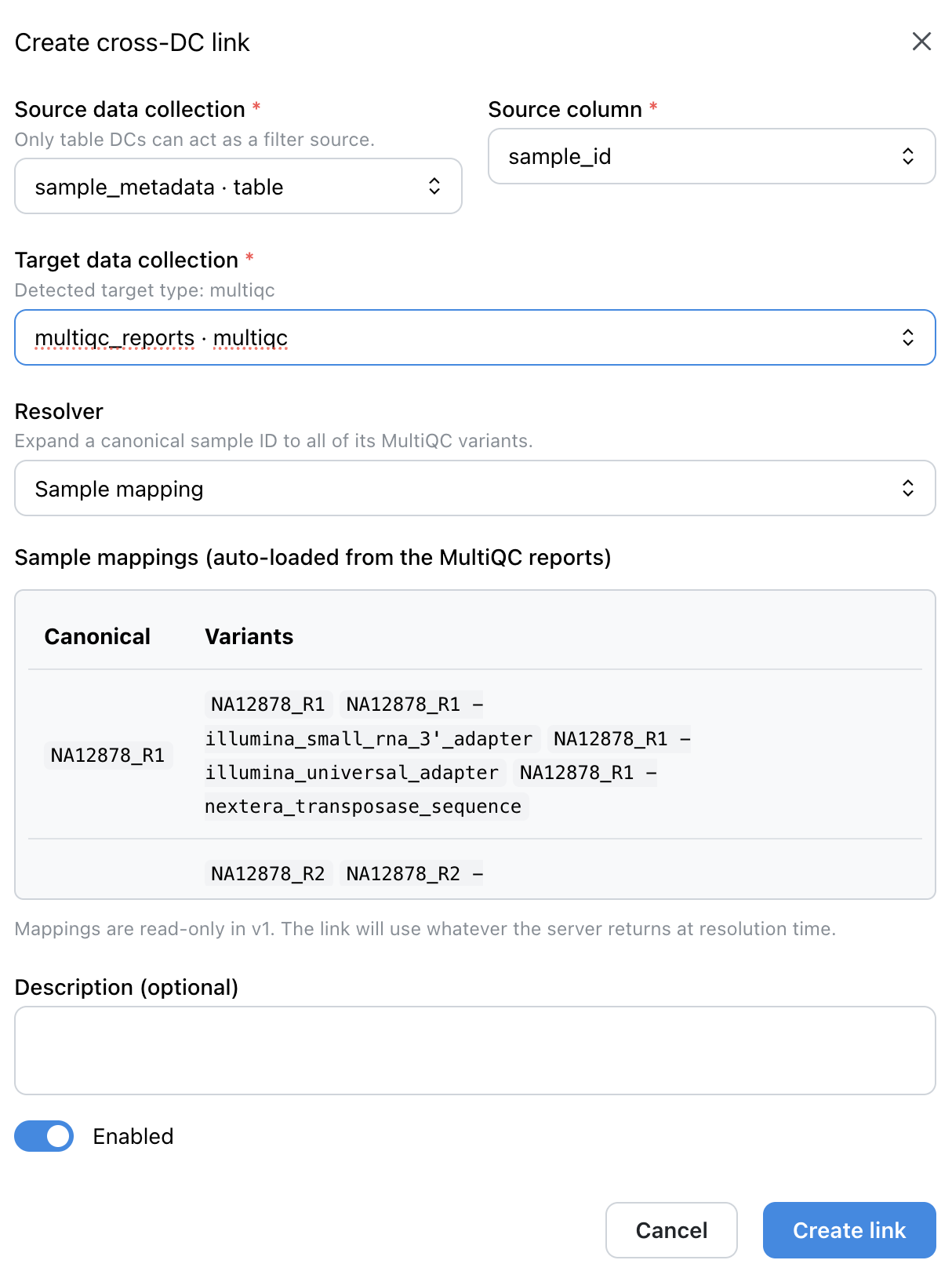
sample_metadata, target DC multiqc_reports (detected as multiqc), Sample mapping resolver, with the auto-loaded MultiQC sample mappings previewed.Inspecting what a link resolves to (v1.7.0+)
A link that silently matches nothing looks exactly like a link that matches everything until you go looking. Every row in the links table opens a mapping inspector from a magnifier, so reading what a link resolves to no longer means entering the edit form and risking a change to it.
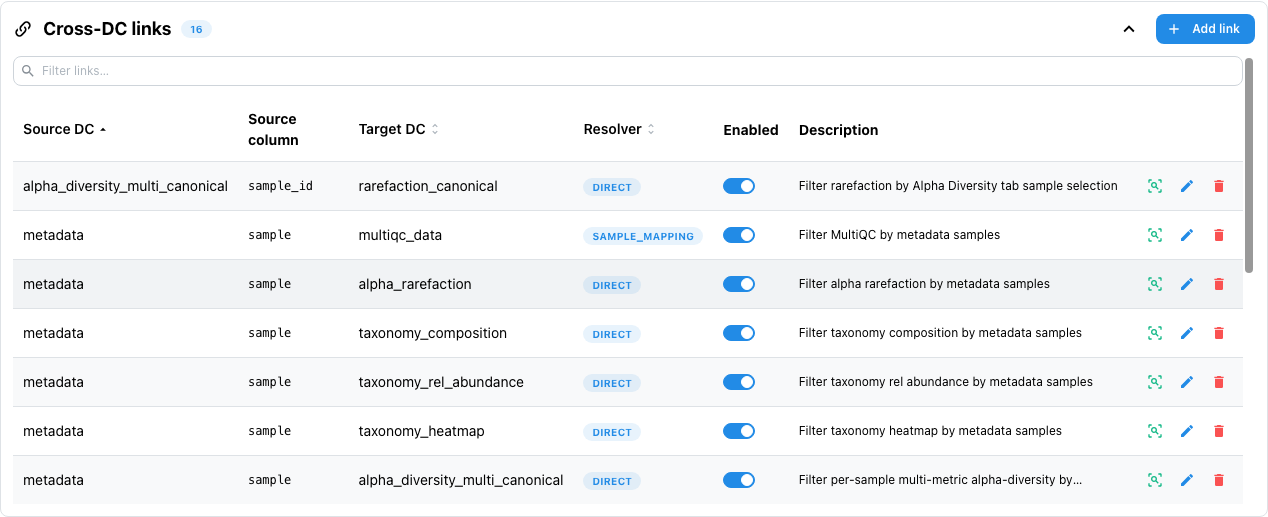
The inspector runs every distinct source value through the link's actual resolver and reports, per value, whether it matched and by which rule, alongside the target-side orphans nothing pointed at.
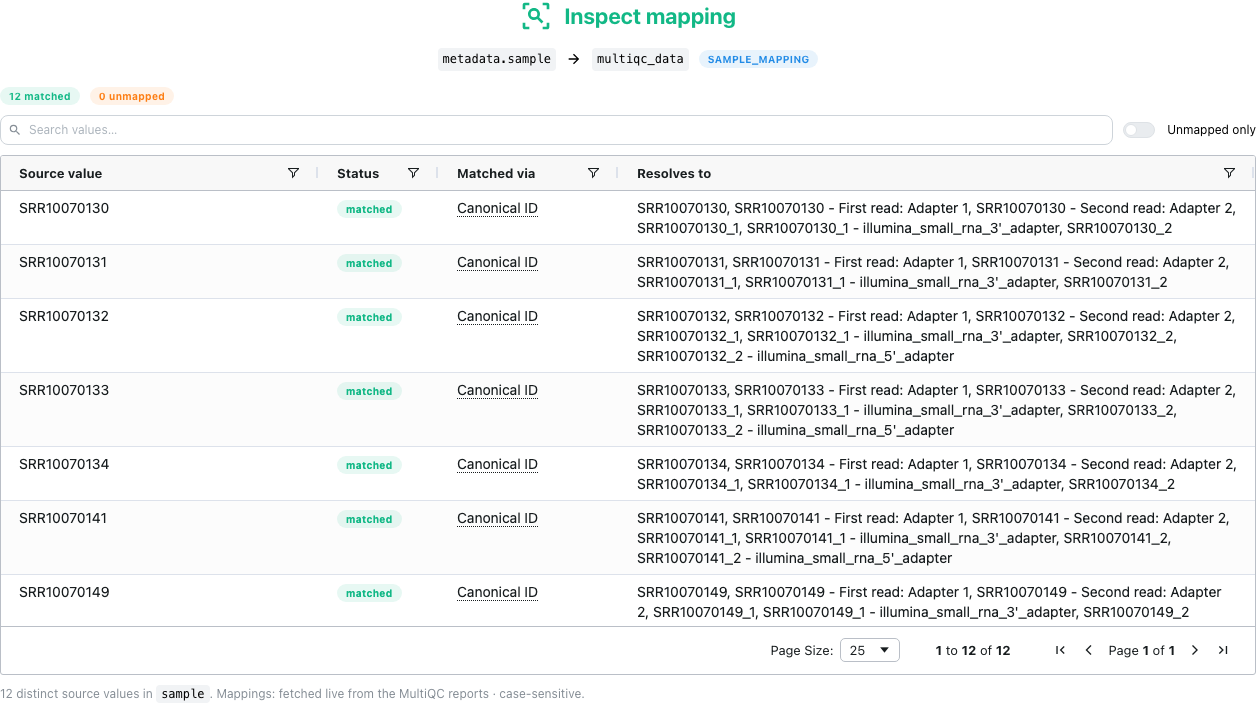
metadata.sample → multiqc_data link, each resolving through Canonical ID to the sample name and every MultiQC variant recorded for it.The Matched via column names the lookup rule, not the shape of the result, and every label carries a hover explanation:
| Matched via | Meaning |
|---|---|
| Canonical ID | The source value is a mapping key. A key expands to the canonical ID plus every MultiQC variant recorded for it, which is why one value can resolve to a whole list. |
| Variant | The source value is itself one of the recorded variants. |
| Suffix stripped | Matched after removing a read/lane suffix from the key or from the source value. |
direct, pattern, regex, wildcard |
For links that do not use sample mapping, the resolver's own name. |
Because it only reads, the inspect action stays enabled in public and demo mode, where Edit and Delete are disabled.
If a MultiQC link looks stale
A sample_mapping link resolves against the report's live mappings, not a snapshot
taken when the link was created, and is stored case-insensitive. Links created before
v1.7.0 may still carry a frozen snapshot in their config; re-saving one clears it.
Dashboard Usage
- Create a dashboard with your linked data collections
- Add a filter component (dropdown, multi-select) on the source DC
- Add visualizations for the target DCs
- Filter the source → targets update automatically
One filter for a whole multi-tab dashboard (v1.6.0+)
Put the filter component in a section marked Show on every tab and it appears in every tab's filter panel, keeping its value as you switch, so the targets on each tab are already filtered when you arrive. See Sections on every tab.
Links vs Joins
| Feature | Links | Joins |
|---|---|---|
| Execution | Runtime (on filter) | Pre-computed (CLI batch) |
| Storage | None | Delta table in S3 |
| Target types | Any (table, MultiQC, ...) | Tables only |
| Use case | Interactive filtering | Combined datasets |
Use links for interactive cross-DC filtering. Use joins when you need a permanently combined dataset.