Projects in Depictio
A project holds your data collections, the dashboards built on them, and who may use them. This page goes through each task; the overview shows how they fit together.
Create a project (v1.21.0+)
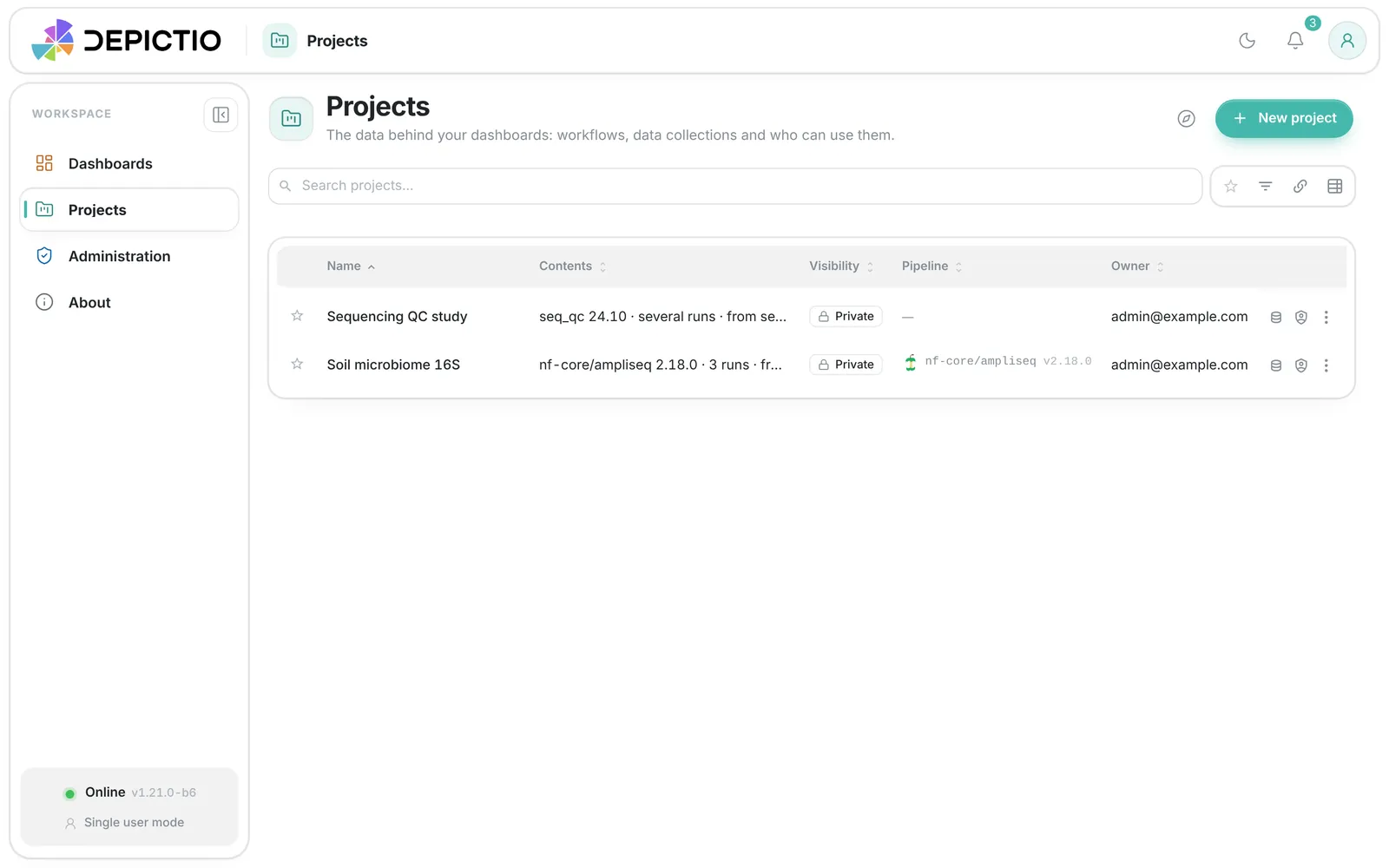
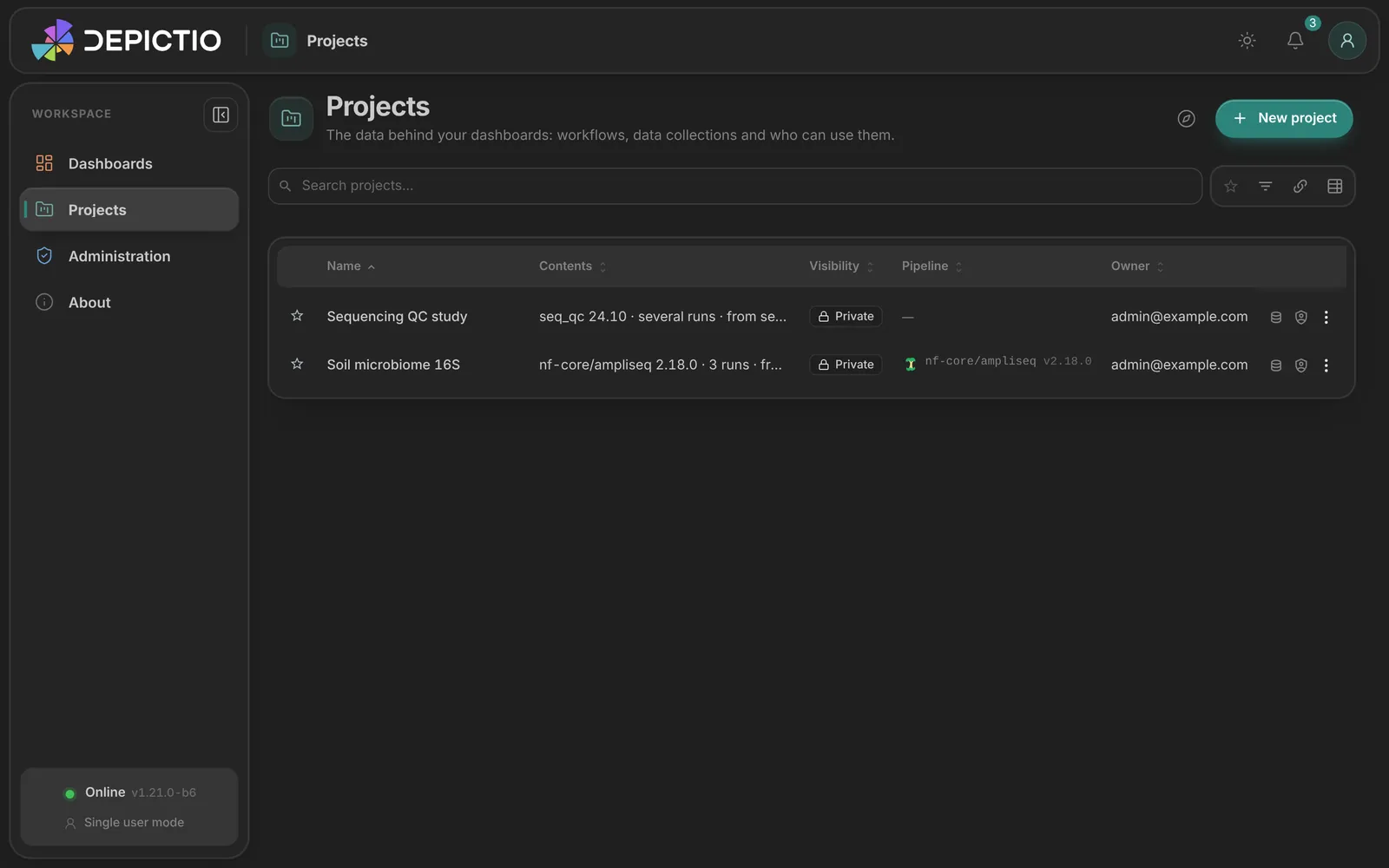
A project starts from its data: Depictio works out whether it holds plain tables or the run of a pipeline. There is no Basic or Advanced choice.
1. Name the project
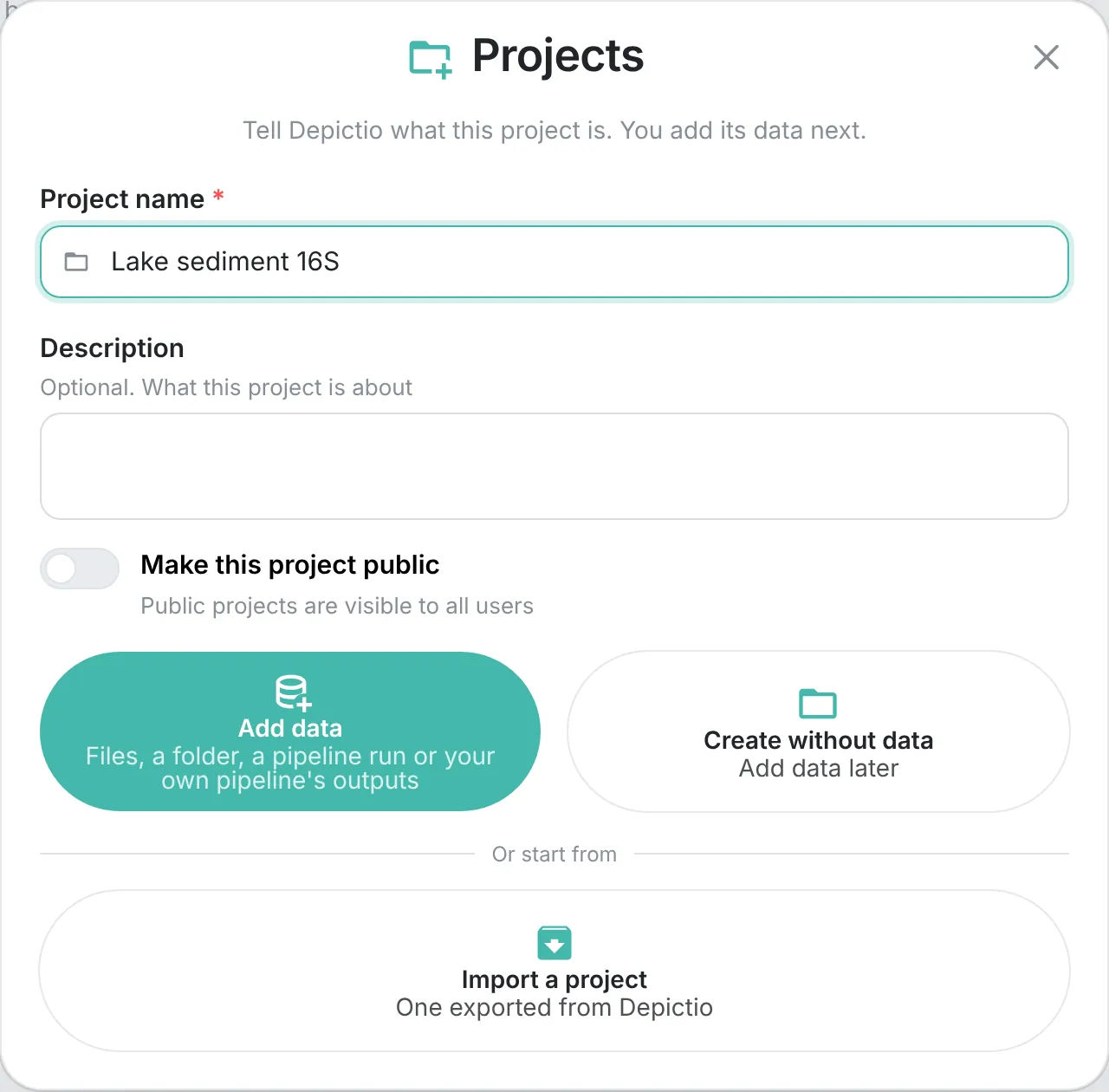
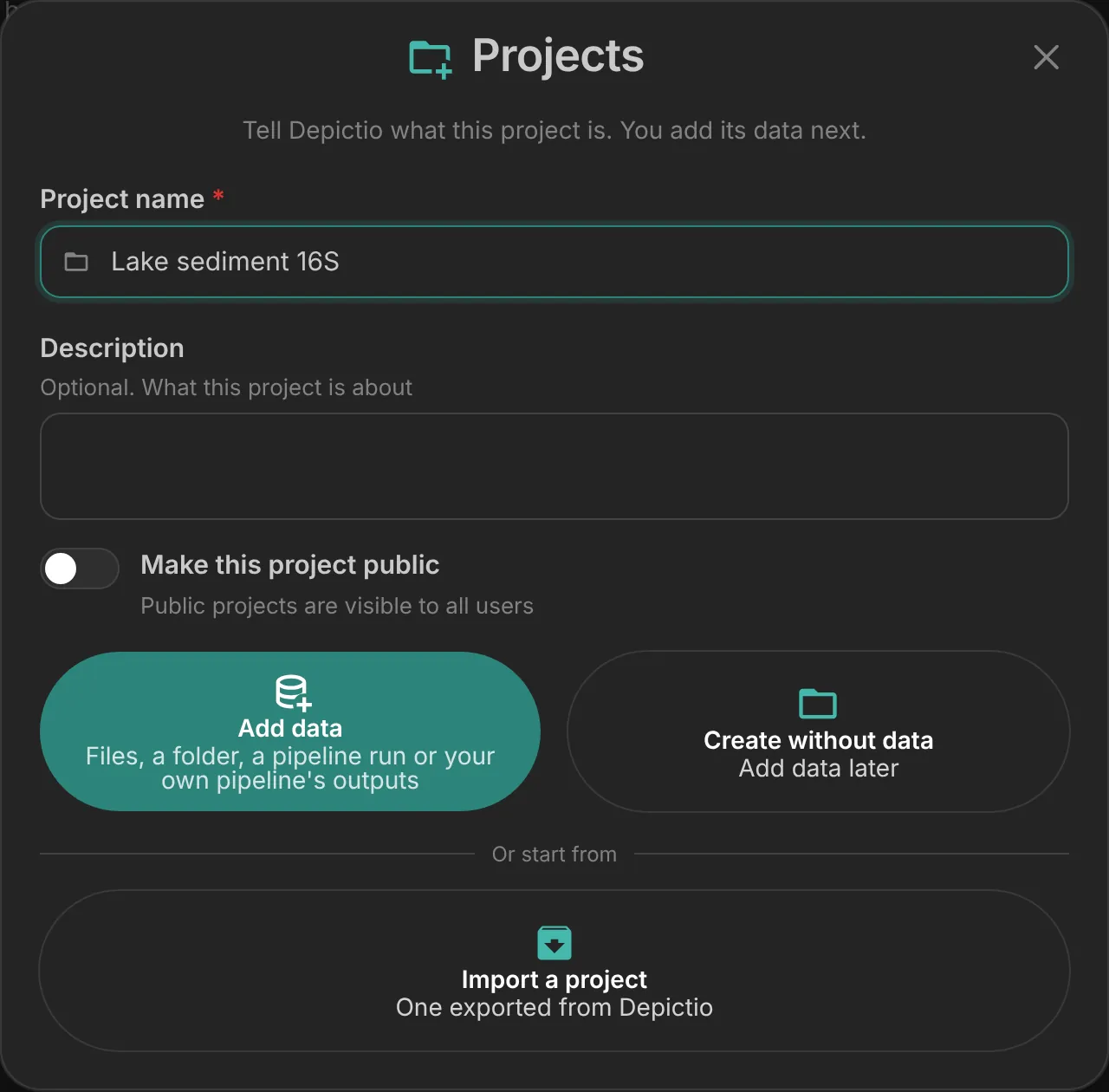
Projects, New project: a Project name, an optional Description and Make this project public. Then:
- Add data: files, a folder, a pipeline run.
- Create without data: an empty project, filled later with Add data.
- Import a project: one exported from Depictio, see Project migration. See an example opens a finished project, when the server holds one.
In public or demo mode, only admins can create projects.
2. Your data
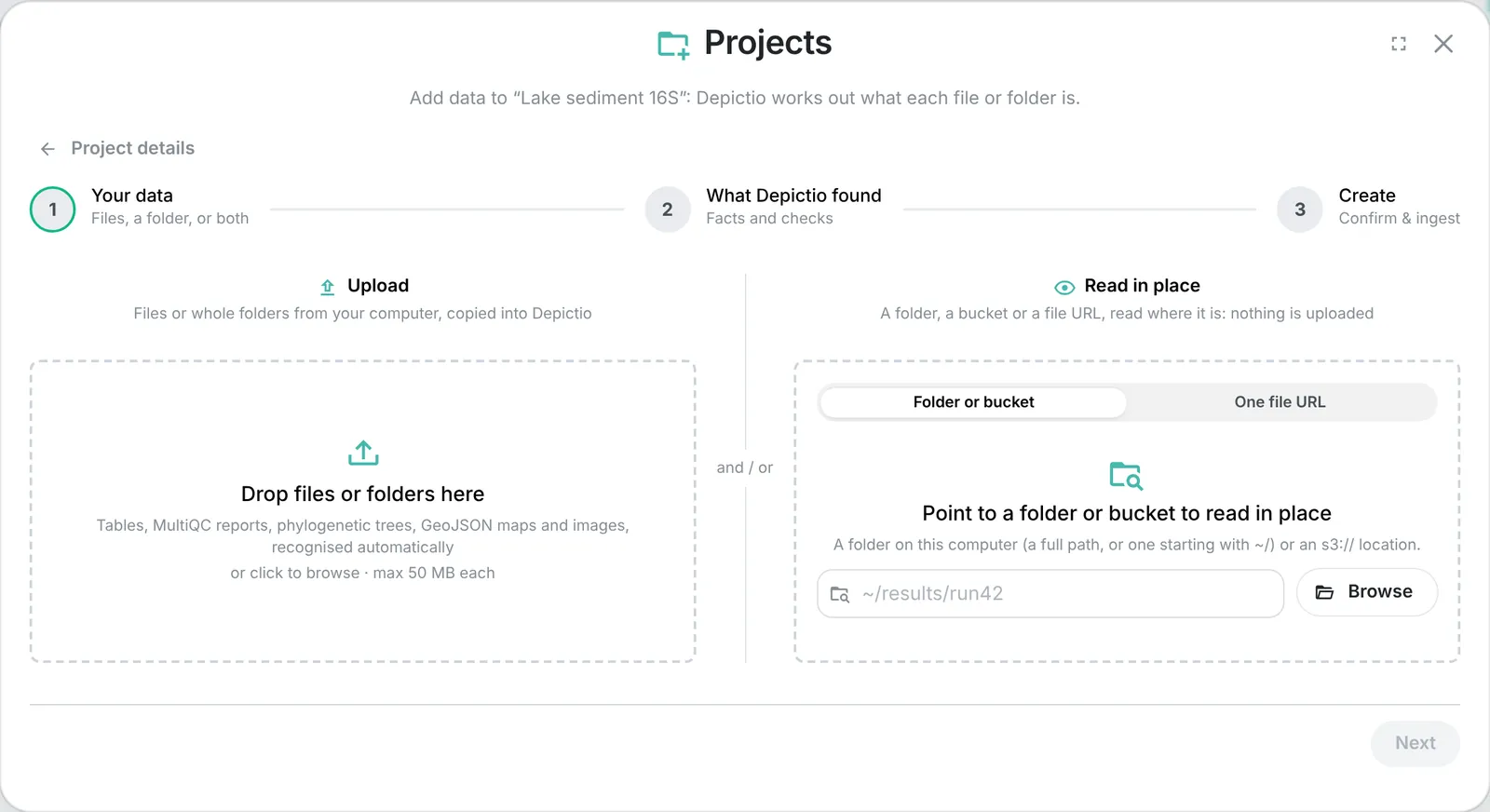
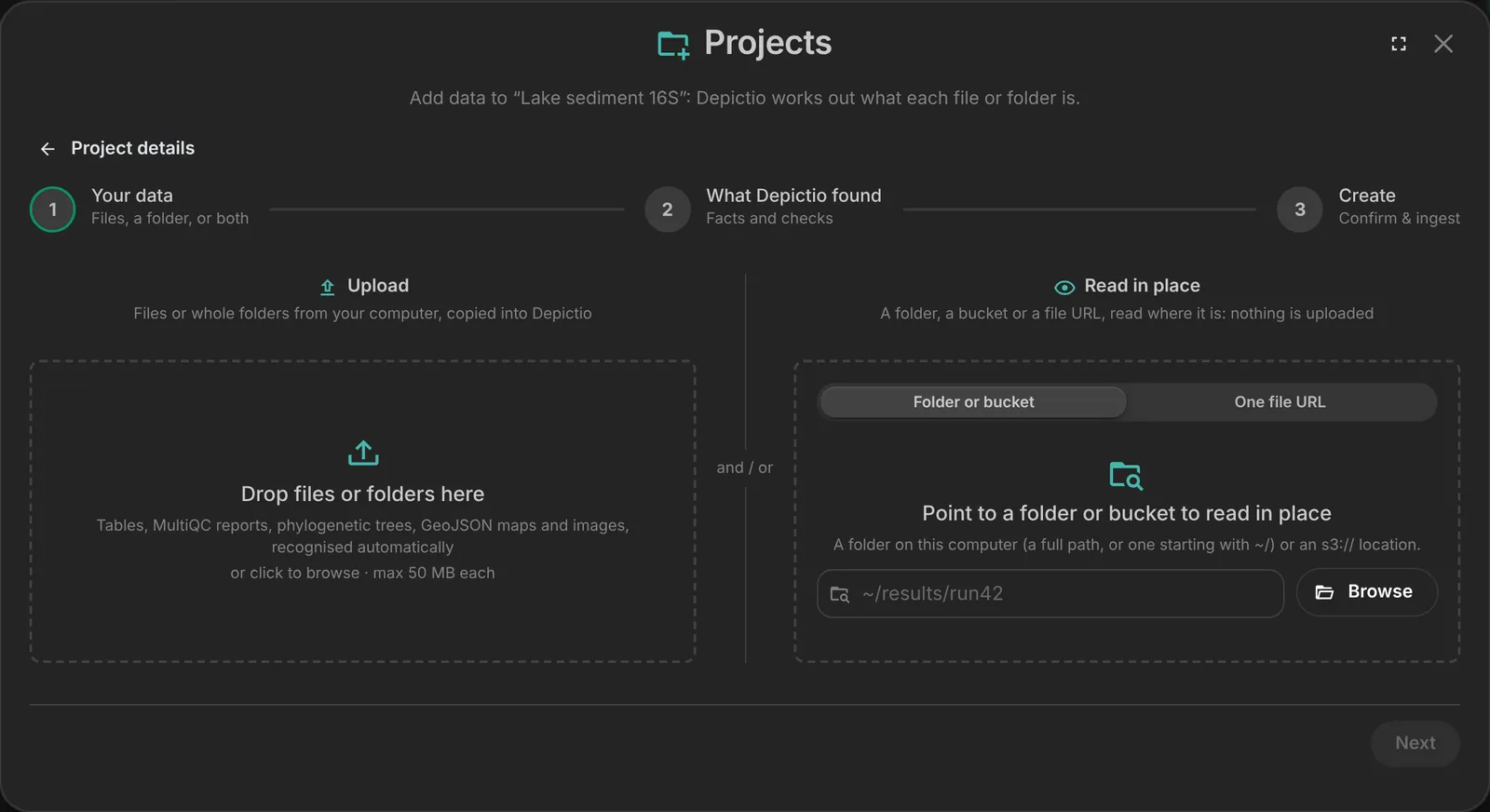
Add data opens a stepper, Your data, What Depictio found, Create; Use the whole window gives it the full screen. The two sides can be combined:
Drop files or whole folders, up to 50 MB each. Tables (CSV, TSV, Parquet, Feather), MultiQC reports, phylogenetic trees, GeoJSON maps and images are recognised.
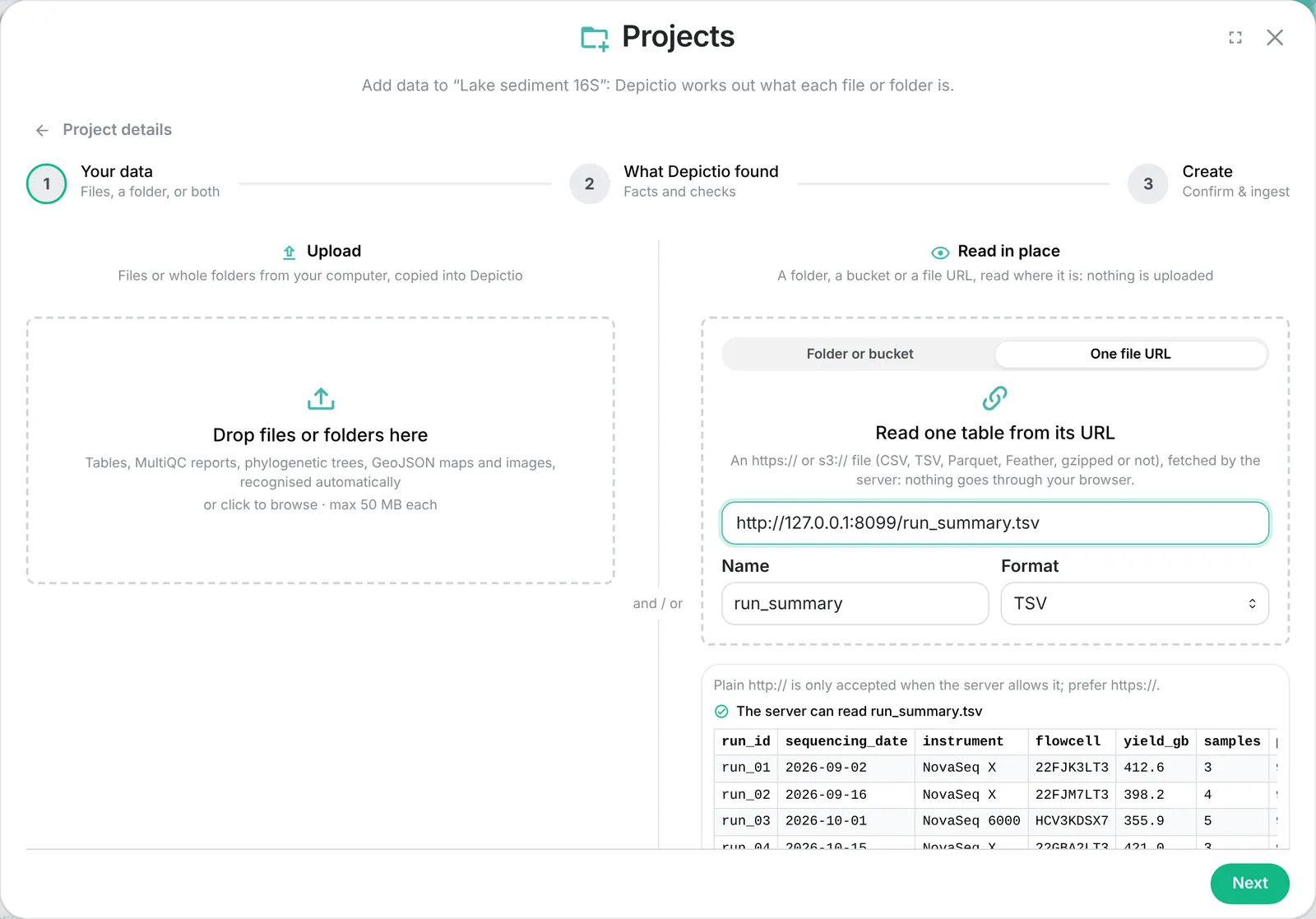
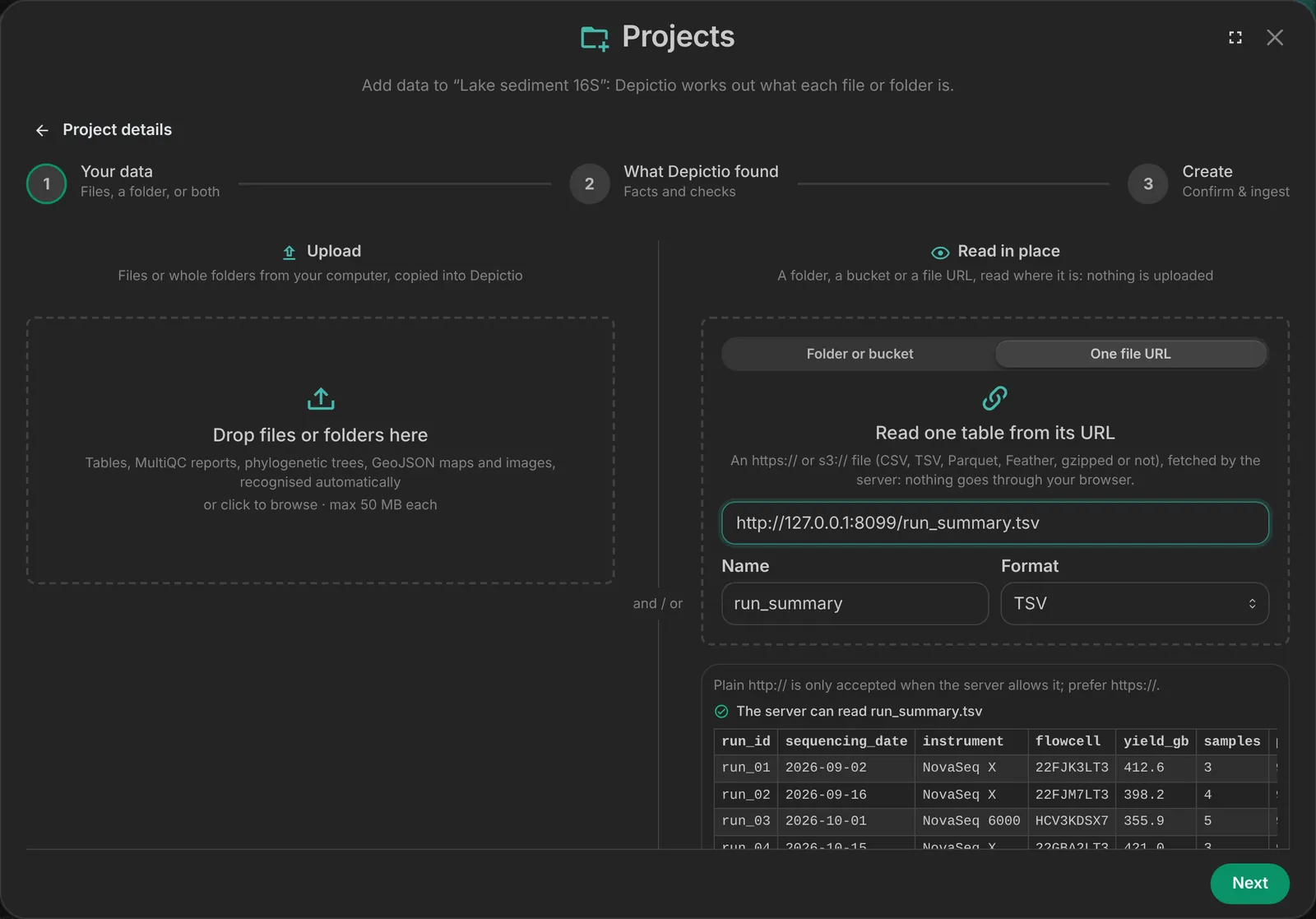
Nothing is uploaded. Folder or bucket takes an s3:// location, or a folder on the server's disk (Browse, where the server allows it, as under depictio local). One file URL takes a single https:// or s3:// CSV, TSV, Parquet or Feather file, gzipped or not. See Remote data for buckets and their keys.
3. Pick how Depictio reads it
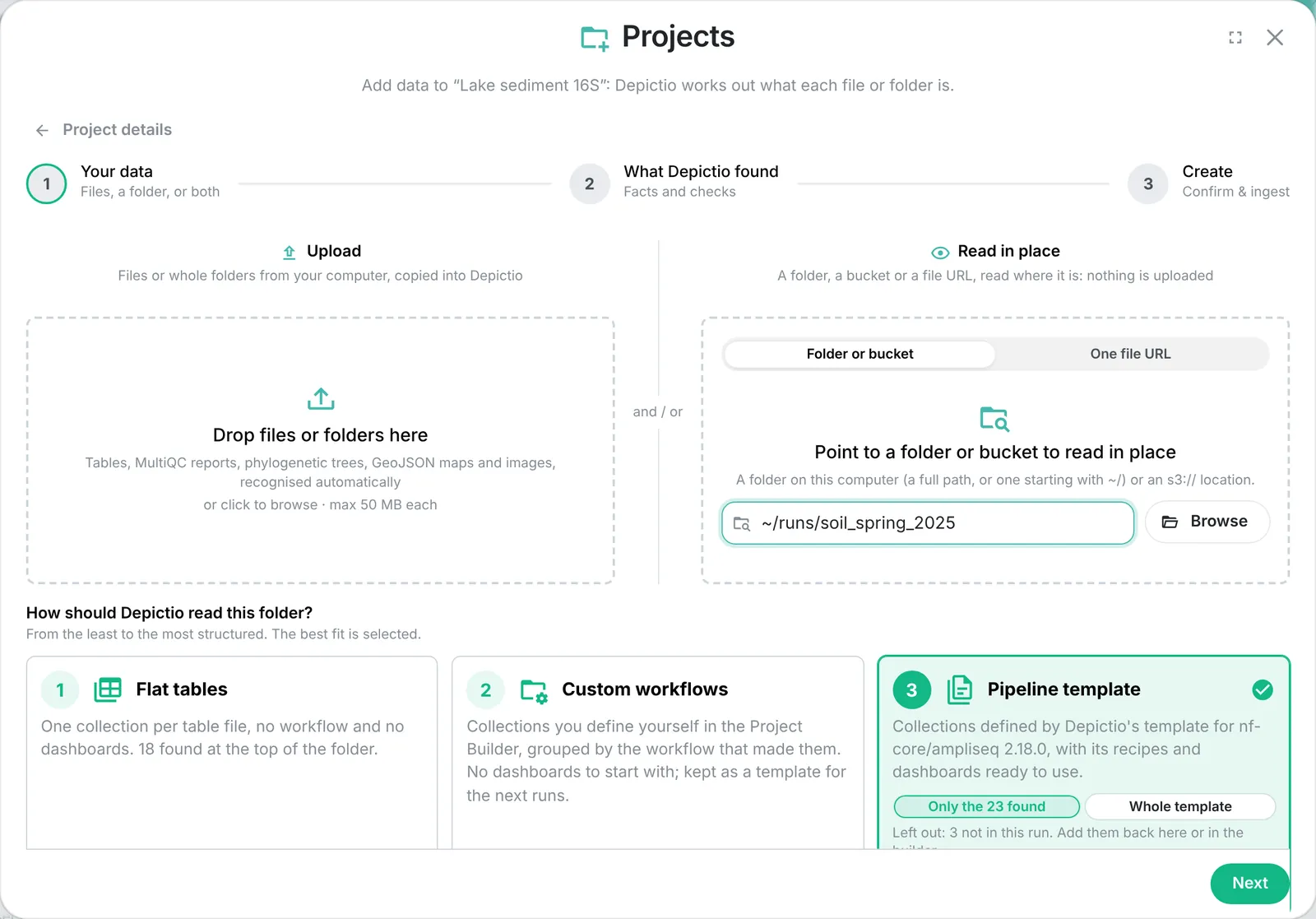
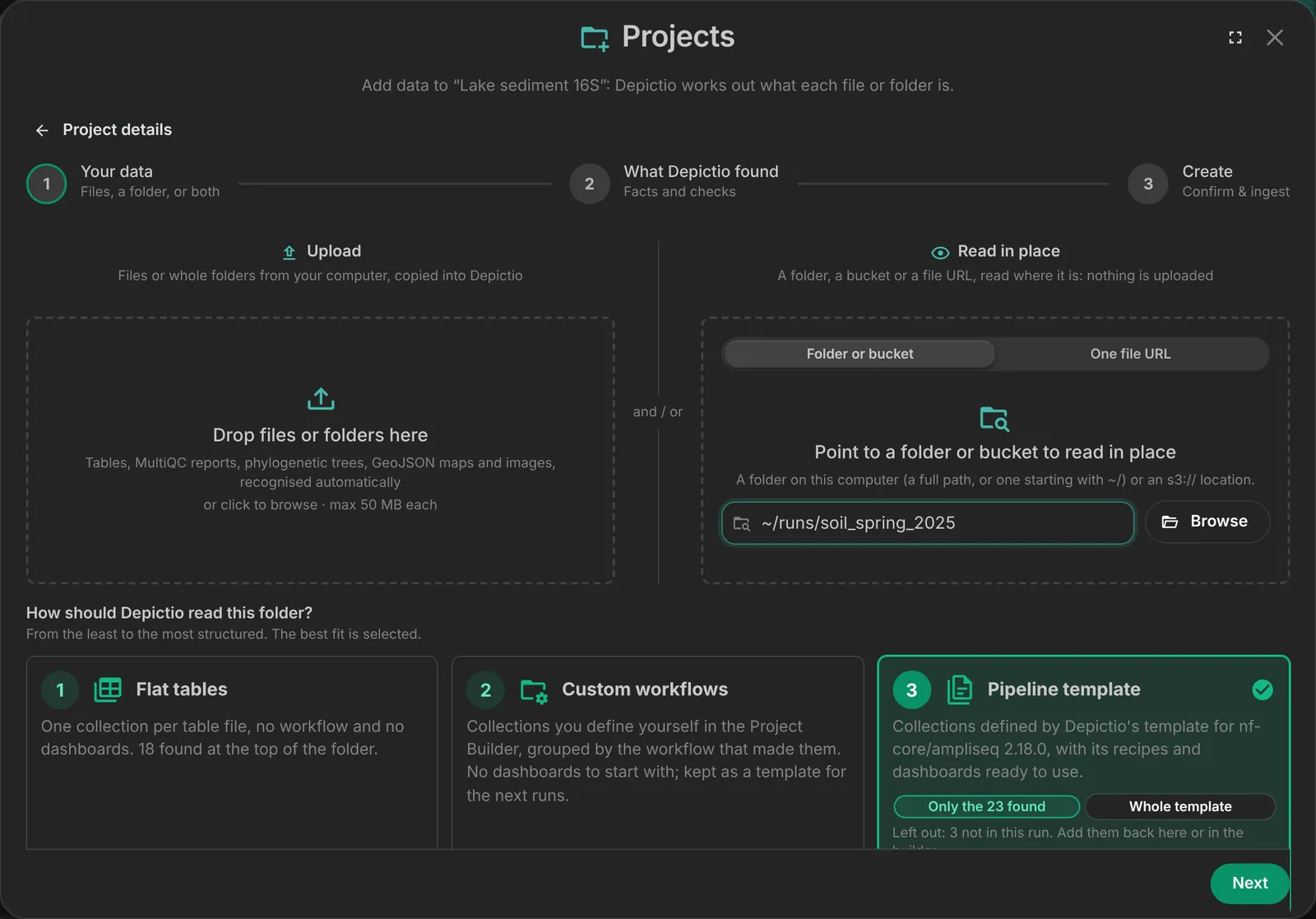
How should Depictio read this folder? offers three levels. The best fit is preselected; one that does not fit says why.
| Level | Makes | Same in YAML |
|---|---|---|
| Flat tables | One collection per table file, no workflow, no dashboards | Top-level data_collections |
| Custom workflows | Collections you define in the Project Builder, grouped by workflow | workflows |
| Pipeline template | A recognised pipeline read with its template, dashboards included | depictio ingest DIR --template ID |
A recognised pipeline shows Pipeline: name version · Detected, with Change. Otherwise I know the pipeline opens the picker. project_type (basic, advanced) is still read from YAML but changes nothing.
4. Check, then create
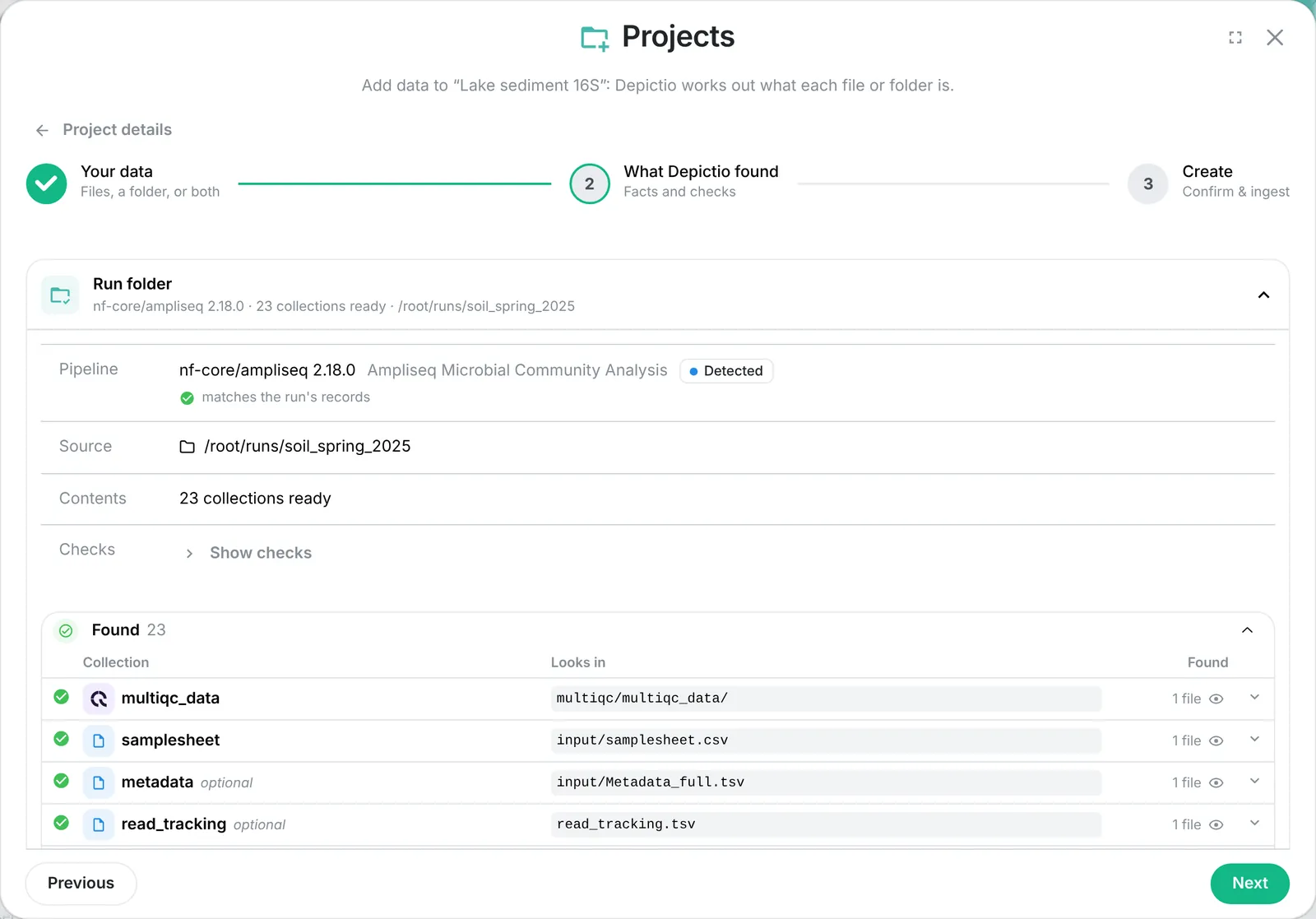
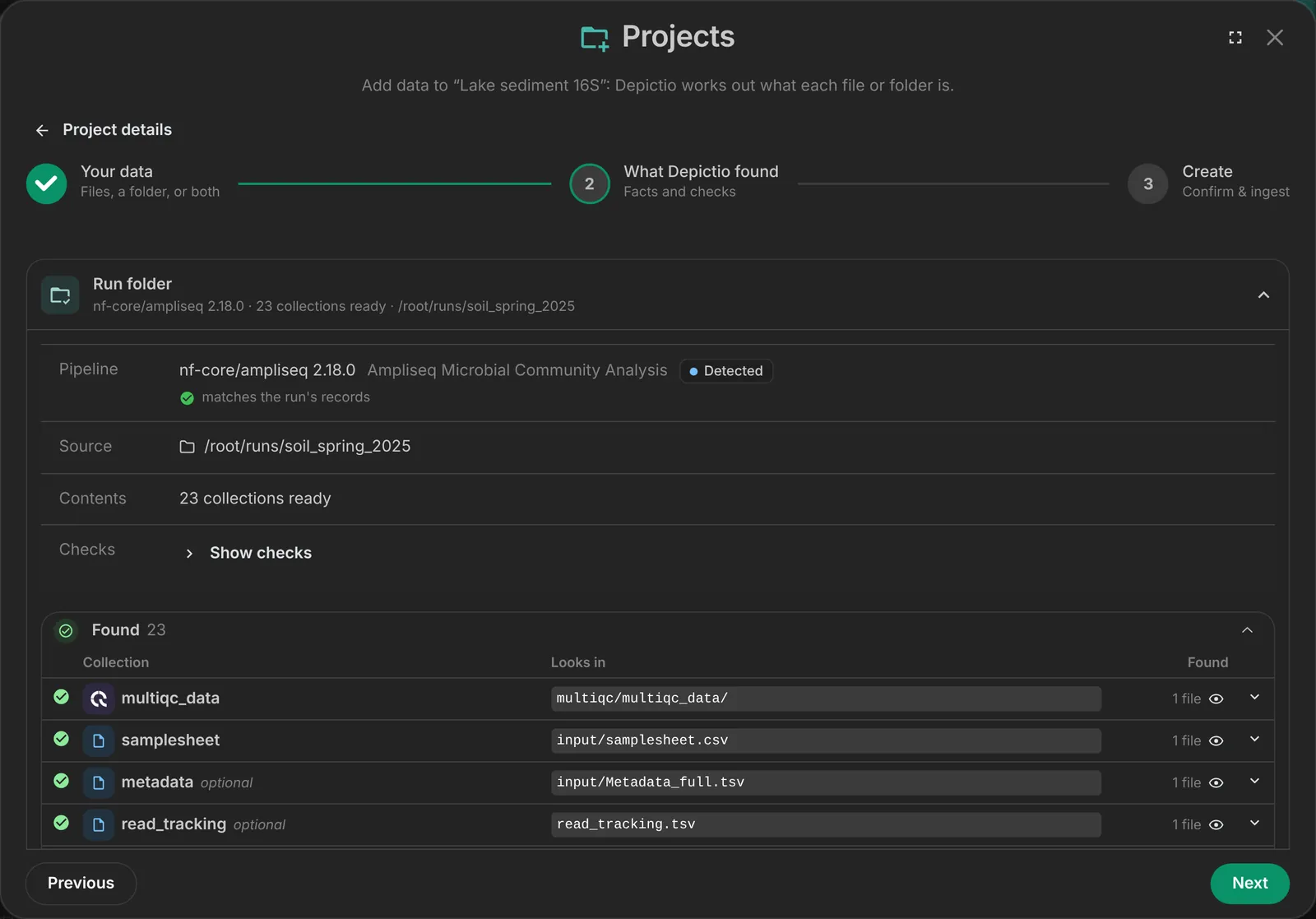
What Depictio found lists the pipeline, the runs, the source and the contents before anything is written. For flat tables, tick the tables and click Create project with N tables. For a pipeline, Next, then Create Project starts the ingestion.


The project header then says what it holds: Pipeline, Runs, Data collections and their Source.
With the CLI
A YAML file describes the project and depictio ingest creates it.
name: "My Project"
workflows:              # ingest scans the collections of a workflow
  - name: "tables"
    engine: { name: "python" }
    data_location: { structure: "flat", locations: ["/path/to"] }
    data_collections:
      - data_collection_tag: "my_data"
        config:
          type: "Table"
          metatype: "Metadata"
          scan:
            mode: "single"
            scan_parameters:
              filename: "/path/to/data.csv"
          dc_specific_properties:
            format: "CSV"
Collections sit under a workflow, read from each run folder that runs_regex matches under data_location.locations:
name: "RNA-seq Expression Study"
workflows:
  - name: "rnaseq_pipeline"
    engine: { name: "nextflow", version: "24.10.3" }
    data_location:
      structure: "sequencing-runs"
      locations: ["{DATA_LOCATION}/rnaseq-results"]
      runs_regex: ".*"
    data_collections:
      - data_collection_tag: "sample_stats"
        config:
          type: "Table"
          metatype: "Aggregate"
          scan:
            mode: "recursive"
            scan_parameters:
              regex_config: { pattern: "stats/.*_stats.tsv" }
          dc_specific_properties:
            format: "TSV"
            polars_kwargs: { separator: "\t" }
Annotated versions, links and every scan mode: YAML examples and the reference.
One command resolves the template's variables, creates the project, runs its recipes and imports its dashboards. Without --template, the template is detected from the folder, and a folder none fits gets one composed from the catalog. The folder can be an s3:// prefix, see Remote data. Full reference: Templates.
--dry-run previews without contacting the server, and --skip STEP leaves steps out (see Skipping steps). Running the same command again with --update-config refreshes the project and keeps its dashboards (Refreshing a project).
Add data to a project
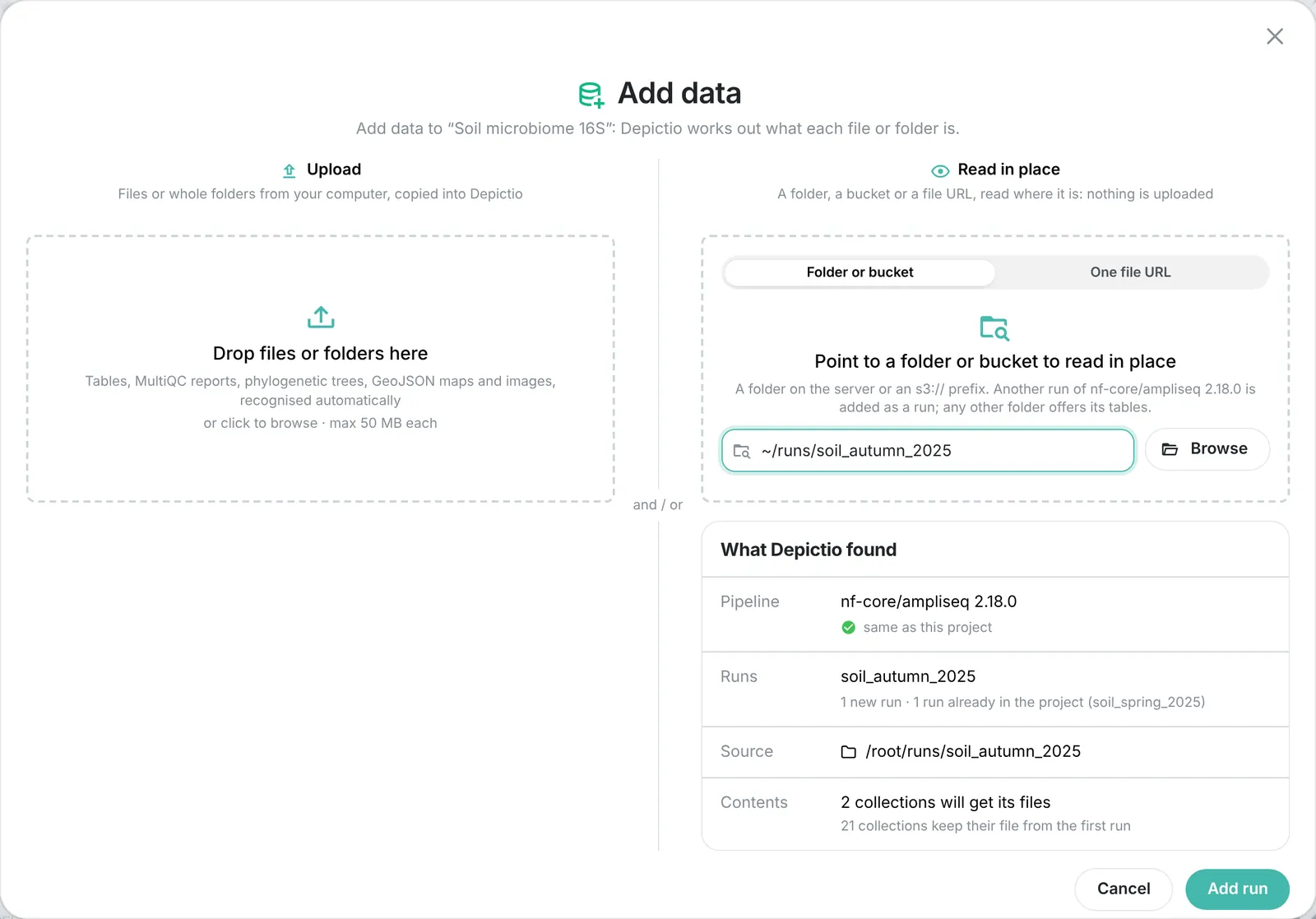
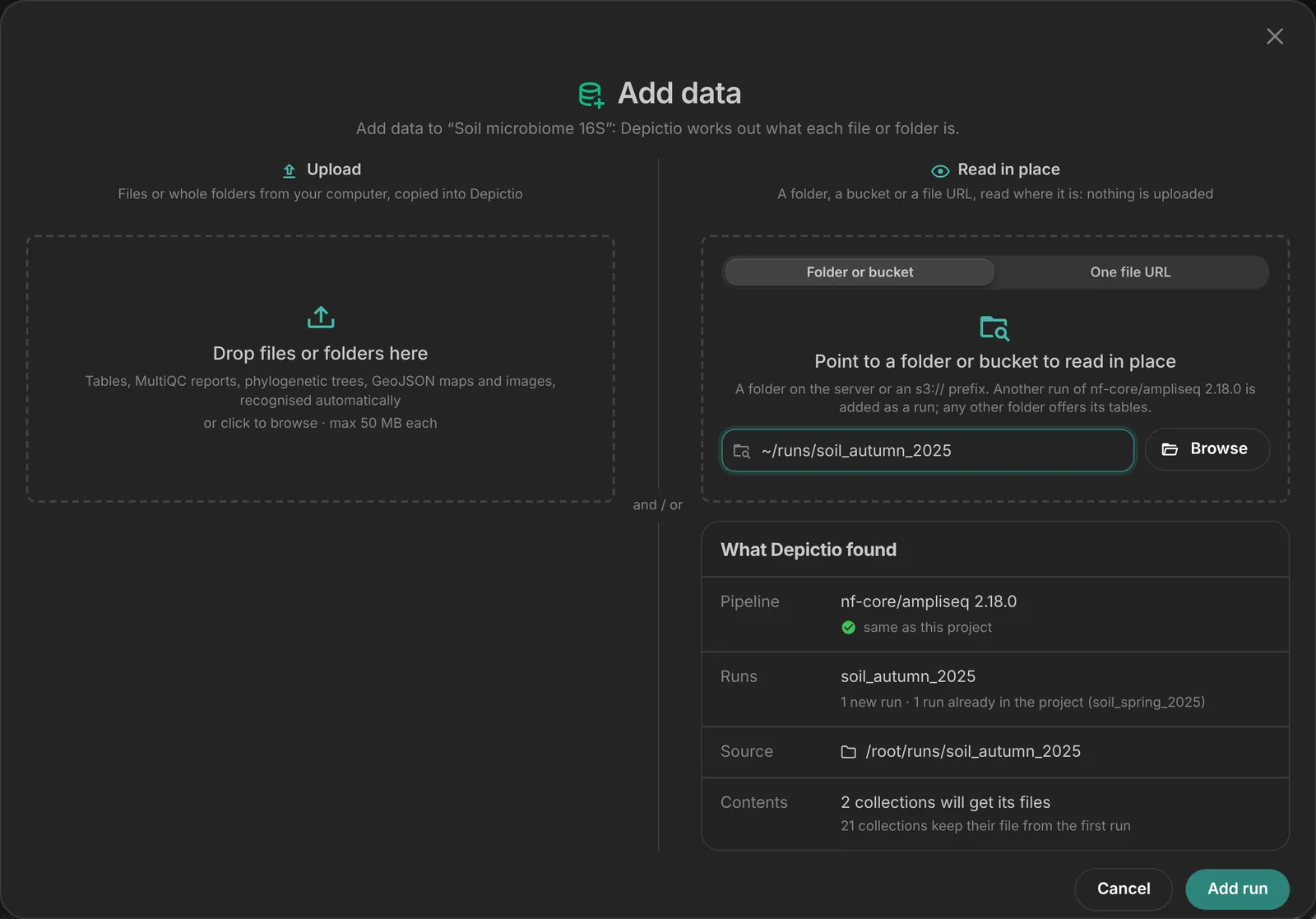
Add data on the project page has the same Upload and Read in place sides. Another run of the project's pipeline is added as a run; any other folder offers its tables as new collections. The button says which: Add run, Add N tables or Add run and N tables. From the CLI, depictio ingest --attach-run.
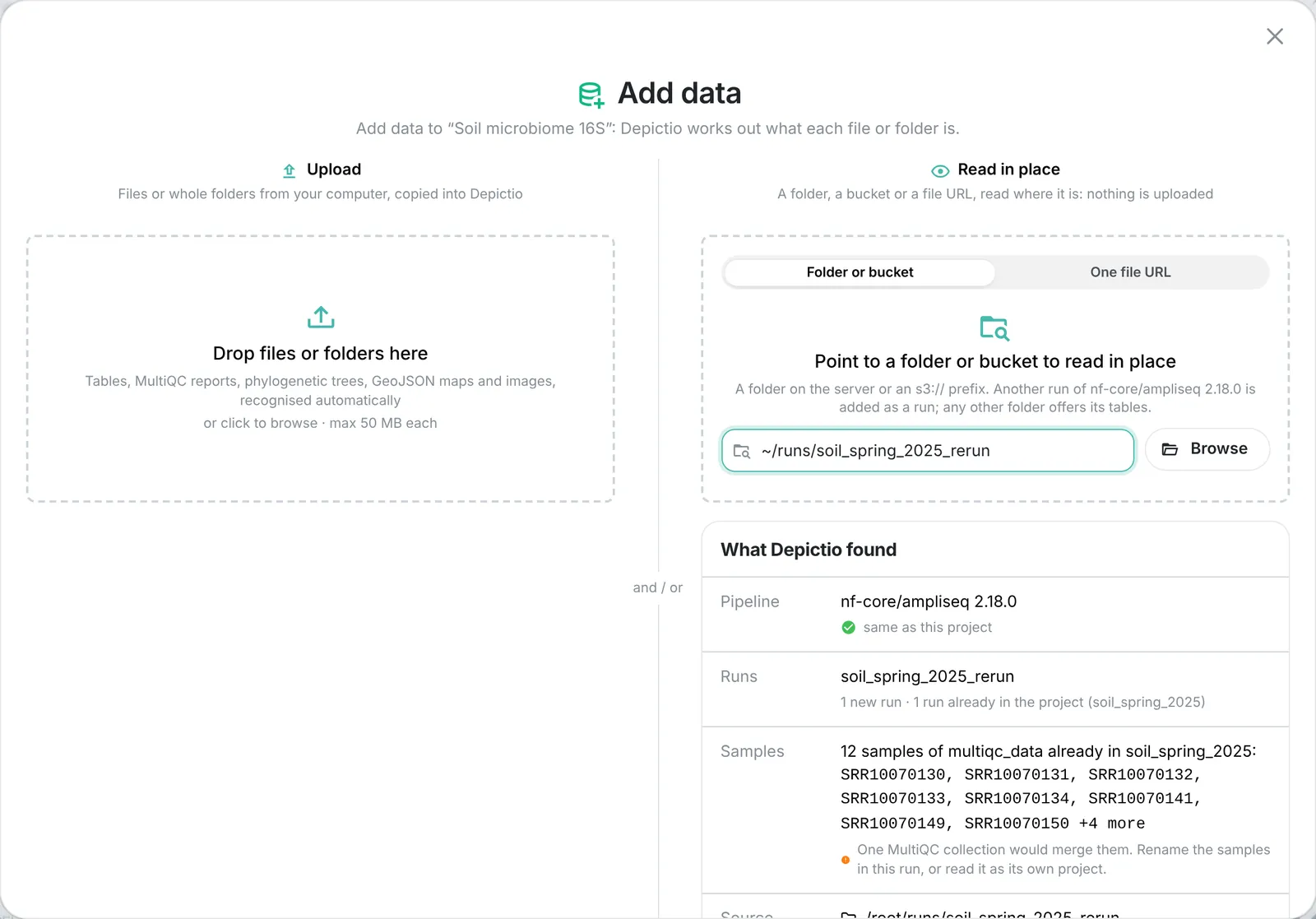
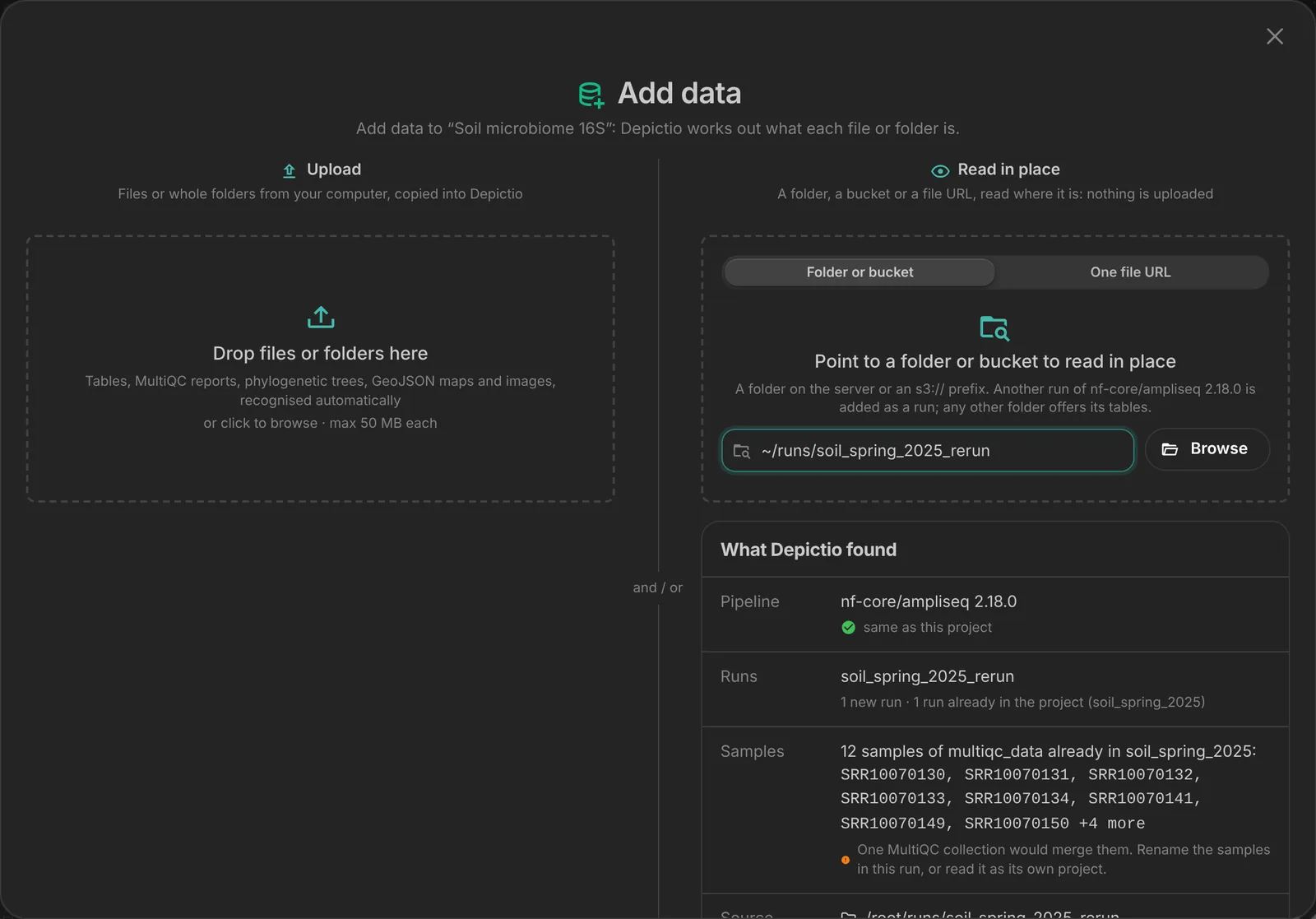
- A run whose MultiQC reports name samples already in the project is held back: the Samples row lists them. Rename them, or read the run as its own project. When not every report could be read, the check is partial: the row shows Needs a look and names the reports it skipped (v1.22.0+). The Checks of a new project made from several runs do the same.
- Only a project made from a pipeline template takes another run, and only when its collections walk a folder. A project read from an
s3://run folder cannot. - Each run is listed on the project's Runs page.
Edit a table
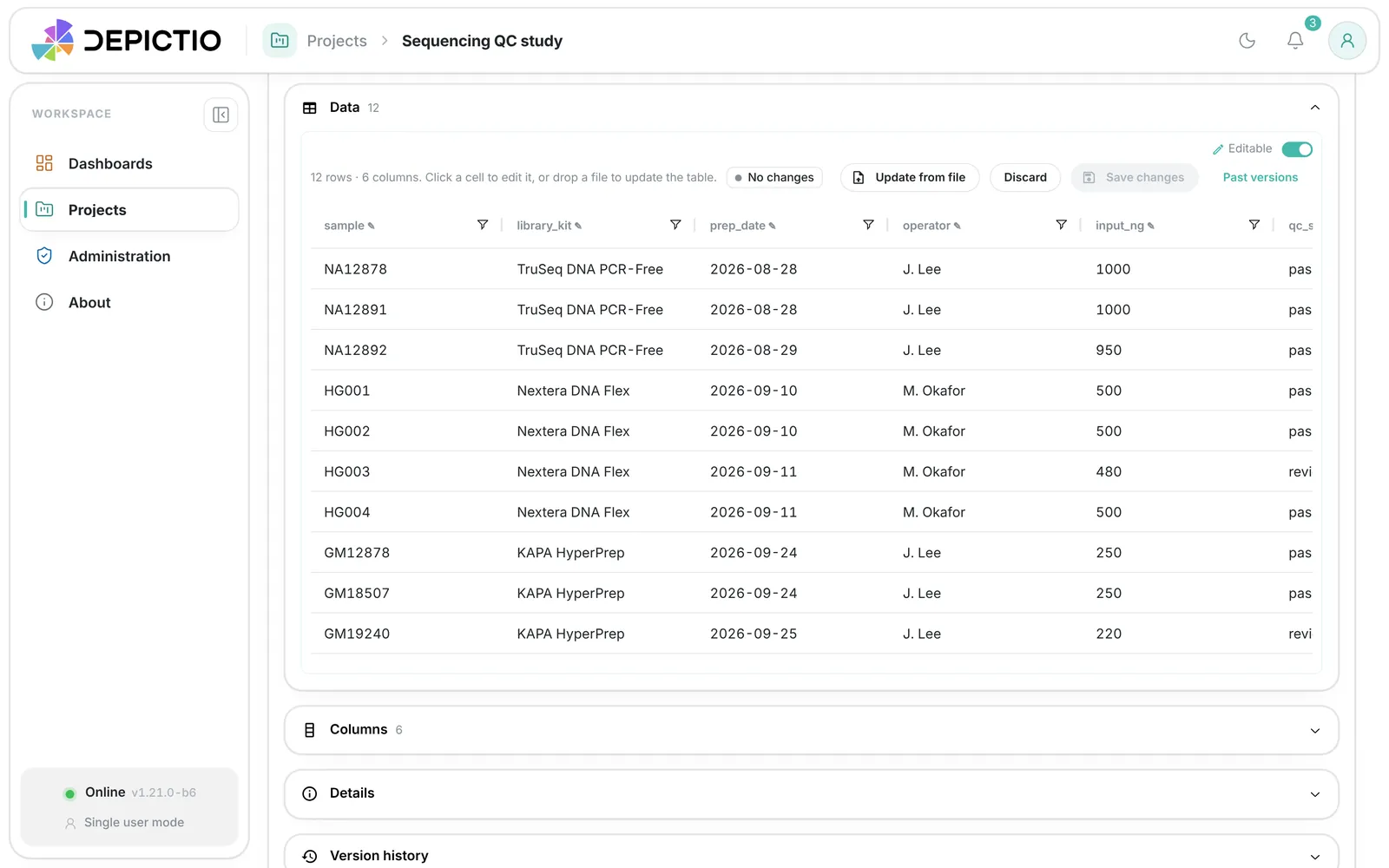
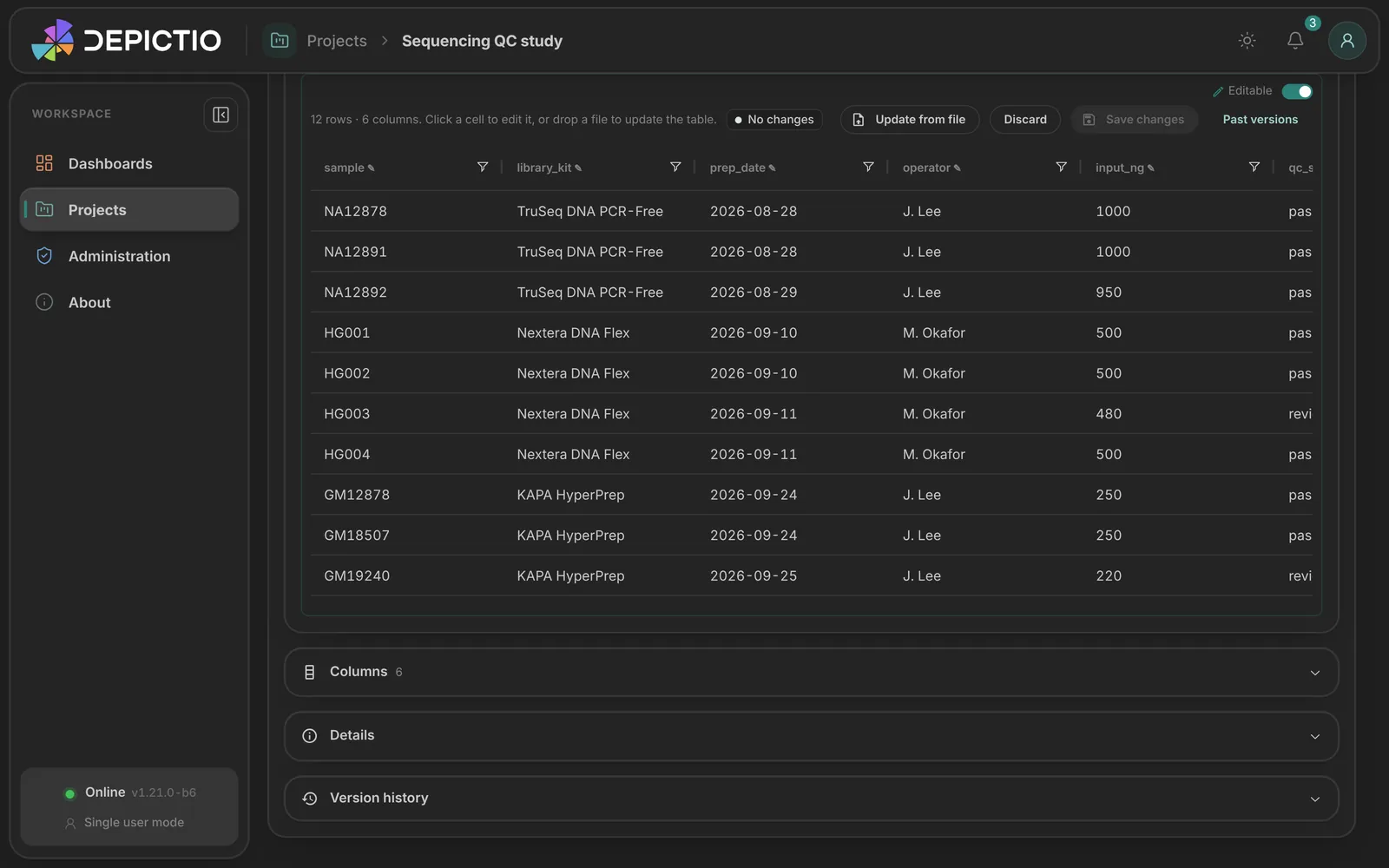
A table you uploaded or added, typically a sample sheet, can be edited like a spreadsheet. Tables from a pipeline run or a template stay read-only, since the next ingestion would overwrite them.
- Turn the lock switch from Read-only to Editable.
- Click a cell to change it, or drop a file to preview Add columns, Fill missing or Replace.
- Each save is a new version. Past versions, then Restore v3 for instance, writes an old one back as a new version.
A table whose columns look like a latitude and longitude shows Map coordinates…, see Map-capable tables. See also the Metadata panel.
Manage a data collection
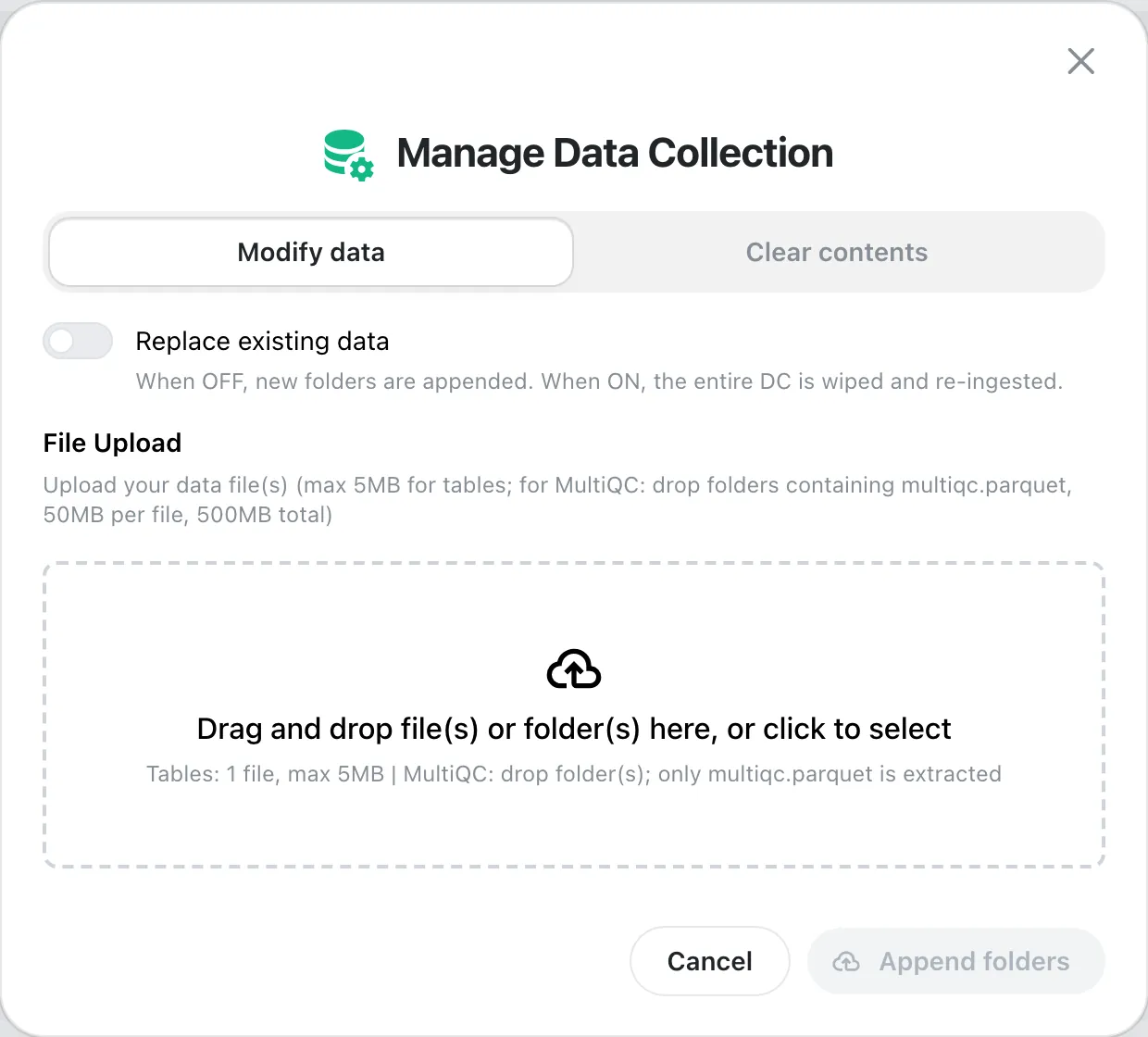
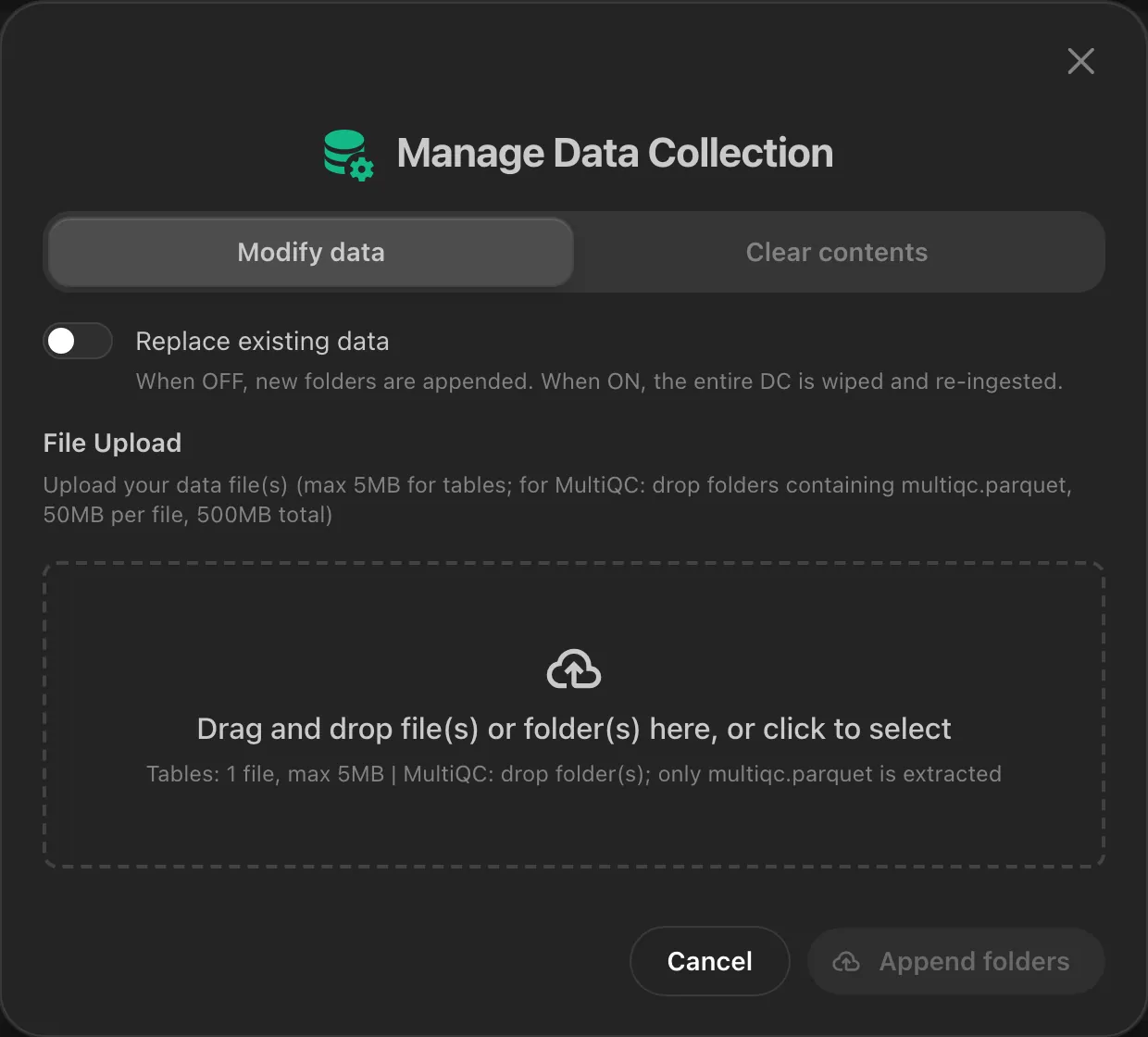
The icon of a collection (Manage data (append / replace / clear)) opens Manage Data Collection, for editors and owners.
| Tab | Does | Button |
|---|---|---|
| Modify data | Adds dropped files: one table file up to 5 MB, or MultiQC folders (50 MB a file, 500 MB in all) | Append folders |
| Modify data, Replace existing data on | Wipes the collection and ingests the dropped files | Replace all data |
| Clear contents | Deletes the data, keeps the collection and its links; type its name to confirm | Clear data collection |
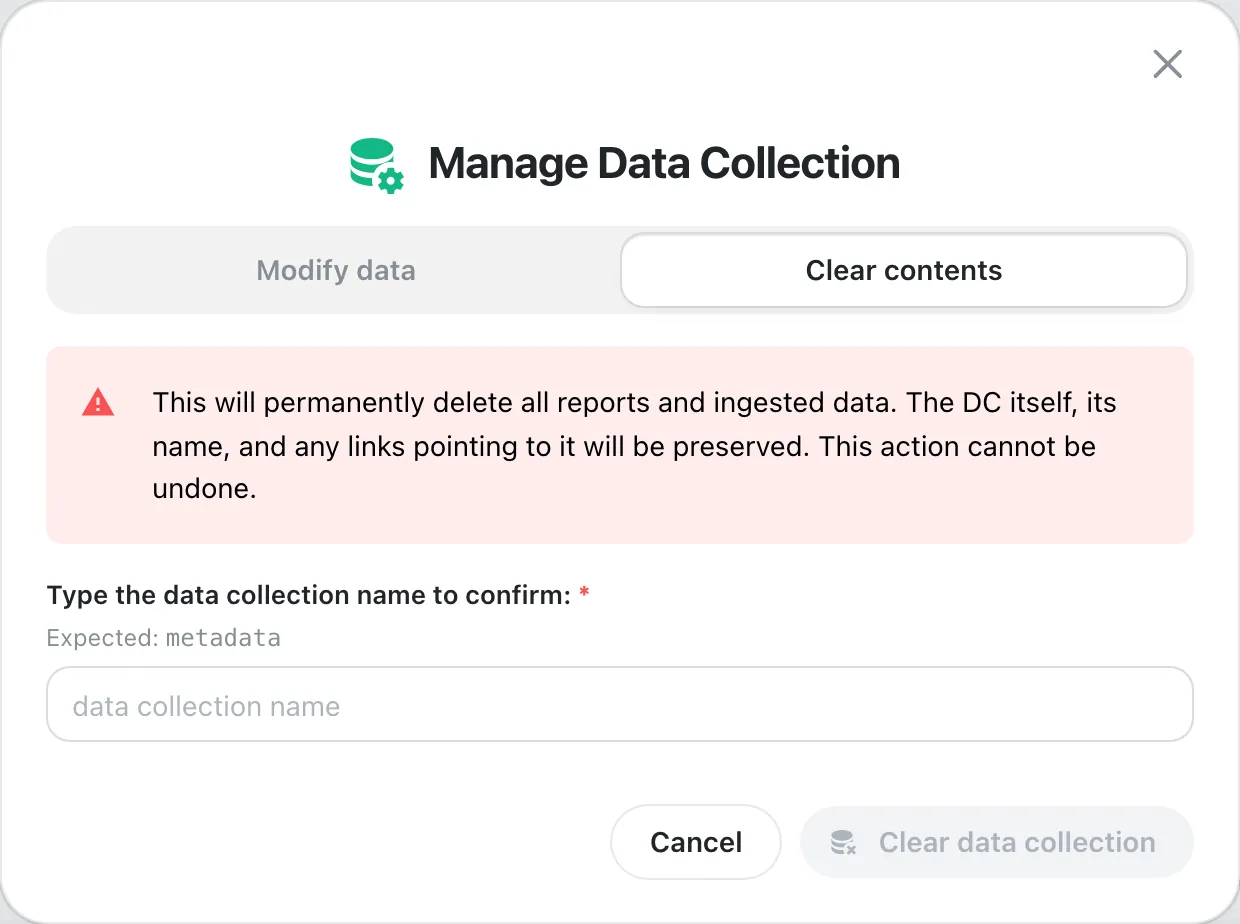
MultiQC reports must agree (same modules, plot keys and MultiQC version, no sample twice) or they are refused. A later CLI refresh keeps what was added here. Collections read from a manifest, a URL or a bucket are re-read with Project settings, Data refresh.
Join two tables
v1.23.0+
Join or link? A join merges two tables into a new one; a link merges nothing and only carries filters between collections. Joining and linking
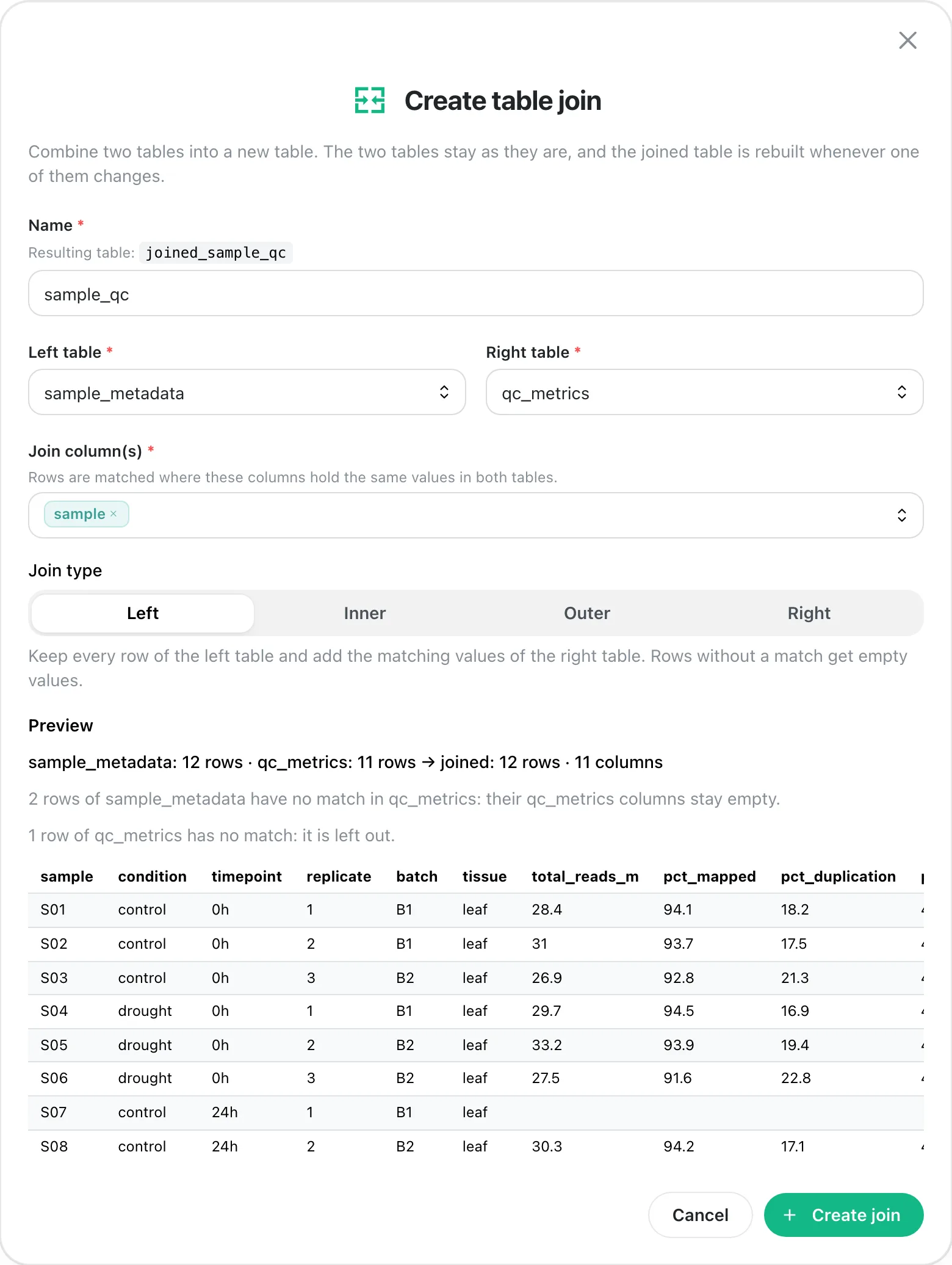
Two tables that share a column become one new table, read by any component. On the project page: Cross-DC links, Add join (owners and editors, project not read-only).
- Name the join: letters, digits,
_and-. The new table is calledjoined_<name>. - Pick the Left table and the Right table: preselected from the project's link, or else its two oldest tables.
- Pick the Join column(s) they share and a Join type: Left, Inner, Outer or Right.
- Check the preview (row and column counts, rows without a match, warnings), then Create join.
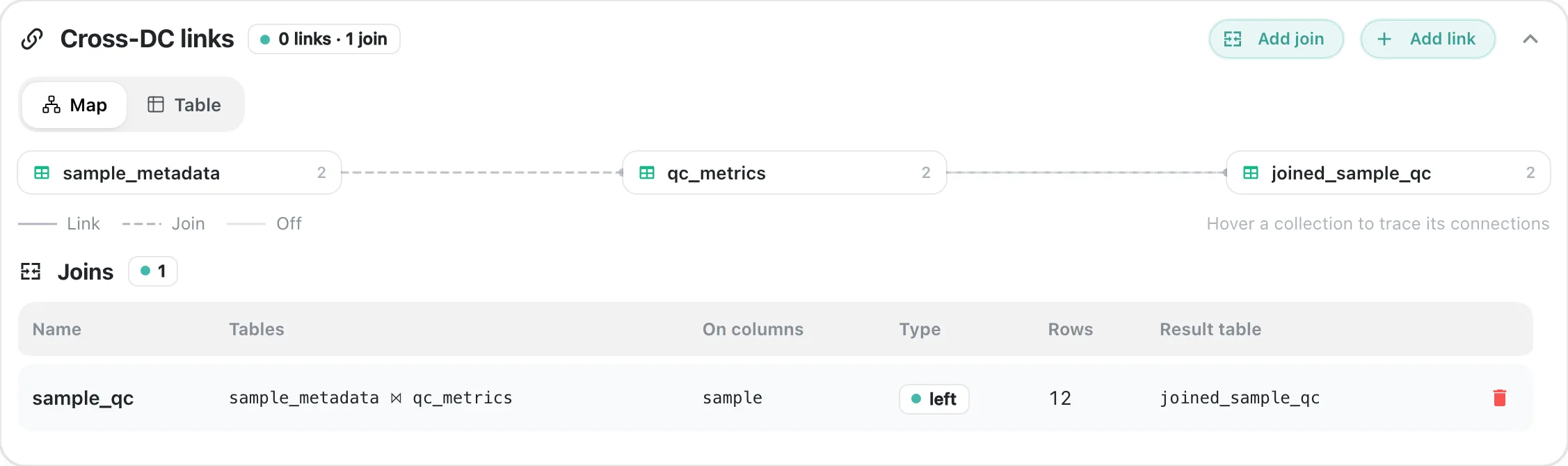
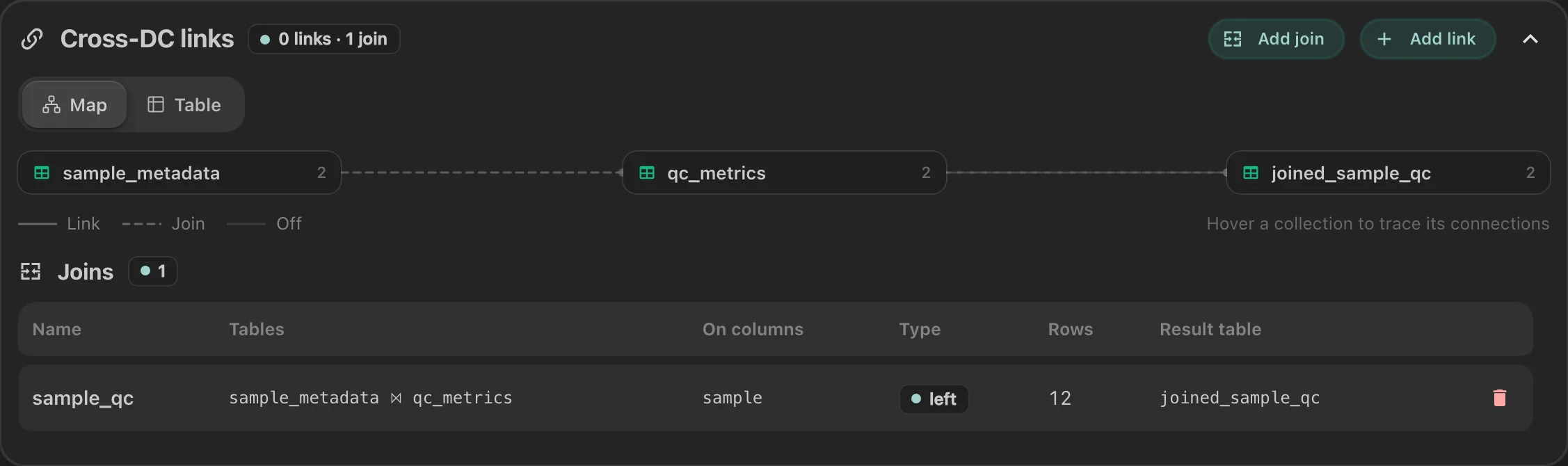
The two tables stay as they are; the joined table carries a joined badge and is rebuilt whenever one of them changes. It cannot be appended to, replaced or cleared itself: change its sources instead. The join is listed under Joins in the same section, where it can be deleted.
Project Builder (v1.21.0+)
For a folder no shipped template fits, the Project Builder lets you define the collections yourself. It writes the same YAML as the CLI.
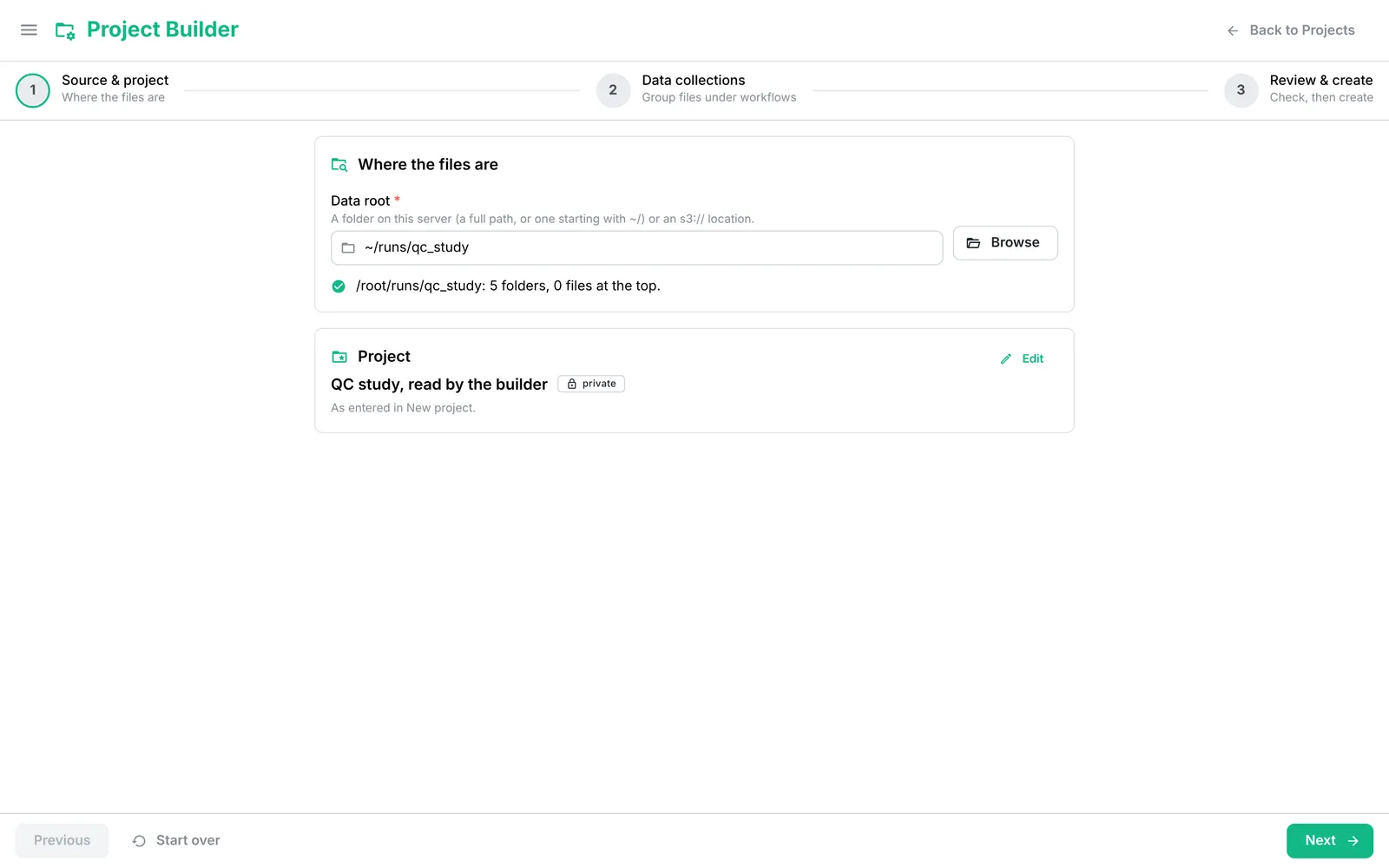
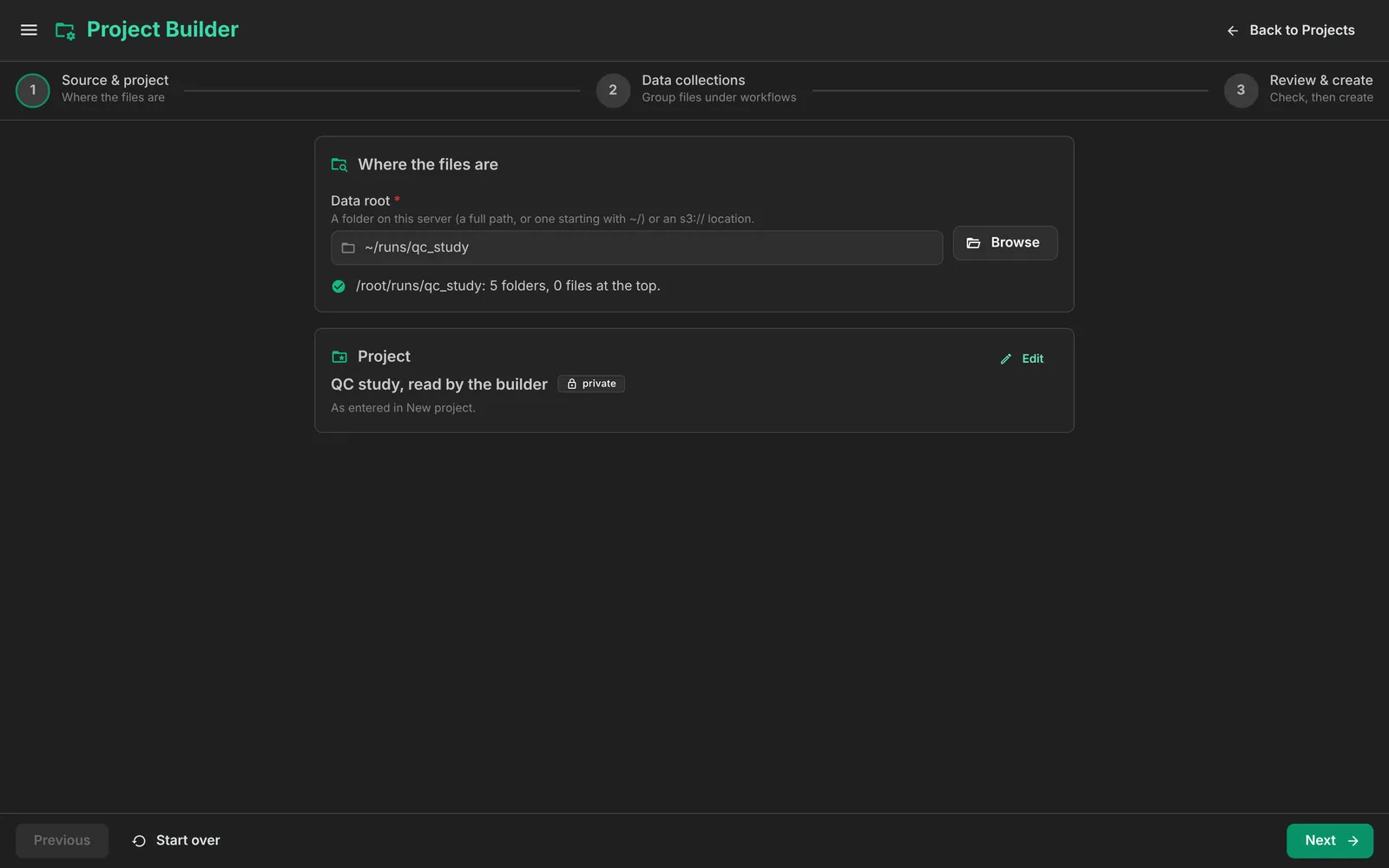
Pick Custom workflows for a folder, then Open the Project Builder (or go to /projects/build). Three steps: Source & project, Data collections, Review & create. Start from scratch, from a folder or from a shipped template; a GitHub URL fills the workflow's metadata from its RO-Crate or Nextflow manifest.
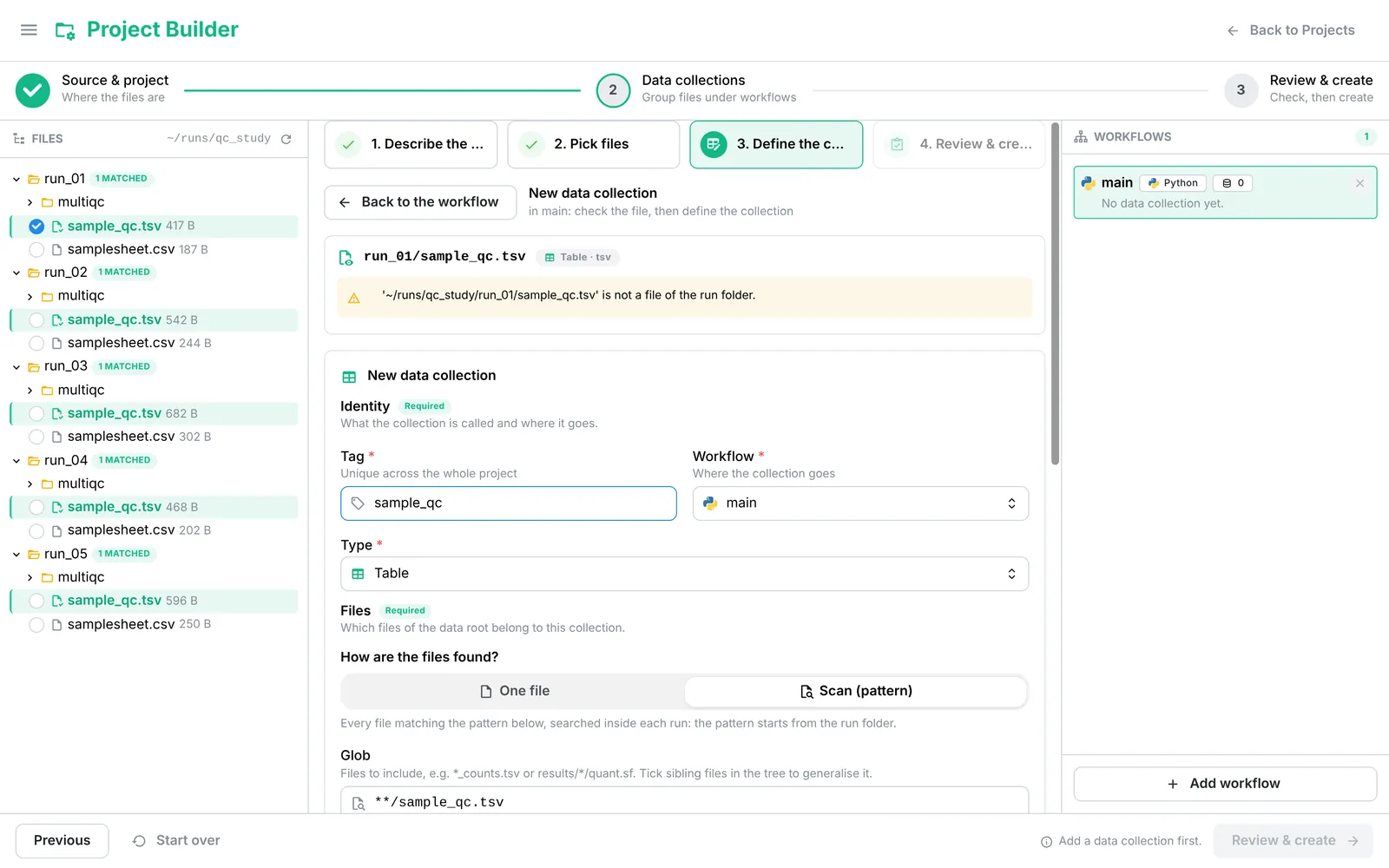
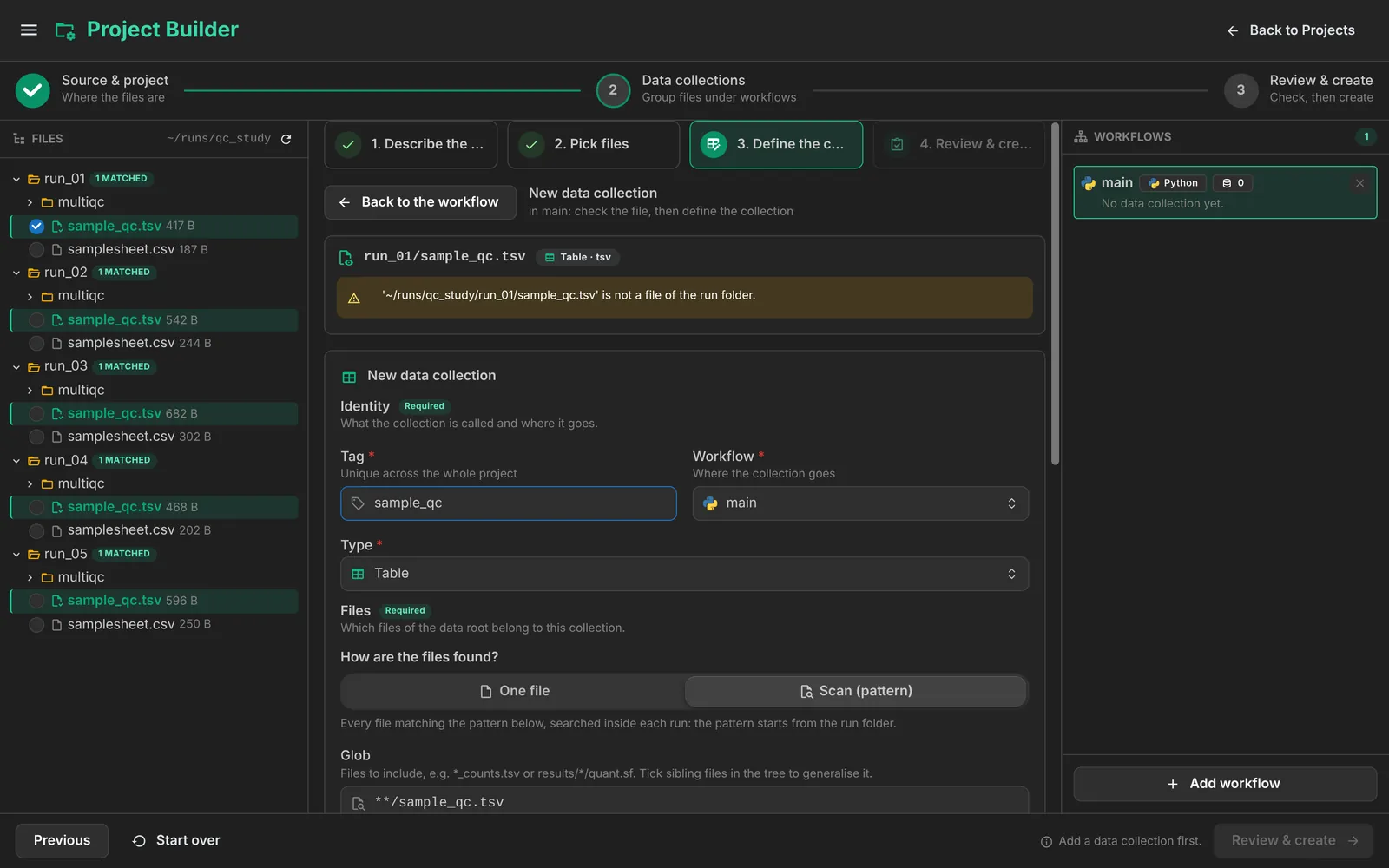
Every collection kind, path wildcards, run detection by regular expression and links between collections.
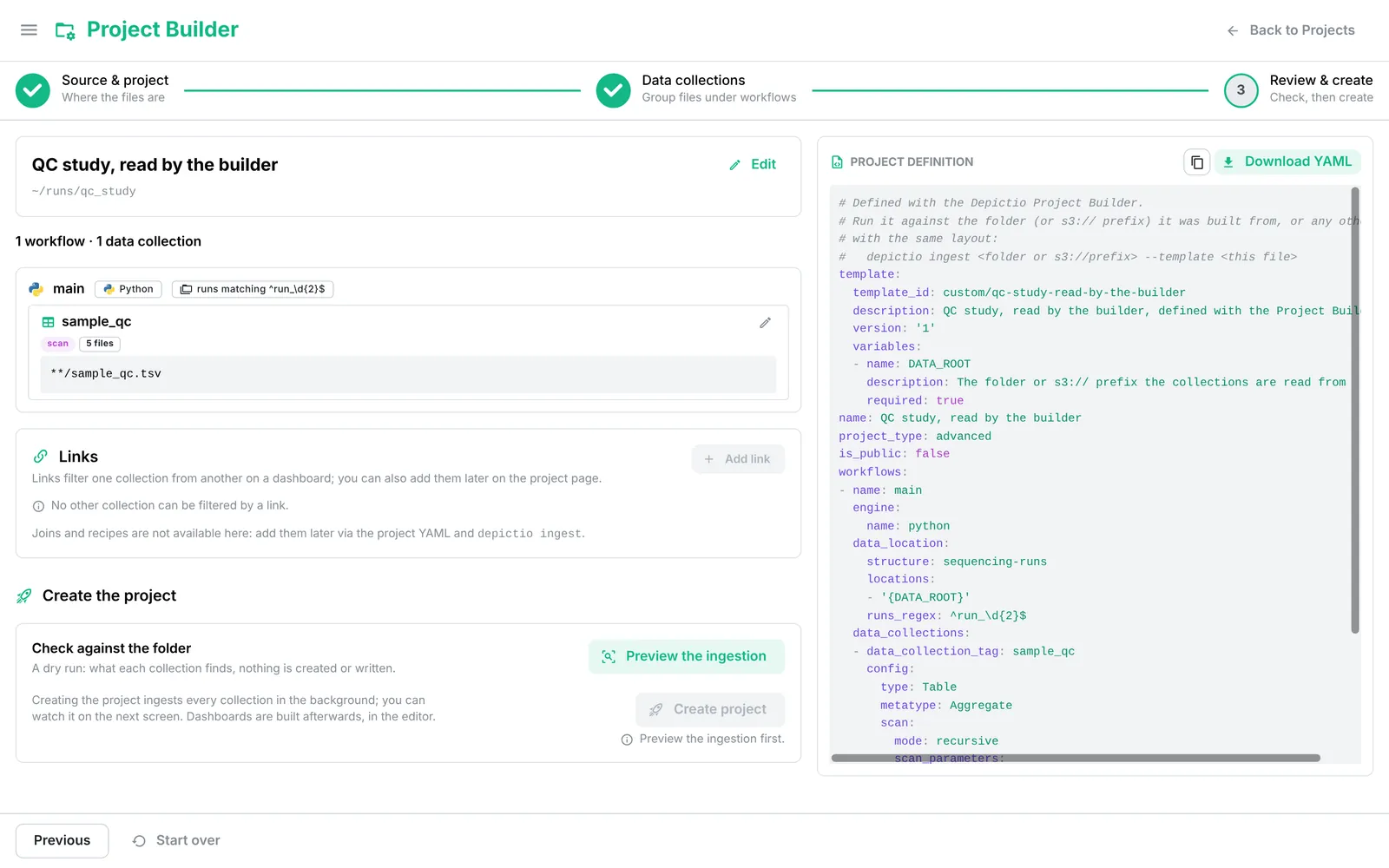
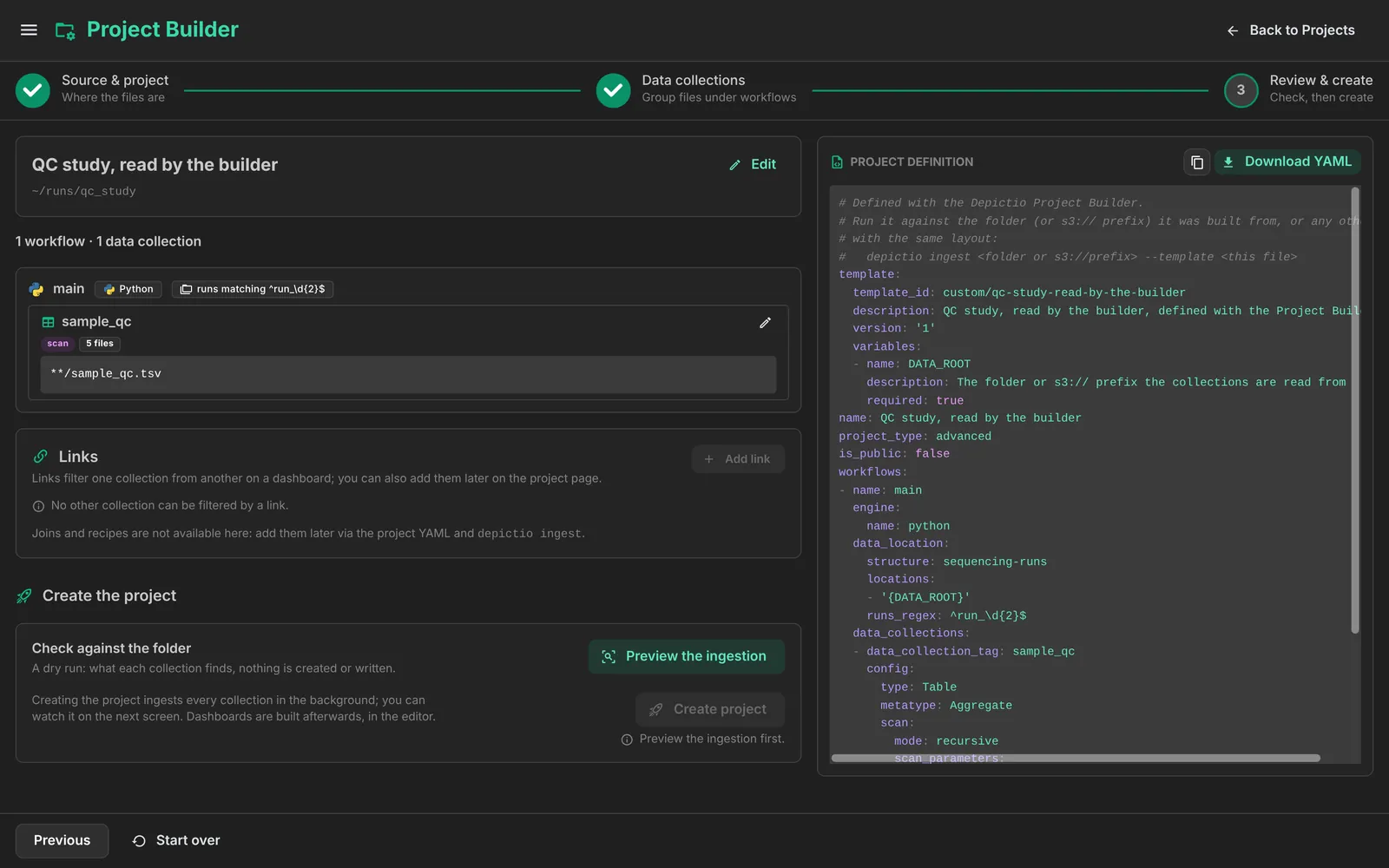
On a machine with no Depictio server, such as an HPC login node, the builder reads only the folder you give it:
It opens http://127.0.0.1:8129/projects/build and writes a template bundle to <dir>/.depictio/template. Run it against any server:
Data collection types
Most collections are tables. A few types carry extra configuration at the collection level, so every figure built on them inherits it.
| Type | Holds | Read by |
|---|---|---|
| Map-capable table | A table with coordinates | Map figures |
phylogeny |
A Newick or Nexus tree, with a metadata table | Phylogenetic |
indexed_file |
One indexed genomic file per sample, no table | Genome view |
genomic_tracks |
A table of track files, one row each | Genome browser |
| Protein structures | One structure or PAE file per protein | Protein tiles |
Map-capable tables
A table whose columns look like a latitude and longitude shows Map coordinates…: confirm or change the columns. Every Map figure on it then inherits them. In YAML, set lat_column and lon_column (both, and different) in the collection's dc_specific_properties, crs defaulting to EPSG:4326 (see the reference); at upload, POST /create_from_upload takes latColumn and lonColumn. A figure's own lat_column and lon_column still win.
Phylogeny and its metadata table
Ingestion copies the tree file as is to S3, never converted. Its tip annotations come from a separate table keyed by taxon name; leave the three metadata_* keys out and the tree renders unannotated.
YAML
- data_collection_tag: "bacterial_tree"
  config:
    type: "phylogeny"
    metatype: "Aggregate"
    scan:
      mode: "single"
      scan_parameters:
        filename: "{DATA_ROOT}/trees/bacterial_tree.nwk"
    dc_specific_properties:
      format: "newick"          # or "nexus"
      ladderize: true
      metadata_dc_tag: "bacterial_metadata"
      metadata_taxon_column: "taxon"
      # tip_label_strategy: "first_token" when leaf names carry a suffix
A component points at the tree with tree_wf_id and tree_dc_id. More in YAML examples.
Indexed files
For a genomic file too large to become a table: a per-sample VCF, a BAM, a bigWig, a GFF3, or any bgzip and tabix-indexed file. Ingestion builds no table: it copies each file and its index to S3, and a genome track reads only the region in view. Prefer a table when the data is small enough to filter as rows.
YAML
- data_collection_tag: "variant_files"
  optional: true
  config:
    type: "indexed_file"
    metatype: "Metadata"
    scan:
      mode: "recursive"
      scan_parameters:
        regex_config:
          pattern: ".*\\.ann\\.vcf\\.gz$"
    dc_specific_properties:
      format: "vcf"            # vcf, bam, bigwig, bigbed, gff3, fasta or tabix
      assembly: "{GENOME}"
      sample_regex: "(?P<sample>[^/]+?)\\.ann\\.vcf\\.gz$"
      max_file_size_mb: 64
| Key | Default | Meaning |
|---|---|---|
format |
required | vcf, bam, bigwig, bigbed, gff3, fasta, tabix (aliases bw, bb, gff) |
index_suffix |
per format | .tbi, .bai or .fai; none for bigWig and bigBed. An empty string declares a self-indexed file |
sample_regex |
file name | A regex with a named sample group |
sample_col |
sample |
The sample column of the project's tables, so the dashboard's sample filter applies |
assembly |
none | Genome assembly; left out, the component decides |
max_file_size_mb |
512 |
Per-file cap |
One primary file per sample: a file without its index, or a second file for a sample already taken, is skipped with a warning. optional: true keeps a run fetched without its indexes from failing.
Storage the browser can read (v1.13.0+)
The browser reads the files from the object store with presigned URLs, valid 15 minutes. They are signed for DEPICTIO_S3_PUBLIC_URL, or else DEPICTIO_S3_EXTERNAL_PROTOCOL, _HOST and _PORT: an in-cluster name such as http://s3:9000 fails in the browser. The store must answer the viewer's origin with CORS and serve range requests: the bundled SeaweedFS allows every origin (narrow it with -s3.allowedOrigins=); on AWS, allow GET and HEAD with Range, and expose Content-Range, Content-Length, Accept-Ranges and ETag. Without this, a genome view shows no file tracks.
Genomic tracks
A table of track files, one row per bigWig, narrowPeak, BAM, VCF or other file, its location in uri_column. It is ingested like a table, so it filters, links and joins like one, and the genome browser shows the rows left after filtering. A relative uri is uploaded at ingestion; an s3:// or https:// one is read in place, from hosts on the server's allow-list.
YAML, from the nf-core/chipseq template
- data_collection_tag: "tracks"
  config:
    type: "genomic_tracks"
    metatype: "Metadata"
    source: "transformed"
    transform:
      recipe: "nf-core/chipseq/tracks.py"
    dc_specific_properties:
      format: "TSV"
      uri_column: "uri"
      track_id_column: "track_id"
      sample_column: "sample_id"
      format_column: "format"
      assembly: "hg19"
A project writing its own table uses scan instead of transform, and remote_base_uri to read relative paths under a remote prefix. Every key (index_column, name_column, color_column, direct_access, the assembly presets) is in the reference. A link with target_type: genomic_tracks lets a table selection pick the tracks, see Cross-DC filtering.
Protein structures (v1.19.0+)
Structures and PAE matrices are indexed_file collections with no index, one file per protein, fetched whole by a protein tile. format is pdb (.pdb, .ent), mmcif (.cif, .mmcif) or pae (.pae.tsv, .pae.json). The sample id the scan derives must equal the entity of the residue tables.
YAML
Project permissions
| Role | Can |
|---|---|
| Owner | Everything: edit, delete, manage permissions, delete a collection |
| Editor | Change data, write a collection, create and edit dashboards |
| Viewer | Read the project and its dashboards |
A role goes to a person or to a group (v1.18.0+), from the project's Permissions page; a person's role is the highest of their own and their groups'. Sharing goes through Permissions only.
Make this project public, or is_public: true, lets every user read it; only owners and editors can change it.
Everyone with access (v1.19.0+)
Everyone with access sums direct and group grants: one row per person, highest role first. Typing a group's name previews its members before Add group. Emails show only to those who may change the sharing: owners, system admins and the admins of an owning group.
Project deletion
Deleting a project, in the web UI or with DELETE /depictio/api/v1/projects/{id}, deletes its workflows, data collections, dashboards and its S3 objects. There is no trash: export it first with Export as a ZIP file (Project migration) if you may need it back.
Troubleshooting
Preview what each collection matches, without contacting the server, then scan alone:
depictio ingest --project-config-path ./config.yaml --dry-run
depictio data scan --project-config-path ./config.yaml
Check the paths, the regex patterns and the variables they use.
-v logs at INFO, -vv at DEBUG: depictio -vv ingest --project-config-path ./config.yaml.
See also
- YAML examples and the full reference
- Templates, Recipes and Remote data and manifests
- CLI usage and Cross-DC filtering
- Runs, What's new and the Metadata panel
- Creating dashboards