Move a project to another instance (v1.21.0+)
A project can travel from one Depictio instance to another with its data, dashboards, logos and comments. An administrator of the target creates a code, and the project's owner on the source sends the project with it.
Before you start
- Depictio v1.21.0 or later on both instances.
- On the target:
DEPICTIO_MIGRATION_INBOUND_ENABLED=trueandDEPICTIO_MIGRATION_UI_ENABLED=true. The Helm chart sets both. - On the source:
DEPICTIO_MIGRATION_UI_ENABLED=true, andDEPICTIO_MIGRATION_DESTINATION_DOMAINSlisting where owners may send. The chart sets["*"], any public https host; the code default[]turns sending off. - Behind an ingress, raise the target's body size limit (
nginx.ingress.kubernetes.io/proxy-body-size) and its read and send timeouts for large bundles. - You need to be an administrator on the target and the project's owner (or an administrator) on the source.
1. Create a code on the target
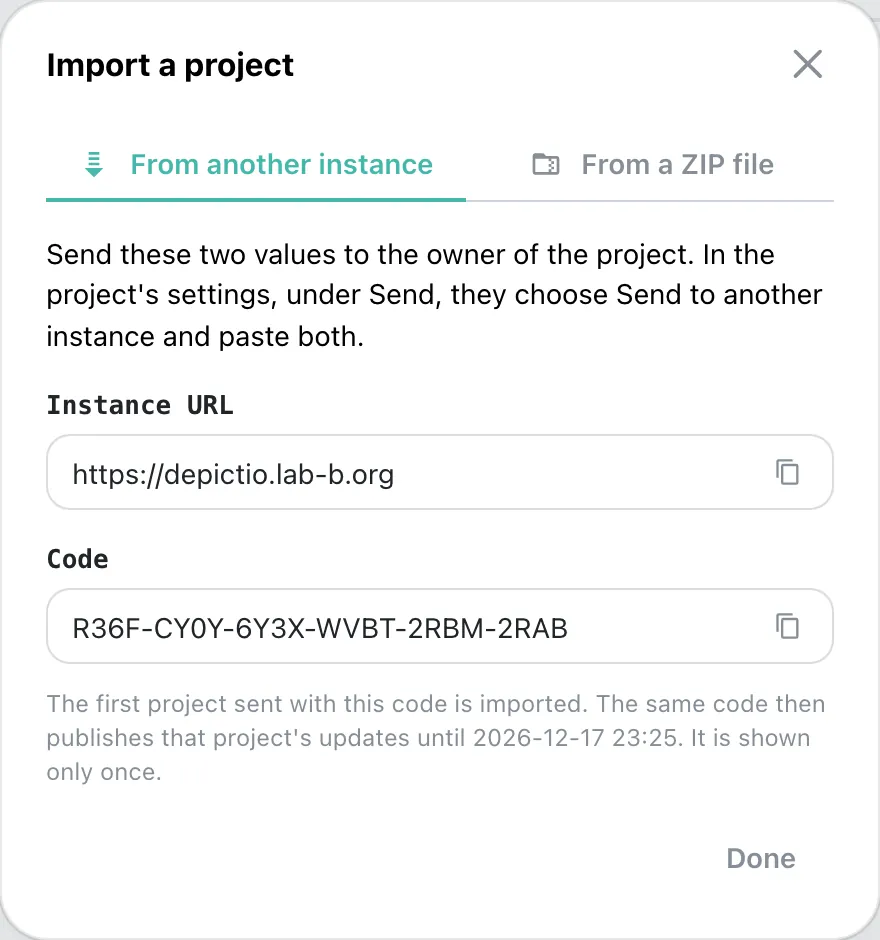
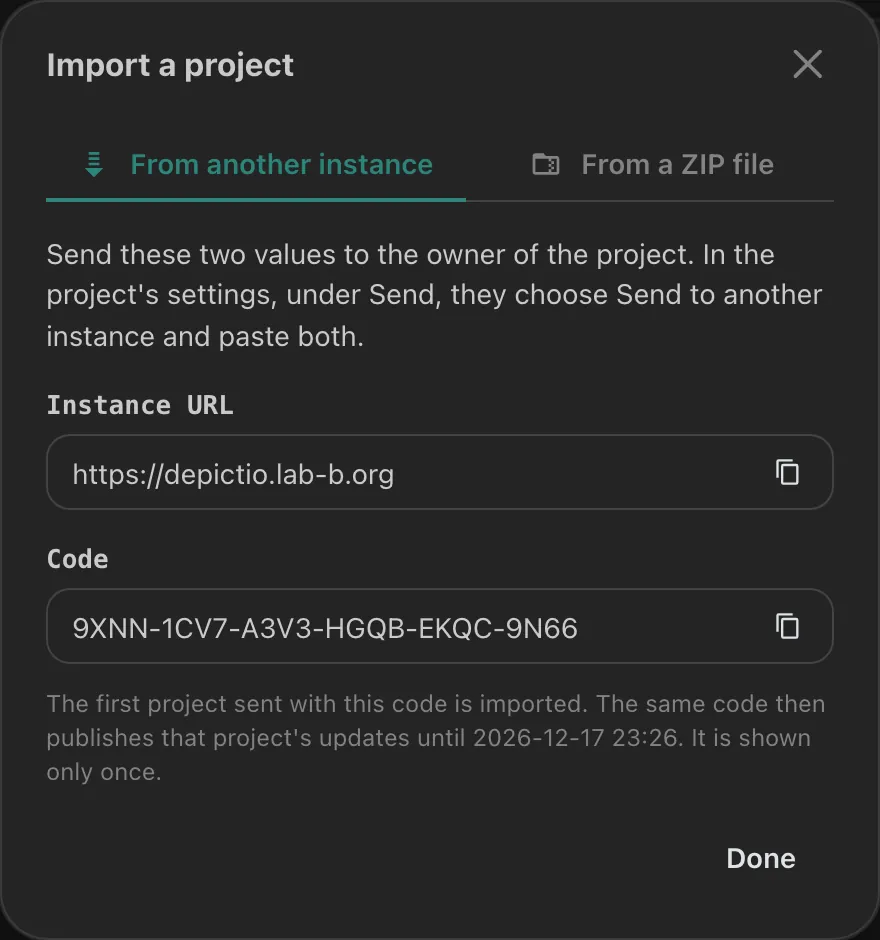
On the target, click New project, then Import a project, and pick From another instance. Administrators can also go to Admin > Migrations and click Receive a project.
Under Options, set:
- Code expires after: 1 day, 30 days (the default) or 1 year.
- Imported project is read-only: on by default.
- Note (optional): who the code is for.
Click Create code. The dialog shows the Instance URL and the Code once, with copy buttons. Send both to the project's owner.
2. Send the project from the source
On the source, open the project, click Project settings and pick Send. Click Send to another instance.
In the Destination step, paste the Destination URL and the Invite code, and add a message if you like.
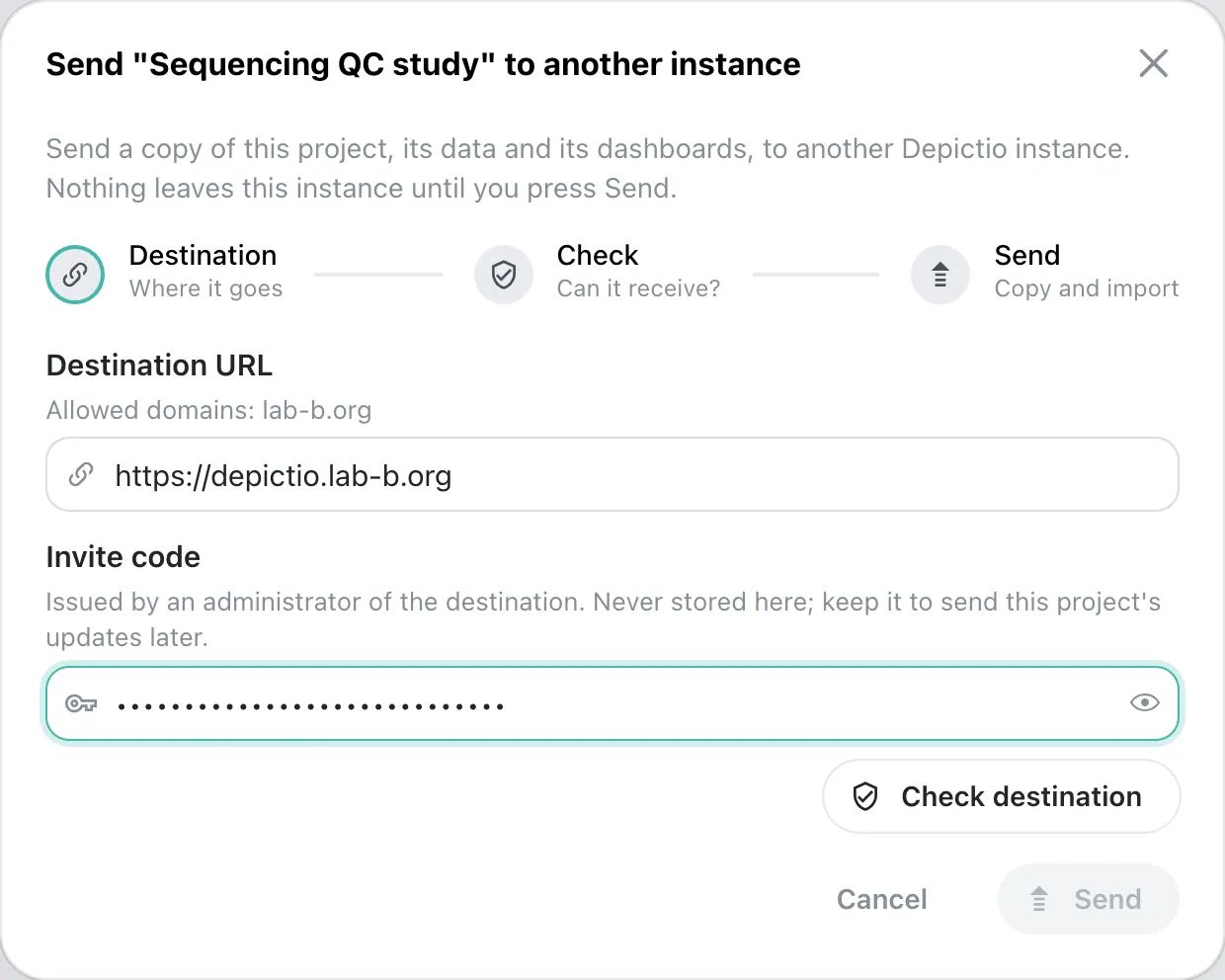
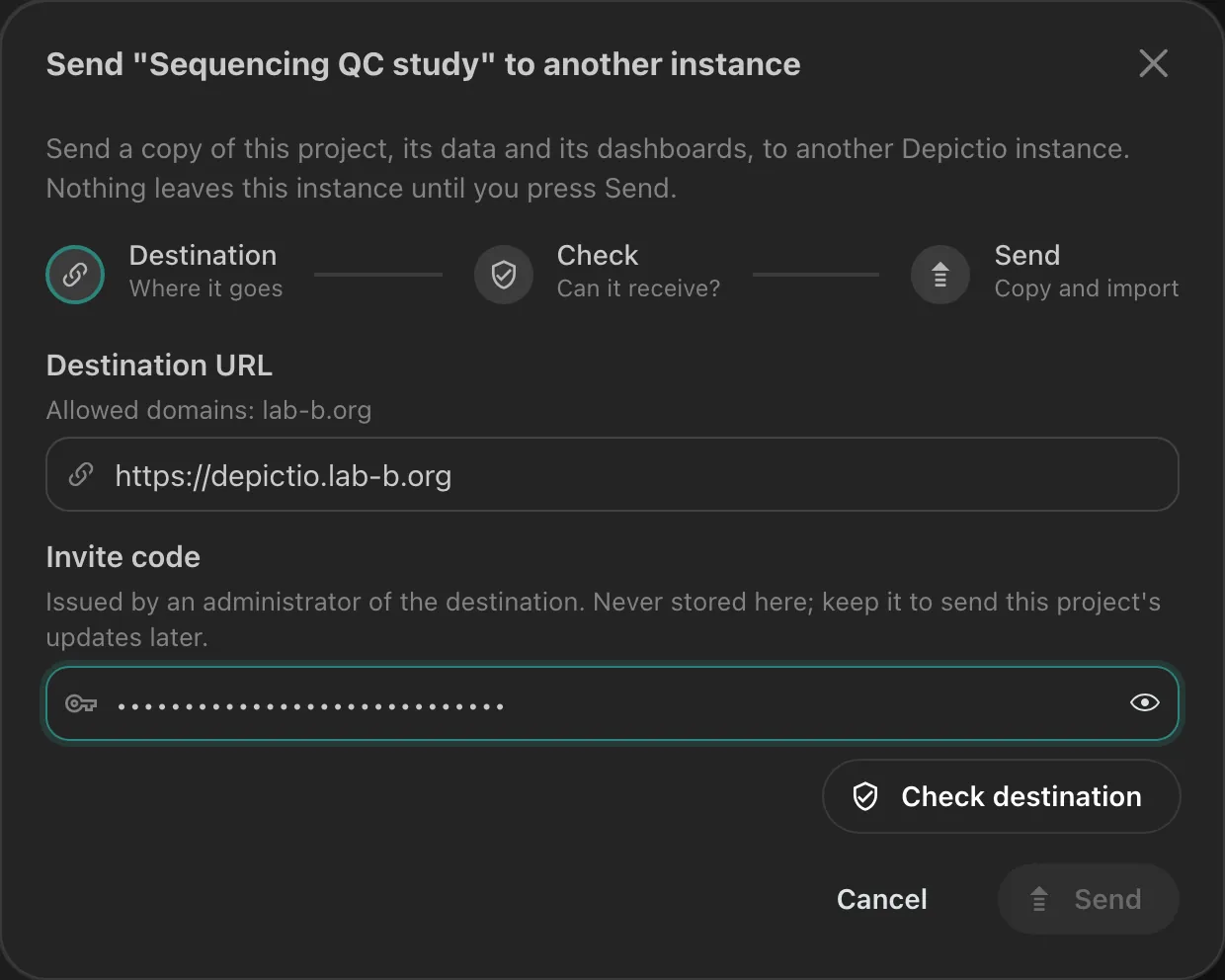
The Check step asks the target what will happen, before anything is built:
- Imported right away, or Waits for an administrator;
- Read-only there, or Editable there;
- Creates the project there, or Updates the copy it already has;
- how much data travels, and any warnings.
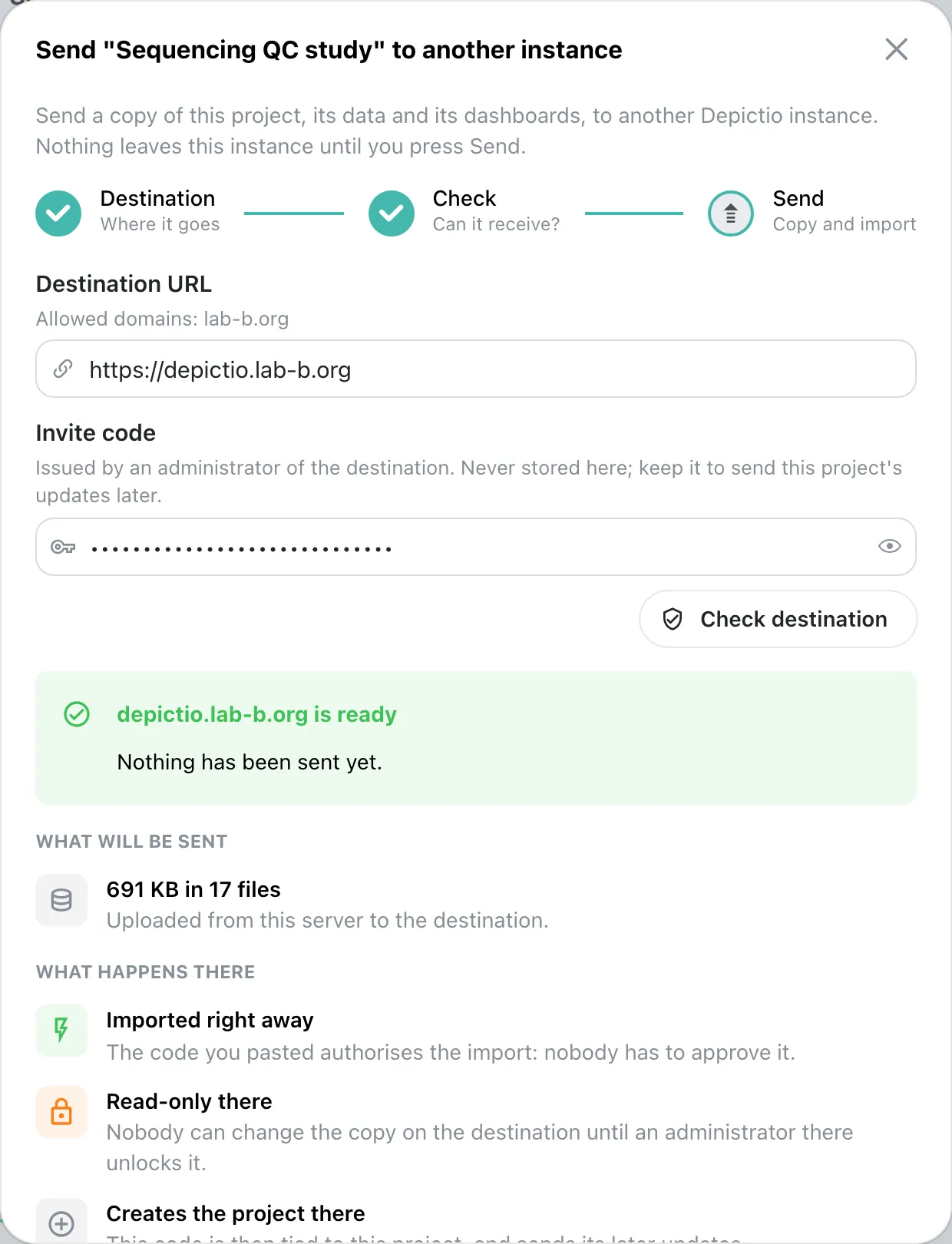
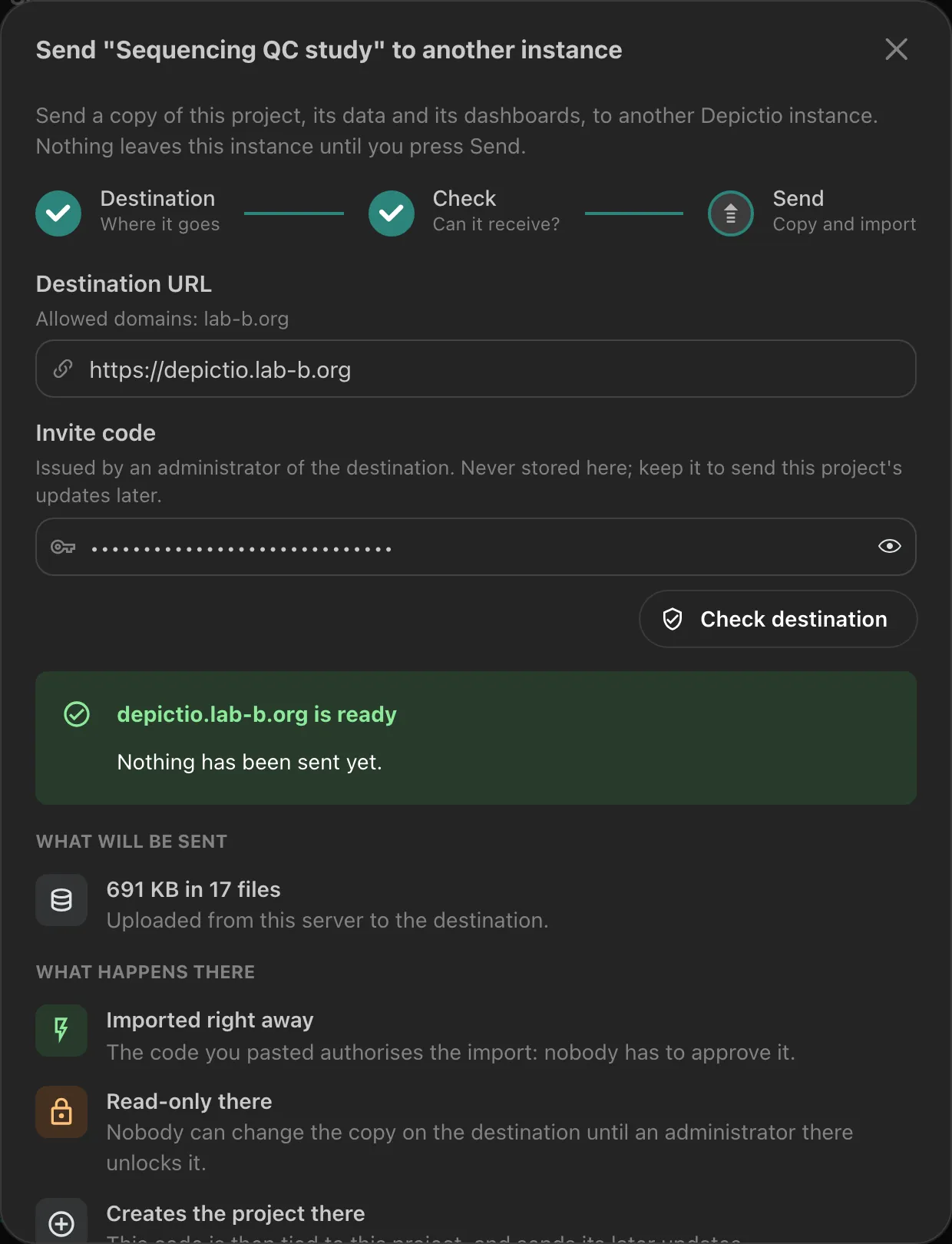
Click Send. The dialog follows the push until the target imports it. Past pushes are listed under Send, and in Admin > Migrations.
3. Find the project on the target
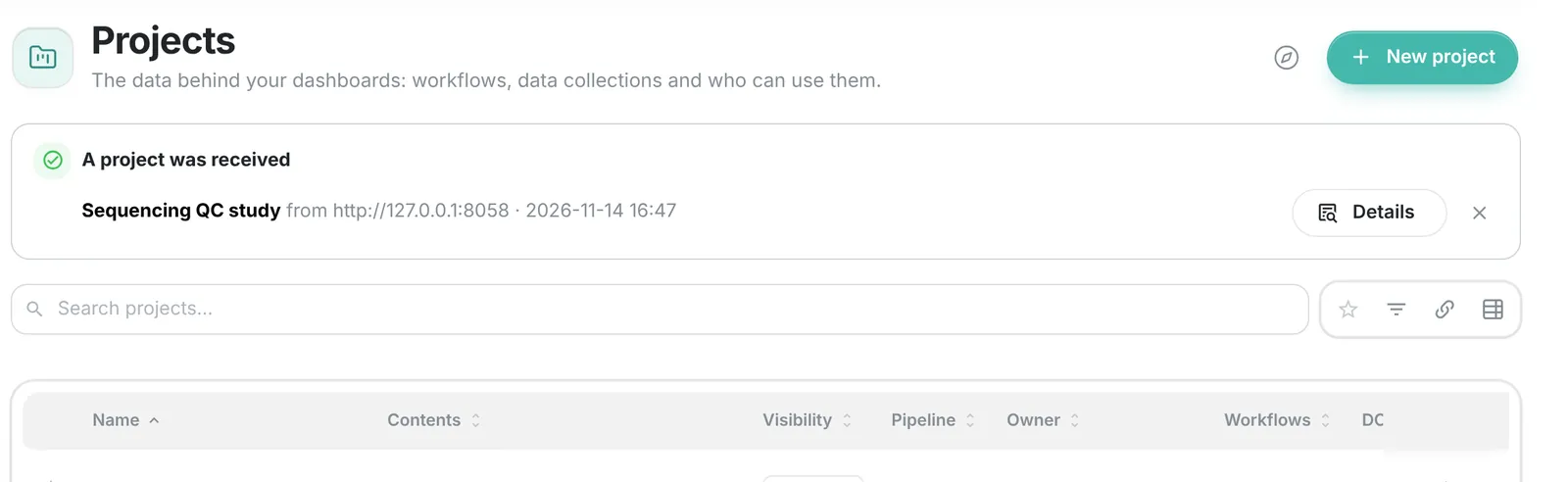
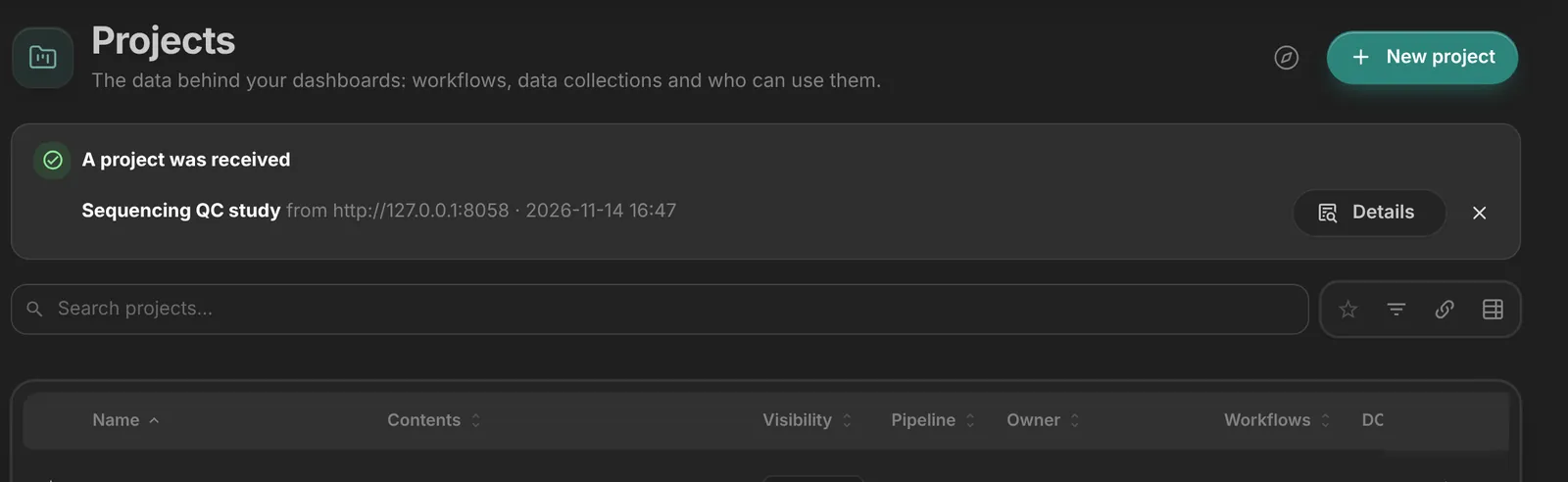
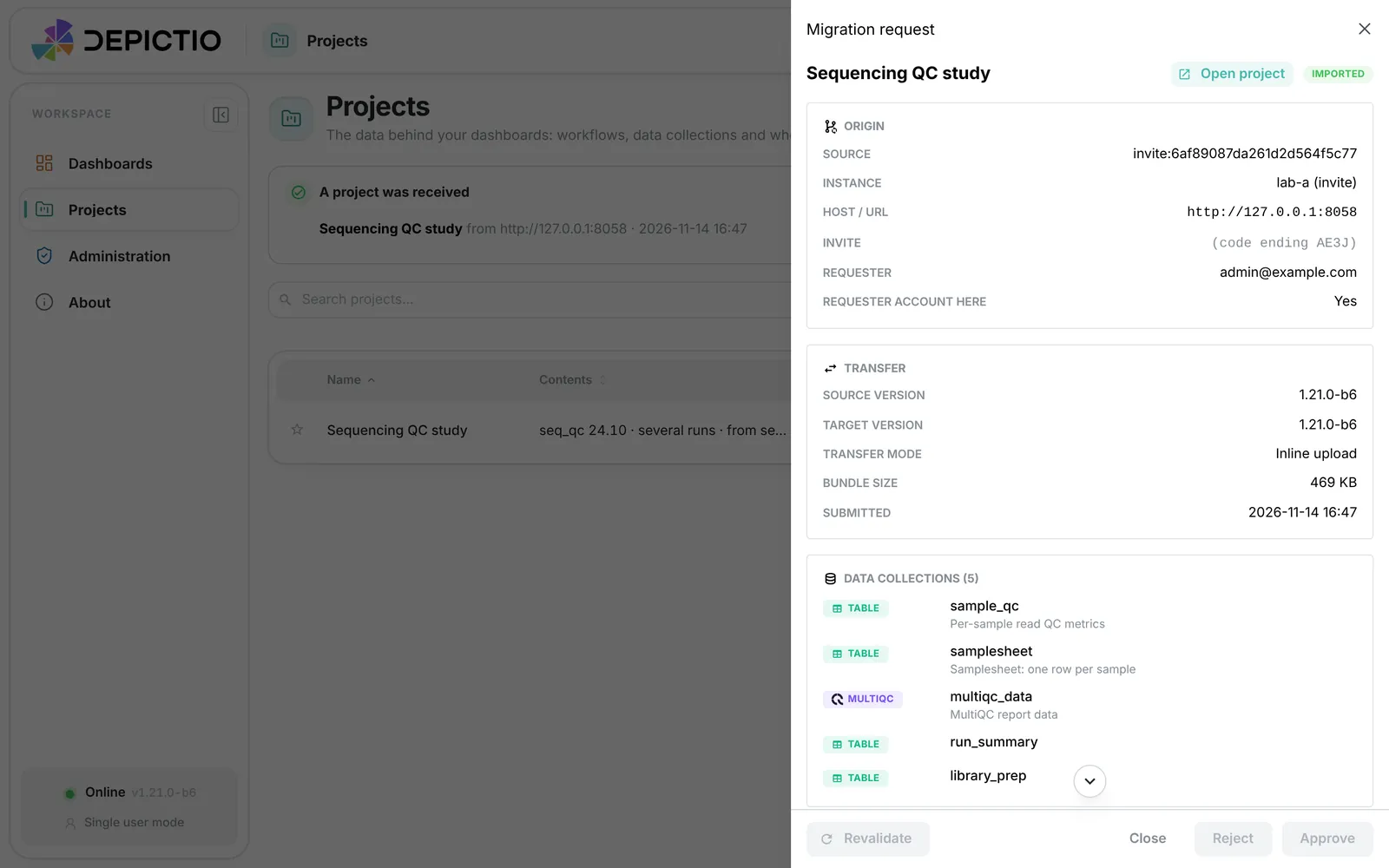
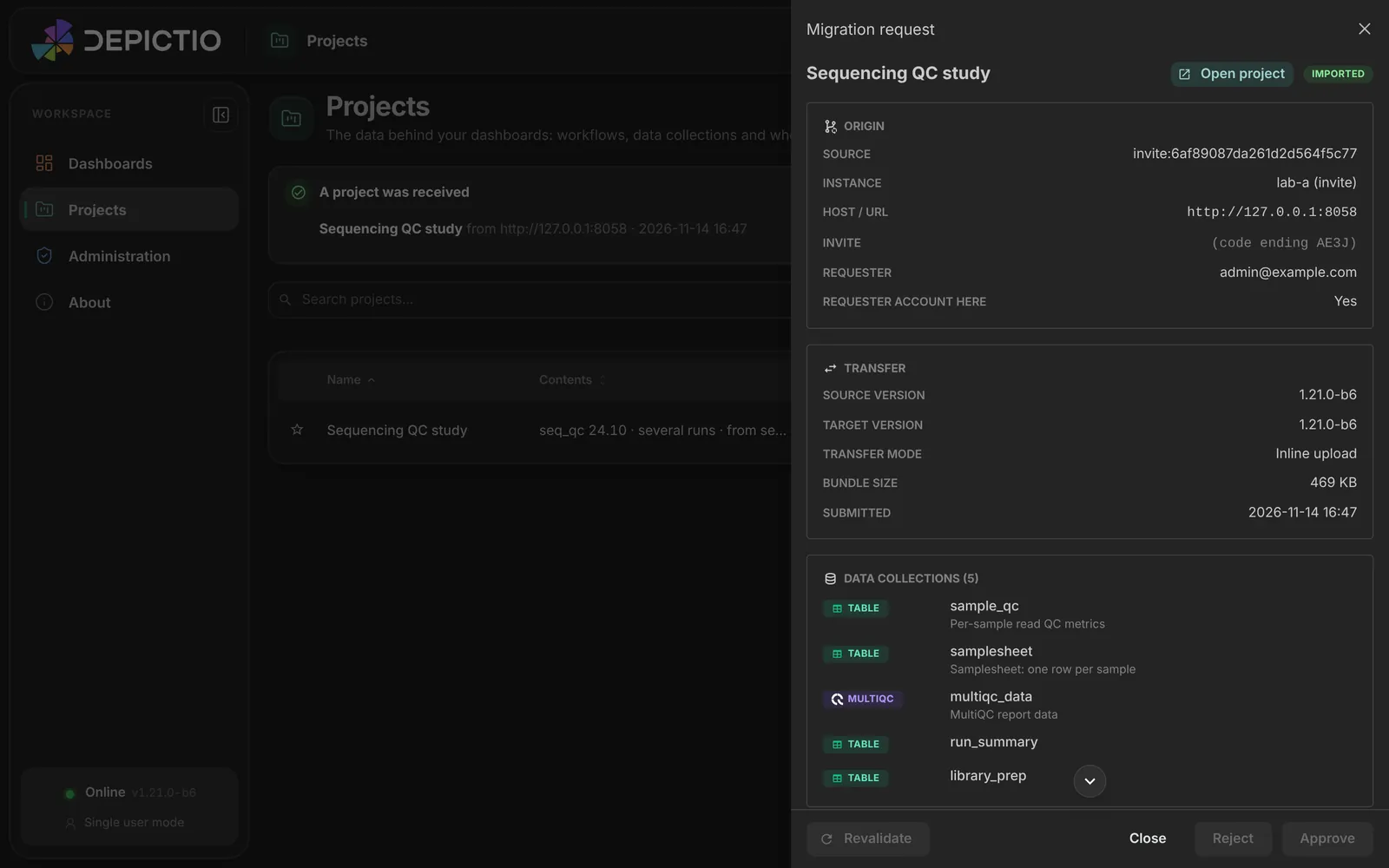
With an invite code, the import starts at once. The Projects page shows "A project was received", and a toast says so too when realtime events are on (DEPICTIO_EVENTS_ENABLED=true).
A push through a pairing key instead waits for review: the banner reads A project sent to this instance needs a decision. Click a request to open its sheet, then Approve or Reject.
4. Lock or unlock editing
A locked project shows a Read-only badge. Nobody can change its dashboards or data, owners included.
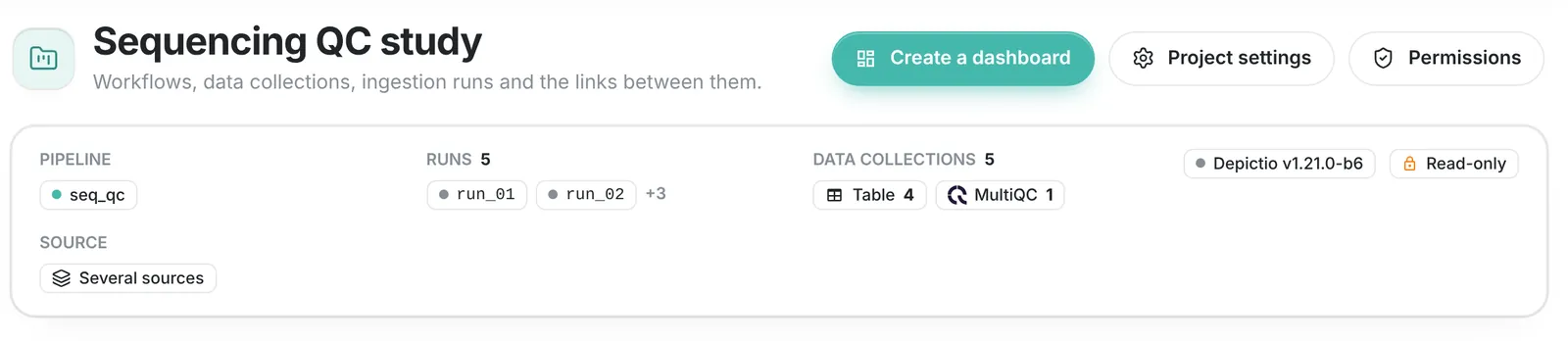
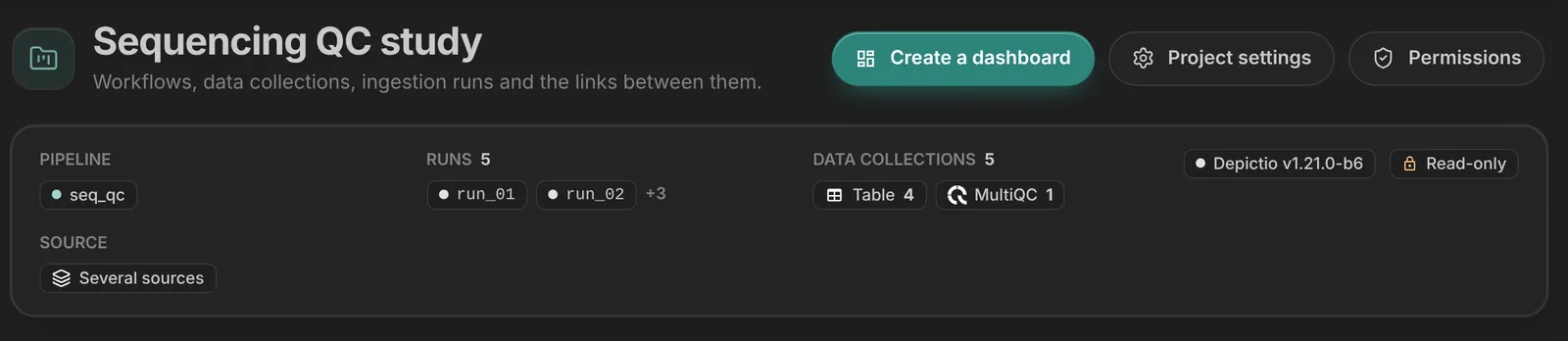
An administrator changes this on the project's Permissions page, in the Editing row, with Lock editing / Unlock editing. Visibility is set apart, on the same page: a published copy is usually public and locked.
5. Send an update
Send the project again with the same code. The target adds an import version instead of overwriting history. Comments written on the target are kept.
Good to know
- A project can only be updated with the code that first brought it. A new code for a project already there is refused.
- When the code expires, updates stop. To resume, a target admin unlocks and deletes the project, issues a new code, and the source sends again.
- The code is shown once and stored only as a hash. Revoking it in Admin > Migrations stops it.
- Version history does not travel: the target starts from an
importversion. - Without a network path, use a ZIP file: on the source, Project settings > Export > Export as ZIP; on the target, Import a project > From a ZIP file.
- To try it on one machine, start two
depictio local upinstances, each with its ownDEPICTIO_LOCAL_HOMEand--port. A local destination is plain http, so put its host in bothDEPICTIO_MIGRATION_DESTINATION_DOMAINSandDEPICTIO_MIGRATION_UI_TARGET_HOST_ALLOWLISTon the source. The Depictio repository scripts this indev/migration_lan_test/.