Watch the data update (v1.21.0+)
A refresh now reads again only the files that changed, and leaves unchanged collections alone. The project's Activity tab follows the refresh, and the new rows show on top of the table.
Before you start
- Depictio v1.21.0 or later.
- A project with a collection the server can read again: one that comes from a manifest, a URL or a bucket prefix. Data ingested from a local folder is refreshed with the CLI (
depictio ingest). - The owner or editor role.
- The marked new rows and the dashboard history in Activity need
DEPICTIO_DASHBOARD_VERSIONS_CHANGES_SINCE_ENABLED=true. See What's new since your last visit.
1. Start a refresh
On the project page, open Project settings and pick Data refresh. With several collections, pick one, or leave the field empty to refresh them all.
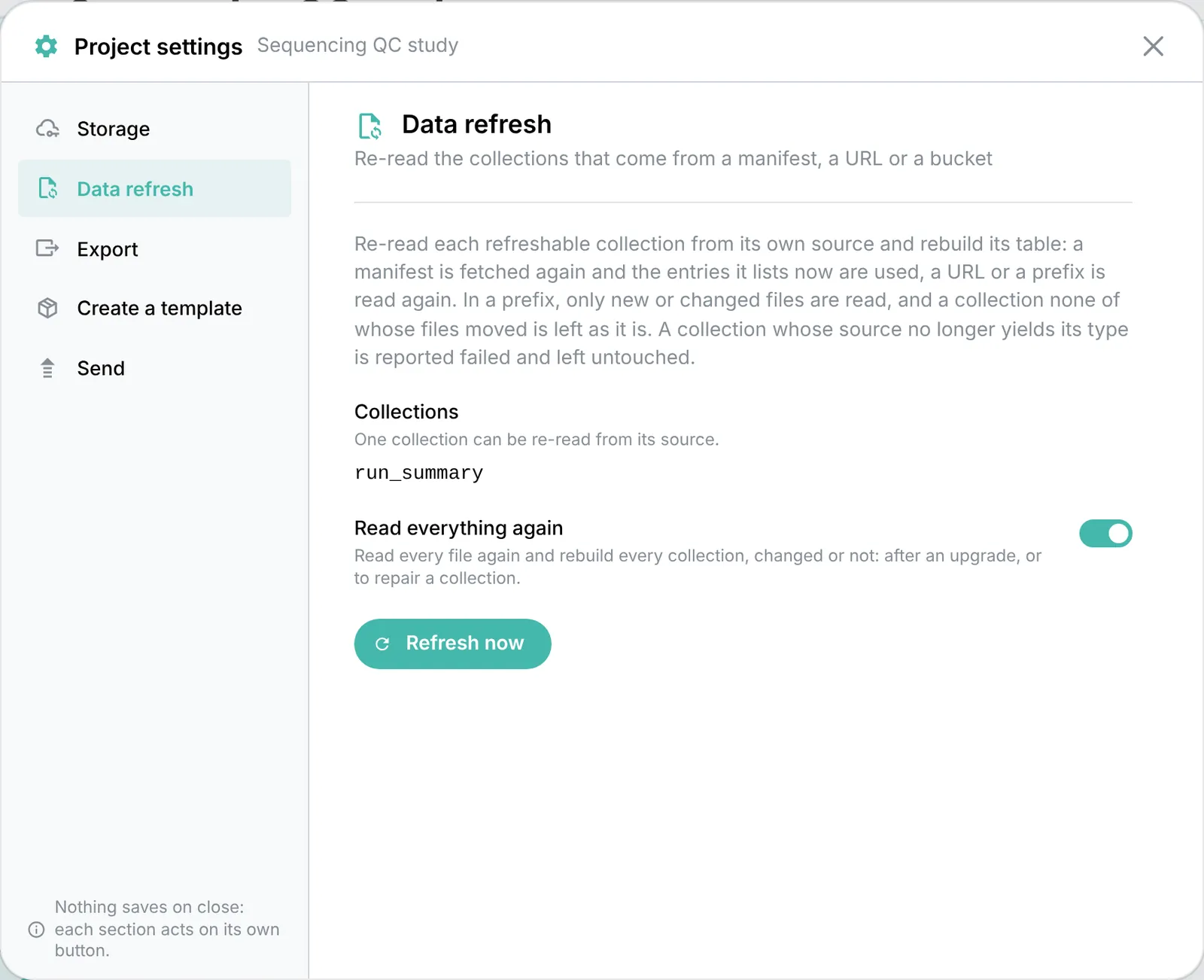
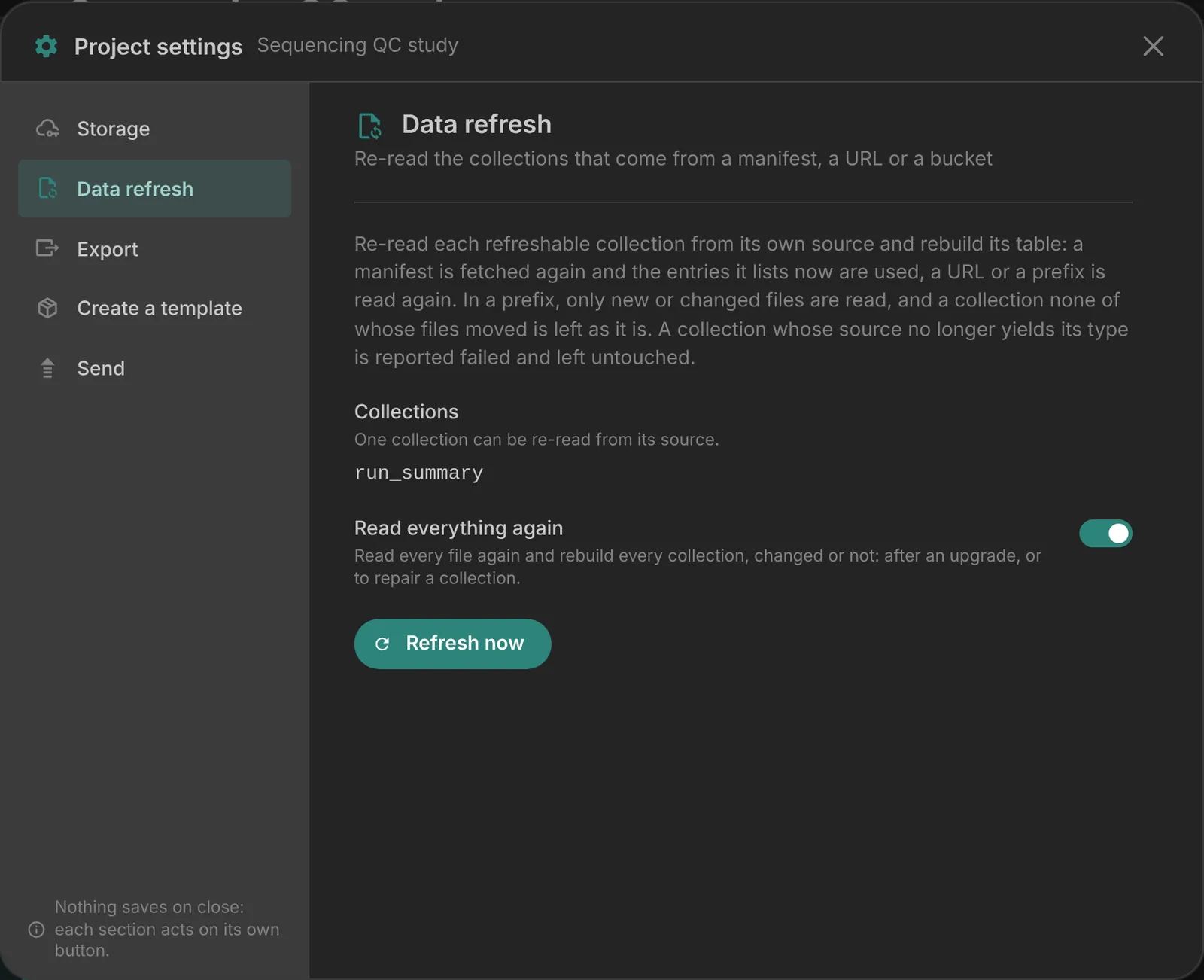
Click Refresh now. By default, Depictio:
- reads the new and changed files only, and drops the files that are gone;
- skips a collection whose files and configuration match its last successful refresh;
- keeps the MultiQC reports whose source did not change, and records what a rewritten one gained or lost.
Turn on Read everything again to read every file and rebuild every collection, changed or not. Use it after an upgrade, or to repair a collection.
When the refresh ends, click Reload project.
2. Follow it in Activity
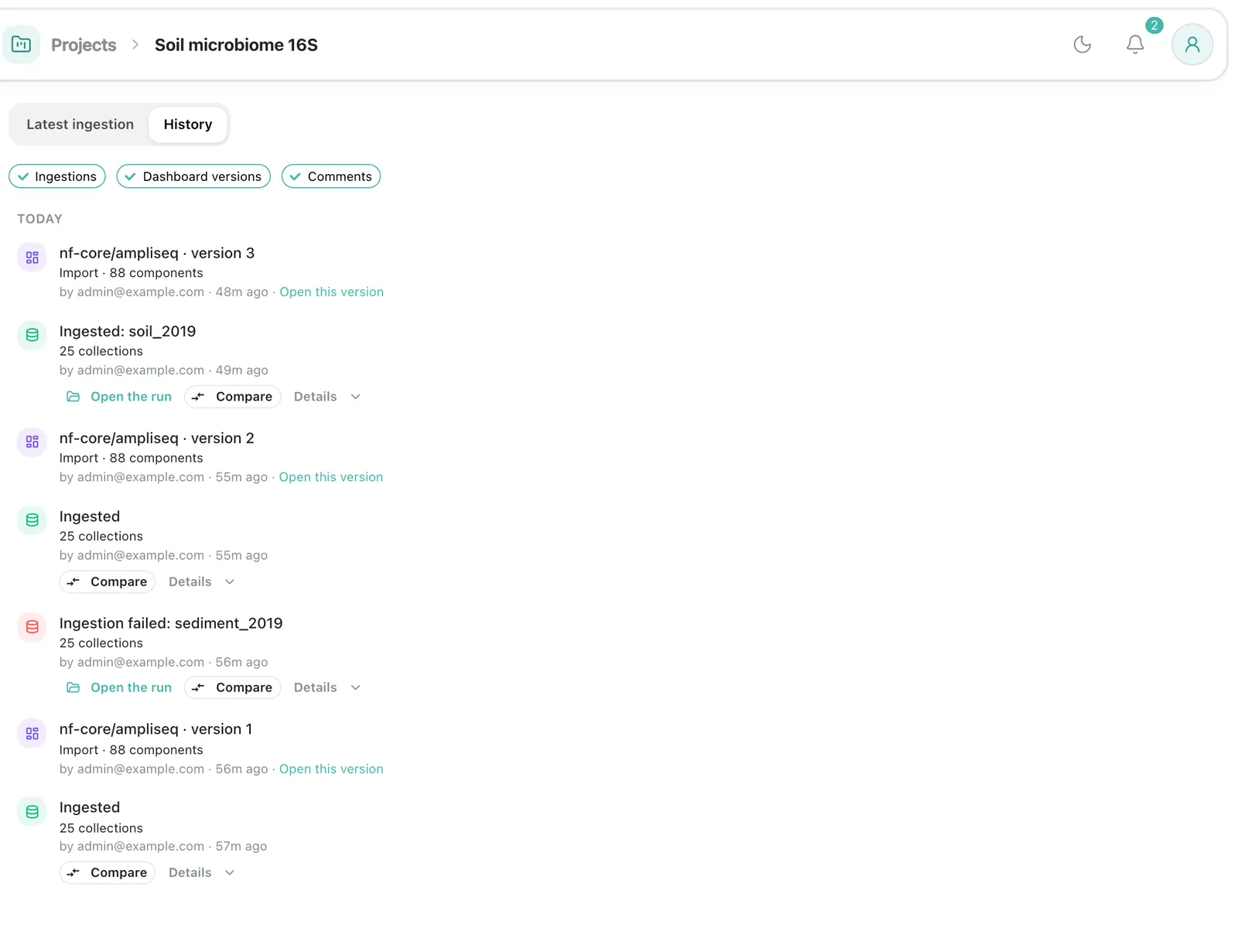
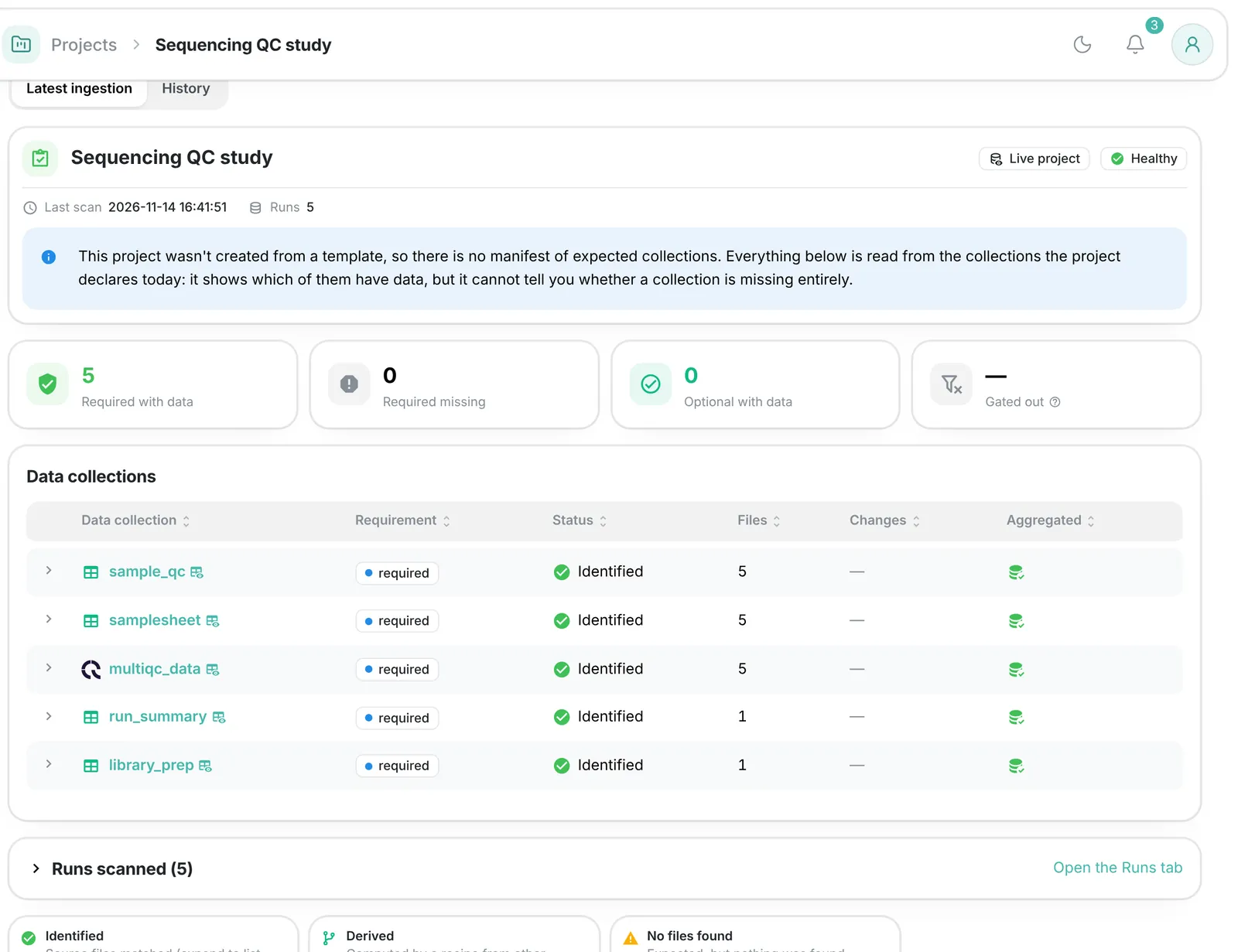
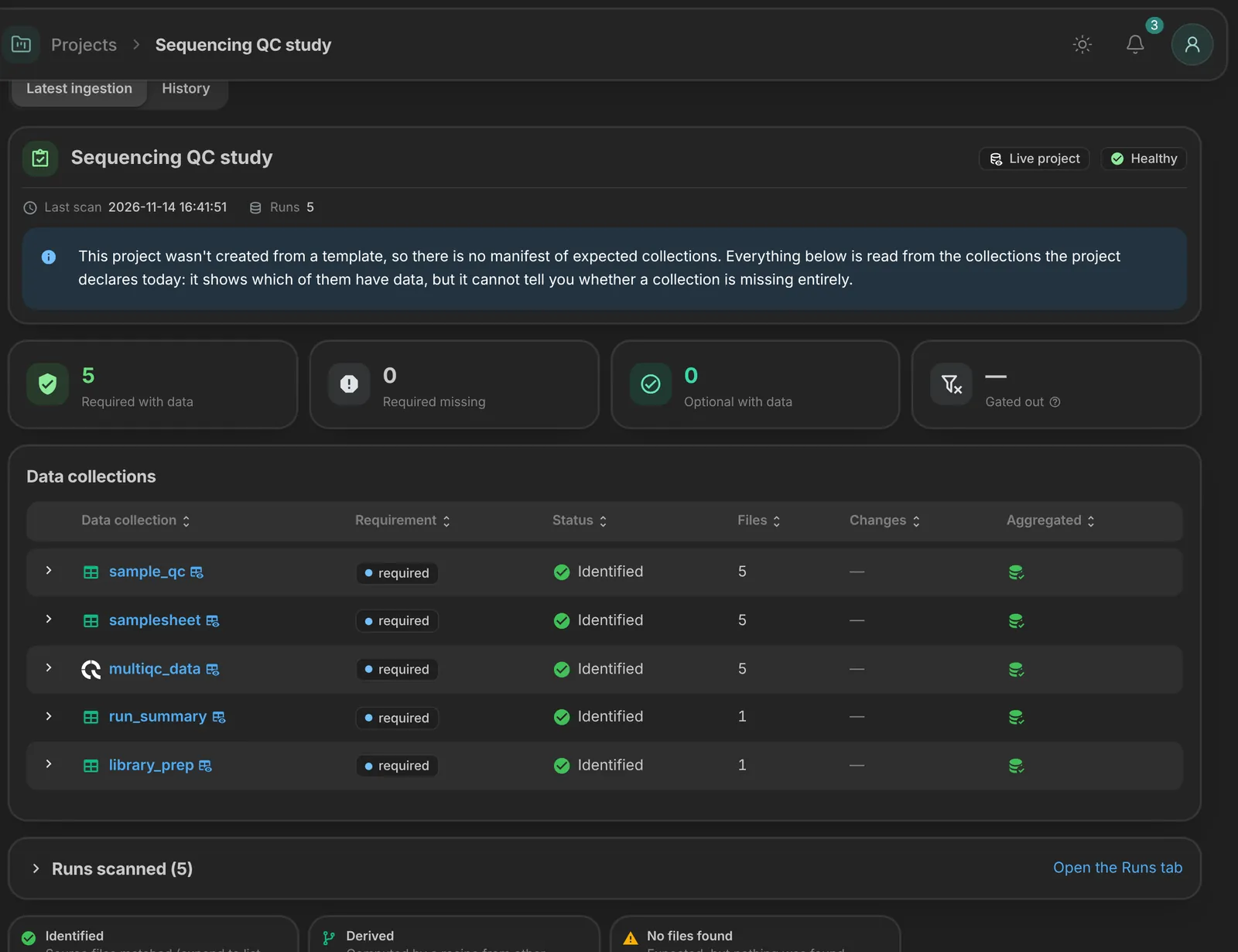
The Activity tab has two views: Latest ingestion and History.
- Latest ingestion shows the report of the last ingestion.
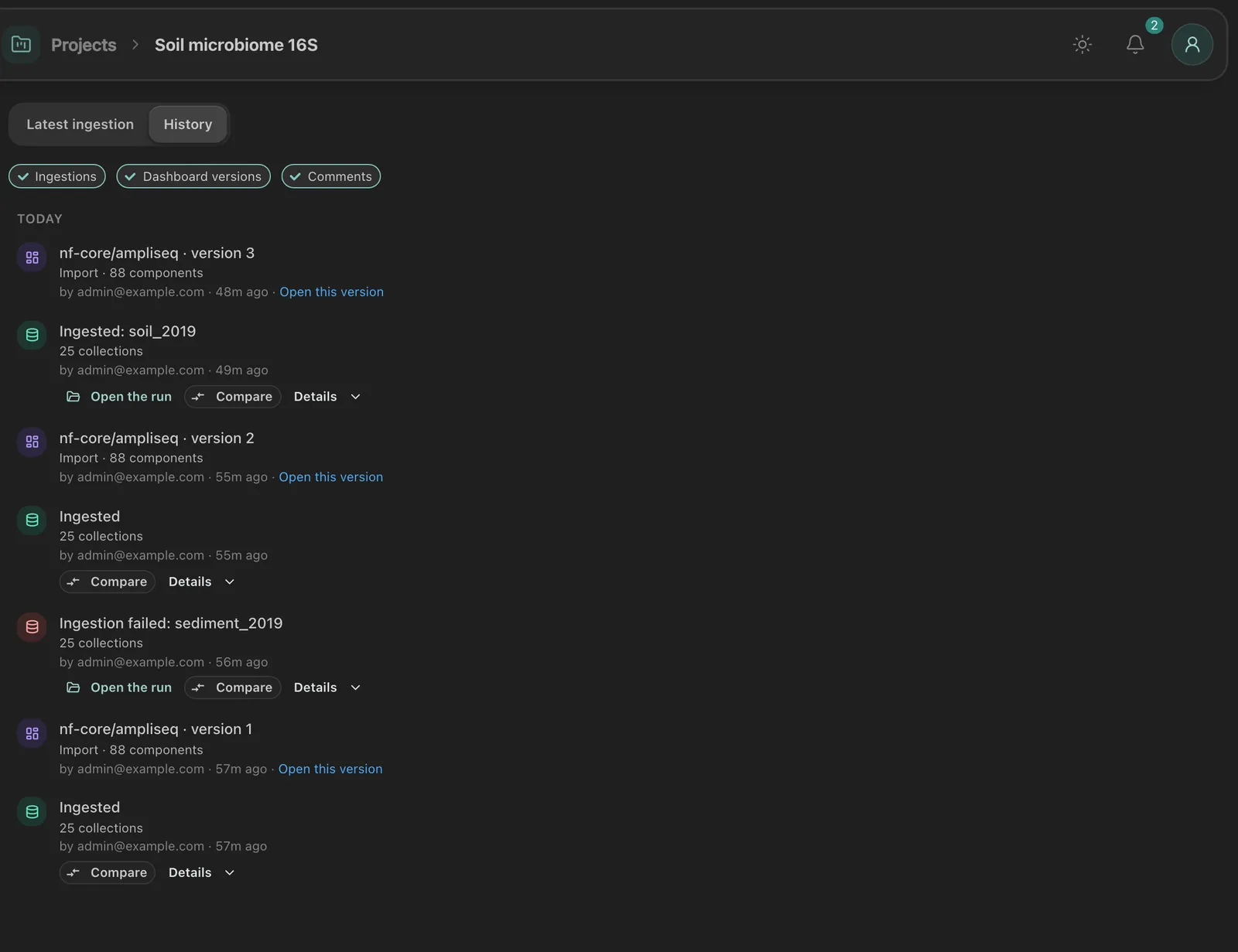
- History lists ingestions, dashboard versions and comments, newest first. An ingestion opens onto its steps. The list refreshes every 3 seconds while one is running.
Where the server can read the project's files, Run ingestion sits beside the view switch. It starts an ingestion on the server and switches to History.
3. Find the new rows
Open the Runs tab and unfold the run. Under Produced, click View rows on a Delta commit. The collection's Data table opens read-only with the run's rows first and marked, and the rows you had seen faded below.
From a dashboard, the What's new panel offers the same view: View new rows in the panel, or Open in project for the project's table. Hide what you had seen drops the faded rows.
Click Back to full table to clear the marking.
4. See the update on a dashboard
Open a dashboard that reads the refreshed collection. Its What's new key counts the change, and the changed tiles carry a dot.
- Pick Overlay in the panel to mark the new rows on every figure.
- Pick Split to draw the new runs beside the runs you had seen.
- Open a tile's Before | Now to compare it with the data before the refresh.
Click Mark as seen once you have read it. See What's new since your last visit for the full walkthrough.
The bell in the sidebar also lists the dashboards and projects that changed, and links to the project's Runs tab on the new run.
Good to know
- Manifest and URL collections are read again on every refresh: their hash names the source, not its content.
- A refresh that rewrites identical rows writes a commit, but What's new does not count it as news.
- A scan records, per file, its size and date before and after. The Runs tab shows them. See Compare runs.
- Activity replaces the Ingestion report and Timeline tabs. Old links (
?tab=ingestion,?tab=timeline,#ingestion,#ingestion-history) still open it. - With the changes feature off, History is the list of ingestion runs it was before.