Project Migration
Depictio supports non-destructive project migration between instances — move a project (MongoDB metadata + S3 data files + dashboards) from one Depictio deployment to another without touching any other project on the target.
Overview
Migration works as a scoped upsert: every document is written via ReplaceOne(..., upsert=True), so:
- Re-running migration is idempotent — no duplicates are created.
- Only the migrated project's documents are affected — all other projects on the target remain untouched.
- Owner IDs that do not exist on the target are remapped to the importing admin user.
How It Works
The CLI and the browser differ in how the files travel, and Send goes straight from one instance to the other. All three end in the same scoped upsert on the target: projects (with their workflows and data collections), then files, Delta tables and runs, then dashboards.
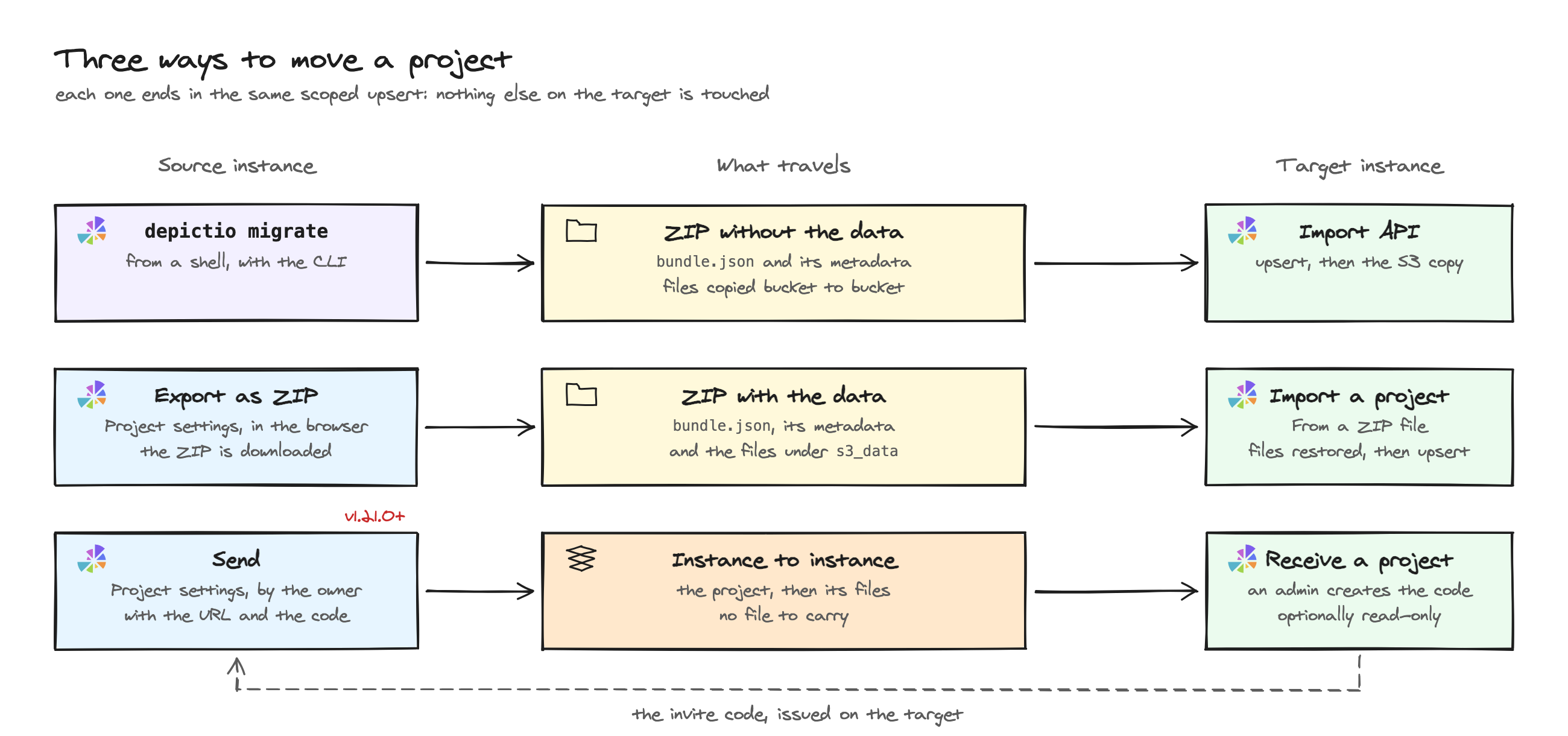
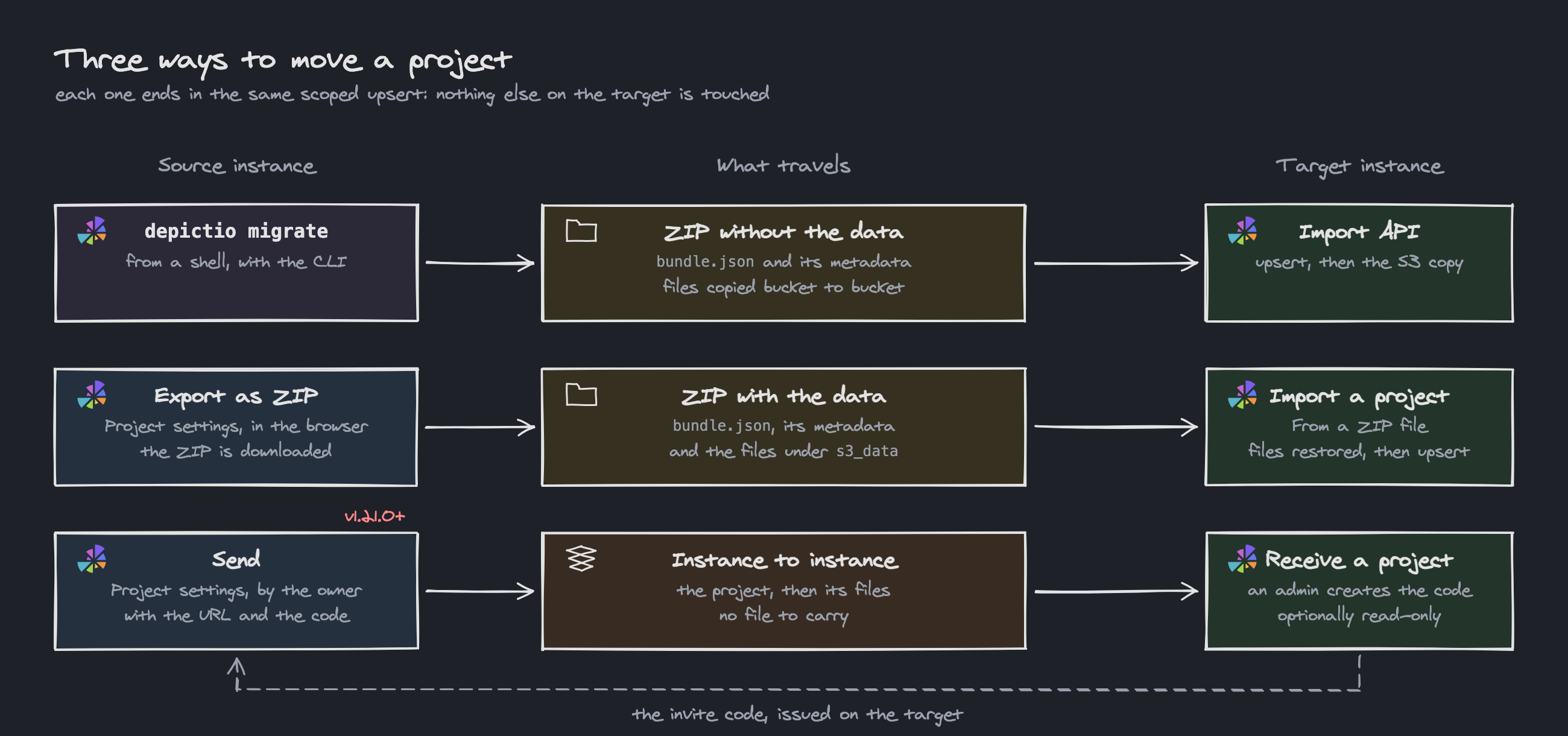
The CLI calls POST /migrate/export-project on the source and /migrate/import-project on the target. The browser's import goes through POST /migrate/import-project-zip, which restores s3_data/ before the upsert. See Send to another instance for the third path.
ZIP Archive Contents
| File / Folder | Always present | Description |
|---|---|---|
bundle.json |
✅ | MongoDB documents — project (with embedded workflows + data_collections), files, deltatables, runs, dashboards |
migrate_metadata.json |
✅ | Export timestamp, project name, mode, Depictio version, document counts |
s3_metadata.json |
✅ | S3 paths discovered, file/byte counts, errors |
s3_data/ |
UI only (mode all/files) |
S3 objects bundled at their original paths for cross-instance UI import |
Note: Workflows and data collections are not stored in separate MongoDB collections — they are embedded inside the project document and are exported/imported as part of
projectsinbundle.json.
Migration Modes
| Mode | MongoDB docs | S3 files | Typical use case |
|---|---|---|---|
all |
✅ | ✅ | First-time full migration |
metadata |
✅ | ❌ | Both instances share the same S3 bucket |
dashboard |
dashboards only | ❌ | Project exists on remote, updating layouts |
files |
❌ | ✅ | MongoDB already migrated, syncing data files |
CLI Usage
See CLI Reference — migrate for the full option reference.
# Recommended: dry-run first
depictio migrate \
  --project "My Project" \
  --server ~/.depictio/CLI_local.yaml \
  --to-server ~/.depictio/CLI_remote.yaml \
  --dry-run

# Full migration
depictio migrate \
  --project "My Project" \
  --server ~/.depictio/CLI_local.yaml \
  --to-server ~/.depictio/CLI_remote.yaml

# From the server `depictio local up` runs, to a shared instance
depictio migrate \
  --project "My Project" \
  --server local \
  --to-server ~/.depictio/CLI_remote.yaml
--server names the source and --to-server the target, each as local or a
CLI configuration file. Without --server, the source is the
default server; without
--to-server, the target is ~/.depictio/CLI_remote.yaml, with no fallback to
the local server. DEPICTIO_CLI_TOKEN and DEPICTIO_CLI_API_BASE_URL apply to
the source only. The former --CLI-config-path and --target-config still work.
Each config file points to a different Depictio instance and carries its own API URL, token, and S3 credentials.
Web UI
Export and import are also in the viewer, with no CLI.
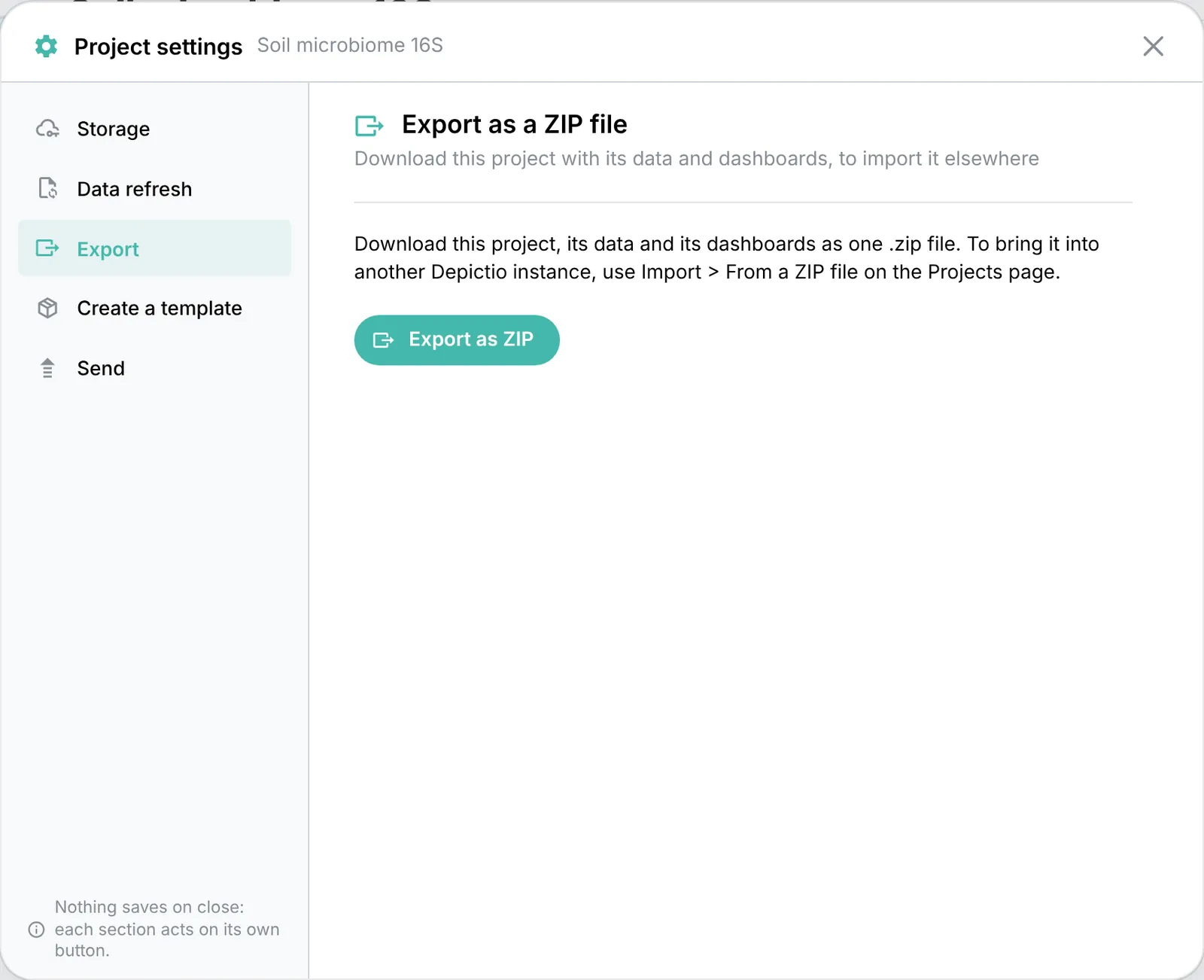
Export a Project
- Open the project and click Project settings.
- Open Export.
- Click Export as ZIP.
depictio_export_<project_id>.zipdownloads: the same bundle the CLI produces, with the data inside.
The project's menu on the Projects page also has Export as ZIP.
Import a Project
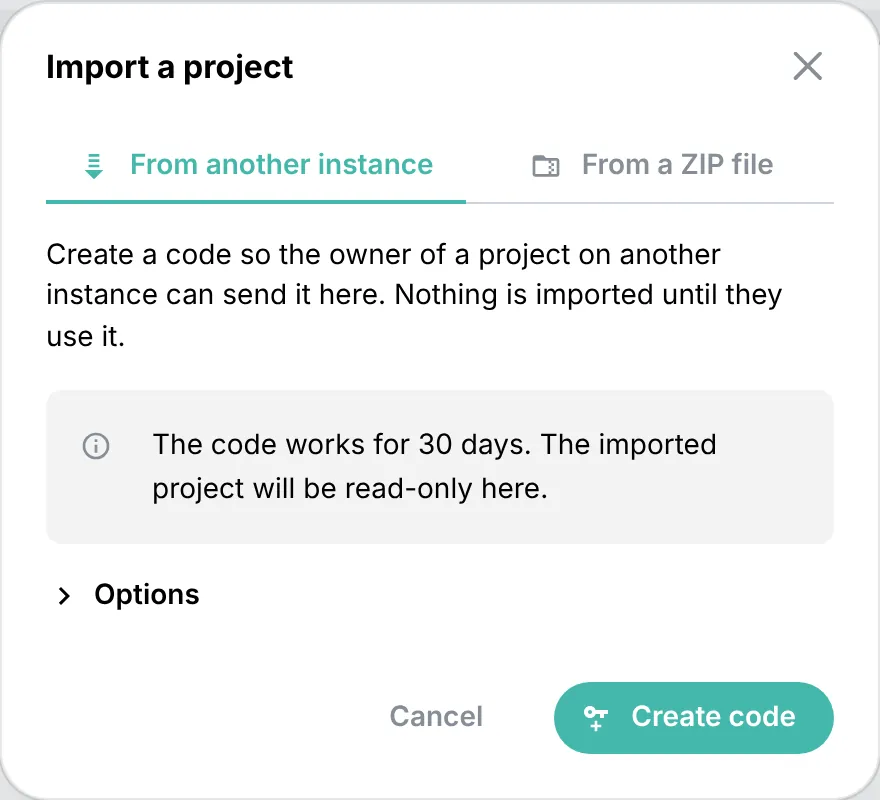
- On Projects, click New project, then Import a project under Or start from.
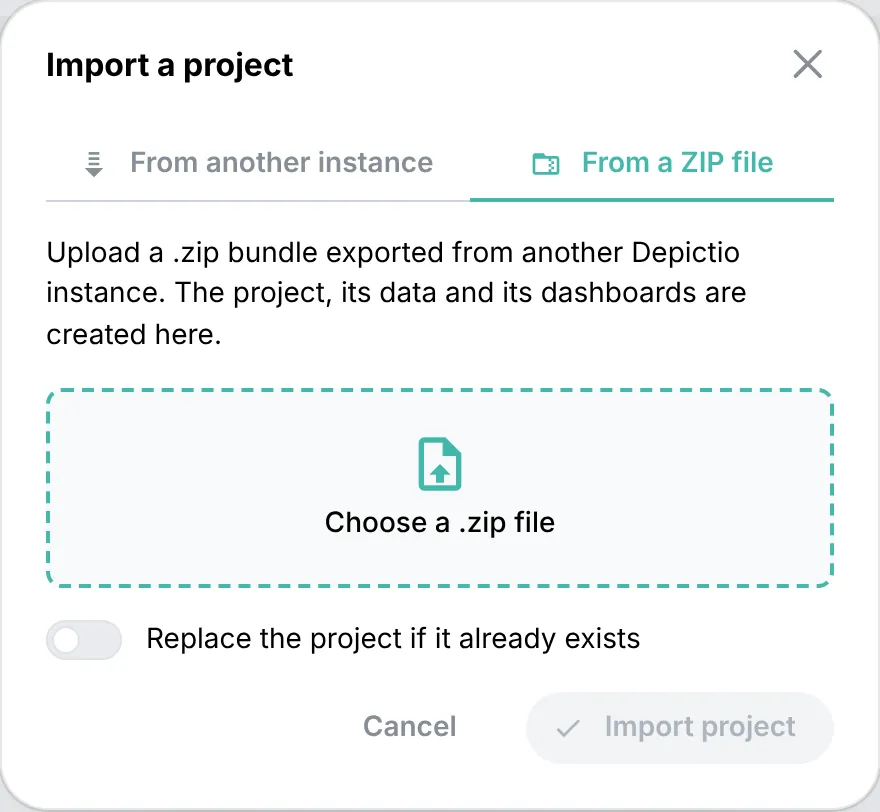
- Open From a ZIP file. It is the only tab unless you are an admin on an instance with the migration UI on.
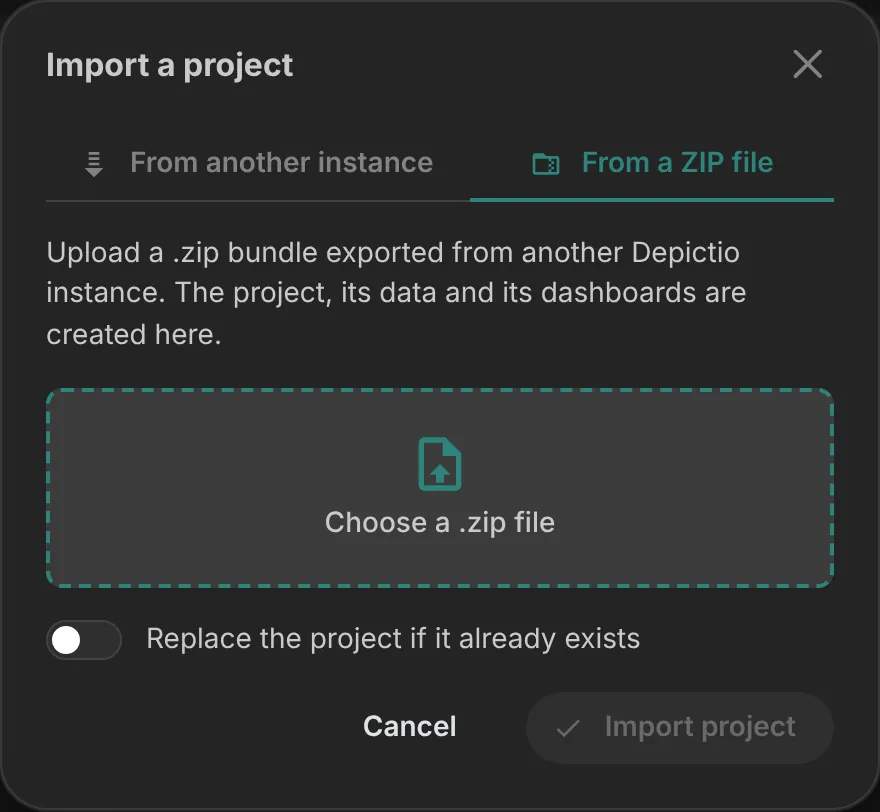
- Choose the
.zipfile. Tick Replace the project if it already exists to overwrite a project with the same id. - Click Import project. The project, its data and its dashboards are created, owned by your account.
Owner remapping
When importing via the UI, all project and dashboard owners in the bundle are automatically remapped to the importing user. This differs from the CLI, which only remaps owners that do not already exist on the target instance.
Send to another instance (v1.21.0+)
A project can also go straight from one instance to another, with no file to carry. The receiving instance issues a code, and the project's owner sends with it.
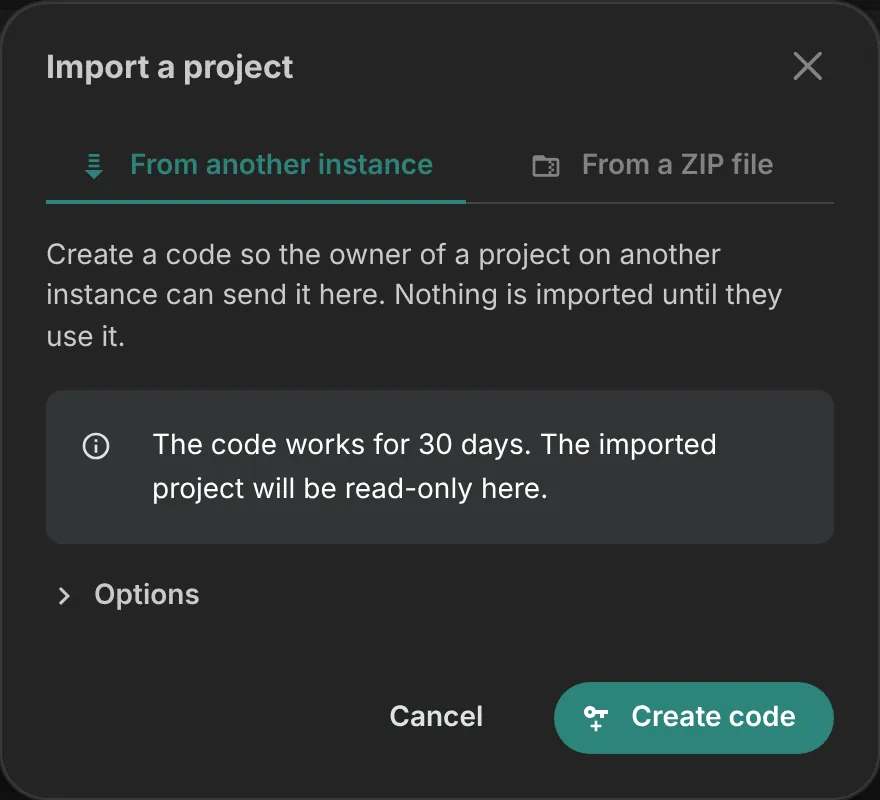
- On the receiving instance, an admin opens New project > Import a project > From another instance, or Admin > Migrations > Receive a project.
- Under Options, set Code expires after (1 day, 30 days or 1 year), Imported project is read-only and an optional Note.
- Create code shows the Instance URL and the Code once. Pass both to the project's owner.
- On the sending instance, the owner opens Project settings > Send > Send to another instance.
- Under Destination, paste the URL and the invite code. Check shows what will travel and whether it is imported right away. Then Send.
- On the receiving instance, the project appears with a Read-only badge when it was locked. An admin locks and unlocks it on its Permissions page.
A project is updated only with the code that first brought it: send again with the same code to publish a new version. Admins see a banner on Projects when a project was received or needs a decision, and a live toast when DEPICTIO_EVENTS_ENABLED is on.
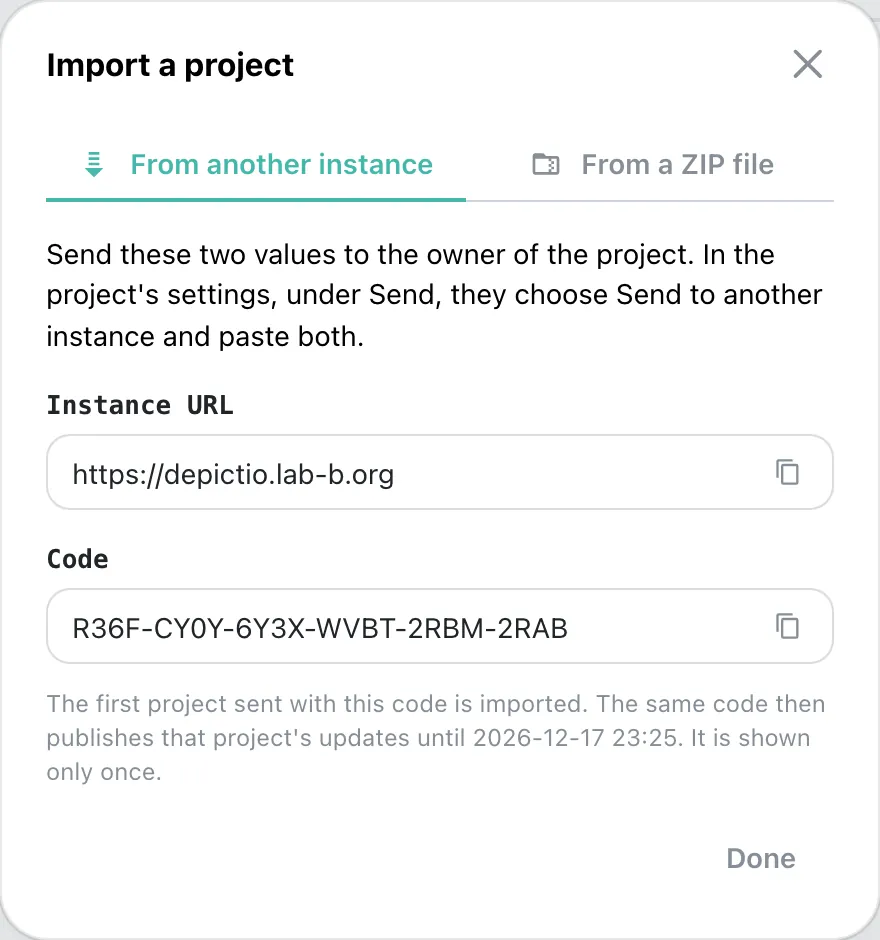
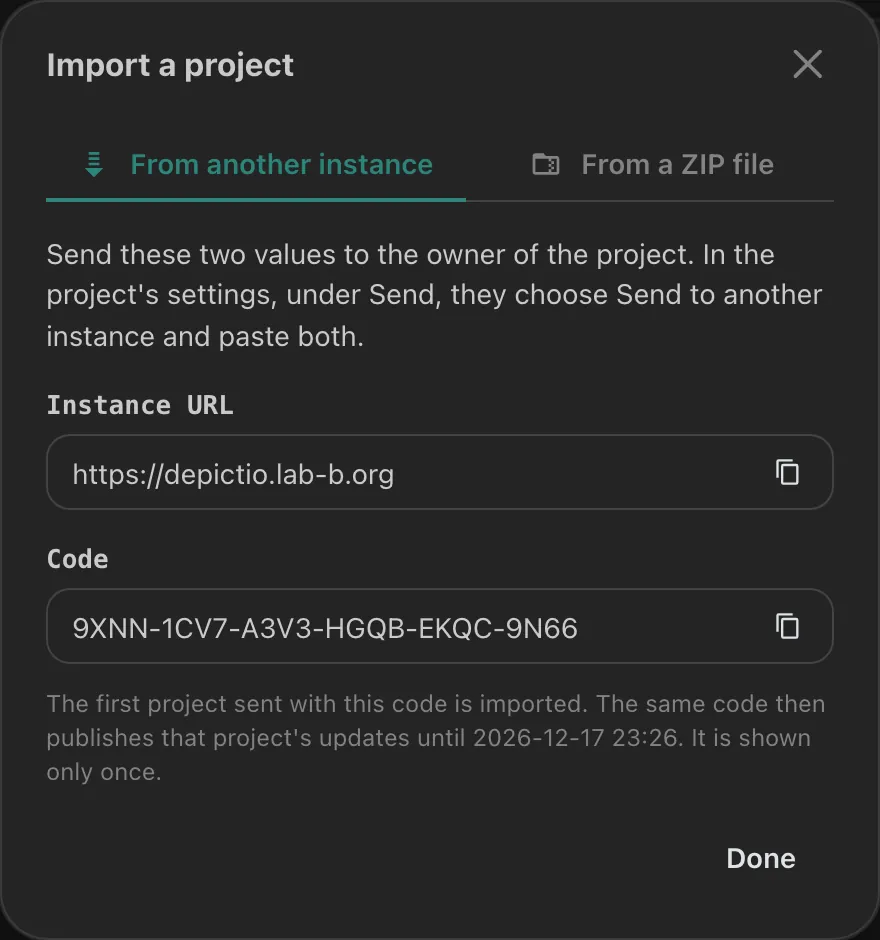
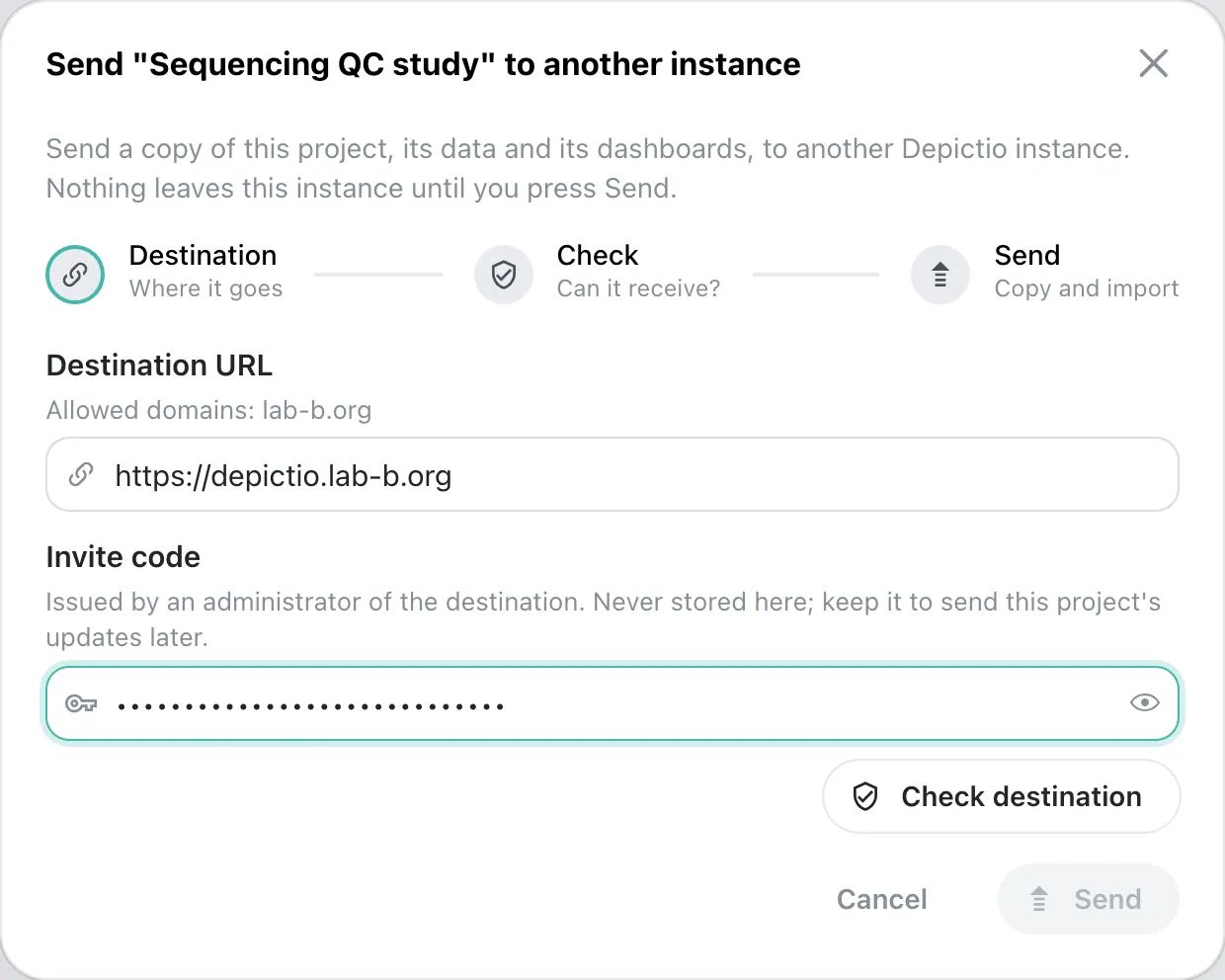
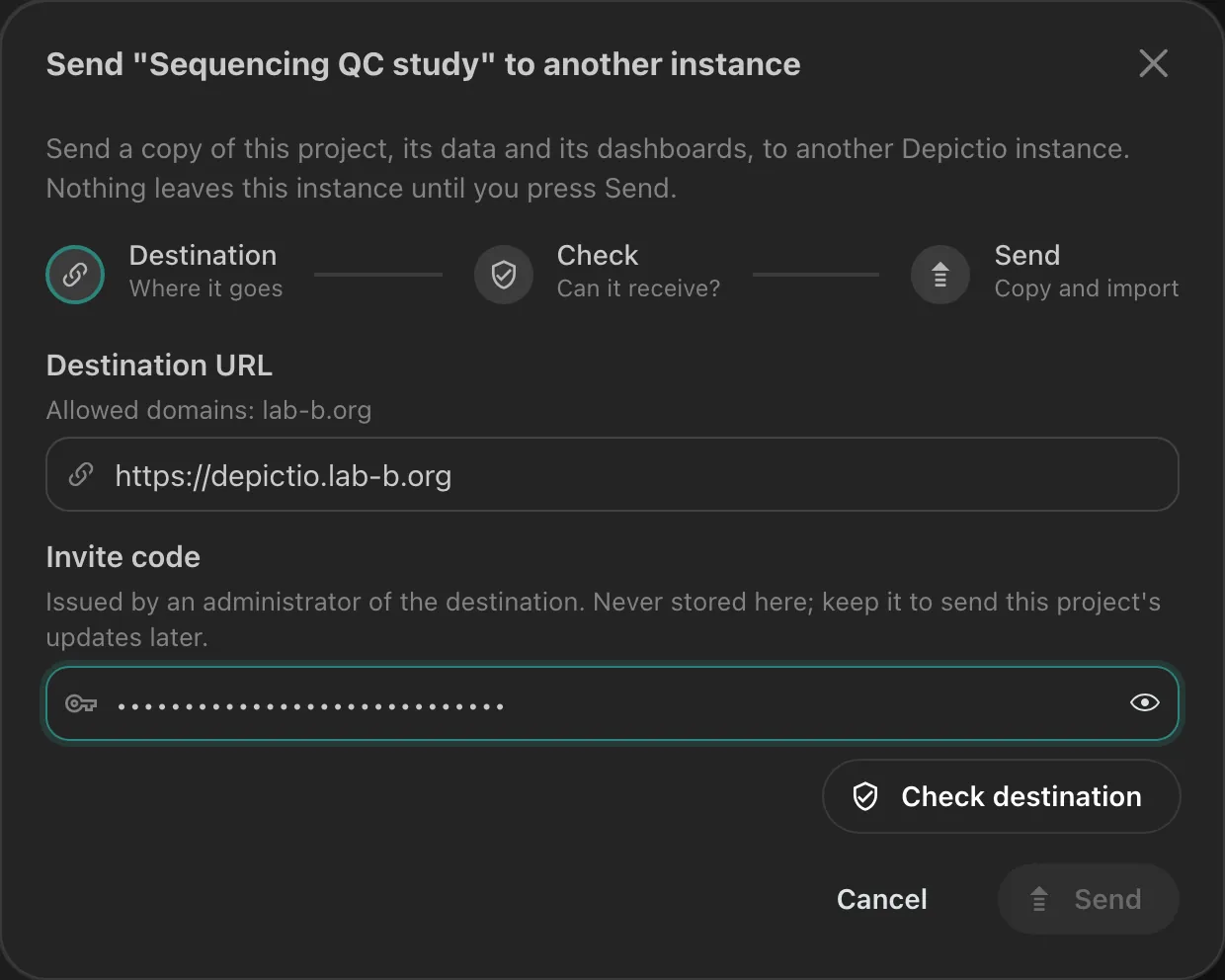
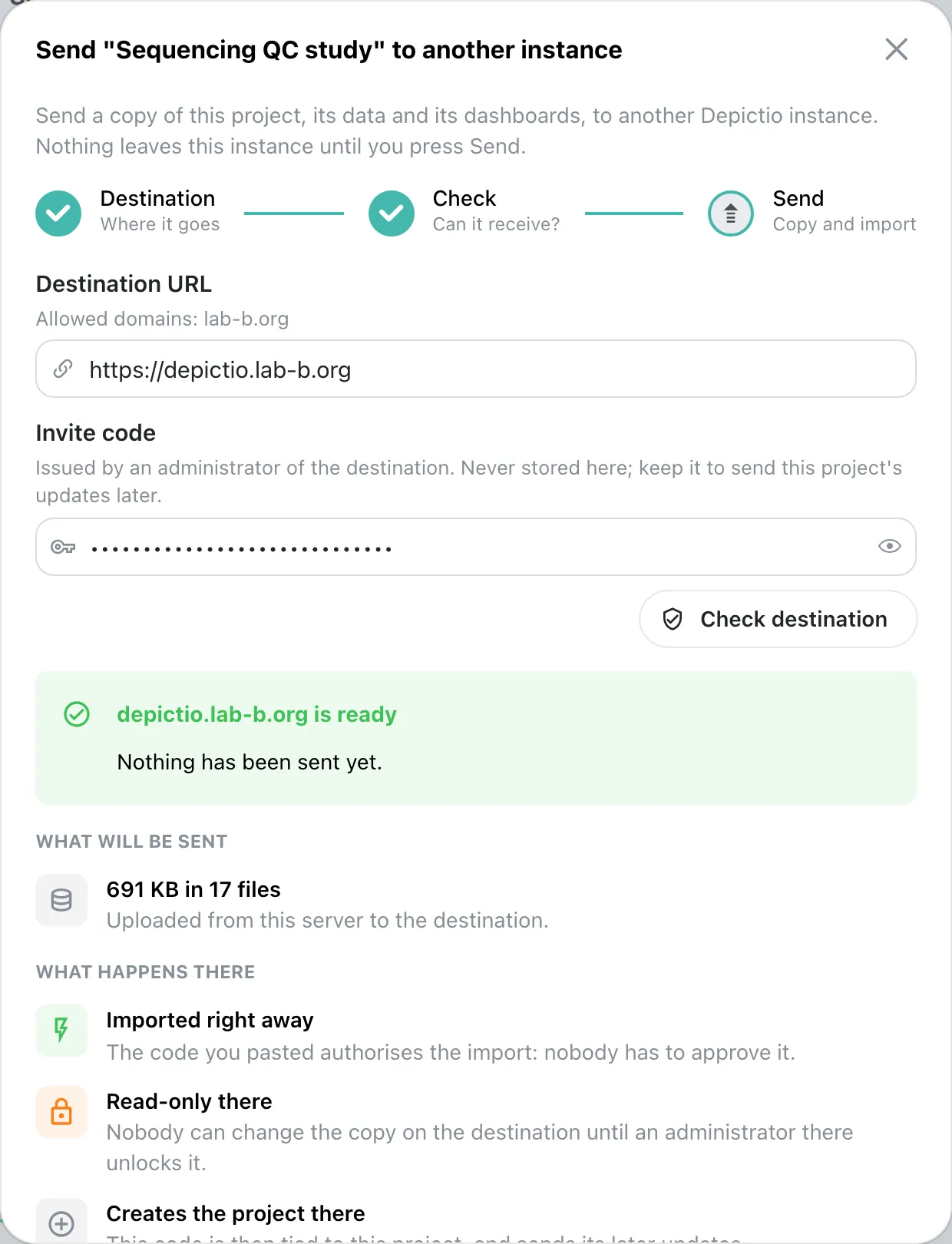
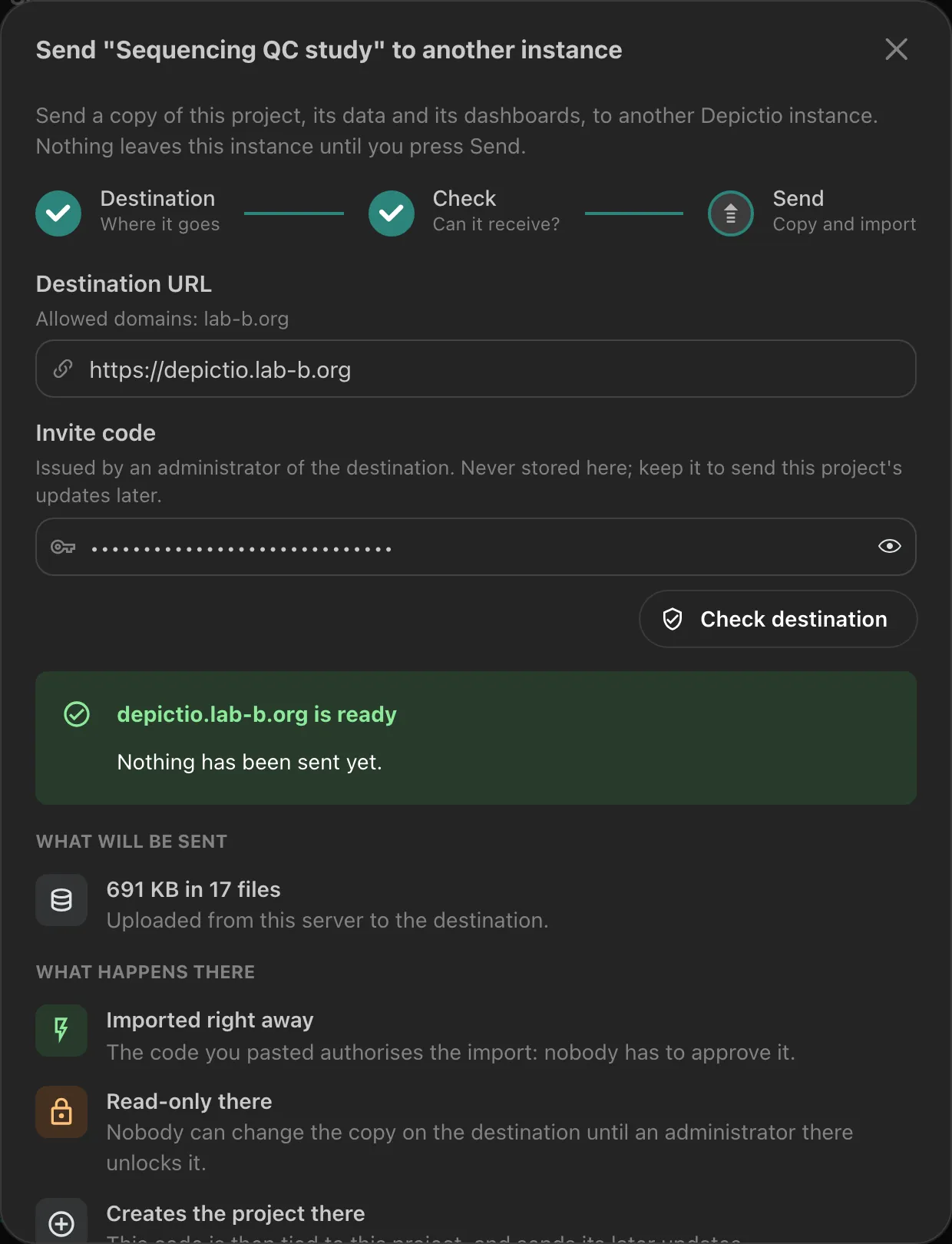
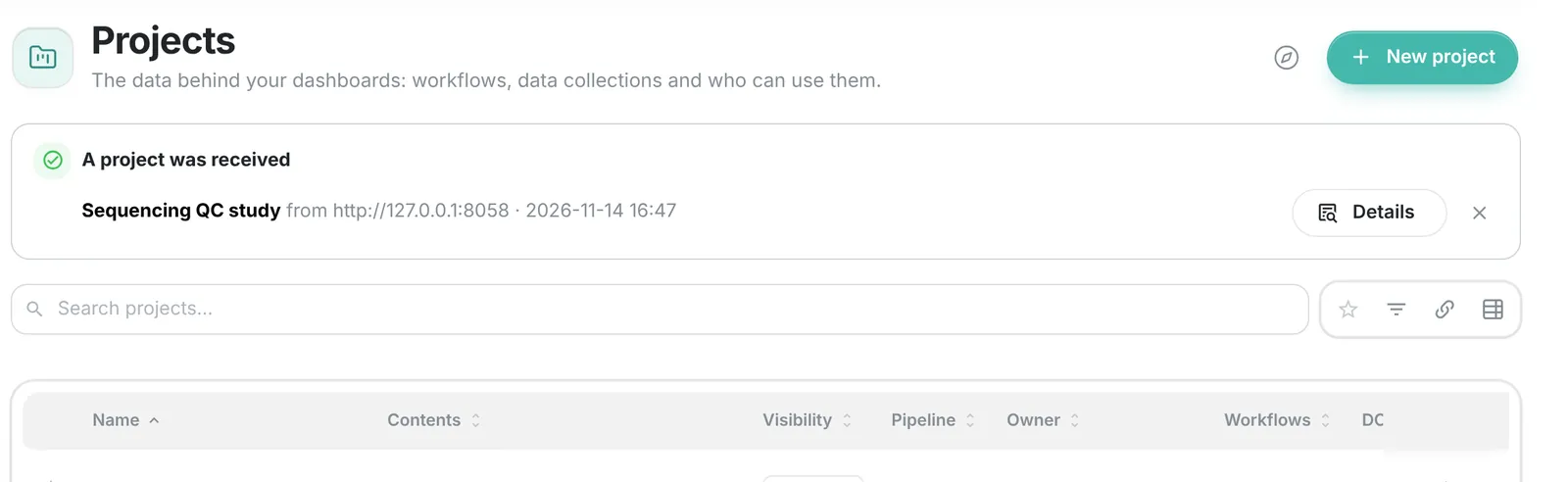
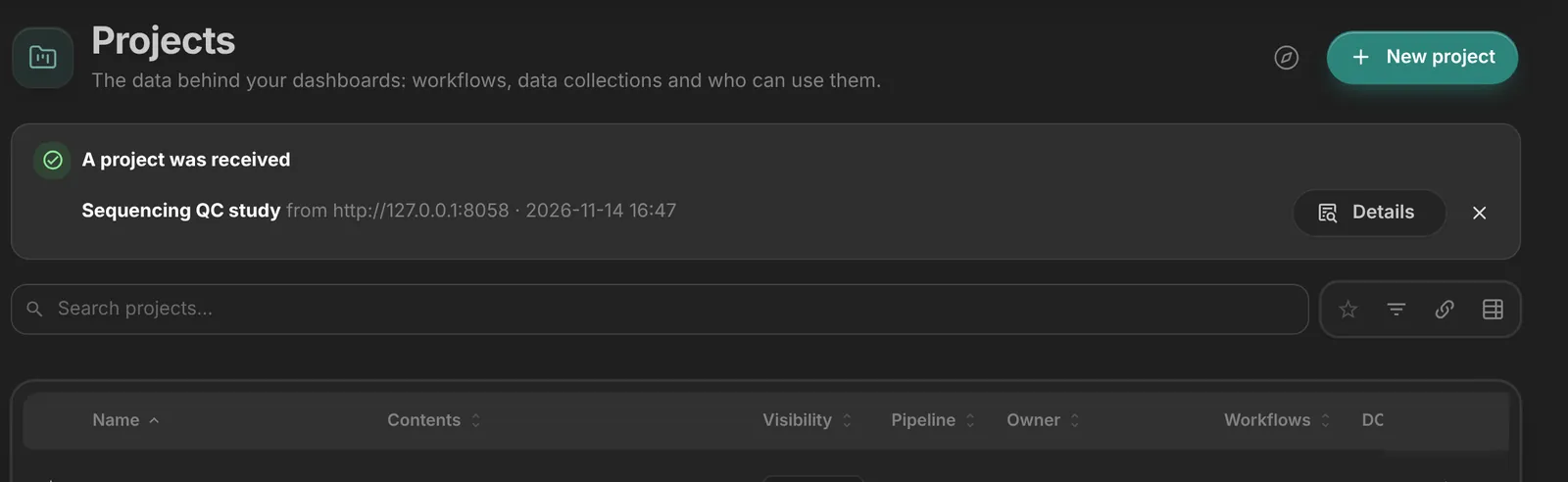
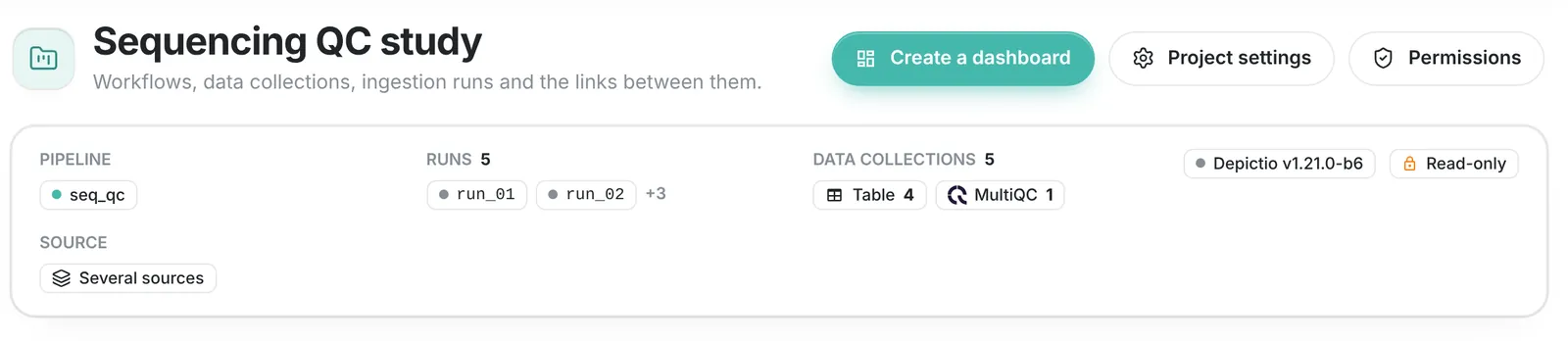
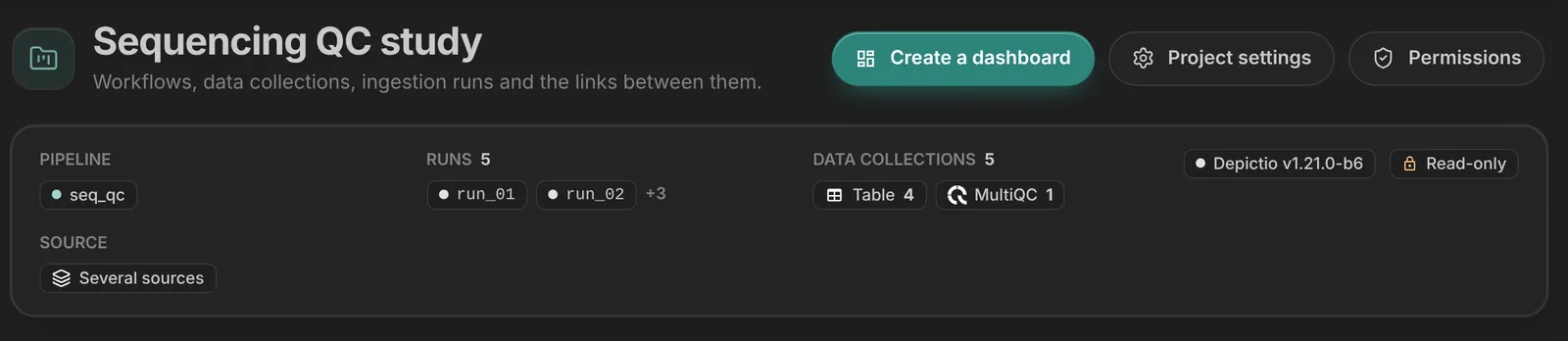
The controls need DEPICTIO_MIGRATION_UI_ENABLED on both sides. The receiving side also needs DEPICTIO_MIGRATION_INBOUND_ENABLED, and the sending side DEPICTIO_MIGRATION_DESTINATION_DOMAINS ("*" allows any host, the Helm chart default is ["*"]). Every migration setting is in the environment reference.
A target behind a login page or SSO proxy fails with Target redirected to <host/path> instead of answering (v1.22.0+): its /depictio/api/v1/migrate/inbound routes must be reachable without a login.
S3 Data Scope
When mode=all or mode=files, the migrate feature copies S3 objects for all supported data collection types:
| Data Collection Type | S3 location source |
|---|---|
| Delta Lake / Table | deltatables.delta_table_location |
| GeoJSON | data_collections.config.dc_specific_properties.s3_location |
| Image | data_collections.config.dc_specific_properties.s3_base_folder |
| MultiQC | multiqc_reports.s3_location |
| Genomic tracks | The genomic_tracks/<dc_id>/ folder of the data bucket (files uploaded at ingestion; tracks read in place are not copied) |
| Indexed files (v1.22.0+) | The indexed_files/<dc_id>/ folder of the data bucket (VCF, BAM, PDB/mmCIF structures, PAE) |
S3 objects are streamed directly from source to target (no full buffering in RAM).
Projects migrated before 1.22.0
Earlier versions did not copy indexed_files/<dc_id>/: on the target, 3D structures and file-backed tracks of such a project answer 404. Send or migrate the project again from a 1.22.0 source.
Permissions
Both the CLI and UI require administrator privileges:
- CLI: both source and target configs must authenticate as admins.
- UI export: the user must be admin (or project owner).
- UI import: the user must be admin; all document owners are remapped to the importing user.